How to Use Your Phone as a Mobile Hotspot on Android and iPhone
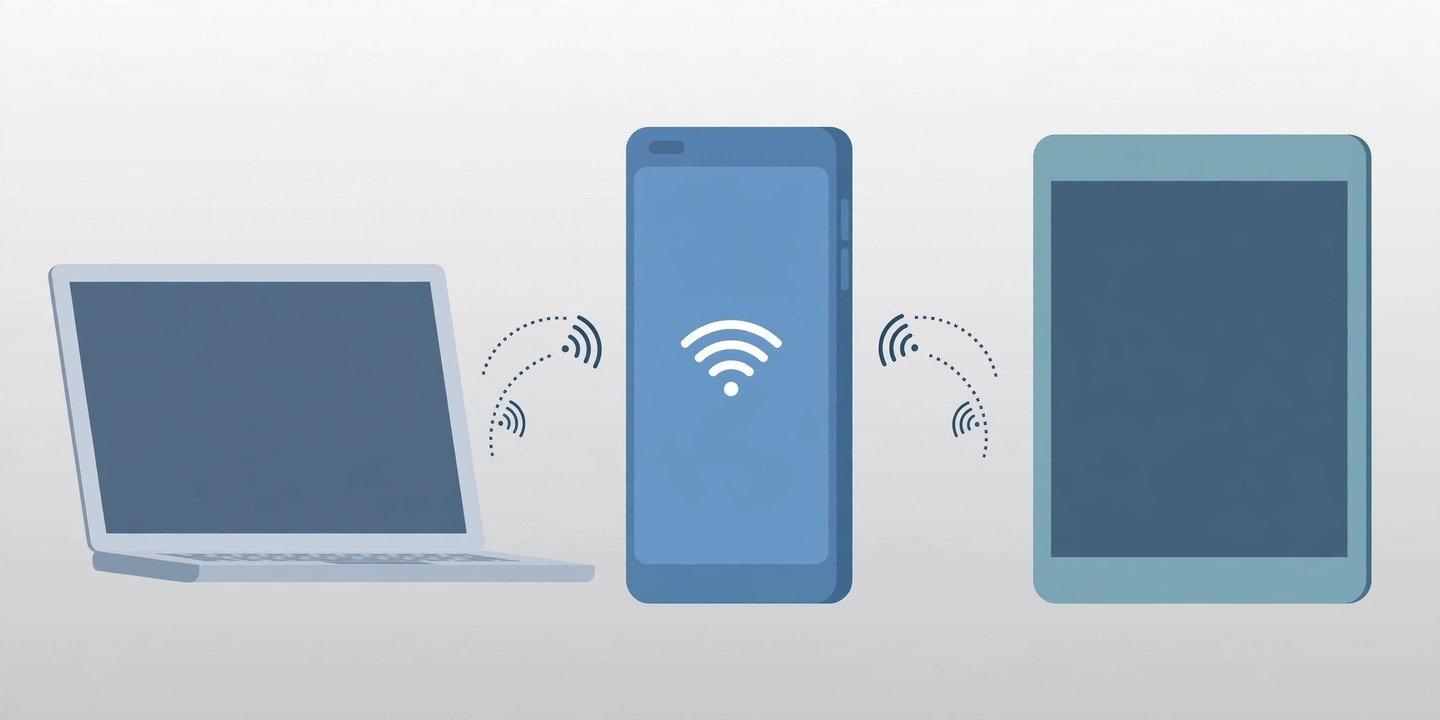
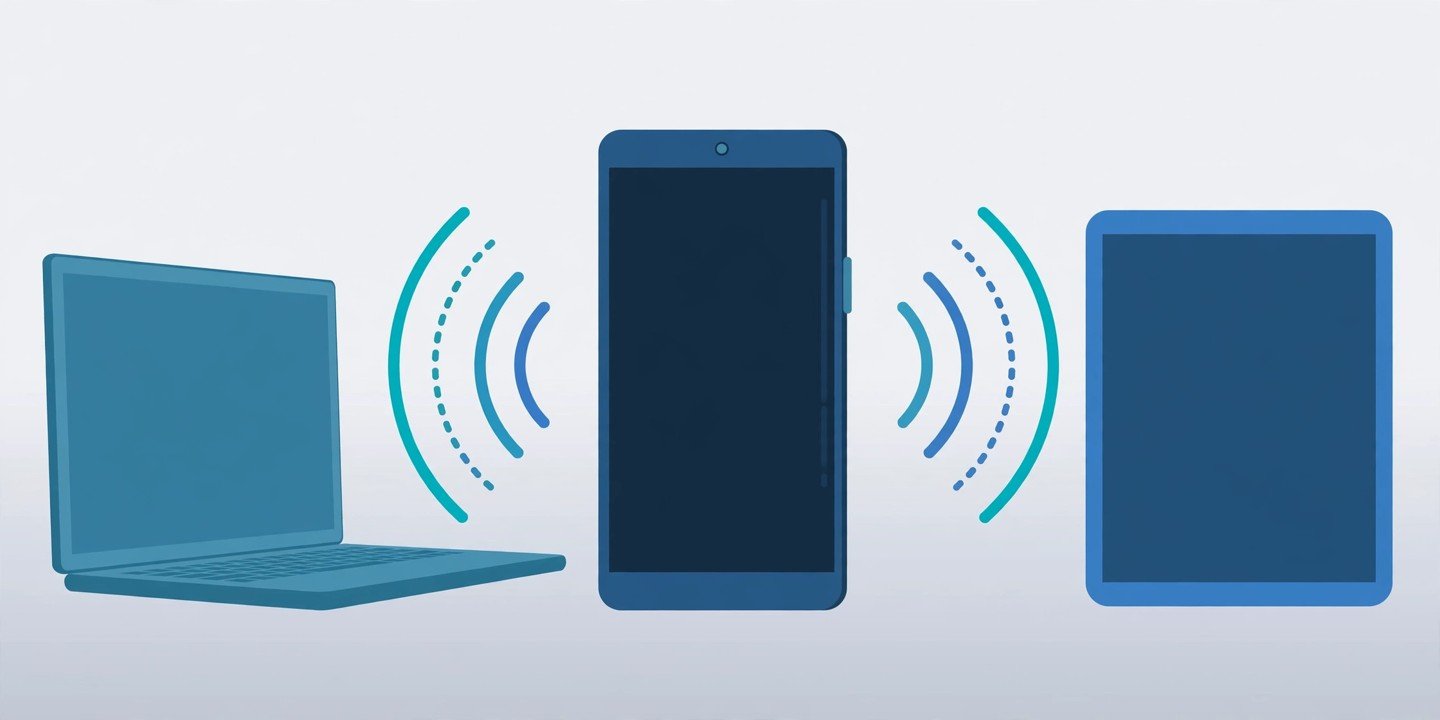
Your phone can share its mobile data with a laptop, tablet or another phone when there is no Wi-Fi around. That shared connection is called a mobile hotspot, or tethering. It takes about a minute to set up on Android and iPhone, and once it is on, the other device simply joins it like any Wi-Fi network. Here is how to turn it on, connect over Wi-Fi, USB or Bluetooth, and keep it from eating your data allowance or battery.
Menu names vary slightly by phone brand and software version, so the steps below may look a little different on your phone — look for the closest matching option.
Before You Start: 3 Things to Check
1. Check your mobile plan. Some carriers limit hotspot use or charge extra for it, so check your plan before you rely on it. On iPhone, if Cellular Data is on but you do not see Set Up Personal Hotspot, contact your carrier about adding hotspot to your plan.
2. Make sure mobile data is on. A hotspot shares your phone’s mobile data, so it only works where you have a cellular signal. Move to a spot with better reception if speeds are poor.
3. Charge your phone, or plug it in. Sharing a connection drains the battery fast, especially over Wi-Fi with several devices connected. Plug the phone in for long sessions.
1. Turn On the Hotspot on Android
1. Open Settings, then tap Network & internet (on Samsung phones, look under Connections), then Hotspot & tethering.
2. Tap Wi-Fi hotspot and switch it on.
3. Before you share it, tap the hotspot name or password to set them. Pick a clear name and a strong password — do not leave it open, or anyone nearby could use your data.
Shortcut: You can also swipe down from the top of the screen and tap Hotspot in Quick Settings. Touch and hold the Hotspot tile to open its full settings.
Google says you can share your phone’s mobile data with up to 10 other devices over a Wi-Fi hotspot.
2. Turn On Personal Hotspot on iPhone
1. Open Settings and tap Cellular, then tap Set Up Personal Hotspot the first time and follow the onscreen instructions. If Personal Hotspot already appears on the main Settings screen, tap it there instead.
2. Turn on Allow Others to Join.
3. Note the Wi-Fi Password shown on that screen, or tap it to set a new one. Apple requires at least eight characters — use a long, memorable one.
4. Stay on the Personal Hotspot screen while the other device connects. Your iPhone can stop advertising the network when you move to another screen.
Your hotspot name is your iPhone’s name, which you can change under Settings > General > About > Name.
3. Connect Another Device Over Wi-Fi
This is the easiest method, and the one most people should use.
1. On the laptop, tablet or phone you want to get online, open its Wi-Fi settings.
2. Find your phone’s hotspot name in the list of available networks and tap it.
3. Enter the hotspot password and tap Connect.
That is all there is to it. If the other device is signed in to the same Apple Account as your iPhone, it can often connect to Personal Hotspot without typing the password at all.
4. Tether by USB Cable
USB is the most reliable option, and it charges your phone at the same time — use it for video calls or large downloads.
On Android: Connect your phone to the other device with a USB cable, then open Settings > Network & internet > Hotspot & tethering and turn on USB tethering. Note that Mac computers cannot tether with Android by USB.
On iPhone: Connect your iPhone to the laptop with a USB cable, keep Allow Others to Join switched on, and the laptop should recognise your iPhone as a network connection.
5. Tether by Bluetooth
Bluetooth tethering uses less battery than Wi-Fi, but it is slower and best for a single device.
On Android: Pair your phone with the other device first, set up the other device to get its network connection by Bluetooth, then go to Settings > Network & internet > Hotspot & tethering and turn on Bluetooth tethering.
On iPhone: Pair the iPhone with the other device over Bluetooth, keep Personal Hotspot switched on, and select your iPhone as the internet source in the other device’s Bluetooth settings.
6. Save Data and Battery While Hotspotting
Turn the hotspot off when you are done. Leaving it on keeps broadcasting and keeps draining the battery. On Android, turn on the setting that switches the hotspot off automatically when no devices are connected, if your phone offers it.
Avoid big downloads on the connected device. Pause cloud backups, app updates and video streaming on the laptop or tablet, or they will burn through your mobile data.
Keep the phone plugged in. Hotspotting heats the phone up and drains it quickly, so charge it during long sessions.
Watch how many devices are connected. Every extra device shares the same connection and the same data allowance, so disconnect ones you are not actively using.
If you are setting up a new phone, our guide on how to transfer data to a new phone explains the built-in tools for moving everything across first — and our guide on how to back up your phone is worth reading before you rely on a single device for your data.
7. Fix It When the Hotspot Will Not Work
The hotspot option is missing. This is almost always your carrier plan, not your phone. Check with your carrier whether hotspot data is included.
The other device cannot find the hotspot. Keep the hotspot settings screen open on your phone while connecting, move closer, and check the other device’s Wi-Fi is on.
It connects, then drops. Keep the phone awake and plugged in, and move to a spot with a stronger signal. If speeds stay poor, your carrier may slow hotspot data after a monthly cap.
It is slow on iPhone. Turn on Maximize Compatibility in the Personal Hotspot settings — it can help older devices connect.
Nothing else works. Resetting network settings (on iPhone: Settings > General > Transfer or Reset iPhone > Reset > Reset Network Settings) clears stale Wi-Fi and cellular settings, but it also forgets your saved Wi-Fi passwords, so use it as a last resort.
A mobile hotspot turns your phone into a pocket Wi-Fi router, and it is one of the most useful features on it. Set a strong password, turn it off when you are done, and keep the phone plugged in — and the laptop in your bag will be online in under a minute, wherever you are. For more everyday phone know-how, see our privacy and security settings to change today.
Sources checked: Google Android Help — Share a mobile connection by hotspot or tethering on Android and Apple Support — Share your internet connection from your iPhone.