How to Customise Your Phone’s Home Screen: Widgets, Wallpaper and a Layout That Works
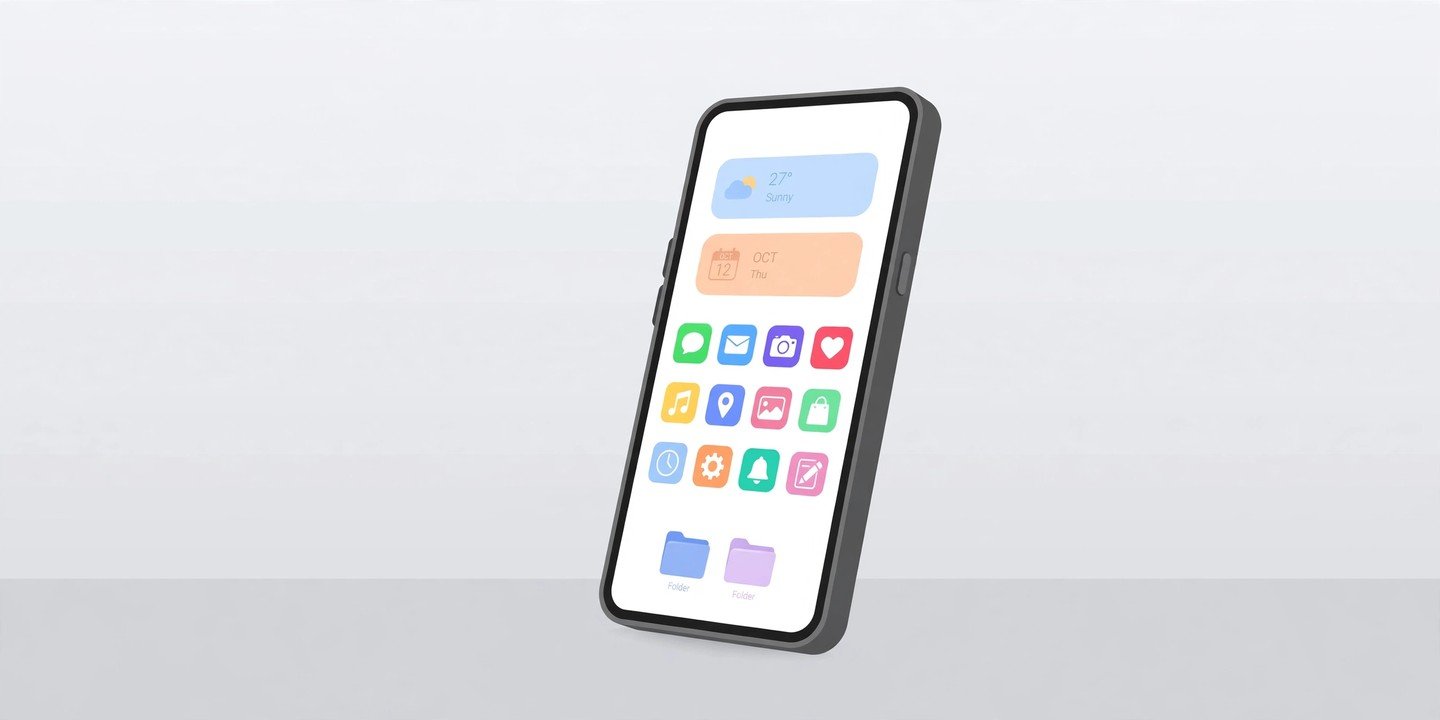
Your home screen is the first thing you see every time you unlock your phone, so it is worth a few minutes of your time. A tidy layout puts the apps you actually use within easy reach, shows the information you check most often at a glance, and makes your phone feel like yours.
The good news is that you do not need any extra apps to do most of this. Android and iPhone both have built-in tools for widgets, wallpaper, icons and folders. The exact menu names vary a little between brands and software versions, so if a label looks slightly different on your phone, look for the closest match.
1. Start by clearing the clutter
Before you add anything new, take stock of what is already there. Most home screens slowly fill up with apps you tried once and never opened again.
On Android: touch and hold an app icon, then drag it to Remove to take it off the home screen. This does not uninstall the app — it stays in your app drawer, and you can drag it back any time. To uninstall it properly, drag it to Uninstall instead.
On iPhone: touch and hold an app icon until the icons jiggle, tap the minus button, then choose Remove from Home Screen. The app moves to the App Library and stays installed. Choose Delete App only if you want it gone completely.
Keep your five most-used apps in the dock at the bottom of the screen, where your thumb can reach them, and move everything else to a second page or into folders.
2. Add widgets for information at a glance
Widgets are live tiles that show information from an app without opening it — the weather, your next calendar event, a music player or your battery level. One or two well-chosen widgets are more useful than a screen full of them.
On Android:
- Touch and hold an empty space on the home screen.
- Tap Widgets.
- Find the app you want and tap it to see the available sizes.
- Touch and hold a widget, drag it into position, then lift your finger.
- To resize it later, touch and hold the widget until a border appears, then drag the handles.
On iPhone (iOS 18 and later):
- Touch and hold an empty area of the home screen until the icons jiggle.
- Tap Edit in the top corner, then tap Add Widget.
- Browse or search for the widget you want.
- Swipe left or right to pick a size, then tap Add Widget.
- Drag it to your preferred spot. On iPhone you can also stack widgets of the same size by dropping one on top of another, then swipe through the stack.
A weather widget and a calendar widget are a good starting pair. If your phone already shows the date and weather at the top of the screen, as Pixel phones do with At a Glance, you may not need either.
3. Change the wallpaper and the look of your icons
A calm, low-detail wallpaper makes icons and widgets easier to read. Busy photos look great on the lock screen but can turn the home screen into visual noise, and white icon labels can vanish over a bright sky.
On a Google Pixel: touch and hold an empty area and tap Wallpaper & style. From here you can set different wallpapers for the home and lock screens, pick a colour palette that matches your wallpaper, change the icon style, and turn on Themed icons so supported apps take on a matching monochrome tint.
On a Samsung Galaxy phone: touch and hold an empty area and tap Wallpaper and style, or go to Settings > Home screen. The same menu lets you change the grid size, show or hide app labels, and lock the home screen layout so icons and widgets stay where you put them.
On iPhone (iOS 18 and later): touch and hold the home screen background until the icons jiggle, tap Edit, then tap Customize. You can choose Light, Dark, Automatic or Tinted icons, pick Large icons (which hides the app names underneath), and place icons anywhere on the grid instead of filling from the top left. On iOS 17 and earlier there is no Customize panel, so icon styling needs the Shortcuts app instead.
4. Group apps into folders
Folders are the fastest way to tame a crowded home screen. Group apps by what you use them for, not alphabetically — a few broad buckets work best.
- Touch and hold an app icon and drag it on top of another app. A folder is created automatically.
- Tap the folder to open it, then tap its name to rename it.
- Drag more apps into the folder, and drag apps out to remove them.
Try buckets like Money for banking and budgeting apps, Travel for maps and airline apps, Photos for camera and editing apps, and Work for email, calendar and documents. Three or four folders are usually enough; more than that and you spend your time hunting through folders instead of opening apps.
5. Hide pages and apps you rarely need
You do not have to delete an app to get it out of sight.
On iPhone: while the icons are jiggling, tap Edit and then Edit Pages to hide an entire home screen page. You can also tie a specific page to a Focus mode, so a calm work layout appears during work hours and your usual layout returns afterwards. Our guide to Focus mode explains how to set that up.
On Android: most phones let you hide apps from the app drawer in the launcher settings, and Samsung phones offer a Lock Home screen layout option in Settings > Home screen so an accidental drag cannot rearrange everything.
6. Make it readable and keep it that way
A home screen is a tool you use dozens of times a day, so a few finishing touches pay off:
- Pick a dark or evenly toned wallpaper behind your icons so labels stay readable.
- Leave some empty space. On iPhone you can leave gaps in the grid to let a favourite photo show through; on Android, a blank area at the top keeps the screen calm.
- Limit yourself to two widgets. More than that and the screen starts competing for your attention.
- Review it once a month. Remove apps you stopped using and move any app you now open daily into the dock.
If you want a deeper overhaul, third-party launchers on Android, such as Nova Launcher, add custom icon packs, adjustable grids and gesture shortcuts. On iPhone, the built-in tools cover most of what people need, and the Shortcuts app can give individual apps a custom icon if you are willing to put in the extra work.
Final word
Customising your home screen is not about making it pretty for its own sake. It is about making the phone get out of your way: the apps you need are where your thumb expects them, the information you check is already on screen, and everything else is tucked away. Spend ten minutes on it today, and you will feel the difference every time you unlock your phone.
For more everyday phone tips, see our guide to finding a lost phone.
Sources
- Android steps: How to organize your home screen on Android — gHacks
- iPhone steps: How to customize your iPhone home screen — Setapp