How to Fix a Phone That Won’t Charge: 10 Fixes That Actually Work
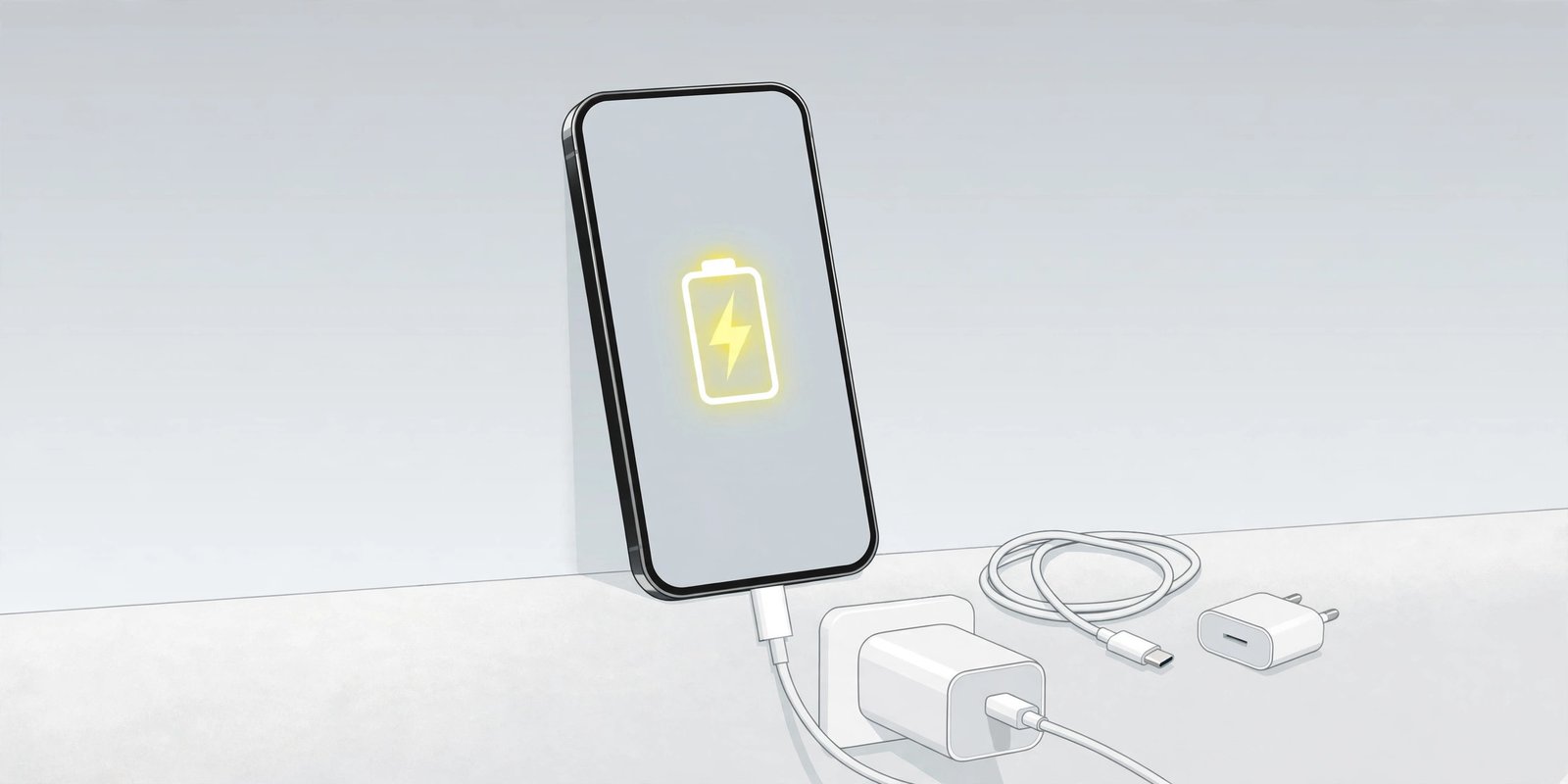
Few things are more frustrating than a phone that won’t charge — plugging in your phone and seeing nothing happen. Before you buy a new charger or book a repair, work through these fixes in order — most charging problems come from a worn cable, a dirty port, or a software glitch, and you can solve them in minutes. The steps below work for Android and iPhone unless a platform is named.
1. Try a Different Cable and Adapter
A frayed or worn cable is the most common cause of a phone that will not charge. Swap in a cable and wall adapter you know work with another device, and plug the cable firmly into both ends. If the phone charges with the new set, the old cable or adapter was the problem — replace it, and use a cable rated for your phone (USB-C Power Delivery for most Android phones, or a certified cable for iPhone).
2. Try a Different Outlet or Power Source
The outlet may be the fault, not the phone. Plug into a different wall outlet, and skip laptop USB ports and car chargers for this test — they deliver far less power. If another device (like a lamp) does not work in the same outlet, the socket is dead.
3. Clean the Charging Port — Gently
Pocket lint gets packed into the charging port every time you plug in, and it can stop the cable seating properly. Turn the phone off first, shine a flashlight into the port, and gently loosen any lint with a wooden or plastic toothpick or a soft brush. Never use a metal pin or anything sharp — it can damage the pins. If the cable now clicks in firmly, that was the fix.
4. Take the Case Off and Try Wireless Charging
A thick or misaligned case can stop a cable seating fully and block wireless charging. Remove the case and try again. If your phone supports wireless charging, place it centred on a wireless charger: if it charges wirelessly but not by cable, the port or cable is the problem; if neither works, the issue is deeper.
5. Restart Your Phone
A software glitch can stop charging even when the hardware is fine. Restart the phone, then plug it back in. On iPhone, hold the side button and a volume button, then slide to power off; on most Android phones, hold the power button and tap Restart. A fully drained phone may also need up to 30 minutes plugged in before it shows a charging icon, so be patient.
6. Let It Cool Down and Check for Moisture Warnings
Phones stop charging when they get too hot, and they refuse to charge when moisture is detected in the port. If the phone feels warm, move it somewhere cool and wait before trying again. If you see a moisture or liquid-detected warning, unplug it immediately, do not use heat or a hairdryer, and let it air-dry naturally — this can take a few hours. Never charge a wet phone.
7. Update Your Phone’s Software
Charging bugs are sometimes introduced by a faulty update and fixed in the next one. On iPhone, go to Settings > General > Software Update. On Android, go to Settings > Software update (or System > Software update, depending on the brand) and install anything pending.
8. Check Battery Health and Charging Limits
Your phone may be deliberately holding back. On iPhone, go to Settings > Battery > Battery Health & Charging — if Maximum Capacity is below 80%, the battery is worn and a replacement is the long-term fix, and check whether Optimized Battery Charging is limiting the charge to 80%. On Samsung Galaxy phones, check Settings > Battery > Battery protection, which can cap charging at 80% or a level you set. Our guide to checking your phone’s battery health explains what the numbers mean: https://mobileinner.com/how-to-check-phone-battery-health/
9. Test in Safe Mode (Android) or Force Restart (iPhone)
A rogue app can interfere with charging. On Android, boot into Safe Mode — usually by holding the power button, then long-pressing “Power off” until the Safe Mode prompt appears. If the phone charges normally in Safe Mode, a recently installed app is the cause: uninstall recent apps one at a time. On iPhone, a force restart can help an unresponsive phone: press and quickly release Volume Up, press and quickly release Volume Down, then hold the Side button until the Apple logo appears.
10. When to Get Professional Help for a Phone That Won’t Charge
If none of the above works, do not keep forcing cables into the port. Back up your data first — see our backup guide: https://mobileinner.com/how-to-back-up-your-phone/ — then consider a factory reset as a last resort, since it erases everything. If the port feels loose, the battery is swollen, or the phone has been dropped in water, take it to an authorised repair service. A swollen battery in particular should never be charged or punctured — get it replaced by a professional.
In most cases, a phone that will not charge is fixed by a new cable, a clean port, or a restart — the cheap fixes first, the repair shop last. Work through the list in order and stop at the first fix that works.