How to Back Up Your Phone So You Never Lose Your Photos and Data
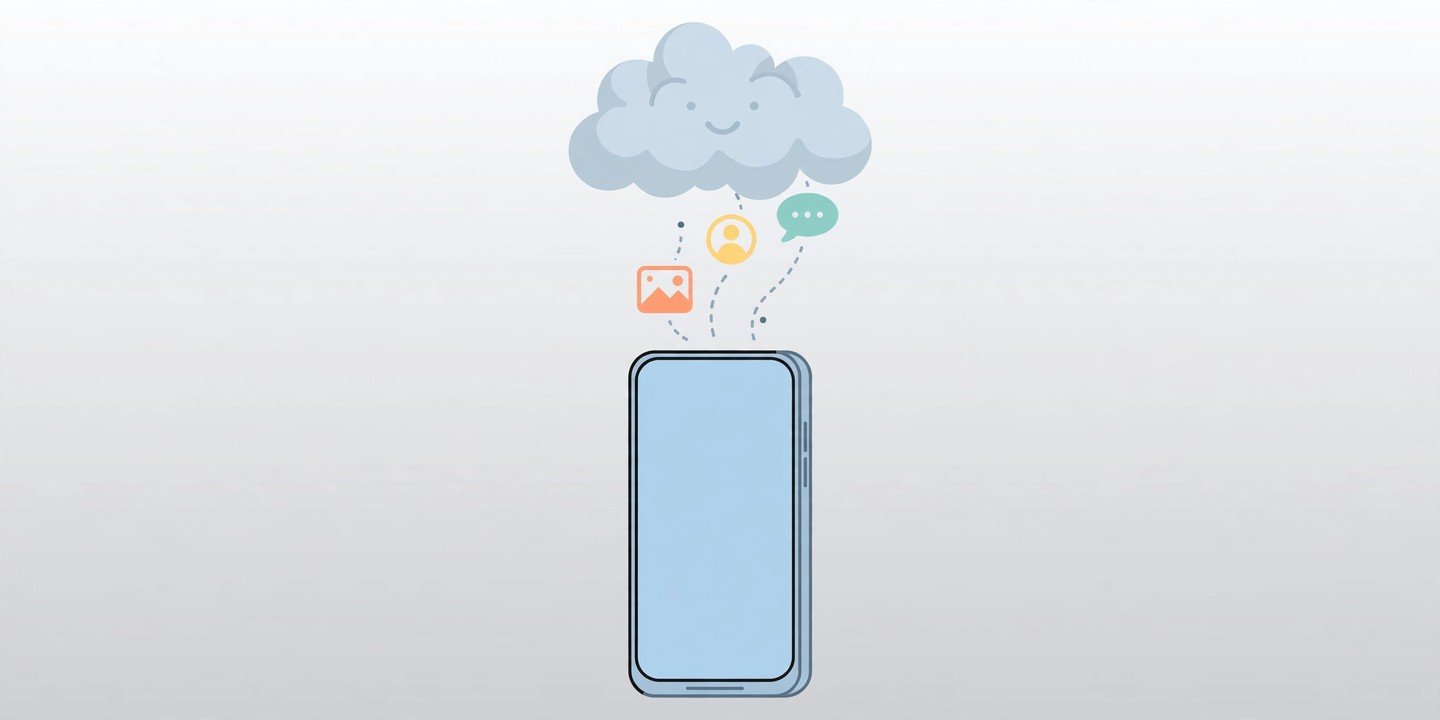
Your phone holds your photos, chats, contacts and memories — and phones get lost, stolen, dropped or reset. A backup does not stop any of that happening, but it does mean you lose the phone, not everything on it. Here is how to set it up on Android and iPhone in a few minutes. You will also learn how to check it actually worked.
What a phone backup actually saves
On Android, Google’s backup saves your apps and app data, call history, contacts, device settings and text messages. Your photos and videos are handled separately by Google Photos, so check that too. On iPhone, iCloud Backup saves your device settings and app data. It also saves other on-device information that does not already sync to iCloud. Either way, a backup is a copy you can restore onto a new phone. It is not the same as just syncing your photos.
How to back up your phone on Android
- Set a PIN, pattern or password screen lock if you do not have one. Google recommends this instead of a swipe lock, because some backup data is protected by it.
- Open Settings, then tap Google > All services > Backup. On a Pixel, the same screen is at Settings > System > Backup, and on a Samsung phone it is under Settings > Accounts and backup.
- Turn on Backup by Google One and choose the Google account to use.
- Tap Back up now. Google says a backup can take up to 24 hours, so give it time and stay on Wi-Fi.
After that, backups run on their own, usually when the phone is charging, idle and on Wi-Fi. Every Google account comes with 15 GB of free storage, shared between Google Photos, Drive and Gmail, so check you have room before a big first backup.
How to back up your phone photos and videos on Android
Google’s device backup does not include your pictures unless Google Photos backup is on, so check it separately:
- Open Google Photos and tap your profile picture.
- Tap Photos settings > Backup and turn Backup on.
- Pick a quality setting — Storage saver uses less space — and choose whether to back up over Wi-Fi only to save mobile data.
How to back up your phone on iPhone with iCloud
- Connect your iPhone to Wi-Fi.
- Open Settings, tap your name at the top, then tap iCloud.
- Tap iCloud Backup and make sure Back Up This iPhone is turned on.
- Tap Back Up Now and stay on Wi-Fi until it finishes. The date and time of your last backup is shown under Back Up Now.
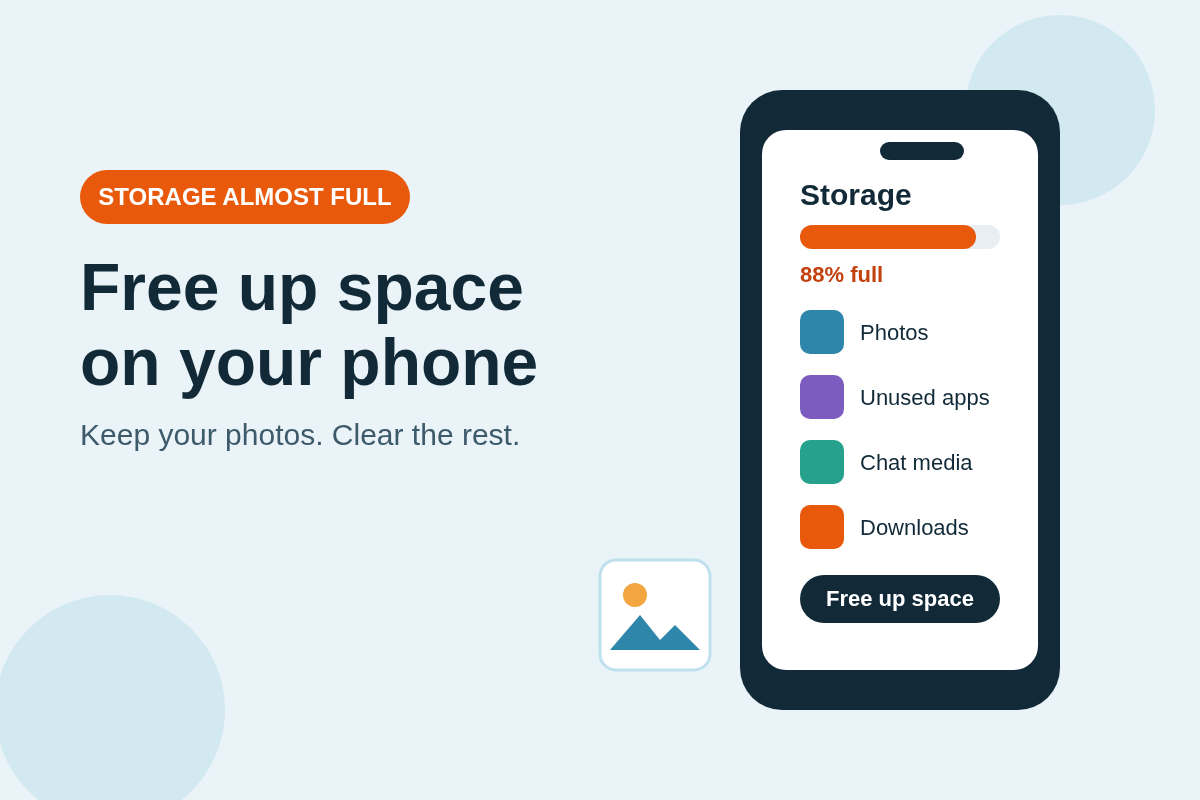
Once automatic backup is on, your iPhone backs itself up when it is charging, locked and on Wi-Fi. Apple gives every account 5 GB of free iCloud storage. So if the backup will not fit, check the Next Backup Size on the same screen. Then free up space or buy more storage before you need it.
Don’t forget WhatsApp chats
Your chats are not always in the main backup, so back them up separately. On Android, open WhatsApp, go to Settings > Chats > Chat backup, choose your Google account and tap Back up. On iPhone, WhatsApp backs up to iCloud from Settings > Chats > Chat Backup inside WhatsApp. If you switch phones, this is the step that saves your message history.
Keep a second copy on your computer
A cloud backup is the easy option, but a local copy is a useful second safety net. On a Mac, connect your iPhone with a cable, open Finder, select your iPhone and click Back Up Now. Tick Encrypt local backup if you want saved passwords and Health data included. For a Windows PC, use the Apple Devices app the same way. On Android, connect the phone to a PC by USB, choose File transfer, and copy your photos and important files to the computer.
How to check your backup actually worked
A backup you never check is a backup you cannot trust. On Android, go back to Settings > Google > All services > Backup. Check the screen shows a recent date, with On under the data types you selected. On iPhone, go to Settings > [your name] > iCloud > iCloud Backup and check the last successful backup date. If either one is old or missing, tap Back up now and check again. Fix the storage or Wi-Fi problem it reports instead of ignoring it.
Backing up takes about five minutes to set up and then looks after itself. Do it tonight, while your phone is charging, and a lost or broken phone will be an inconvenience instead of a disaster. If your phone is running out of room before the backup finishes, our guide to freeing up storage without deleting your photos can help. For keeping the phone itself safe, see our privacy and security settings checklist.