How to Lock Down Your Phone: 10 Privacy and Security Settings to Change Today
Your phone holds your photos, messages, bank logins and location history — yet most of us never change the privacy and security settings it shipped with. The good news is that locking it down takes about ten minutes, costs nothing, and needs no extra apps.
Work through these ten settings on your Android phone or iPhone. Menu names vary slightly by brand and software version, so if a setting is not exactly where described, use the search box at the top of Settings.
1. Use a Strong Passcode — and Biometrics
A four-digit code that anyone can guess is barely a lock at all. Use a longer passcode — six digits at minimum, or an alphanumeric passcode if your phone offers one — and turn on fingerprint or face unlock so unlocking stays fast for you and hard for anyone else.
On iPhone, go to Settings > Face ID & Passcode (or Touch ID & Passcode). On Android, go to Settings > Security & privacy > Device lock (the exact name varies by brand). Also set Auto-Lock to 30 seconds or 1 minute, so a phone left on a table locks itself quickly.
2. Turn On Two-Factor Authentication for Your Apple and Google Accounts
Two-factor authentication (2FA) means a stolen password alone is not enough to get into your account — a second code is needed too. Turn it on for the account your phone is built around first, then for your email and banking apps.
On iPhone, go to Settings > [your name] > Sign-In & Security > Two-Factor Authentication. On Android, open your Google Account settings, go to Security, and turn on 2-Step Verification. Where an app offers authenticator-app codes instead of text messages, prefer the authenticator app — text codes can be intercepted if your number is hijacked.
3. Audit Your App Permissions
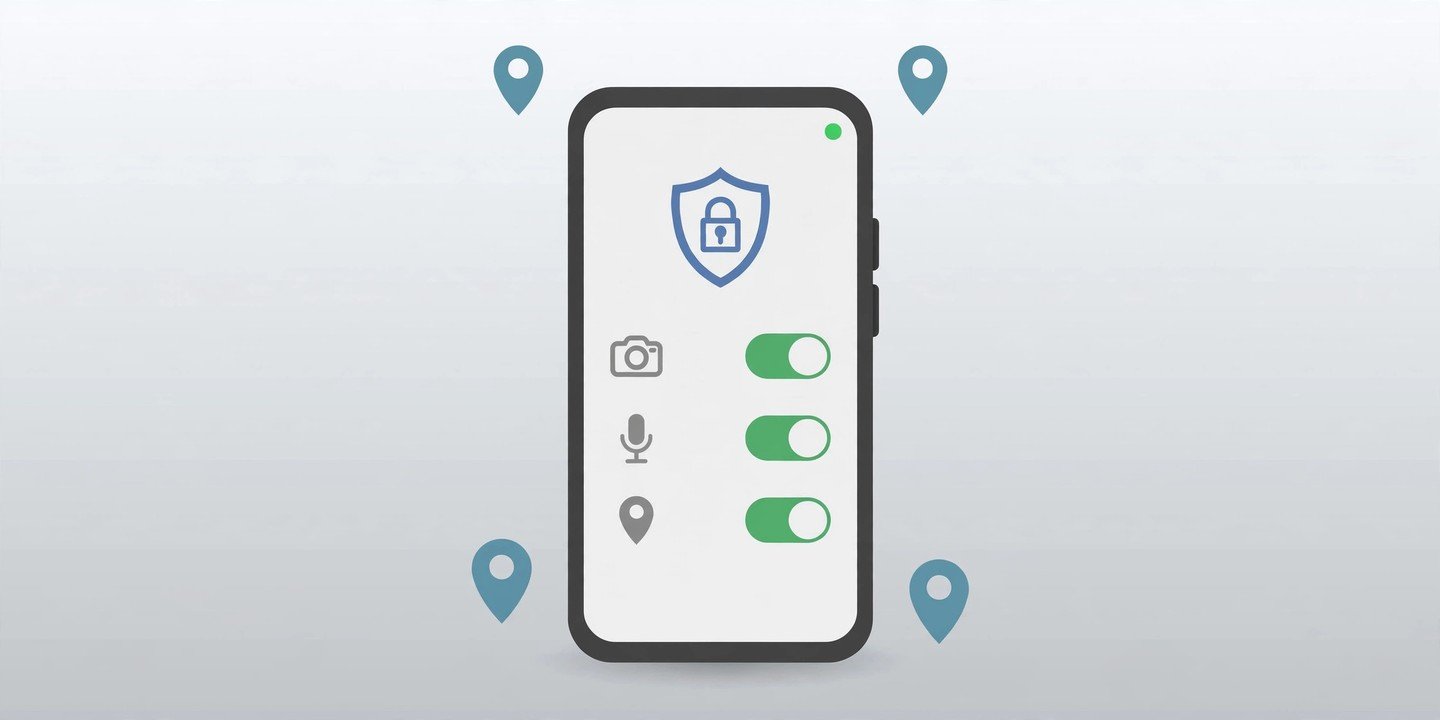
This is the single biggest privacy win. Many apps ask for your location, camera, microphone, contacts or photos when they do not need them — and once granted, they keep that access.
On Android: go to Settings > Security & privacy > Privacy > Privacy dashboard (Android 12 and later) to see which apps recently used your camera, microphone and location. Then open Permission manager from the same screen to review each permission type. Set location, camera and microphone to “Allow only while using the app” or “Ask every time” for most apps, and “Don’t allow” for anything that has no reason to need them.
On iPhone: go to Settings > Privacy & Security, then tap Location Services, Camera, Microphone, Contacts or Photos to see every app that holds that permission. Choose “While Using the App” for location where you can, and deny access to apps that do not record, call, scan or create media.
Re-check this every few months — new apps ask for new permissions, and old ones keep the ones you gave them.
4. Use Approximate Location Wherever You Can
Few apps need to know your exact address. A weather app, a shopping app or a local news app works fine with an approximate location.
On Android: on an app’s Permissions screen, tap Location and turn off “Use precise location” if it is shown. On iPhone: in Settings > Privacy & Security > Location Services, tap an app and switch off Precise Location. Keep precise location only for navigation, ride-hailing and delivery apps — and even then, choose “While Using the App”, never “Always”, unless the app genuinely needs background location.
5. Hide Notification Previews on the Lock Screen
By default, your lock screen shows the full text of incoming messages — including two-factor codes and private messages — to anyone who picks up your phone. Hide them.
On iPhone: go to Settings > Notifications > Show Previews and choose “When Unlocked”. On Android: go to Settings > Notifications > Lock screen notifications (the name varies by brand) and choose to hide sensitive content, or turn lock-screen notifications off for messaging and banking apps.
6. Limit What Works While Your Phone Is Locked
Your lock screen can give away more than notifications. On iPhone, go to Settings > Face ID & Passcode and scroll to “Allow Access When Locked”. Turn off Control Center — so nobody can switch on Airplane Mode to stop you tracking a stolen phone — and consider turning off Siri, Reply with Message and Wallet access too. Everything you switch off comes back the moment you unlock.
On Android, check Settings > Display > Lock screen (or search Settings for “lock screen”) for similar options, such as hiding notification content and controlling which shortcuts appear.
7. Turn On Find My — Before You Need It
If your phone is lost or stolen, Find My is how you locate it, lock it and erase it remotely — but only if it was switched on beforehand.
On iPhone: go to Settings > [your name] > Find My and make sure Find My iPhone is on. Also check Stolen Device Protection under Settings > Face ID & Passcode — it adds extra security steps when your phone is away from familiar places, and it needs two-factor authentication and Find My turned on. On Android: go to Settings > Security & privacy > Find My Device (or search for “Find My Device”) and make sure it is on, so you can locate, ring, lock or erase the phone from another device.
8. Run a Privacy Check-Up: Safety Check and App Privacy Report
Both platforms now include a built-in privacy review — use it.
On iPhone: go to Settings > Privacy & Security > Safety Check and tap Manage Sharing & Access. It walks you through who you share your location with in Find My, which apps can access your sensitive information, and which devices are signed in to your Apple Account. Also open App Privacy Report in the same menu to see which apps contacted which web addresses recently.
On Android: the Privacy dashboard (see tip 3) does the same job — it shows the last 7 days of camera, microphone and location access on Android 13 and later (24 hours on Android 12). If an app you barely use has been accessing your location in the background, remove its permission or uninstall it.
9. Lock Your Most Sensitive Apps
Your banking, photos, notes and messaging apps deserve a second lock, even after the phone itself is unlocked.
On iPhone: press and hold an app icon on the Home Screen, tap “Require Face ID” (or Touch ID) and confirm. Locked apps also hide their notification previews. On Android: many phones offer an app lock in Settings or a Private Space / Secure Folder feature — on Pixel phones, for example, Private Space keeps selected apps hidden behind a separate lock. If your phone has no built-in option, your banking app’s own passcode or biometric lock is the next best thing.
10. Watch the Camera and Microphone Indicators — and Keep Your Software Updated
Both platforms now show an indicator when an app is using your camera or microphone: on iPhone, a green dot means the camera is in use and an orange dot means the microphone; on Android, a green indicator appears at the top of the screen. If you see one and you are not recording or on a call, swipe down, tap the indicator to see which app is responsible, and remove its permission.
Finally, install software updates promptly and turn on automatic updates — Settings > General > Software Update > Automatic Updates on iPhone, and Settings > System > Software update on Android (or your brand’s updater). Updates routinely patch security holes, and an unpatched phone is an easy target. The same goes for your apps: update them from the App Store or Google Play only, never from a link in a message.
The Bottom Line
You do not need to be a security expert to protect your phone — you just need to spend ten minutes on the settings above. Start with the passcode, two-factor authentication and the permission audit, then hide your lock-screen previews and switch on Find My. Those five changes alone close the biggest gaps, and you can work through the rest at your own pace.
Once your phone is locked down, it is worth tidying up the rest of it too — our guide on how to free up storage without deleting your photos and our Android speed-up tips will help, and if you take a lot of photos, see our guide to taking better phone photos.
Note: menu names and feature availability vary by phone model and software version. The Privacy dashboard needs Android 12 or later, and some features — such as Stolen Device Protection and app locking — are only available on supported models and software versions. If an option described here does not appear on your phone, search Settings for a similar name.