How to Use Your Phone as a Mobile Hotspot (and Keep It Secure)
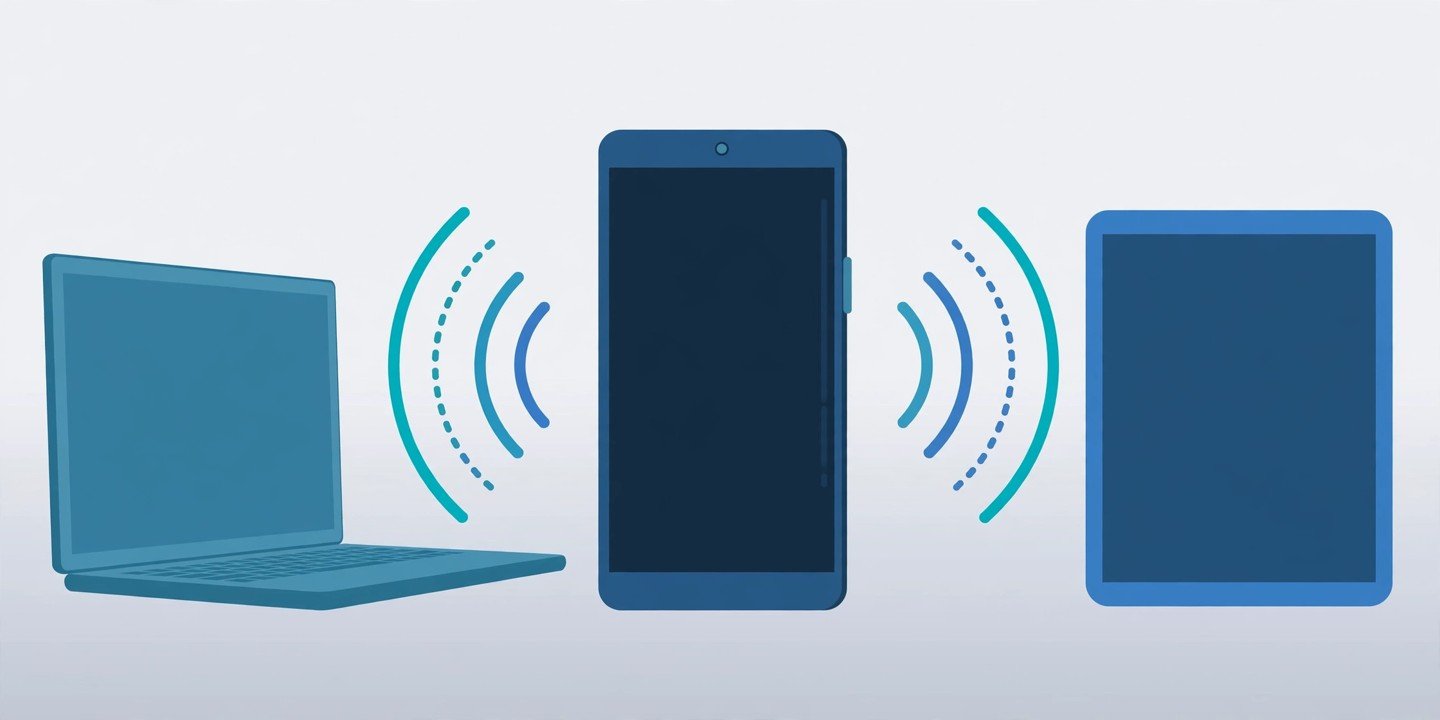
Your laptop has no Wi-Fi, the cafe network is down, or you are travelling with a tablet that only has Wi-Fi. Your phone can fix that in under a minute: a mobile hotspot turns your phone into a small portable Wi-Fi router, sharing its mobile data with your other devices. Here is how to set it up on Android and iPhone, keep it secure, and stop it eating through your data and battery.
Before You Turn It On: Check Your Plan
A hotspot shares your mobile data, so it uses your data allowance — and some carriers limit hotspot data separately or charge extra for it. Check your plan in your carrier’s app before you rely on it, and make sure mobile data is switched on: without a mobile signal, there is nothing to share.
How to Turn On a Hotspot on Android
- Open Settings, then tap Network & internet.
- Tap Hotspot & tethering, then Wi-Fi hotspot.
- Check the network name and password shown on this screen, and change the password to something strong before you share it.
- Turn on Use Wi-Fi hotspot.
On a Samsung Galaxy phone, the path is slightly different: Settings > Connections > Mobile Hotspot and Tethering > Mobile Hotspot. On most Android phones you can also swipe down twice to open Quick Settings and tap the Hotspot tile. Menu names vary a little by brand and Android version — if you cannot find the setting, use the search bar at the top of Settings and search for “hotspot”.
How to Turn On Personal Hotspot on iPhone
- Open Settings, then tap Personal Hotspot. If you do not see it, tap Cellular, then Personal Hotspot.
- Turn on Allow Others to Join.
- Note the Wi-Fi Password on this screen, or tap it to set a new one of at least eight characters.
- Stay on this screen until the other device has connected.
If Personal Hotspot is missing or greyed out, your plan may not include it — contact your carrier. The hotspot network name is your iPhone’s device name, which you can change under Settings > General > About.
How to Connect Another Device
On the laptop, tablet or second phone, open Wi-Fi settings, pick your phone’s network name from the list, and enter the password. If both devices are Apple devices signed in to the same Apple Account, the second device can join without typing the password. Once connected, open a website to confirm the internet works.
Keep Your Hotspot Secure
Never leave a hotspot open without a password — anyone nearby could join and use your data. Use a strong password of at least 12 characters with a mix of letters and numbers, change the default password the first time you use the hotspot, and turn the hotspot off as soon as you are done. Some Android phones show a list of connected devices in the hotspot settings, so check it if your connection feels slow. For more on locking down your phone, see our guide to phone privacy and security settings.
Save Data and Battery While Sharing
A hotspot drains your battery faster than normal use, and connected devices can burn through data quickly. Keep sessions short, disconnect devices you are not using, and avoid big downloads or video streaming on the connected device. Many Android phones let you pick a Wi-Fi band: 5 GHz is faster over a short distance, while 2.4 GHz reaches further. If you are sharing with a laptop, USB tethering is worth trying — it keeps your phone charging while it shares. And if your phone supports it, turn on the option that switches the hotspot off automatically when no device is connected. More battery-saving ideas are in our battery tips guide.
Hotspot Not Working? Try These Fixes
- Toggle mobile data off and on again, then restart your phone.
- Double-check the password — it is case-sensitive.
- On the connecting device, forget the hotspot network and connect again.
- Check your plan includes tethering; if it does not, no setting on the phone will fix it.
- As a last resort, reset network settings — but note this erases saved Wi-Fi networks and passwords, so back up first. Our backup guide explains how.
A mobile hotspot is one of the most useful features your phone already has — it just hides in Settings. Set a strong password once, remember to switch it off when you are done, and you will always have a backup internet connection in your pocket. Sources checked: Apple Support and Google Android Help.