How to Transfer Data to a New Phone Without Losing Anything
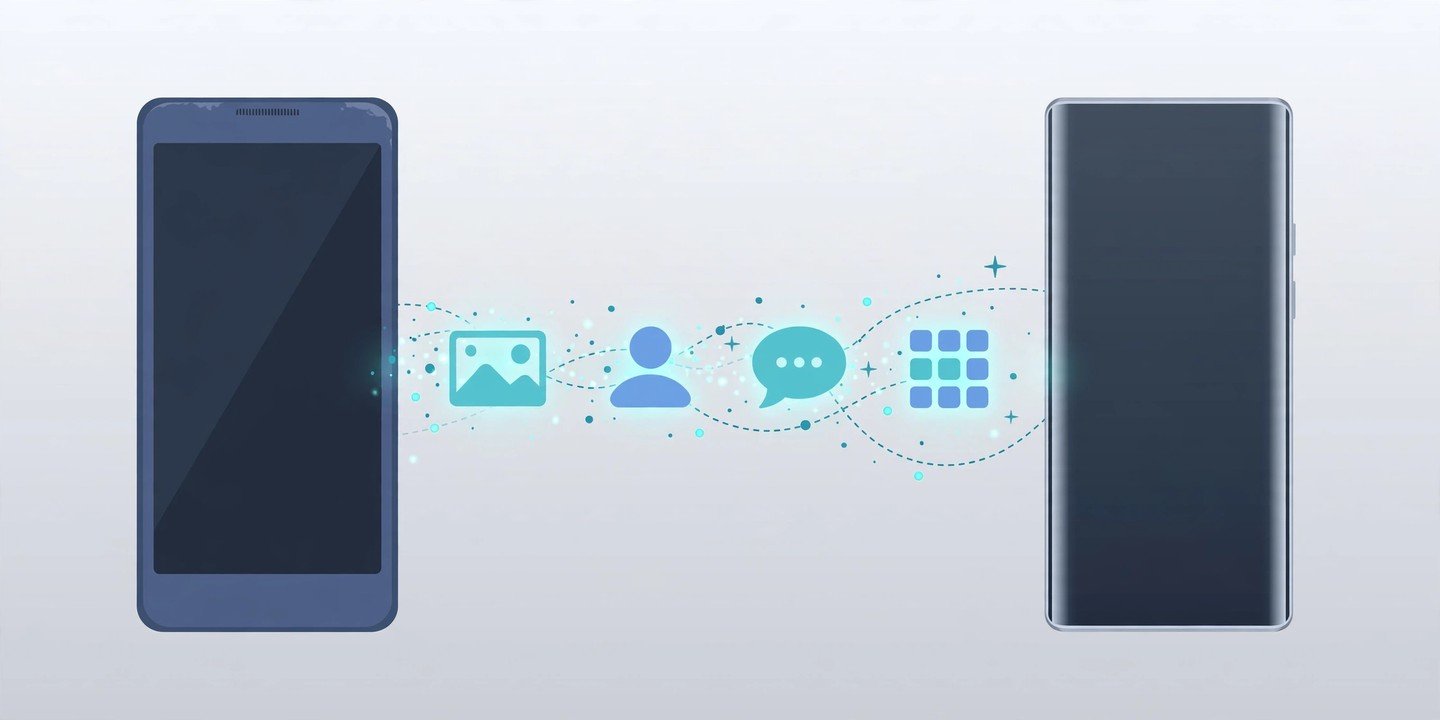
Got a new phone? The exciting part lasts about five minutes — then comes the real job: moving your photos, contacts, messages and chats across without losing anything. The good news is that both Android and iPhone now have built-in tools that do most of the work for you, as long as you use them at the right moment. This guide walks through every route — Android to Android, iPhone to iPhone, and switching between the two — plus the WhatsApp step most people forget.
1. Before you start: three things to do first
Charge both phones. A transfer can take anything from a few minutes to over an hour, depending on how much data you have, so plug both phones in before you begin.
Get on Wi-Fi. Connect both phones to the same Wi-Fi network if you can. It is faster and more reliable than mobile data, and it avoids burning through your data allowance.
Back up the old phone first. Make a fresh backup before you touch anything — on Android, back up to your Google Account; on iPhone, back up to iCloud. If the transfer stalls halfway, that backup is your safety net. Our guide to backing up your phone explains both: https://mobileinner.com/how-to-back-up-your-phone/
Also make sure you know the passwords for your Google or Apple Account, and that you can still receive two-factor codes on the old phone. You will need them during setup.
2. Android to Android: copy everything during setup
This is the easiest move of all, because Google builds the transfer into the setup screens.
1. Turn on the new phone and tap Start, then connect to Wi-Fi.
2. When the phone asks about copying your apps and data, tap Copy. This is the step that matters — Google says this copy can only be done once, and recommends doing it during setup because the option may not be offered afterwards.
3. Choose a cable or Wi-Fi. Google marks the cable option as recommended, but says both methods move the same data. If you use a cable, connect the two phones and follow the prompts on both screens.
4. Sign in with your Google Account on the old phone when asked — Google says that is how you move the most data — then choose what to copy and wait for the copy to finish.
5. If you no longer have the old phone, you can still restore from a backup stored in your Google Account during setup, as long as you know your Google Account and password.
One thing that does not copy this way: accounts other than Google Accounts and their data. You will need to sign into those apps again on the new phone. (Source: Google Android Help, “Switch to a new Android device”: https://support.google.com/android/answer/6193424)
3. iPhone to iPhone: use Quick Start
Apple’s Quick Start is the iPhone equivalent, and it works when both iPhones are in front of you.
1. Turn on the new iPhone and place it next to your unlocked old iPhone. Make sure both have Wi-Fi and Bluetooth on, and keep them plugged in.
2. Follow the Quick Start prompt on the old iPhone, scan the animation that appears on the new phone’s screen with the old phone’s camera, then enter your old passcode on the new phone.
3. Choose how to move your data. Transfer from iPhone copies everything directly from phone to phone, and you cannot use either phone until it finishes. Download from iCloud pulls your data from your iCloud backup instead, and lets you start using the new phone while apps and data keep downloading in the background.
4. If the old iPhone is lost, broken or already erased, restore from your most recent iCloud backup during setup instead — choose Restore from iCloud Backup on the Apps & Data screen and sign in with your Apple Account.
Tip: make a fresh iCloud backup first anyway (Settings, then your name, then iCloud, then iCloud Backup, then Back Up Now). It costs a few minutes and saves you if anything goes wrong.
4. Android to iPhone: use Apple’s Move to iOS app
Switching from Android to iPhone needs Apple’s free Move to iOS app, and timing matters — this only works while the iPhone is being set up.
1. On your Android phone, install Move to iOS from the Google Play Store.
2. Start setting up the new iPhone. When you reach the transfer screen, choose the option to move data from Android.
3. Open Move to iOS on the Android phone and enter the code shown on the iPhone, then join the temporary Wi-Fi network the iPhone creates.
4. Choose what to move — contacts, messages, photos and videos, calendars, mail accounts and more — then tap Continue and wait for the iPhone’s progress bar to finish.
The catch: your iPhone must be factory new or freshly reset for this to work. If you have already set up and used the iPhone, this transfer is not available — you would have to erase the iPhone and start setup again. So do this before you start using the new phone, not after.
5. iPhone to Android: copy during setup, with a cable
Going the other way, the transfer happens during the new Android phone’s setup, much like an Android-to-Android move.
1. Turn on the new Android phone and tap Start, then connect to Wi-Fi.
2. When asked if you want to copy data, choose iPhone or iPad as the source.
3. Connect the two phones with a cable (USB-C to USB-C for newer iPhones, or USB-C to Lightning for older ones) and follow the prompts. Sign in with your Google Account when asked.
4. Choose what to copy — photos, videos, contacts and messages — and wait for the transfer to finish.
Some Android makers also offer their own transfer apps, such as Samsung Smart Switch. These can move extra items like device settings, but the built-in setup copy covers the essentials, and the exact screens vary by phone brand — follow the prompts on your own phone.
6. Don’t forget WhatsApp — it needs its own step
This is the step that catches people out. Your WhatsApp chats do not move with a normal phone-to-phone copy across platforms. You have to transfer them separately, and again, only during setup.
From Android to iPhone: use the Move to iOS app (see section 4). On the Transfer Data screen, select WhatsApp, then tap Start on the Android phone and wait while WhatsApp prepares your chats — you will be signed out of WhatsApp on the Android phone once it is ready. Then tap Next, return to Move to iOS, tap Continue, and wait for the transfer to finish. Finally, install WhatsApp on the iPhone and log in with the same phone number.
WhatsApp says this needs Android 5 or later, iOS 15.5 or later, the latest WhatsApp on both phones, and the same phone number on both devices. It moves your chats, media and settings — but not your call history, your display name, or media received through Channels, and it does not work for WhatsApp Business. Also note the moved chats are not in iCloud until you make an iCloud backup on the iPhone, so do that on day one. (Source: WhatsApp Help, “How to move chats from an Android device to an iPhone”: https://faq.whatsapp.com/686469079565350/)
From iPhone to Android: WhatsApp also has its own transfer for this direction — use a cable during the new Android phone’s setup and follow WhatsApp’s prompts. Either way, do not wipe the old phone until your chats are showing on the new one.
7. The things people forget: photos, passwords and eSIM
Check your photos actually arrived. If you use Google Photos or iCloud Photos, open the app on the new phone and confirm your library is there before you delete anything from the old phone. If your photos only lived on the old phone, they should have copied during setup — spot-check a few albums.
Authenticator apps do not transfer by themselves. If you use an authenticator app for two-factor codes, move it separately — most authenticator apps have their own export or cloud-sync option. Check this before you wipe the old phone, or you could lock yourself out of accounts.
Expect to sign in again. Banking apps, streaming apps and work apps usually ask you to sign in fresh on the new phone. That is normal, and it is one reason to keep the old phone handy for a day or two.
Move your eSIM, don’t just swap the SIM. If your number is on an eSIM, transfer it through your carrier’s app or settings during setup — moving the physical SIM tray is not enough. If you are unsure, ask your carrier before you erase the old phone.
Turn on the security basics on the new phone while you are at it. Our privacy and security checklist covers the settings worth changing first: https://mobileinner.com/phone-privacy-security-settings-change-today/
8. Before you wipe the old phone: the final checklist
Do not factory-reset or trade in the old phone until you can tick every box below:
– Photos and videos are on the new phone — open the gallery and check.
– Contacts are complete — scroll through and search for a few names.
– Messages and WhatsApp chats are there — open both apps and check recent conversations.
– Your apps are installed and signed in — especially banking, email and authenticator apps.
– Your backup is current — the new phone has made at least one backup of its own.
Only then is it safe to erase the old phone. If anything is missing, check the backup post linked above and restore from the backup before you wipe anything: https://mobileinner.com/how-to-back-up-your-phone/
If your old phone is running low on space while you prepare the move, our storage guide can help you clear room without deleting photos: https://mobileinner.com/free-up-phone-storage-without-deleting-photos/
Moving to a new phone does not have to mean starting from scratch. Do the transfer during setup — that one-time copy screen is the whole trick — handle WhatsApp separately, and keep the old phone until everything checks out. Get those three things right and the new phone will feel like yours within the hour.