How to Cut Down Screen Time on Your Phone: 8 Settings That Actually Work
Most of us pick up the phone for one quick thing and look up twenty minutes later. The good news is you do not need a paid app to fix that — both Android and iPhone already have screen-time tools built in, and they are free. Work through these eight settings, starting with just one or two, and your phone will start helping you put it down instead of pulling you back in. Menu names vary a little by phone brand and software version, so if a setting is not exactly where described, use the search box at the top of Settings.
1. See where your time actually goes
Before you change anything, look at the numbers. On iPhone, open Settings, then Screen Time, and tap See All App & Website Activity to see your daily and weekly use per app, plus pickups and notifications. On Android, open Settings, then Digital Wellbeing (on some phones, Digital Wellbeing & parental controls), and tap the chart to see today’s screen time per app, how often you unlocked the phone, and how many notifications you got. Pick the one or two apps at the top of the list — those are the ones worth limiting first.
2. Set a daily limit on your biggest time sinks
A daily limit turns a vague intention into a hard stop. On iPhone, go to Settings, then Screen Time, then App Limits, tap Add Limit, choose an app or a whole category such as Social Networking, tap Next, and set how much time you allow each day. You can tap Customize Days to give weekends a different limit. On Android, go to Settings, then Digital Wellbeing, then App timers, tap Set timer next to an app, choose a daily limit, and tap OK. When the time runs out, the app closes and its icon dims, and the timer resets at midnight. Start with a limit slightly below your current average — a limit you will actually keep beats a strict one you switch off on day two.
3. Schedule downtime for the night
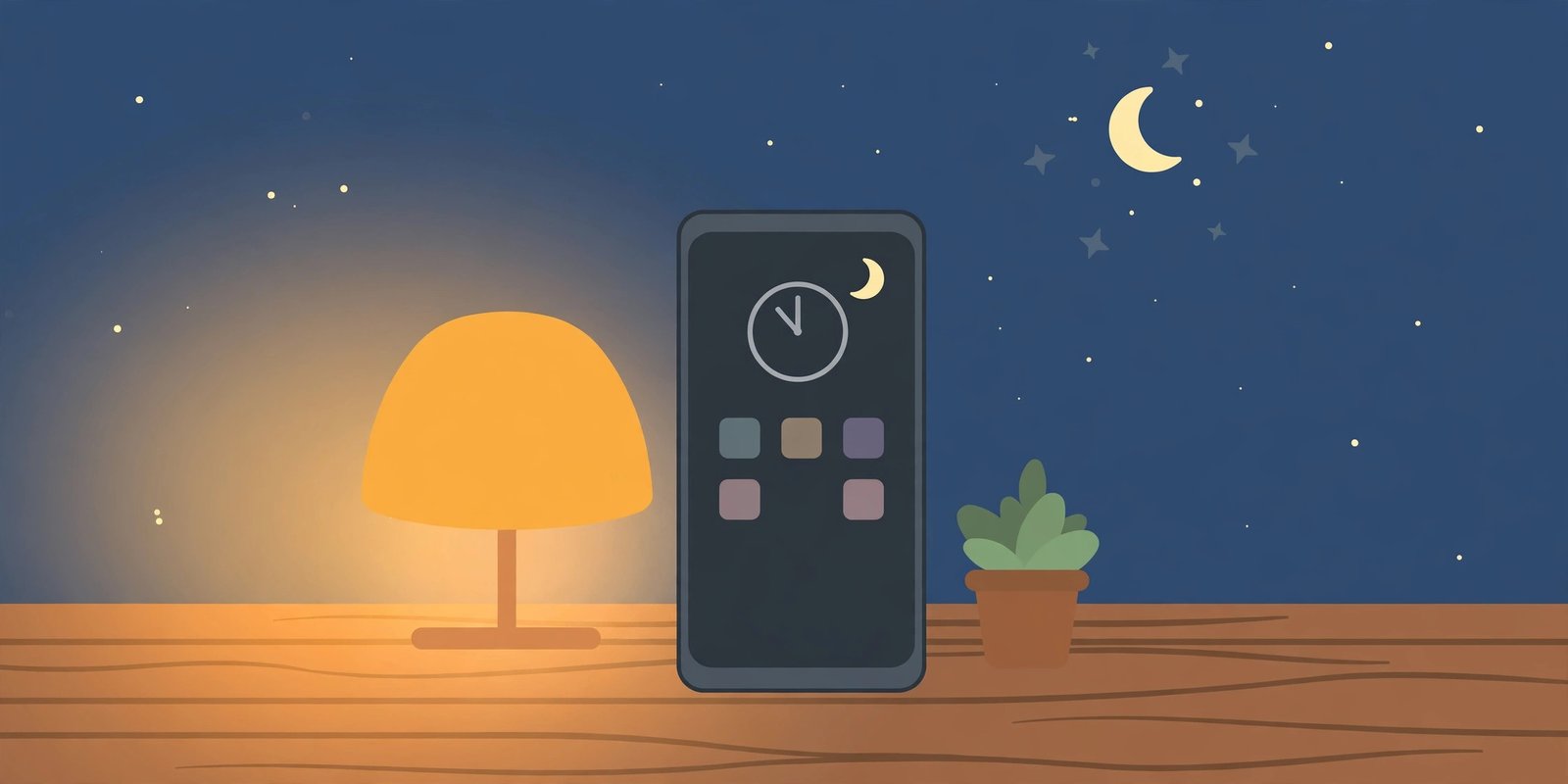
Decide the hours when the phone is simply off limits. On iPhone, go to Settings, then Screen Time, then Downtime, turn it on, and set a start and end time — for example, 10:30 pm to 7 am. During Downtime, only calls, messages and the apps you choose to allow are available. On Android, use Bedtime mode: go to Settings, then Digital Wellbeing, then Bedtime mode, then Bedtime routine, and set a schedule or have it turn on while the phone charges at night. Bedtime mode can silence notifications and change the screen so the phone is less tempting before sleep. Note: Apple renamed these menus in iOS 27 — Downtime is now called Screen Time Schedule and App Limits is now called Time Allowances — so if your iPhone is on the newest software, look for those names instead.
4. Use Focus mode when you need to concentrate
Downtime is for the night; Focus mode is for the working day. On Android, go to Settings, then Digital Wellbeing, then Focus mode, choose the apps that distract you, and turn it on now or on a schedule — those apps pause and their notifications stop until Focus mode ends. On iPhone, open Settings, then Focus, then Do Not Disturb (or Work), and choose which people and apps are allowed to break through. Set it to turn on automatically at work hours or at a location, so you do not have to remember it every day.
5. Make the screen boring at night
A grey screen is a surprisingly strong nudge to put the phone down. On Android, turn it on inside Bedtime mode: in the Bedtime routine settings, look under Screen options at bedtime and switch on Grayscale, which removes colour from the screen while Bedtime mode runs. On Samsung phones the same idea is called Sleep mode, under Settings, then Modes and Routines, then Sleep. On iPhone, go to Settings, then Accessibility, then Display & Text Size, then Color Filters, and switch on Grayscale — you can also add it to the Accessibility Shortcut so three clicks of the side button turn it on and off.
6. Tame your notifications
Every buzz is a reason to pick the phone up, so cut the noise at the source. On iPhone, go to Settings, then Notifications, and switch off notifications for apps that do not need to interrupt you; you can also turn on Scheduled Summary to have non-urgent notifications delivered together a few times a day instead of one by one. On Android, go to Settings, then Notifications, and switch off notifications per app, or use Focus mode above to silence a whole group at once. Keep notifications on only for people and apps where a delay actually matters, such as calls, messages from family, and your banking app.
7. Make the limits stick with a passcode
A limit you can switch off with one tap will not survive a weak moment. On iPhone, set a Screen Time passcode: go to Settings, then Screen Time, scroll down, tap Lock Screen Time Settings, and choose a four-digit code that is different from your unlock passcode. With a passcode set, you can also turn on Block at Downtime, so restricted apps genuinely cannot be opened during Downtime instead of just showing a reminder. On Android, go to Settings, then Digital Wellbeing, then App limits, then App limits PIN, and turn on PIN for app time limits. If the limits are for yourself, ask someone you trust to hold the code — that is what gives the limit teeth.
8. Set it up for a child, and keep the phone out of the bedroom
The same tools work for a child’s phone. On iPhone, use Family Sharing: in Settings, then Screen Time, you can set up Screen Time for a family member, including their Downtime, App Limits and content restrictions. On Android, use Google Family Link to set screen-time limits and a bedtime for a child’s device. And one habit costs nothing and helps everyone: charge the phone outside the bedroom overnight. Without the phone on the nightstand, the morning scroll and the late-night scroll both disappear on their own — use a cheap alarm clock instead.
You do not need all eight settings at once. Turn on the dashboard check and one app timer today, add Downtime tonight, and see how the numbers look after a week. Small limits, kept every day, beat a dramatic phone detox that lasts until lunchtime.
For more phone basics, see our guide to the privacy and security settings worth changing today and how to back up your phone.
Sources: Apple Support — Set screen time, allowances, and limits on iPhone and Google Android Help — Manage how you spend time on your Android phone with Digital Wellbeing. Steps in this post were checked against those two official guides.