How to Use Offline Maps on Your Phone (Android and iPhone)
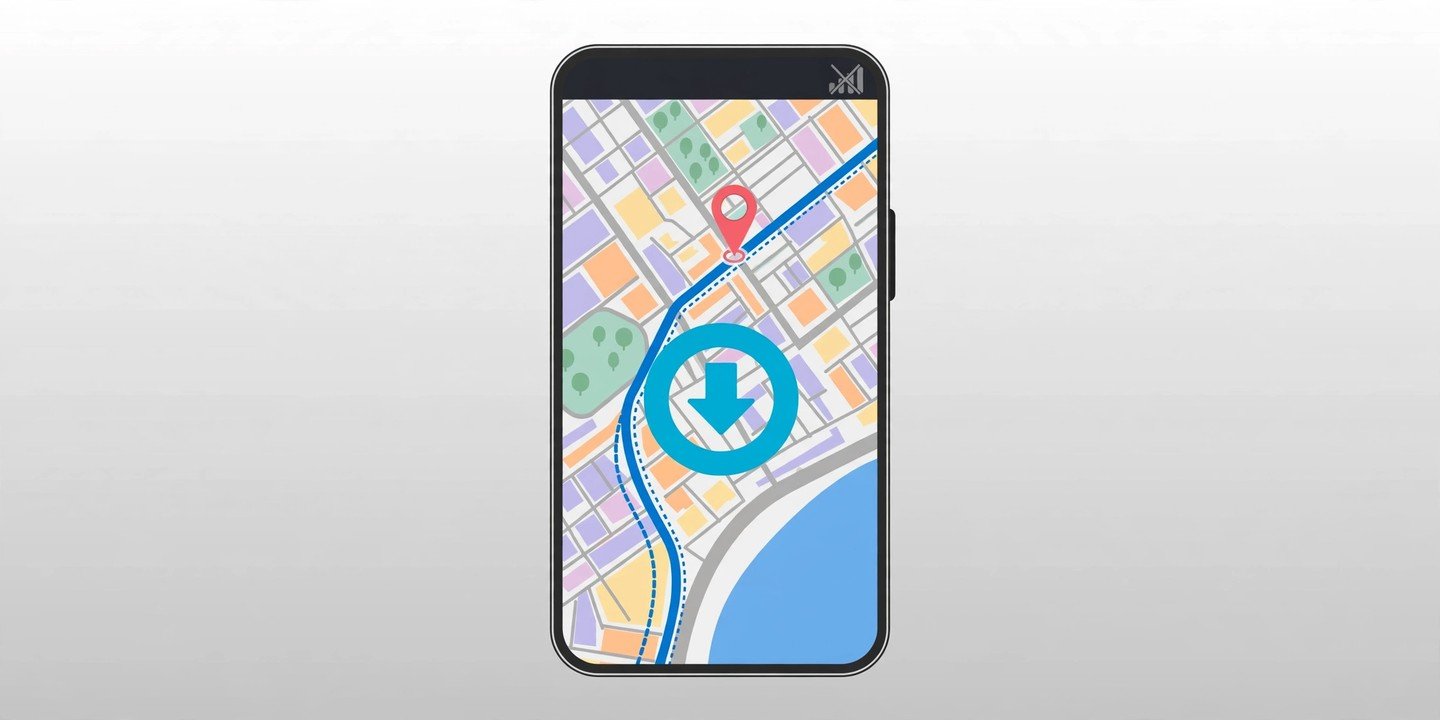
Nothing ruins a road trip faster than losing signal in the middle of nowhere — right when you need directions most. Offline maps fix that. Download the map for your area before you leave, and your phone can still guide you with no Wi-Fi and no mobile data at all. Here is how to set it up on Google Maps and Apple Maps, and how to keep your downloads fresh.
What offline maps can (and can’t) do
Downloaded maps give you turn-by-turn driving directions without a connection, along with place details such as opening hours and ratings, and an estimated arrival time. Apple Maps also covers walking, cycling and transit directions offline (iOS 17 and later).
What you will not get offline: live traffic, re-routing around jams, and up-to-date road closures. Your phone can only work with the map data it downloaded, so treat the directions as a guide and keep an eye on road signs. Offline features also vary a little by app and region, so test your route before you rely on it.
Download an offline map in Google Maps (Android and iPhone)
Google Maps works the same way on both platforms, and the steps are quick:
- Open Google Maps while you still have internet, ideally on Wi-Fi.
- Tap your profile picture in the top-right corner, then tap Offline maps.
- Tap Select your own map.
- Drag and pinch the selection box until it covers your whole journey — your starting point, your destination, and every road between them. Leave a margin around the edges.
- Check the estimated download size, then tap Download.
- Wait until the map appears in your Offline maps list before you head off.
There is a shortcut too: search for a place, tap its name at the bottom of the screen, tap More (the three dots), then choose Download offline map.
Two things to know: on Android you need to be signed in to Google Maps, and on iPhone you cannot download maps while Incognito mode is on. Android users with a memory card can also save downloads to an SD card — in Offline maps, tap the settings gear, choose Storage preferences, and pick SD card.
Download an offline map in Apple Maps (iPhone)
Apple Maps has offered offline maps since iOS 17, so first check your iPhone is running iOS 17 or later in Settings > General > About.
- Open Maps and tap your picture or initials next to the search field.
- Tap Offline Maps, then Download New Map. Apple may also suggest a map of your home area, which you can grab with one tap.
- Search for the area you need, or choose Current Location.
- Adjust the area by dragging and pinching — Maps shows how much storage the download will take.
- Tap Download.
You can also search for a place and tap the Download button on its info card (or More > Download Map), or press and hold an empty spot on the map to drop a pin and tap Download.
Apple Maps downloads over Wi-Fi by default; you can allow downloads over mobile data in the Offline Maps settings. The same screen has two handy options: Optimize Storage, which automatically deletes maps you have not used in a while, and Only Use Offline Maps, which forces the app to use your downloads even when you have a connection.
How to use your offline maps
Once a map is downloaded, using it is no different from normal navigation. Open the app, search for a place inside the downloaded area, and tap Directions — the app will use the saved map when there is no connection.
Before a trip, do a quick test: switch on Airplane mode, open the app, and try the exact route you plan to take. If the route works in Airplane mode, it will work on the road. And remember, the whole route must sit inside the downloaded area — if your destination falls outside the box, the app cannot guide you there offline.
Keep your offline maps fresh and light
- Update Google Maps downloads before a return trip. Google Maps offline maps expire after about a year, and roads change — open Offline maps, pick the saved map, and tap Update for a fresh copy.
- Let Apple Maps update itself. It refreshes downloaded maps automatically over Wi-Fi; you can also open Offline Maps and tap Update All.
- Delete maps you no longer need. In Google Maps, open Offline maps and delete the old area; in Apple Maps, open Offline Maps, tap the map, and choose Delete Map. A city-sized download can run into hundreds of megabytes, so clearing old ones frees real space. If storage is tight, our guide to saving mobile data on your phone has more space-saving ideas.
- Download on Wi-Fi whenever you can. Large areas can be hundreds of megabytes, and a mobile-data download counts against your allowance.
A habit worth building
Download the map the night before any trip, even a short one. It costs nothing, takes a minute, and it is the difference between a calm drive and a stressful detour when the signal drops. Pair it with a charged phone and a mobile hotspot plan for the rest of the family, and you are covered for the whole journey — signal or no signal.
Sources: steps checked against Apple Support and The Maps Guide’s Google Maps offline walkthrough. If you ever do lose your phone on a trip, see our guide on how to find your lost phone.