How to Save Mobile Data on Your Phone: Android and iPhone Tips
Mobile data runs out fast, and it usually disappears without you noticing. A few videos on the bus, a podcast that downloads itself, an app updating in the background — and suddenly you are out of data days before your plan renews. The good news is that both Android and iPhone have built-in tools to slow the leak, and a few small changes inside your favourite apps make a big difference. Here is how to save mobile data on your phone without giving up the apps you use every day.
1. Find out which apps use the most data
Before changing anything, check where your data actually goes. On iPhone, go to Settings > Cellular (called Mobile Data in some regions) and scroll down to see how much data each app has used. On a Google Pixel, go to Settings > Network & internet > SIMs and tap App data usage. On a Samsung Galaxy, go to Settings > Connections > Data usage > Mobile data usage. The list is sorted with the biggest users at the top, and the culprit is usually a video or social app. Knowing the worst offenders tells you exactly where to focus when you learn how to save mobile data on your phone.
2. Turn on Data Saver on Android or Low Data Mode on iPhone
This is the single most effective switch. On a Pixel or other stock Android phone, go to Settings > Network & internet > Data Saver and turn it on. On a Samsung Galaxy, go to Settings > Connections > Data usage > Data saver and turn it on. Data Saver stops most apps from using mobile data in the background, so they only use data while you have them open. If an app you rely on, such as WhatsApp or Maps, needs background data, add it to the unrestricted list — on Pixel this is under Data Saver > Unrestricted data, and on Samsung under Allowed to use data while Data saver is on.
On iPhone, go to Settings > Cellular > Cellular Data Options. On a 5G plan, tap Data Mode and choose Low Data Mode; on LTE or 4G, turn on the Low Data Mode switch. Low Data Mode pauses automatic updates and background tasks, and pauses iCloud Photos updates while you are away from Wi-Fi. Menu names can vary slightly by carrier and iOS version, so use the search box in Settings if a label looks different.
3. Stop individual apps using data in the background
If one app is eating your allowance, you do not need to block everything — just that app. On iPhone, go to Settings > Cellular and turn off cellular data for any app that does not need it; the app will then only work on Wi-Fi. On Android, go to Settings > Apps, tap the app, then tap Mobile data & Wi-Fi and turn off Background data. On Samsung, you can go further: Settings > Connections > Data usage > Allowed networks for apps, pick the app and choose Wi-Fi only. Do this for games, shopping apps and social apps you only ever use at home.
4. Lower video and music quality on mobile data
Video is the biggest data drain on any phone. In YouTube, open Settings > Video quality preferences and choose Data saver for mobile networks, so videos stream at a lower quality when you are not on Wi-Fi. In Spotify, go to Settings > Audio Quality and set cellular streaming to a lower quality, and download playlists over Wi-Fi before you leave home. The same idea works for Netflix and other streaming apps: look for a download or data usage setting and set downloads to Wi-Fi only. A small drop in picture or sound quality is barely noticeable on a phone screen, but it stretches your data a long way.
5. Turn off auto-play and automatic downloads
Apps love to download things before you ask. In WhatsApp, go to Settings > Storage and data and set media auto-download to No media when using mobile data, so photos and videos only download when you tap them. In Instagram and other social apps, look in the app settings for a data saver or data usage option and turn it on, which also stops videos auto-playing in your feed. In the Google Play Store, tap your profile picture, go to Settings > Network preferences and set Auto-update apps to Over Wi-Fi only. On iPhone, go to Settings > App Store and turn off automatic downloads over cellular data. These changes stop your phone quietly spending data while it sits in your pocket.
6. Switch off Wi-Fi Assist and set a data warning
On iPhone, Wi-Fi Assist quietly switches you to mobile data when Wi-Fi is weak, which can burn through your allowance without a warning. Turn it off under Settings > Cellular, at the bottom of the app list. On Android, set a warning so you get told before you run out. On a Pixel, go to Settings > Network & internet > SIMs > Data warning & limit and set a warning level that matches your plan, for example 80 percent of your monthly allowance. Many carriers also let you set a usage alert in their own app, which is worth turning on too.
7. Download maps, music and podcasts on Wi-Fi
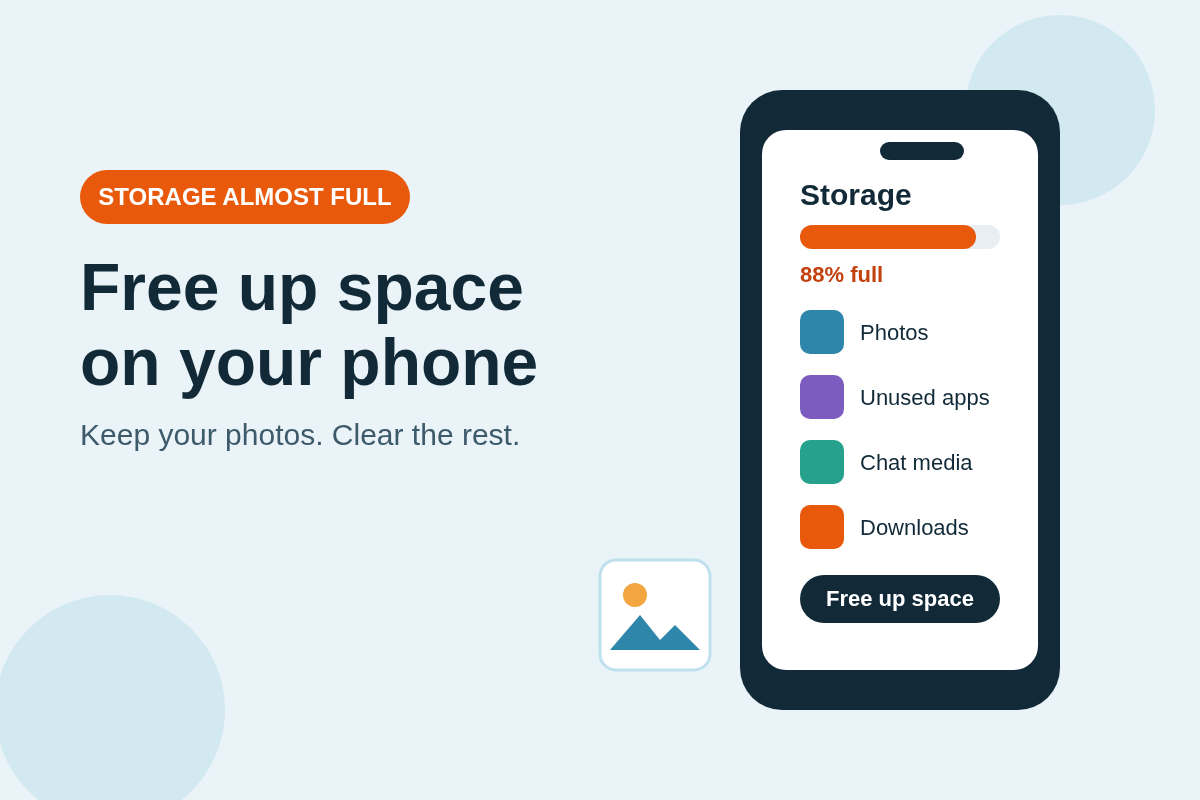
The cheapest data is the data you never use. Before a trip, download your route in Google Maps over Wi-Fi so navigation works offline, download the podcast episodes and playlists you want, and save any documents or videos you need. Offline content works exactly the same on the move, and your mobile data stays untouched. If you share your connection with other devices, our guide to using your phone as a mobile hotspot explains how to do it without burning through your plan — and if your phone is also running low on space, see our guide to freeing up storage without deleting your photos.
Learning how to save mobile data on your phone is not about using your phone less. It is about telling your phone when data is precious and when it is free. Turn on Data Saver or Low Data Mode, rein in the one or two apps that use the most, and let everything heavy wait for Wi-Fi. Do that once, and your monthly allowance should last until the day it renews.