How to Use Your Phone as a Webcam for Video Calls
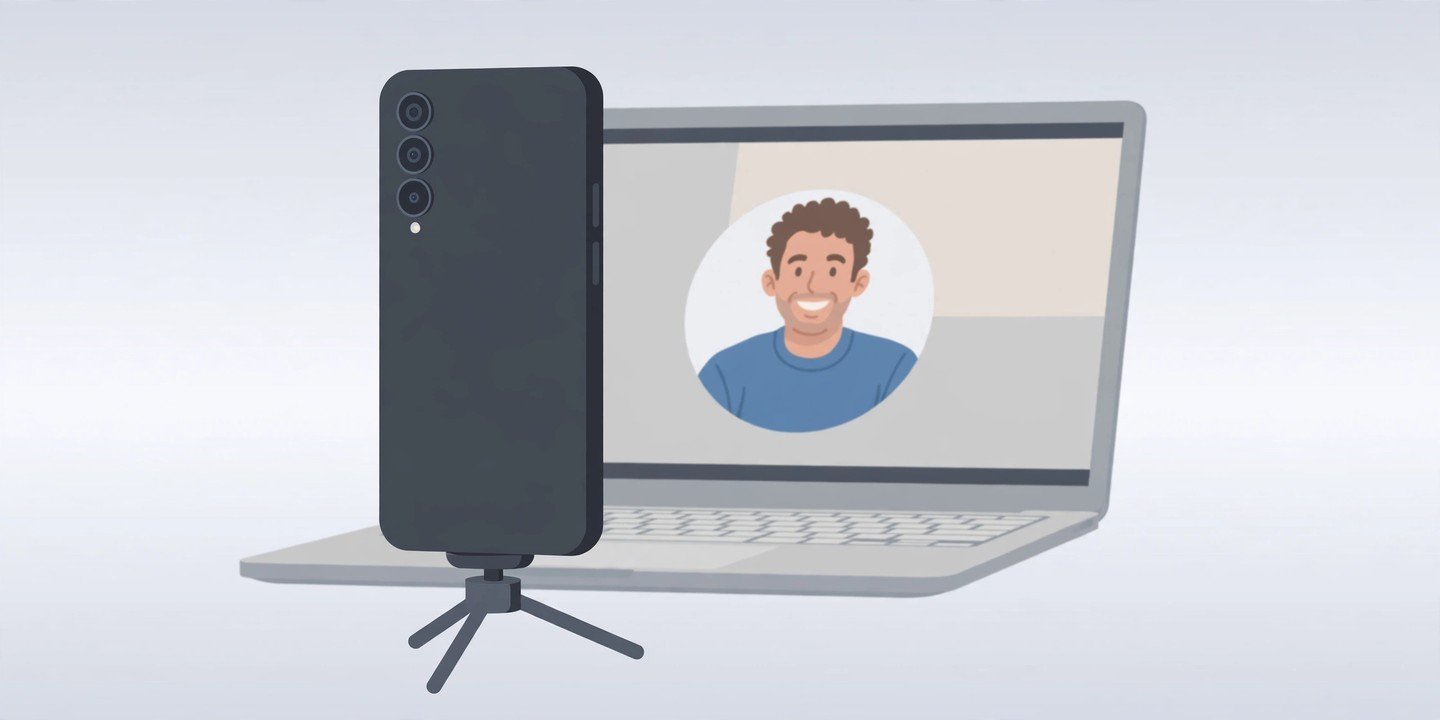
Your phone’s camera is almost certainly better than the webcam built into your laptop. The good news is you can use it instead — for Zoom, Google Meet, Microsoft Teams or any other video app — usually without buying anything. Here is how, on iPhone and Android.
Before You Start: Pick the Right Method
There is no single way to do this, because it depends on your phone and your computer. iPhone owners with a Mac get a built-in option called Continuity Camera. Some Android phones have a built-in USB webcam mode. Windows 11 has its own wireless option. And if none of those fit your devices, a third-party app fills the gap. Check which of the methods below matches your setup before you start, and keep a charger or cable nearby — video calls drain a battery fast.
Method 1: iPhone to Mac With Continuity Camera
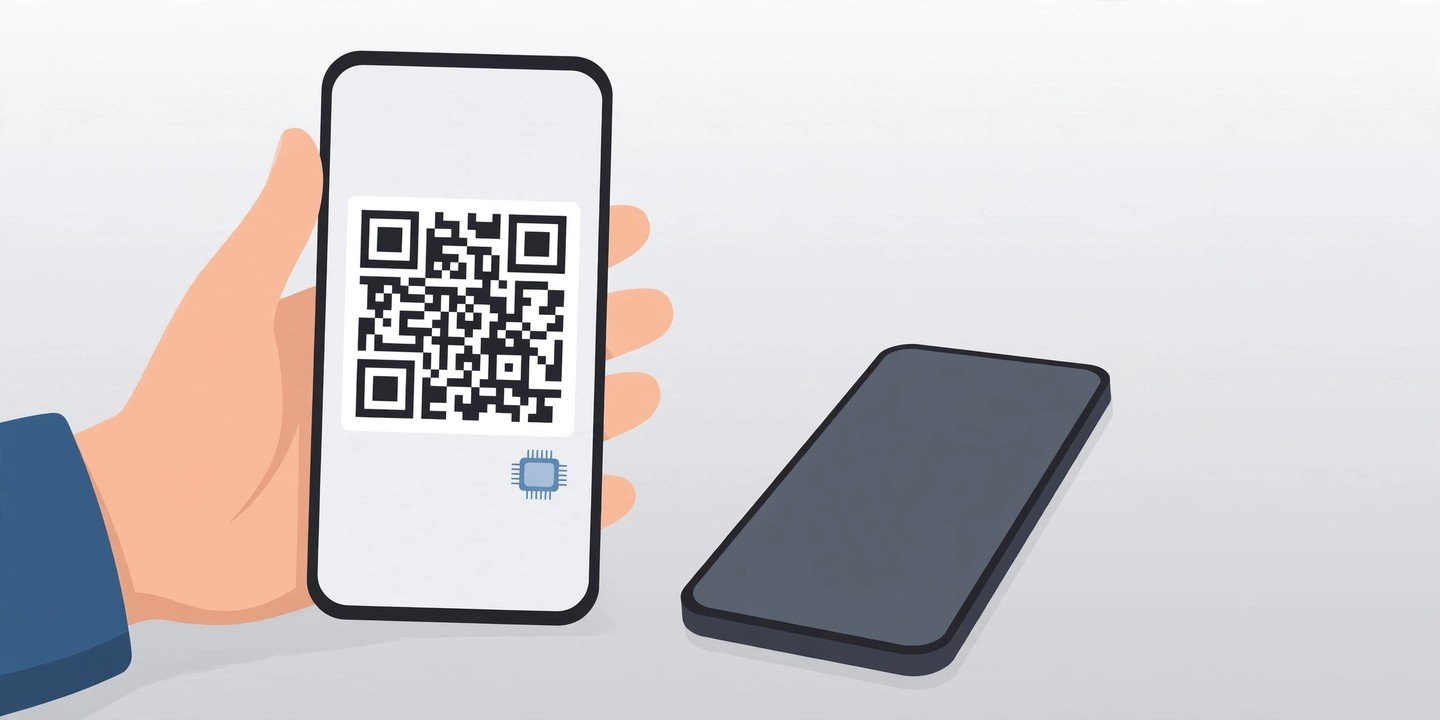
This is the easiest route if you have a Mac, and it needs no extra app. Continuity Camera is built into iOS and macOS. You need an iPhone XR or later running iOS 16 or later, and a Mac running macOS Ventura 13 or later. Both devices must be signed in to the same Apple Account with two-factor authentication turned on, with Wi-Fi and Bluetooth switched on and the devices near each other.
- On your iPhone, go to Settings > General > AirPlay & Continuity and make sure Continuity Camera is turned on. On some iOS versions this menu is called AirPlay & Handoff.
- Mount your iPhone near your Mac, in landscape, with the rear cameras facing you. The rear camera gives the better picture.
- Open FaceTime, Zoom, Teams or your video app of choice on the Mac.
- In the app’s video or camera settings, select your iPhone as the camera. It should appear by name.
- If it does not appear, check that neither device is sharing its internet connection, that the Mac is not using AirPlay or Sidecar, and that both devices are updated. A USB cable is a good fallback — connect the phone, tap Trust on the iPhone, and select it again. Note that effects such as Center Stage and Desk View need an iPhone 11 or later, and some need an Apple silicon Mac.
Method 2: Android to PC With the Built-In USB Webcam Mode
Some Android phones can act as a standard USB webcam with no app at all. This works on Pixel phones running Android 14 or later, and on a small number of newer Samsung models — support depends on the phone maker, so if you do not see the option below, your phone does not have it and you should use Method 4 instead.
- Connect your phone to your computer with a USB cable that carries data. A charge-only cable will not work.
- On your phone, tap the USB or charging notification, then tap for more options.
- Under Use USB for, choose Webcam.
- On your computer, open your video app and select the phone — it appears as a standard USB camera — as the camera source.
- Use the phone’s on-screen preview to switch between the front and rear cameras and adjust zoom and brightness. This mode sends video only, so use your computer’s microphone or a headset for audio.
Method 3: Android to Windows 11 Wirelessly With Link to Windows
If you have a Windows 11 PC, Microsoft’s Link to Windows app can turn a linked Android phone into a wireless camera. You need a PC running Windows 11, an Android phone running Android 10 or later, and Link to Windows version 1.24022.0 or later on the phone.
- Install Link to Windows on your phone and link it to your PC by signing in with the same Microsoft account.
- On the PC, open Settings > Bluetooth & devices > Mobile devices and turn on the option to use your phone as a connected camera.
- Open your video app and select your phone as the camera. Keep both devices on the same Wi-Fi network and near each other for a stable connection.
Method 4: Use an App When the Built-In Options Do Not Fit
If your phone has no built-in webcam mode — most older Android phones, and iPhones used with a Windows PC — a third-party app is the answer. DroidCam is a long-running option for Android that works over USB or Wi-Fi with a companion app on the PC, and Camo is a popular choice for using an iPhone with Windows. Install the same app on your phone and your computer, follow the app’s pairing steps, then select the app’s virtual camera in your video app. Free versions usually add a watermark or limit resolution, so check the app’s pricing before an important call.
5 Tips for a Better Picture
- Use the rear camera when you can. It is the better lens on almost every phone, and it makes a visible difference in sharpness.
- Shoot in landscape, at eye level. Prop the phone on a small tripod, a phone mount or a stack of books — a phone leaning against a laptop slides at the worst moment.
- Face a window or a lamp. Good light in front of you matters more than any camera setting, and it stops your face going dark.
- Plug the phone in. A video call while acting as a webcam is heavy work, and a flat battery mid-meeting is easy to avoid.
- Test before the call. Open your video app, check the framing, the microphone and the background, and close other apps that might grab the camera. If a call comes in on the phone during a USB webcam session, the feed may pause and resume on its own.
Troubleshooting: When Your Phone Does Not Show Up
First, try a different cable and a different USB port — charge-only cables are the most common cause. Next, check for system updates on both devices, restart both, and make sure no other app is already using the camera. On iPhone, confirm Continuity Camera is switched on and that both devices use the same Apple Account. On Android, confirm the USB option is set to Webcam and not File Transfer. If it still does not appear, try the wireless method or an app from Method 4 instead of fighting the cable.
A separate webcam is a fine purchase, but for most people the phone already in their pocket is the better camera. Set it up once using the method above, test it before your next call, and you may never go back to the laptop’s built-in camera. If you also want to keep a record of your calls, see our guide on how to record your phone screen — and check which apps can use your camera in our phone privacy and security settings guide.