How to Factory Reset Your Phone Safely (Android and iPhone)
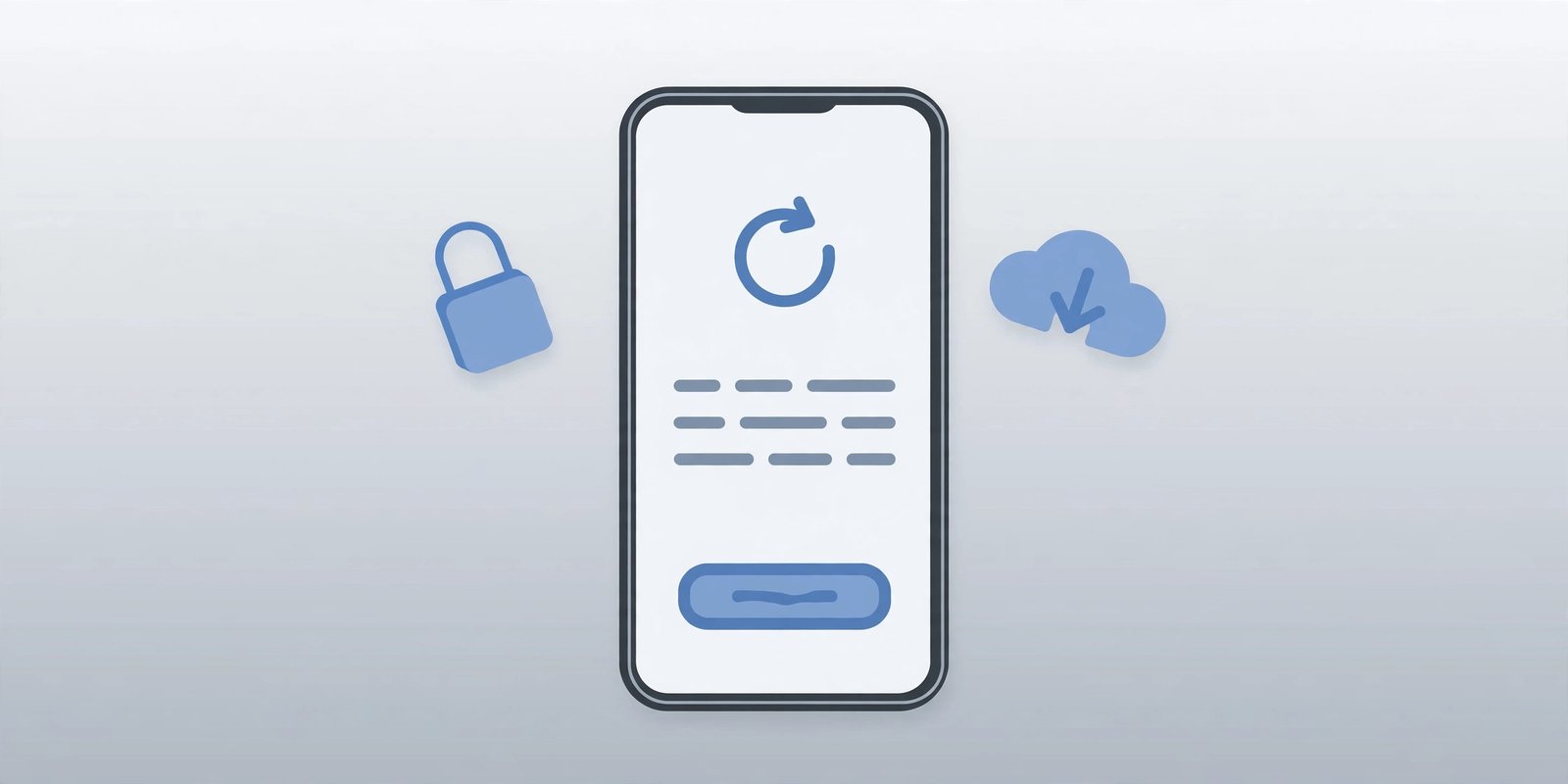
A factory reset is the nuclear option for your phone. It wipes everything on the device and takes it back to the state it was in when it left the factory — your apps, photos, messages, accounts and settings all gone. That makes it the right move in three situations: you are selling or giving the phone away, you are trading it in, or a stubborn problem survives every other fix. It is also irreversible. Once the erase starts, anything that is not in a backup is gone for good. So the trick is not the reset itself — that takes two minutes — it is doing the preparation first.
What a factory reset actually erases
A factory reset wipes your phone’s internal storage: installed apps and their data, photos and videos, messages, contacts, downloaded files, accounts and every setting you changed. Your SIM card is not affected, and on Android a memory card is usually left alone unless you format it separately. One thing it does not do is roll the software back. Your phone keeps the latest version of Android or iOS it already has installed — it just forgets everything about you.
Before you reset: 3 things to do first
- Back up everything. Run a fresh backup and check that it actually finished before you tap anything. On Android, use Google backup; on iPhone, use iCloud or a computer. Our step-by-step guide to How to Back Up Your Phone walks through both.
- Know your passwords. You will need your screen lock PIN or passcode, and your Google account password on Android or your Apple Account password on iPhone. If you are selling the phone, you need these to remove the account lock — without them, the next owner cannot use it.
- Charge the phone. Plug it in or make sure it has at least half a battery. A reset that runs out of power halfway through can leave the phone in a bad state.
How to factory reset an Android phone
On a Pixel and most Android phones, the path is the same:
- Open Settings.
- Tap System.
- Tap Reset options.
- Tap Erase all data (factory reset).
- Tap Erase all data, enter your PIN if asked, then confirm.
On a Samsung Galaxy phone the menu sits in a different place:
- Open Settings.
- Tap General management.
- Tap Reset.
- Tap Factory data reset.
- Scroll down, tap Reset, then Delete all.
Menu names vary a little by brand and Android version, but look for the words “erase all data” or “factory data reset” and you have found the right option. The phone will restart, erase itself, and come back to the first-time setup screen. For a second opinion on the steps, Android Authority’s guide covers the same process: https://www.androidauthority.com/android-customization-how-to-factory-reset-595347/
How to factory reset an iPhone
Apple keeps the whole process in one place:
- If you have an Apple Watch paired to the iPhone, unpair it first in the Watch app — otherwise it stays locked to your account.
- Open Settings, then tap General.
- Tap Transfer or Reset iPhone.
- Tap Erase All Content and Settings, then Continue.
- If the phone asks about your eSIM, choose Keep eSIM and Erase Data if you are keeping the number, or Delete eSIM and Erase Data if the phone is going to someone else.
- Enter your passcode, and your Apple Account password if asked.
The iPhone erases itself and restarts at the Hello screen — the same screen you saw when it was new. Erasing this way also signs you out of your Apple Account and turns off Find My and Activation Lock. MacRumors has a matching walkthrough if you want to double-check each step: https://www.macrumors.com/how-to/erase-your-old-iphone-or-ipad/
Remove your accounts before you hand the phone over
This is the step people forget, and it is the one that causes the most trouble. On Android, Google’s Factory Reset Protection means a reset phone still asks for the previous owner’s Google account before it can be set up. If you are selling or giving the phone away, remove your Google account first: go to Settings, open Passwords, passkeys & accounts (or Accounts on some phones), tap your Google account and choose Remove account. Then reset. On iPhone, the equivalent is Activation Lock, which is tied to Find My. Erasing with your Apple Account password, as above, turns it off. If the phone has already left your hands, sign in at icloud.com/find, select the device and choose Remove This Device.
What if the phone won’t turn on or you forgot the passcode?
If you cannot get into Settings, both platforms have a fallback — but it is rougher, and the account lock still applies afterwards. On Android, use Recovery Mode: switch the phone off, then press and hold the Power and Volume Down buttons together (some brands use Volume Up instead) until the recovery menu appears. Use the volume keys to highlight Wipe data/factory reset and the power button to select it. You will still need to sign in with the same Google account when the phone restarts. On iPhone, connect it to a computer and restore it with Finder on a Mac or the Apple Devices app on Windows. That means putting the iPhone into recovery mode first — the button combination depends on the model, so check Apple’s support pages for your exact iPhone before you start.
After the reset: a quick check
Before you hand the phone over, make sure it shows the first-time setup screen — Hello on iPhone, or the welcome screen on Android — and that it lets you start setup without asking for your old account. If it still asks for your Google account or Apple Account, the account lock is still on: go back and remove the account properly.
Done right, a factory reset takes a few minutes and leaves the phone genuinely clean — ready to sell, trade in, or start fresh yourself. And if the phone is going to a new owner, a quick look at How to Transfer Data to a New Phone will help them get their own stuff onto it. If you are resetting because the phone is misbehaving, our guide to How to Remove Malware From Your Phone is worth reading first — a reset is the last resort, not the first one.