How to Use WhatsApp Like a Pro: 10 Tips for Android and iPhone
WhatsApp is the messaging app most of us open dozens of times a day — yet most people only use a fraction of what it can do. These WhatsApp tips work on both Android and iPhone, and none of them need an extra app. Start with the security ones, then try the shortcuts that save time every day.
1. Turn on two-step verification — the first of these WhatsApp tips
This is the single most important of these WhatsApp tips. Two-step verification adds a six-digit PIN that WhatsApp asks for when your number is registered on a new phone. That stops someone taking over your account even if they get hold of your SMS code. Go to Settings > Account > Two-step verification, choose a PIN, and add a recovery email address so you can reset it if you forget it.
2. Lock your private chats with these WhatsApp tips
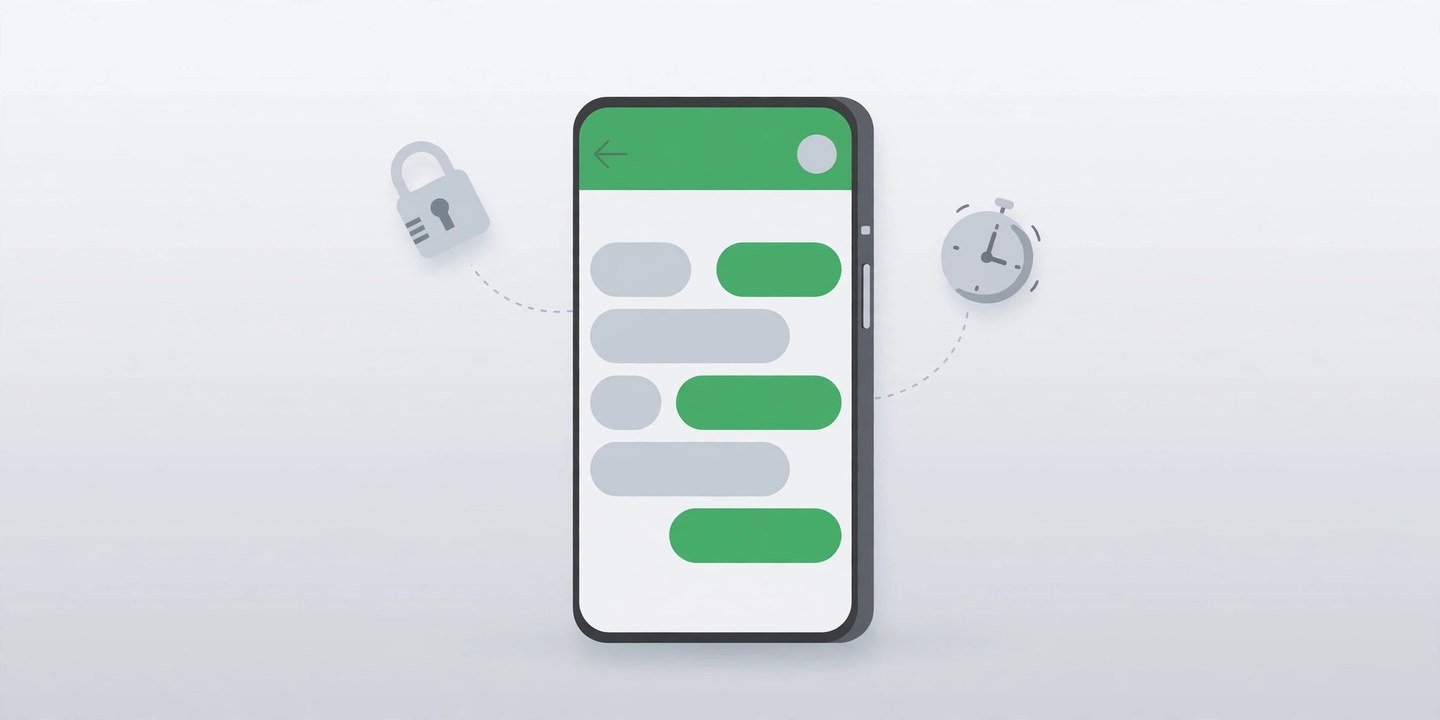
Chat Lock moves a conversation into a Locked Chats folder that only opens with your fingerprint, face or PIN. On Android and iPhone, swipe left or long-press the chat, then tap Lock Chat. You can also set a secret code so the folder itself stays hidden until you type the code into the search bar. Nobody in the chat is told you locked it.
3. Make messages disappear on a timer
Disappearing messages delete themselves after 24 hours, 7 days or 90 days. Open a chat, tap the contact or group name, then choose Disappearing messages and pick a timer. You can also set a default timer for all new chats in Settings > Privacy. Remember that the other person can still screenshot or copy a message before it disappears — disappearing messages limit how long a chat lives, they do not make it secret.
4. Send view-once photos and voice messages
For a photo, video or voice message you want seen exactly once, tap the ① icon on the send screen before you send it. It disappears after the recipient opens it, it is not saved to their gallery, and WhatsApp blocks screenshots and screen recordings of view-once media. Use it for sensitive images — not for anything you need a copy of, because you cannot open it again yourself.
5. Star messages you need again
An address, a date, a tracking number — long-press any message and tap the star to save it. Find everything you starred later under Settings > Starred (on Android, tap the three-dot menu and choose Starred messages). It is the fastest way to find something in a busy group chat.
6. Pin your most important chats and messages
You can pin up to three chats to the top of your chat list, so the people you message most are always one tap away. Long-press a chat and tap the pin icon. Inside a chat, you can also pin up to three messages for 24 hours, 7 days or 30 days — long-press the message, then tap Pin. Pinned messages are ideal for an event time or an address in a group.
7. Decide who sees your last seen, photo and status
In Settings > Privacy you control who sees your last seen and online status, your profile photo, your About text and your status updates. Each one can be set to Everyone, My contacts, My contacts except… or Nobody. Set them to My contacts and you stay visible to people you know, while strangers see nothing.
8. Turn off read receipts — and know the trade-off
Switch off Read receipts in Settings > Privacy and nobody will see blue ticks when you read their messages. The catch: it works both ways. You will not see blue ticks on messages you send either, in one-to-one chats. Group read receipts still work. If you only want quiet in one chat, mute it instead — long-press the chat and tap Mute.
9. Edit or delete a message after sending it
Spotted a typo after hitting send? Long-press the message and tap Edit to fix it. The message gets an Edited label, but nobody can see the original. To remove a message entirely, long-press it and choose Delete for everyone — you have about two days after sending to do this. After that, you can only delete it for yourself.
10. Format your messages with these WhatsApp tips
You do not need a formatting menu to make text stand out. Wrap words in asterisks for bold, underscores for italic and tildes for strikethrough — *bold*, _italic_, ~strikethrough~. Three backticks on each side makes monospace text. Or select the text you typed and use the Format option that appears. It is a small trick, but it makes lists, dates and key details much easier to spot in a long chat.
Start with these WhatsApp tips for security
If you do nothing else from these WhatsApp tips, turn on two-step verification and lock any chat you would not want a stranger reading. Those two steps take about two minutes and protect your account more than any other setting. Then try disappearing messages and starred messages — they are the two features most people say they wish they had switched on sooner. WhatsApp’s own safety guide covers chat lock and view-once media in detail. Moving to a new phone soon? Read our guide to setting up a new phone first, so your chats and backups move with you.