How to Set Up a New Phone: The First 10 Things to Do on Android and iPhone
A new phone should feel exciting, not stressful. But the first hour matters: get the setup wrong and you can lose photos, messages or access to your accounts. Whether you have just unboxed an Android phone or a new iPhone, this guide to how to set up a new phone walks you through the ten things worth doing first, in the right order.
1. Charge both phones and back up the old one first
Before you touch the new phone, plug in both phones and make sure the old one has a fresh backup. On iPhone, go to Settings, tap your name, then iCloud and iCloud Backup, and tap Back Up Now. On Android, go to Settings, then Google, then Backup, and tap Back Up now. A fresh backup protects you if the transfer stalls halfway. For the full steps, see our guide on how to back up your phone: https://mobileinner.com/how-to-back-up-your-phone/
2. Move your data from your old phone
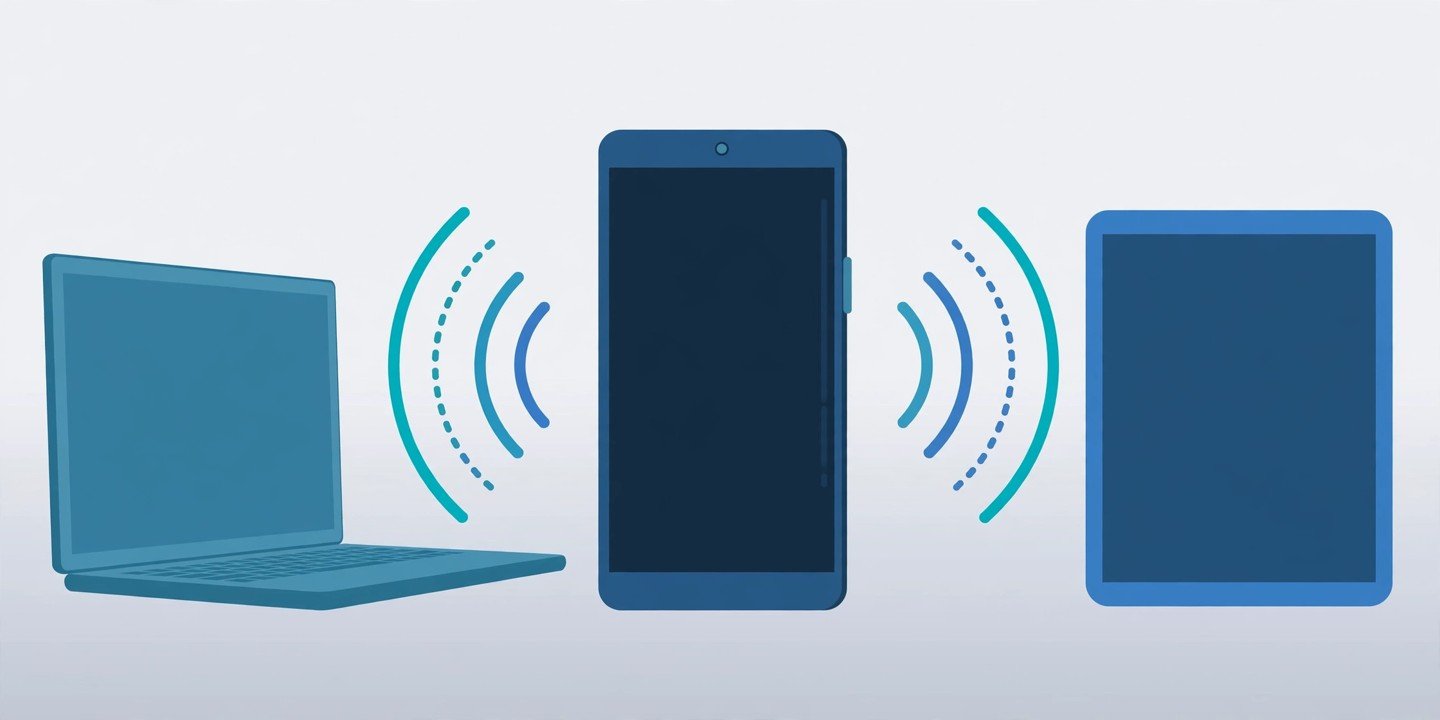
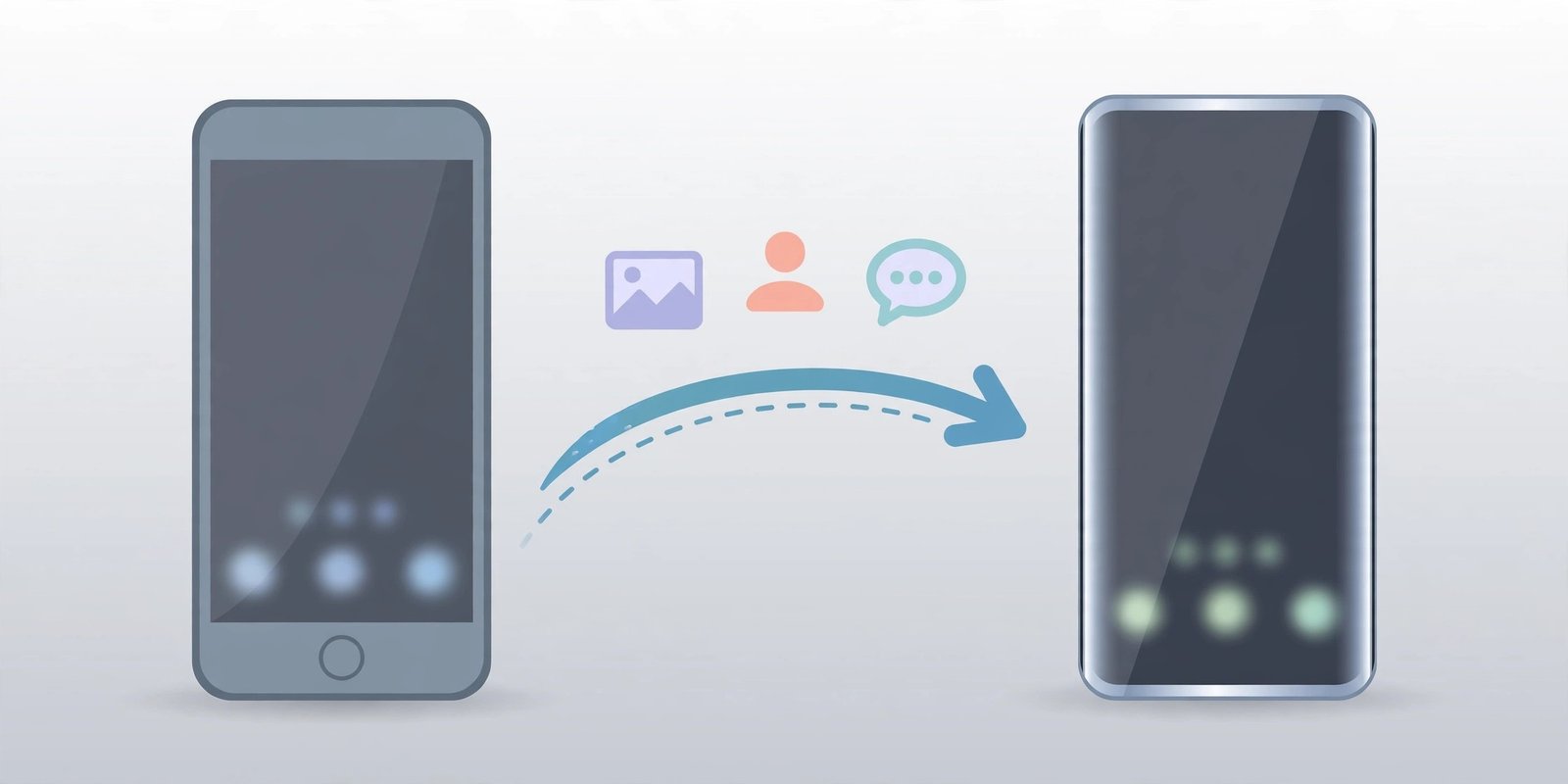
This is the step most people rush, so take your time. On iPhone, Quick Start does the heavy lifting: turn on the new iPhone, place it next to your unlocked old iPhone with Wi-Fi and Bluetooth on, and follow the prompts. You can choose Transfer from iPhone, which copies everything directly, or Download from iCloud, which lets you start using the new phone while your data downloads in the background. Apple says to keep both phones close together and plugged in until the transfer finishes.
On Android, turn on the new phone, tap Start, connect to Wi-Fi, and when asked, tap Copy apps and data. You can connect the two phones with a cable or over Wi-Fi, then pick what to move: contacts, photos, messages and apps. Samsung owners can also use Smart Switch, which moves data from almost any Android phone or iPhone. Google notes the Android-to-Android copy can only be done once and recommends doing it during setup. Read our full transfer guide here: https://mobileinner.com/how-to-transfer-data-to-new-phone/
Sources: Apple Support on Quick Start (https://support.apple.com/en-au/102659) and Android’s official setup guide (https://www.android.com/intl/en_uk/articles/set-up-android-device/).
3. Set up your SIM or eSIM
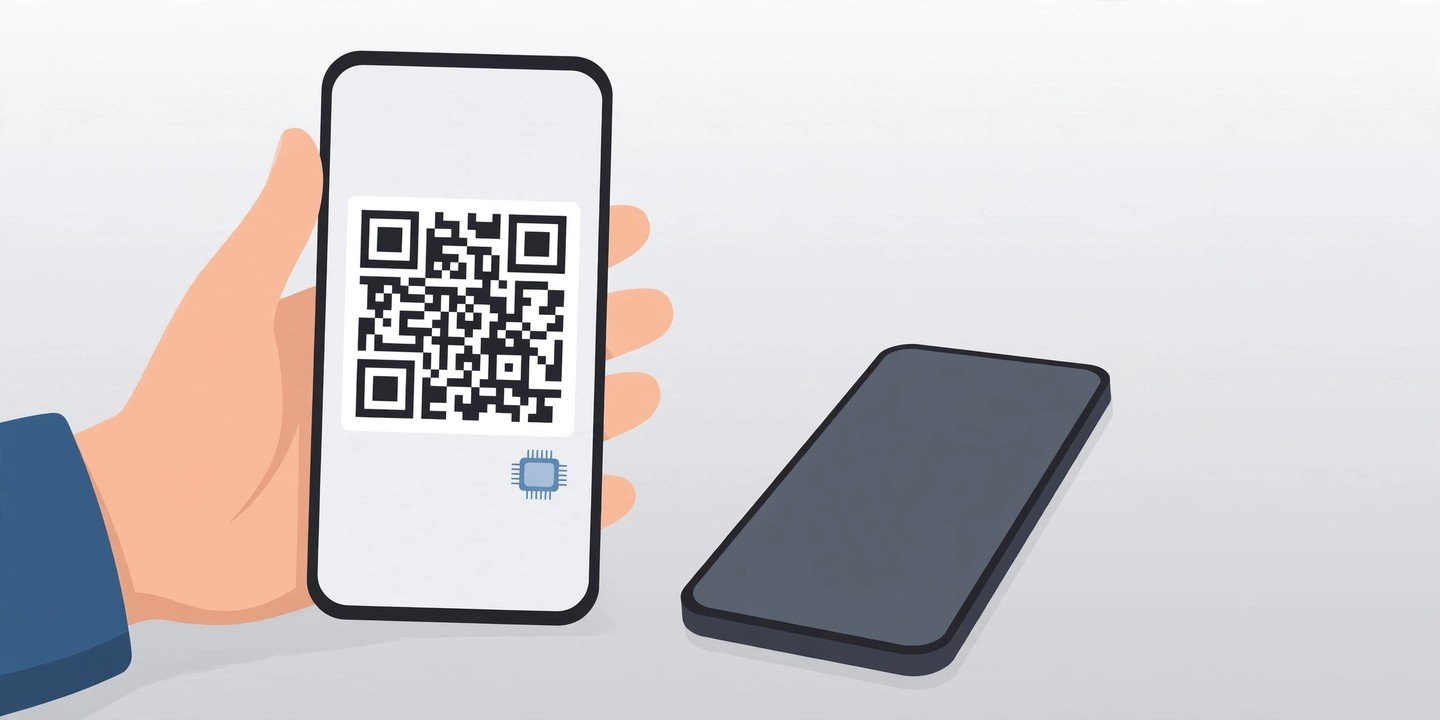
Your new phone needs a connection before most setup steps will work. If your carrier gave you a physical SIM, move it across with the SIM ejector tool in the box. If your plan uses an eSIM, download it from your carrier during setup, or scan the QR code your carrier sent you. On iPhone, eSIM Quick Transfer can move your number over Bluetooth when both phones are signed in to the same Apple Account and run iOS 18.4 or later. Our step-by-step eSIM guide is here: https://mobileinner.com/how-to-set-up-esim-android-iphone/
4. Sign in to your Google or Apple account
Sign in with the same account you used on your old phone. On Android, your Google Account is what brings back your contacts, calendar, saved passwords and app purchases. On iPhone, your Apple Account does the same for iCloud Photos, contacts, notes and messages. If two-factor authentication asks for a code, have your old phone nearby to receive it, or use a backup code. Do not create a brand-new account by accident: that is the most common reason people find their photos and contacts missing after a switch.
5. Set up your lock screen security
Set a strong passcode first, then add biometrics. On iPhone, set up Face ID or Touch ID during setup. On Android, go to Settings, then Security and privacy, then Device unlock, and add a fingerprint or face unlock. While you are there, turn on automatic updates and check that your phone is set to lock quickly when the screen turns off. If your phone supports passkeys, set them up for your most important accounts now, while your old phone is still handy: https://mobileinner.com/how-to-set-up-passkeys-on-your-phone/
6. Install the latest software update
New phones often ship with software that is already a few weeks old. On iPhone, go to Settings, then General, then Software Update. On Android, go to Settings, then System, then Software update (on Samsung, Settings, then Software update). Install anything waiting, then restart the phone. Updates fix bugs and security issues, and some transfer features only work properly on the latest version, so do this before you start installing lots of apps.
7. Reinstall your apps and check they work
Your transfer should bring most apps across, but open the important ones and sign in: your bank, email, messaging apps and two-factor authenticator. Some apps, including banking apps and authenticators, need you to sign in again for security, and that is normal. Delete any pre-installed apps you do not want, and check the Play Store or App Store for updates to the apps that came across. If a chat app like WhatsApp did not bring your history over, restore it from its own backup inside the app before you send new messages.
8. Turn on Find My and automatic backup
This takes one minute and saves hours later. On iPhone, go to Settings, tap your name, then Find My, and make sure Find My iPhone is on. On Android, go to Settings, then Google, then All services, and turn on Find My Device. Then switch on automatic backup so your new phone keeps backing itself up without you thinking about it. If your phone is ever lost or stolen, here is what to do: https://mobileinner.com/how-to-find-your-lost-phone/
9. Check notifications and app permissions
A fresh phone is the best time to decide what gets your attention. Go through Settings, then Notifications, and turn off alerts from apps you do not need to hear from. Then check app permissions: a torch app does not need your location, and a photo editor does not need your microphone. On Android, go to Settings, then Security and privacy, then Privacy dashboard. On iPhone, go to Settings, then Privacy and Security. Spend five minutes here and your phone will feel calmer and safer every day.
10. Do not erase the old phone yet
Wait at least a day before wiping the old phone. First check that your photos, contacts, messages and two-factor codes are all on the new one, and that your bank and email apps work. Only then erase it: on iPhone, go to Settings, then General, then Transfer or Reset iPhone, and tap Erase All Content and Settings. On Android, go to Settings, then System, then Reset options, and tap Erase all data. If you plan to trade it in or give it away, remove your Google or Apple account first so the next owner is not locked out.
Following this guide on how to set up a new phone takes about an hour if you do it properly, and most of that time is the transfer running in the background. Work through the list in order, keep both phones charged and nearby, and do not wipe the old one until you have checked everything is on the new one. Do it once, do it right, and your new phone will feel like yours from day one.