How to Take a Screenshot on Android and iPhone: Every Method That Works
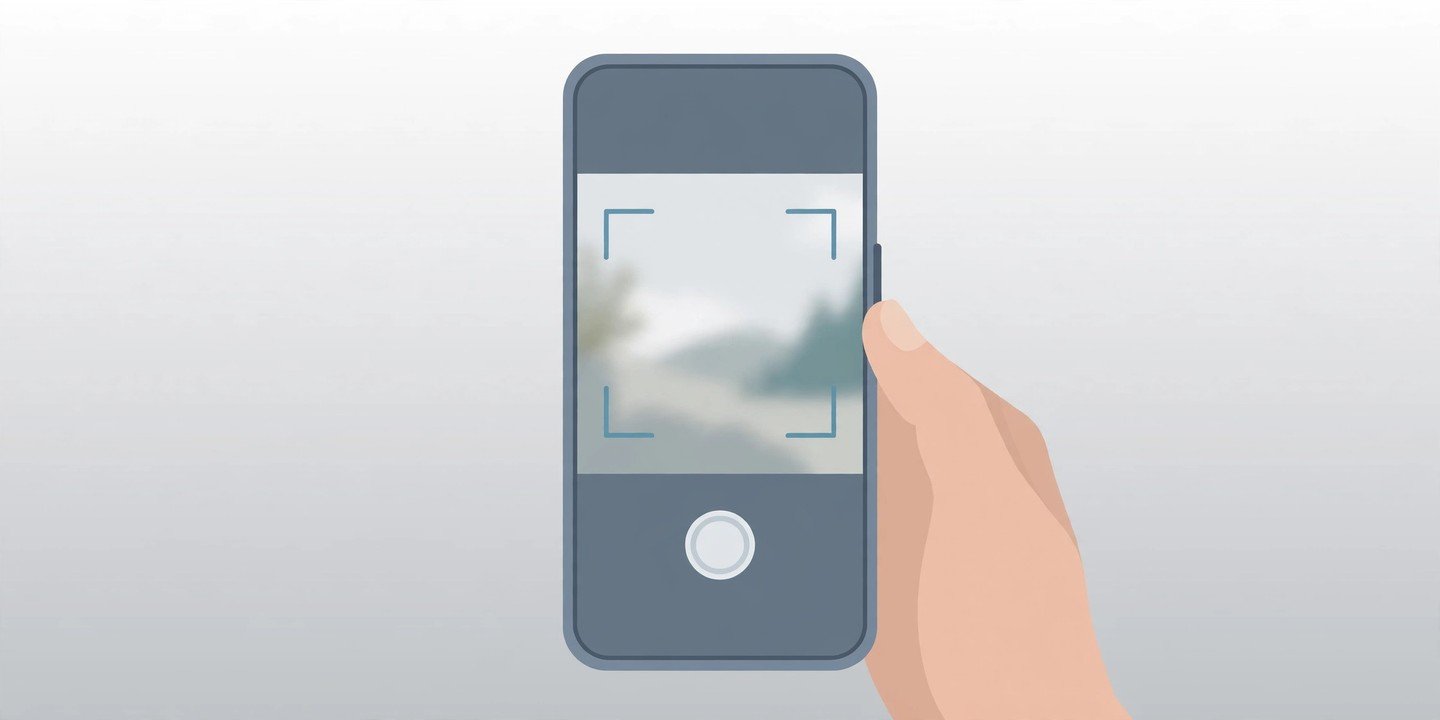
A screenshot is the fastest way to save what is on your phone screen — a receipt, a chat, a map, or a page you want to keep. The button presses are simple once you know them, but they are different on Android and iPhone, and both platforms hide a few extra tricks. Here is every method that works.
Take a Screenshot on Android
On almost every Android phone, the standard method is the same:
- Open the screen you want to capture.
- Press the Power button and the Volume Down button at the same time, then release both quickly.
- A small preview appears at the bottom of the screen. Tap it to edit, share, or delete the shot.
If that combination does nothing, press and hold the Power button for a few seconds, then tap Screenshot in the menu that appears. On very old phones, the combination may be Power + Home instead — check your manufacturer’s support page if neither works.
Your screenshots are saved in the Photos app under Screenshots, or in your Gallery app’s Screenshots folder.
Google’s support page lists the same steps for Android 11 and newer.
Take a Screenshot on iPhone
The buttons depend on whether your iPhone has a Home button:
- iPhone with Face ID (no Home button): quickly press and release the Side button and the Volume Up button at the same time.
- iPhone with a Home button: quickly press and release the Side button (or the top button on very old models) and the Home button at the same time.
A thumbnail appears in the lower-left corner. Tap it to edit or share, or swipe it away to save it straight to Photos. You will find all your captures in Photos > Media Types > Screenshots.
The timing matters: press both buttons together and let go right away. If you hold them down, your iPhone opens the power-off screen or Emergency SOS instead of taking a screenshot.
Apple’s iPhone screenshot guide lists the button combination for every model.
Take a Screenshot Without Pressing Any Buttons
If the buttons are awkward to reach, or a button is broken, both platforms offer hands-free options:
- Android: say “Hey Google, take a screenshot” to the Google Assistant. On Samsung phones, turn on Palm swipe to capture under Settings > Advanced features > Motions and gestures, then swipe the edge of your hand across the screen. Pixel phones can use Quick Tap — double-tap the back of the phone — under Settings > System > Gestures.
- iPhone: ask Siri to take a screenshot, or set up Back Tap under Settings > Accessibility > Touch > Back Tap and assign Screenshot to a double or triple tap. AssistiveTouch (Settings > Accessibility > Touch) can also add a one-tap screenshot button on screen.
Take a Scrolling or Full-Page Screenshot
When one screen is not enough, capture the whole page in a single image:
- Android 12 and later: take a normal screenshot, then tap Capture more next to the preview. Drag the crop guides to choose how much of the page to keep, then tap Save. On Samsung phones the same option is called Scroll capture and appears as a downward-arrow icon.
- iPhone: take a screenshot while viewing a webpage in Safari, tap the thumbnail, then tap Full Page at the top. You can save the whole page as a PDF in the Files app, or save it to Photos.
Note that scrolling screenshots work on most screens that scroll, but some apps block them — banking and streaming apps often do.
Edit, Share, and Find Your Screenshots
Do not leave a pile of unedited captures filling your storage:
- Tap the preview or thumbnail right after taking a screenshot to crop it, draw on it, or add text before saving.
- Share it straight from the preview instead of opening Photos later — most sharing menus appear in the same place.
- Delete the ones you do not need. Screenshots pile up fast, and clearing them is one of the easiest ways to free up storage without deleting your photos.
- If you need a video of your screen instead of a still image, see our guide on how to record your phone screen.
Screenshot Not Working? Try These Fixes
- Press both buttons at exactly the same time. Pressing one a moment early locks the screen or changes the volume instead.
- Release quickly. Holding the buttons opens the power menu on Android and the power-off or SOS screen on iPhone.
- Check your storage. If your phone is full, the screenshot may fail to save.
- Some apps block screenshots for privacy or copyright reasons. If the screen goes black in the capture, that is the app, not your phone.
- Restart your phone if screenshots suddenly stop working — it clears the glitch in most cases.
The Bottom Line
On Android, Power + Volume Down is the combo to remember; on iPhone, it is Side + Volume Up (or Side + Home on older models). Once you have that, scrolling captures, full-page shots, and hands-free methods are all one tap away. Take the shot, crop what you need, and delete the rest — your gallery will thank you.