How to Record Phone Calls on Android and iPhone
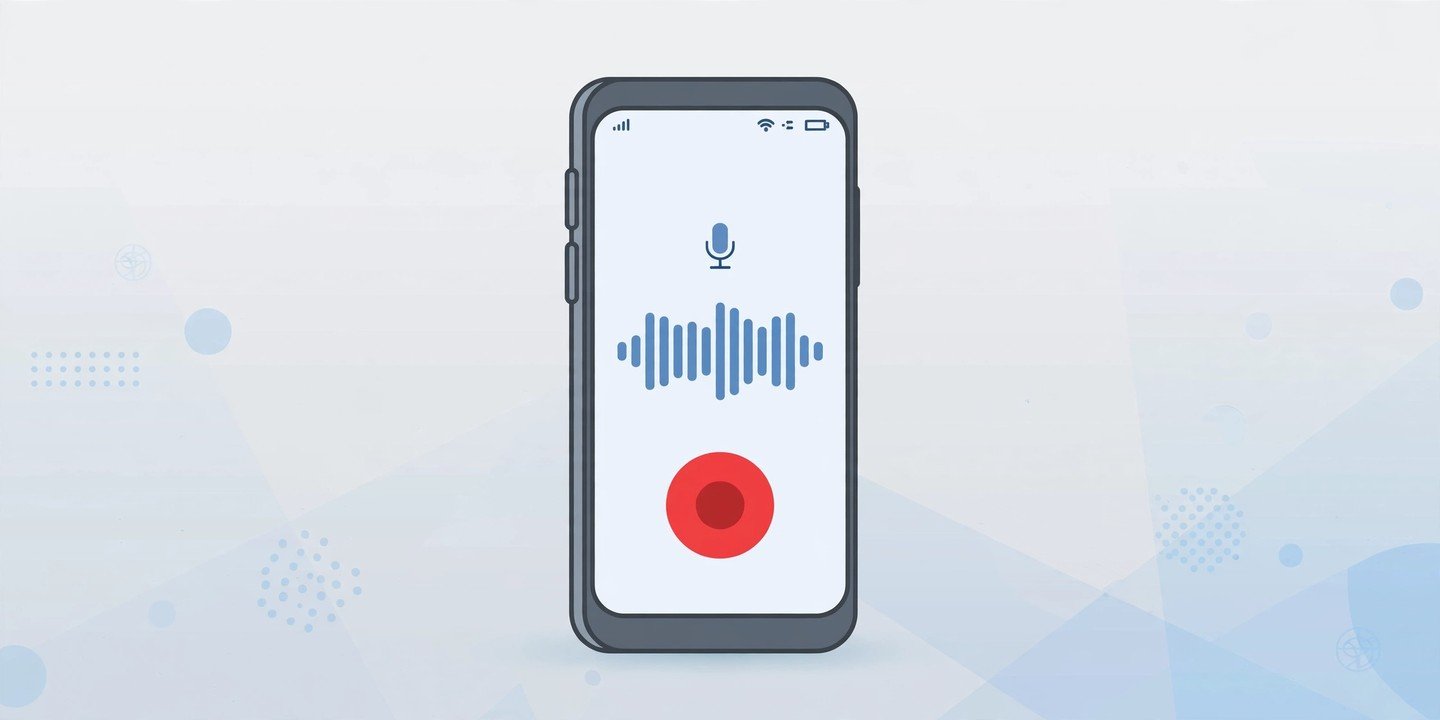
Sometimes you need a record of a phone call — an address read out too fast, a quote from a tradesperson, or instructions from a doctor. Both iPhone and Android now have built-in call recording, but the button is in a different place on every phone, and it is not available everywhere. Here is how it works on each, and what to check before you press record.
Before you record: the rules matter
In many places, recording a call without telling the other person is illegal, and in some regions all parties must agree. The built-in tools help here: on iPhone, Pixel and Samsung, everyone on the call hears an announcement when recording starts. Never try to record a call secretly — tell the other person first, and check your local rules if you are unsure.
Availability also varies by country, carrier and phone model. If the record button is missing on your phone, that usually means your region or carrier does not allow it, not that you are looking in the wrong place.
How to record a call on iPhone
Apple added built-in call recording in iOS 18.1. It works for phone calls and FaceTime audio calls, in regions where Apple offers it.
- Make or answer a phone call as usual.
- During the call, tap More and then tap Call Recording (on some versions the record button, a waveform icon, sits directly on the call screen).
- Everyone on the call hears an automated voice say the call will be recorded.
- To stop, tap the stop button, or simply end the call — the recording stops automatically.
- Find the recording in the Notes app, in the Call Recordings folder. Tap it to play the audio, read the transcript, or see an AI-generated summary on a compatible device.
Transcription needs at least an iPhone 12, and the summary uses Apple Intelligence, so it is only available on supported models. If you do not see the button at all, first check you are on iOS 18.1 or later, then look in Settings > Apps > Phone for a Call Recording setting.
How to record a call on Google Pixel
Pixel phones have the best call recording on Android, with two versions depending on the model.
Pixel 9 and newer — Call Notes:
- Open the Phone app, tap More (the three dots), then Settings.
- Tap Call Notes and switch it on. You may need to download extra components the first time.
- During a call, tap the Call Notes button on the call screen. Everyone hears an announcement that the call is being recorded.
- After the call, find the recording, transcript and summary in the Phone app.
Pixel 6, 7 and 8 — Call Recording:
- Make or answer a call in the Phone app.
- Tap Call Assist, then Call Recording.
- To stop, tap Call Assist again, then Stop.
You can also set the Phone app to record certain calls automatically: go to Phone > More > Settings > Call recording, and under Always record switch on Numbers not in your contacts or add Selected numbers. Automatic recording is not available in every market.
How to record a call on Samsung Galaxy
Samsung’s built-in recording, called Call Transcripts in the US, arrived with One UI 7 on Android 15. It works on Galaxy phones running One UI 7 or later, including the S24 series onward and recent foldables.
- Make or answer a call in the Samsung Phone app.
- During the call, tap the Record icon (tap More first if you do not see it).
- Your phone warns you it is about to alert the other person and gives you five seconds to cancel.
- The recording stops when the call ends. You will get a notification that the call was recorded.
- To play it back, open Recents, tap the call entry with the small microphone icon, then tap the icon and Play.
With Transcript assist, Galaxy AI can also transcribe the recording on most models. Availability depends on your region, device model and One UI version.
How to record a call on other Android phones
Most other Android phones use Google’s Phone app, and the steps are similar:
- Open the Phone app and make or receive a call.
- Wait until the call is answered, then tap Record on the call screen.
- Tap Stop recording to finish, or just hang up.
Google says you need Android 9 or later on a non-Pixel phone, and a Pixel 6 or later on Android 14 or later for Pixel models, plus the latest version of the Phone app and a supported country and carrier. Both parties are notified when recording starts and stops.
What to do when there is no record button
If your phone has no built-in option, you still have a few honest fallbacks:
- Speakerphone and a second device: Put the call on speaker and record it with another phone, a laptop or a voice recorder. This works on any phone, in any country — just remember to tell the other person.
- Google Voice: With a Google Voice number, you can record incoming calls by pressing 4 once incoming call recording is switched on.
- Third-party apps: These used to be common on the Play Store, but Android has restricted them heavily, and many no longer record both sides of the call. Treat any app that asks for broad permissions with suspicion, and prefer the built-in recorder whenever it exists.
Where recordings are saved, and how to manage them
- iPhone: Notes app, in the Call Recordings folder.
- Pixel: In the Phone app, under the caller’s entry and History.
- Samsung: In the Phone app under Recents, marked with a microphone icon, or under More > Settings > Record calls > Recorded calls.
Delete recordings you no longer need — call recordings can contain sensitive personal details. On Pixel and in Google’s Phone app you can also set recordings to delete themselves after a chosen period, under Settings > Call recording > Delete recordings. And remember that recording your screen is a different feature: if you want to capture what is on your display rather than a call, see our guide on how to record your phone screen.
The bottom line
Recording a call is now a built-in feature on most modern phones: iPhone does it from iOS 18.1, Pixel from the Pixel 6 onward, and Samsung from One UI 7. The steps take seconds — the part that needs care is the consent. Tell the other person, let the phone play its announcement, and keep the recording somewhere safe. For more on keeping your phone and its data private, see our guide to 10 privacy and security settings to change today.