How to Record Your Phone Screen on Android and iPhone
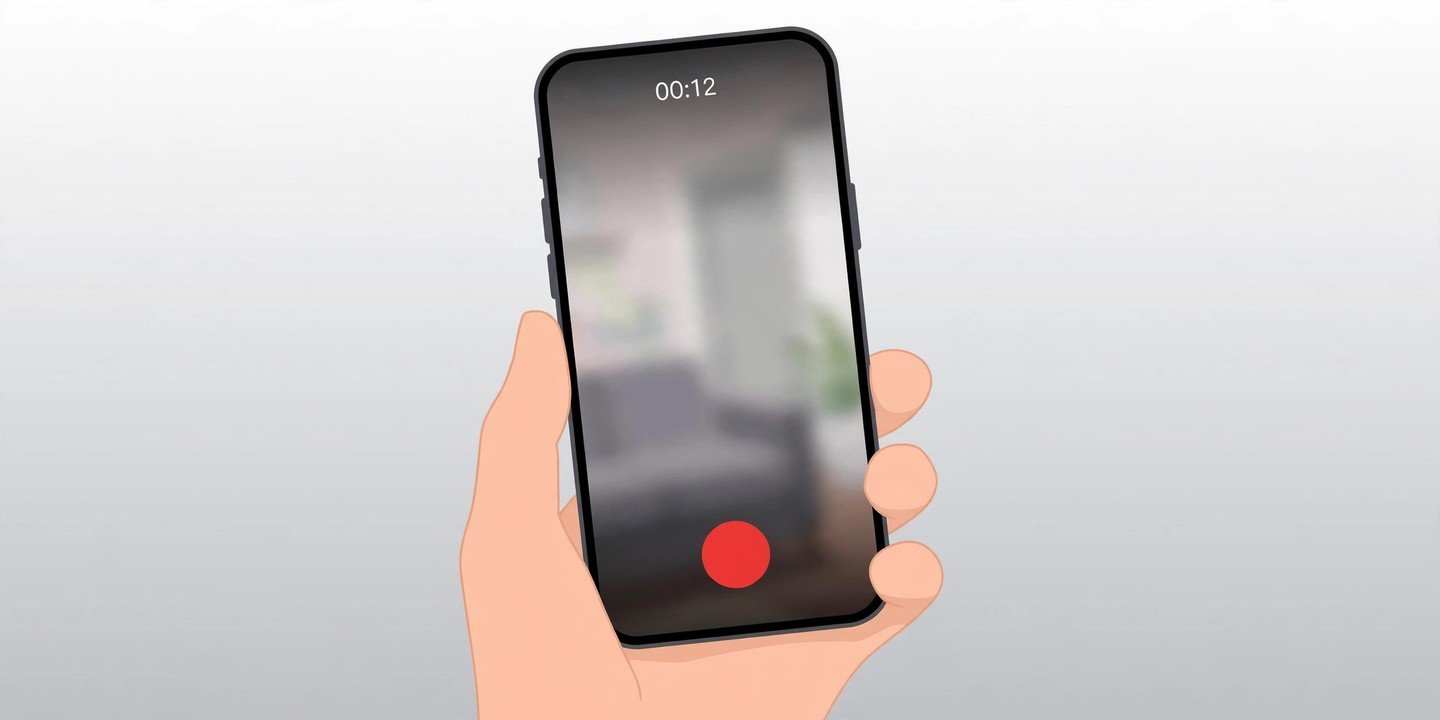
Your phone can record its own screen — no extra app, no cable, no computer. Both Android and iPhone have a screen recorder built in, and once you know where the button hides, a recording takes seconds to start. Use it to show a friend how to change a setting, save a gameplay moment, or keep a copy of a video call walkthrough.
Before you start: two quick checks
First, check your software. The built-in recorder needs Android 11 or later on most Android phones (Samsung’s version arrived with One UI 2), and iOS 11 or later on iPhone. Second, tidy up before you press record: close anything private, and switch on Do Not Disturb so a notification does not pop into the middle of your video. Screen recordings can also get large, so make sure you have some free space — our guide on how to back up your phone explains how to keep your photos and videos safe first.
How to record your screen on iPhone
- Add the button if it is missing. Open Settings, then Control Center, and add Screen Recording. You only do this once.
- Open Control Center. On an iPhone with Face ID, swipe down from the top-right corner. On an iPhone with a Home button, swipe up from the bottom.
- Tap the Record button (a dot inside a circle) and wait for the three-second countdown, then close Control Center and do whatever you want to record.
- To stop, tap the red recording indicator at the top of the screen, then tap Stop. You can also open Control Center and tap the red Record button.
- Find the video in the Photos app, under Screen Recordings.
How to record with sound on iPhone
By default an iPhone screen recording has no voiceover. To add your voice, touch and hold the Record button in Control Center, tap Microphone to turn it on, then tap Start Recording. Note that some apps — streaming and banking apps in particular — do not allow their audio or video to be recorded at all, so a black screen or silent clip usually means the app is blocking it, not that your phone is broken. Apple also notes you cannot record your screen and use screen mirroring at the same time.
How to record your screen on Android
- Swipe down twice from the top of the screen to open the full Quick Settings panel.
- Tap Screen record. If you do not see it, swipe sideways to the next page of tiles. If it is not there at all, tap the pencil or Edit icon and drag the Screen record tile into your active tiles.
- Choose what to record. On Android 14 and later you can pick a single app, so notifications and other apps stay out of the video, or record the entire screen. Turn on Record audio if you want sound, and choose device audio, microphone, or both. Turn on Show touches on screen if you are making a tutorial — it marks each tap with a circle.
- Tap Start. A short countdown runs, then recording begins.
- To stop, swipe down and tap the Screen recorder notification, then Stop. The video is saved to your Gallery or Photos app.
Samsung Galaxy: a few extras
Samsung phones have their own version of the recorder, called Screen recorder, in the Quick panel. It works the same way, with a few extras: you can pause the recording, draw on the screen while you record, add a selfie overlay from the front camera, and pick a sound setting — None, Media, or Media and mic.
Where recordings are saved and how to share them
On iPhone, recordings live in the Photos app. On Android, they are saved in your Gallery or Photos app, usually in a Screen recordings or Movies folder. Open the clip to trim the start and end — most phones let you do that without another app — then share it from the Photos or Gallery app by message, email or cloud link. For the official iPhone steps, see Apple’s support guide to recording your screen.
Troubleshooting: when screen recording does not work
- No Record button: add it first — edit Quick Settings on Android, or add Screen Recording in Settings > Control Center on iPhone.
- No sound: check the microphone or audio setting before you start. On iPhone, touch and hold the Record button and turn Microphone on. On Android, pick an audio source in the Screen record menu.
- Recording stops or will not start: low storage is the usual cause. Free up space and try again.
- Notifications keep appearing in the video: record a single app on Android 14 or later, or switch on Do Not Disturb before you start.
- The video is black: the app you recorded blocks screen capture. Try a different app to confirm the recorder itself works.
The bottom line
Screen recording is one of those features that is easy once you have done it once: find the button, add it to Quick Settings or Control Center if it is not there, and remember the microphone setting before you start. Keep it in mind next time a screenshot is not enough — a short video shows the steps far better than a still image.