How to Use Google Lens and Circle to Search to Identify Anything on Your Phone
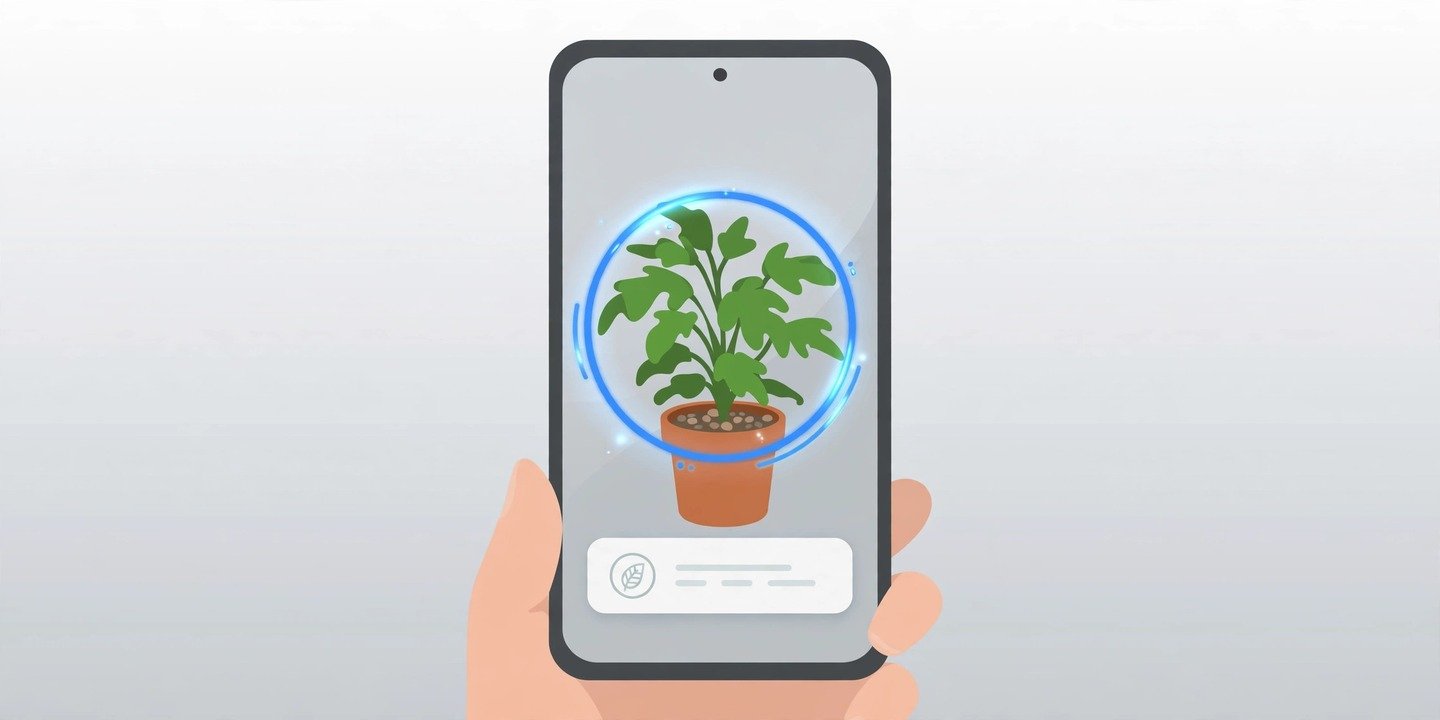
Your phone can recognise what it sees. Point the camera at a plant, a product, a sign in another language or a landmark, and Google Lens can tell you what it is — and on many Android phones, Circle to Search does the same thing for anything already on your screen. Here is how to use both, on Android and iPhone.
What Google Lens and Circle to Search do
Google Lens is Google’s visual search tool. Instead of typing a question, you show it a picture — through your camera or from a photo you already have — and it finds matching information. Circle to Search is built on the same technology, but it works on whatever is already on your screen: circle, highlight, scribble on or tap anything and Google searches it without you leaving the app.
Both tools are free and built into Google’s apps. The main difference is where they live: Lens works from the camera or a saved photo on Android and iPhone, while Circle to Search is system-wide but only on supported Android phones.
How to use Google Lens
Lens is the easiest place to start, and it works on both platforms.
- Open the Google app on your phone and make sure it is up to date.
- Tap the Lens icon (the small camera) in the search bar.
- Point your camera at the object and tap Search, or pick a photo from your gallery or screenshots instead.
- Drag the corners of the selection box around the part of the image that matters.
- Read the results at the bottom of the screen. You can tap Translate, Text, Shopping or Search to change what Lens does with the image.
On iPhone, Lens lives inside the Google app and Google Photos — open a photo in Google Photos and tap the Lens icon. It is not part of Apple’s Camera app.
Tip: you can also add words to a Lens search. After Lens shows results, use “Ask about this image” to add a detail such as a colour, a brand name or a question.
How to use Circle to Search
Circle to Search launched in January 2024 on the Pixel 8 series and the Galaxy S24 series, and it now runs on Pixel 6 and later, plus Galaxy phones running Android 14 with One UI 6.1 or newer. It is not available on iPhone as a system feature. For step-by-step help, see Google’s guide to Circle to Search.
- Check it is switched on. On a Pixel, search Settings for “Circle to Search” and turn it on. On a Samsung Galaxy phone, go to Settings > Display > Navigation bar and turn on Circle to Search.
- From almost any screen, long-press the Home button (or the navigation handle if you use gesture navigation). A glow appears around the edge of the screen.
- Circle, highlight, scribble on or tap whatever you want to search. A rough circle is fine — you do not need to be precise.
- Read the results in the panel that slides up, then swipe it away to go back to what you were doing.
You can also use Circle to Search to translate text on a web page or in a message, and to copy text from an image. On newer models, a 2026 update also lets you circle several objects in one image at once — availability varies by phone, so do not be surprised if your phone does not have it yet.
Five things you can identify with your phone
- Plants and animals. Point Lens at a houseplant, a flower or a dog in the park and it will suggest the species. The clearer and better lit the photo, the better the match.
- Products and clothes. See a jacket or a chair you like? Lens can find the same or similar items online and show where to buy them.
- Text in another language. Point the camera at a menu or a sign and Lens can overlay a translation on the image. It supports more than 100 languages, though quality varies by language.
- Landmarks and places. Identify buildings, monuments and statues as you walk past them, and get background information in seconds.
- Codes and printed text. Lens reads QR codes and barcodes, and it can copy text from a printed page or a handwritten note straight onto your phone.
Tips for better results
- Get closer and fill the frame with the subject. Lens works best when the object is large and in focus.
- Use good light. Blurry, dark or backlit photos are the most common reason for wrong or vague matches.
- Crop out distractions. If several objects are in the shot, narrow the selection box to just the one you care about.
- Add words when the results are too broad. A brand name, a colour or a simple question narrows things down fast.
- Take your own photo for the best results. A clear photo you take yourself beats a screenshot of a small image, and it keeps the steps above working the way they are described here. If you want sharper shots in the first place, our guide to taking better phone photos covers the basics.
Things to keep in mind
Lens and Circle to Search give suggestions, not guarantees. Always double-check important results — a plant identification, for example, should never be your only source before touching or eating anything. The tools also send what you highlight to Google’s servers, so avoid circling passwords, ID documents or private messages. And remember that features and menu names can differ slightly between phone makers and software versions; if a step above looks different on your phone, check your manufacturer’s support page for your exact model.
Circle to Search and Google Lens turn your camera into a search box. Once you get used to them, identifying a plant, translating a menu or finding where to buy something you just saw takes seconds — no typing required. For another way your camera can help, see our guide to scanning documents with your phone.