How to Turn Your Old Phone Into a Security Camera
That old phone sitting in a drawer still has a good camera, Wi-Fi and a microphone — everything a basic home security camera needs. With a free app, you can turn it into a camera that watches a room, sends motion alerts to your current phone and even lets you talk through it. It takes about ten minutes, works on Android and iPhone, and costs nothing to start. Here is how.
What You Need
- Your old phone — Android or iPhone, most phones from the last several years work fine
- Your current phone, to watch the feed
- A stable Wi-Fi connection where the camera will sit
- A charger and a long cable
- A small tripod, phone stand or shelf to mount it on
1. Factory Reset the Old Phone First
Before anything else, wipe the old phone. A factory reset removes your accounts, photos, saved passwords and personal data, and it frees up storage for recordings. That matters, because this phone will now sit online and recording around the clock. Back up anything you want to keep first — see our guide on how to back up your phone. Then update the phone to the latest software version it supports, and remove the SIM card if it has one.
2. Install a Security Camera App on Both Phones
The most widely recommended free option is AlfredCamera (listed as Alfred Home Security Camera), available on both Android and iPhone. AtHome Camera is a solid alternative. Install the same app on your old phone and on your current phone — one will be the camera, the other the viewer.
3. Pair the Two Phones
Open the app on both phones and sign in to the same account, or pair them by scanning the QR code the app shows. Then set the roles: choose Camera on the old phone and Viewer on your current phone. Allow camera permission on the old phone, and microphone permission too if you want audio or two-way talk. You should now see the old phone’s live feed on your current phone.
4. Position and Mount the Camera
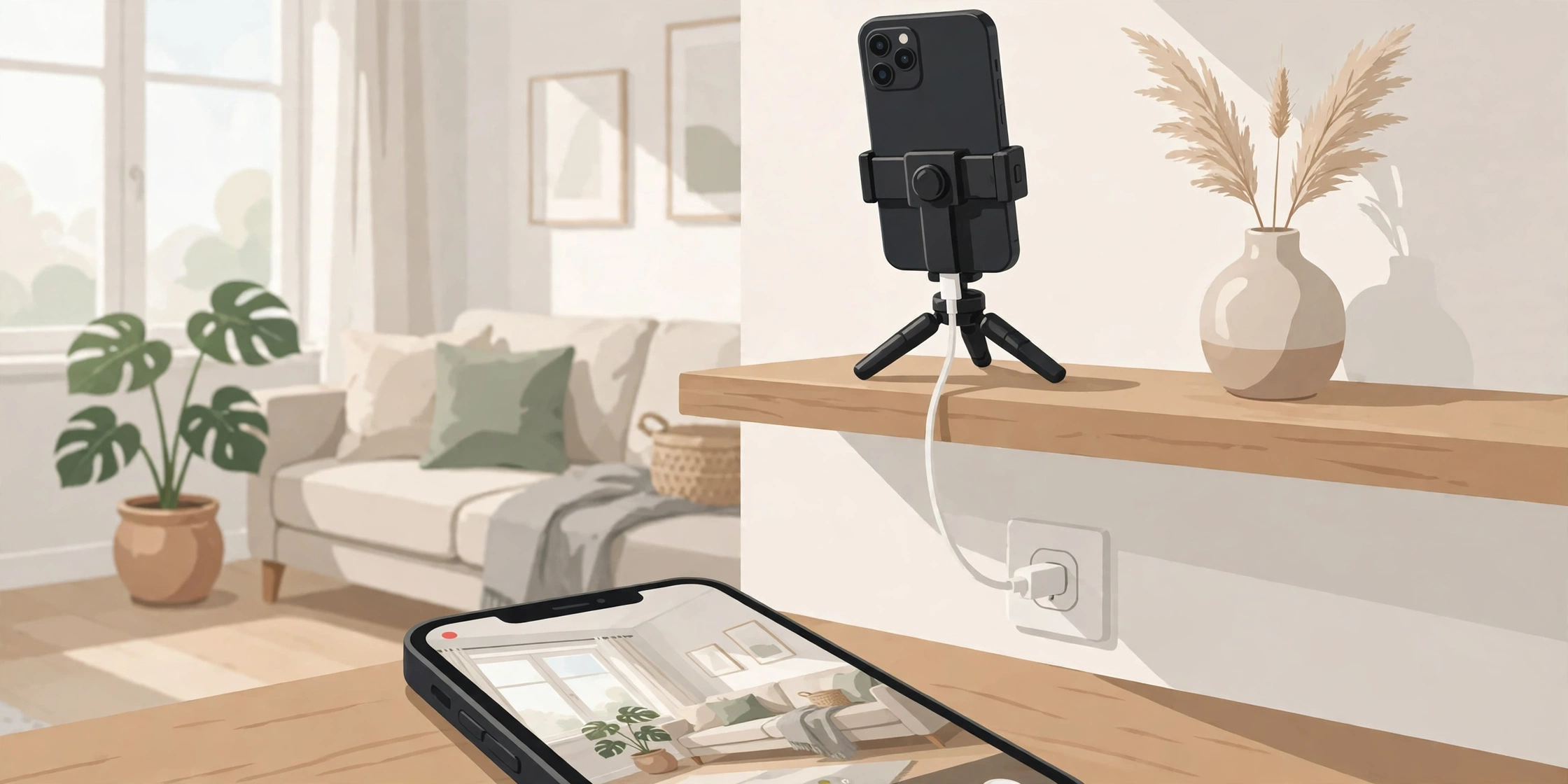
Point the camera at the spot you actually want to watch — a front door, hallway, living room or pet area. Use the rear camera, which is sharper than the selfie camera on almost every phone. Avoid pointing it straight at a bright window, as the backlight washes out the picture, and keep the lens clean. A small tripod or stand works best, because it holds the angle steady and leaves room for the charging cable. Route the cable where nobody can trip over it or pull the phone down.
5. Keep It Plugged In — and Stop the Phone Closing the App
Recording video drains a battery in hours, so leave the camera phone on its charger permanently. On Android, turn off battery optimisation for the camera app so the system does not close it in the background. On iPhone, make sure Low Power Mode is off and leave the app running.
Check the old phone’s battery before you leave it plugged in around the clock. If the battery is swollen, the back panel is lifting, or the phone gets very hot while charging, do not use it as a camera. Keep it out of direct sunlight as well.
6. Turn On Motion Alerts and the Extras
On your viewer phone, switch on motion detection and push notifications so you get an alert when something moves in frame. Also worth turning on: the low-light mode for night viewing, two-way talk so you can speak through the camera phone, and the built-in siren. If you want to watch from a computer, AlfredCamera also offers a WebViewer that shows the feed in a browser. Walk through the room once to check the alert actually arrives.
7. Test It Before You Rely On It
Do not just set it up and walk away. Check the live feed on mobile data while you are away from home Wi-Fi, check the picture at night, and confirm motion alerts come through promptly. If the feed freezes or alerts are late, move the camera phone closer to your Wi-Fi router or restart the app.
What the Free Plan Covers
The free version of AlfredCamera covers the basics: live view, motion alerts, two-way talk, low-light mode, the siren and up to two cameras. Paid plans, from around $6 a month according to Engadget’s guide, add HD streaming, more cameras, longer cloud storage and person detection. For watching one room, the free plan is usually enough.
Keep It Secure and Legal
Use a strong, unique password for the camera app account, and turn on two-factor authentication if the app offers it. Only point the camera at your own home and spaces you control. Laws about recording video — and especially audio — vary by place, so check your local rules before aiming a camera at shared or public areas. For more on locking down your phone, see our guide to phone privacy and security settings.
More Than a Security Camera
The same setup works as a baby monitor, a pet camera for checking on a dog while you are out, or a way to see when a delivery arrives. And if you want to use a phone camera on your computer instead, our guide to using your phone as a webcam covers that.
An old phone does not have to end up in a drawer or in the bin. With ten minutes of setup and an app you already have room for, it becomes a genuinely useful camera that watches your home, alerts you when something moves and costs nothing to run. If your old phone is still lost somewhere in the house, start with our guide to finding a lost phone.