How to Set Up Parental Controls on Your Child’s Phone: Android and iPhone Steps
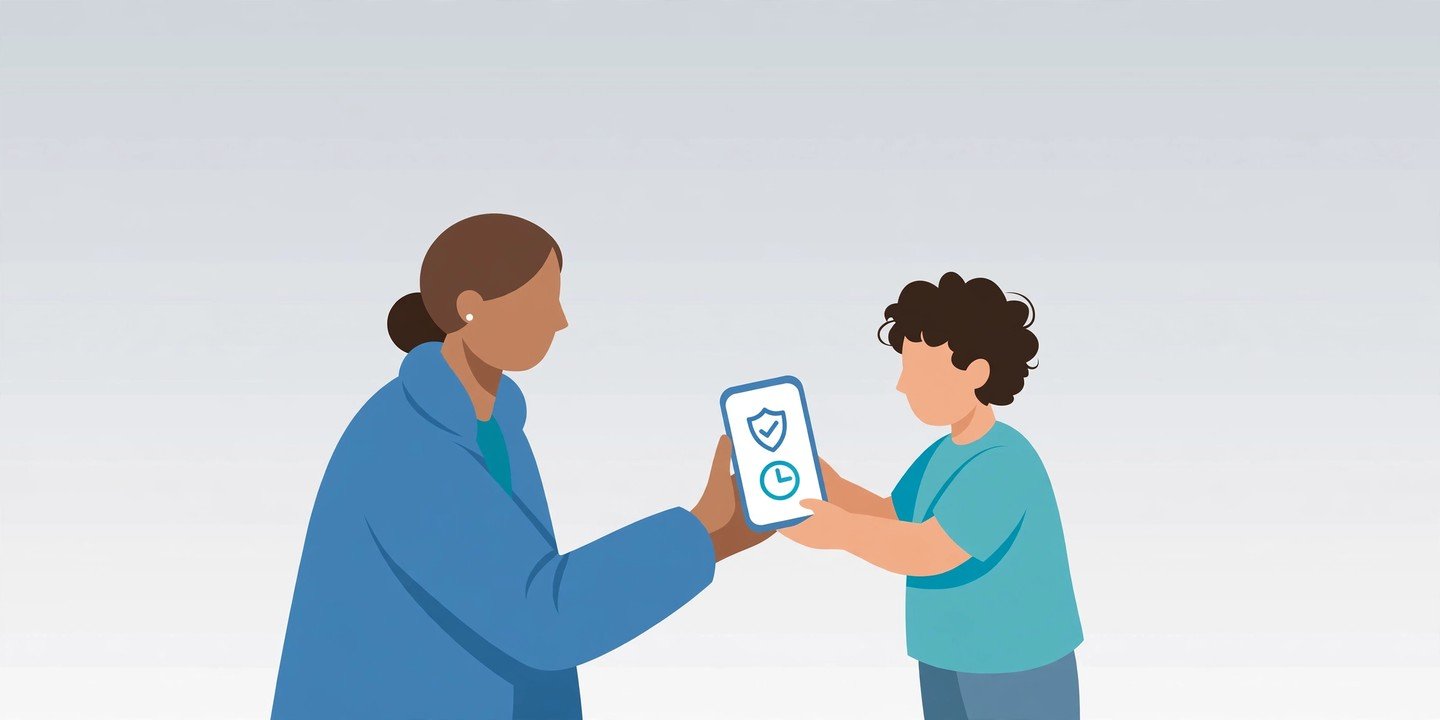
Handing your child their first phone is a big moment — and a slightly nerve-wracking one. The good news is that you do not need a paid app to keep things sensible: both Android and iPhone have free parental controls built in, and you can manage most of them from your own phone. This guide walks through the setup on both platforms, step by step.
Before you start: what you need
- Both phones side by side — yours and your child’s — for about 10 to 15 minutes.
- An account for your child. On Android, that is a Google Account, which you create for them through Family Link if they are under 13. On iPhone, it is an Apple ID for your child, created through Family Sharing.
- A passcode or PIN only you know. This locks the settings so your child cannot switch them off.
Set up parental controls on Android with Google Family Link
Google Family Link is the main tool on Android. It is free, and you run it from your own phone — the Family Link app is available on Android and iPhone.
- Install Family Link on your phone from the Google Play Store (or the App Store on an iPhone) and sign in with your own Google Account.
- Create your child’s Google Account in the app, or add supervision to an account they already have. If your child is under 13, you create the account for them and give parental consent during setup.
- Link your child’s phone. Sign in to the child’s Android phone with the child’s account and follow the on-screen prompts to finish the Family Link connection. Keep both phones nearby — the app walks you through the link.
- Set a daily screen time limit. In Family Link, select your child, then go to Screen time > Time limits > Daily limit, turn it on, and set the hours allowed for each day of the week.
- Set Downtime and School time. Under Screen time > Schedules, turn on Downtime for the night and School time for school hours, when the phone locks down to essentials.
- Choose which apps are allowed. Go to Screen time > Time limits > App limits, pick an app, and switch it between Allowed and Blocked.
- Turn on approvals for downloads and purchases. Go to Controls > Google Play, set the highest maturity level you allow for apps, games, films and TV, and turn on Require approval for all purchases so nothing is bought without you.
- Switch on content filters. Under Controls > Content Restrictions, turn on SafeSearch for Google Search and set the filters for Chrome and YouTube.
- Share your child’s location. Tap Location in Family Link, then Set up location, and follow the prompts.
Tip: you can lock the phone remotely or add bonus minutes any time — in Family Link, select your child, tap Screen time, then Lock or Bonus time. On phones running Android 17 or later, there are also built-in parental controls in Settings > Parental controls, protected by a PIN you set on the device itself.
Set up parental controls on iPhone with Screen Time and Family Sharing
On iPhone, parental controls live in Screen Time, managed through Family Sharing from your own device.
- Set up Family Sharing. On your iPhone, open Settings, tap your name, then Family. If you have no family group yet, follow the prompts to create one, then tap Add Member > Create an Account for a Child and follow the steps.
- Open your child’s Screen Time settings. Go to Settings > your name > Family, tap your child’s name, then Screen Time. You can also set it up on the child’s own phone: Settings > Screen Time, tap This is My Child’s iPhone, and create a Screen Time passcode.
- Set Downtime and App Limits. In Screen Time, switch on Downtime for bedtime hours and use App Limits to cap daily time on games, social media or any other category.
- Turn on Ask to Buy. Go to Settings > your name > Family Sharing, tap your child’s name, then Ask to Buy, and switch on purchase approval. It is on by default for children under 13, and you can enable it for older children too — every download or purchase then waits for your approval.
- Set content and privacy restrictions. In Screen Time > Content & Privacy Restrictions, set age ratings for apps, films and web content, and switch on Limit Adult Websites, which is on by default for children under 18.
- Choose who your child can contact. Under Family > your child’s name > Allowed Contacts, you can control who they can call, message or FaceTime, and whether they need your approval before talking to someone new.
Note: Apple refreshed Screen Time in iOS 27, adding Ask to Browse alongside Ask to Buy and new controls over who your child can contact. If your iPhones are on an older iOS version, the same settings are still there under Screen Time — the menus just look slightly different.
Five settings worth turning on first
If you are short on time, these five give you most of the protection:
- A daily screen time limit and a bedtime Downtime window on both platforms.
- Purchase approval — Ask to Buy on iPhone, or Require approval for all purchases in Google Play on Android — so there are no surprise charges.
- An age rating cap for apps, games and films, matched to your child’s age.
- SafeSearch and adult-website filtering switched on in the browser and search.
- Location sharing, so you can see where your child’s phone is — handy for finding a lost phone, too.
Review the rules together — and revisit them
No setting replaces a conversation. Talk through the limits with your child before you switch them on: what the phone is for, when it goes away at night, and what to do if something online makes them uncomfortable. Agree the rules together and they are far more likely to stick.
Then check in once a month. Open Family Link or Screen Time, look at what your child actually uses the phone for, and adjust the limits as they get older. Loosen the rules gradually as they show they can handle more freedom — the goal is a child who can manage their own phone well, not one who just waits for the controls to come off. For your own habits, see our guide to cutting down screen time on your phone.
Parental controls are free, built in, and take about fifteen minutes to set up. That is a small price for a much calmer first phone.
Sources checked: Google Family Link setup guides and Apple’s Screen Time support pages. Menu names can vary slightly by Android version, phone maker and iOS version — follow the on-screen wording on your phone if a label looks different.
Further reading: How to set up Family Link parental controls on Android and step-by-step tips to set up your kid’s iPhone