How to Use Wi-Fi Calling on Android and iPhone
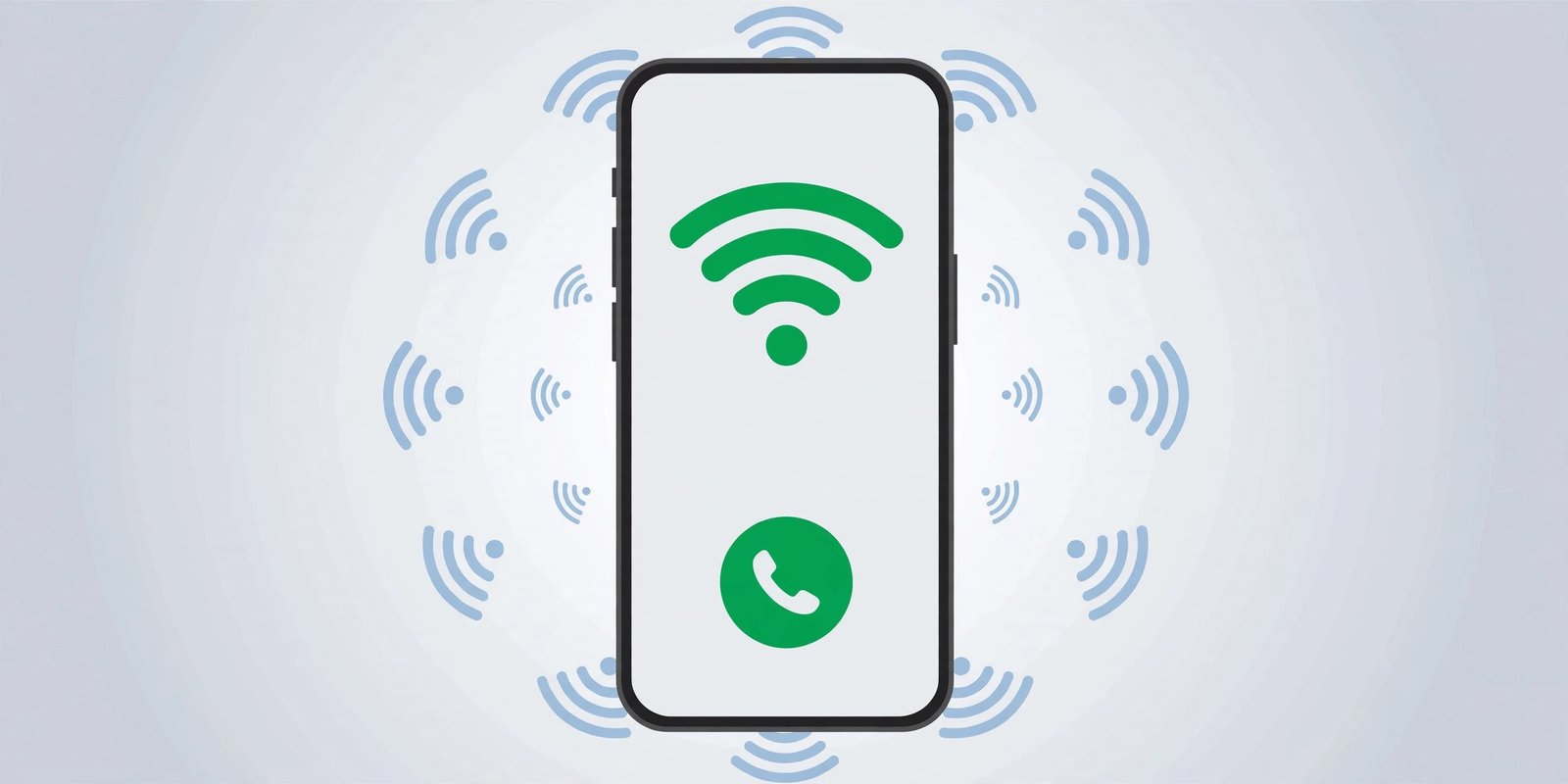
Weak signal at home or in the office does not have to mean missed calls. Wi-Fi calling routes your regular phone calls and texts over a Wi-Fi network instead of a mobile tower, so you can talk clearly in basements, thick-walled buildings and rural dead spots. It uses your normal phone number, so the person you call sees nothing different. Here is how to turn it on and what to check if it does not work.
What Is Wi-Fi Calling?
Wi-Fi calling, sometimes called VoWiFi, sends your voice calls over the internet through a Wi-Fi connection. Your phone switches to it automatically when your mobile signal is weak and a Wi-Fi network is available, then switches back to the mobile network when you leave. It is not the same as calling in WhatsApp or FaceTime: it works with your carrier plan and your regular phone number, and it can usually send texts too. Most modern phones support it, but your carrier must support it on your plan — if the setting is missing from your phone, your carrier is the reason.
Before You Start: Check Your Carrier Supports It
- Connect your phone to a Wi-Fi network you trust, such as your home network.
- Make sure your phone software is up to date — go to Settings and check for a software update first.
- Have your home address ready. Most carriers ask you to enter or confirm an emergency address before Wi-Fi calling works, so emergency services can find you if you call 999 or 911 over Wi-Fi.
If the Wi-Fi calling option does not appear in Settings at all, your carrier does not offer it on your phone or plan. Contact your carrier to confirm.
How to Turn On Wi-Fi Calling on iPhone
- Open Settings and tap Cellular. On some iPhones the option sits under Phone instead — check there if you do not see it under Cellular.
- If you use two SIMs or eSIMs, tap the line you want to use Wi-Fi calling on. (If you have not set up a second line yet, see our guide on how to set up an eSIM on Android and iPhone)
- Tap Wi-Fi Calling, then turn on Wi-Fi Calling on This iPhone.
- Tap Enable and enter or confirm your emergency address when asked.
- Make a call as normal. When Wi-Fi calling is active, you will see Wi-Fi next to your carrier name in the status bar.
You can also let your other Apple devices make calls over Wi-Fi: go to Settings, then Cellular, then Calls on Other Devices, and turn on Allow Calls on Other Devices.
How to Turn On Wi-Fi Calling on a Google Pixel
- Open Settings and tap Network & internet, then SIMs.
- Tap your carrier SIM (pick the right one if you have two).
- Tap Wi-Fi calling and turn on Use Wi-Fi calling.
- Accept the terms and enter your emergency address if asked.
Your phone will now use Wi-Fi for calls whenever the mobile signal is weaker than the Wi-Fi connection.
How to Turn On Wi-Fi Calling on a Samsung Galaxy
- Open Settings and tap Connections, then Wi-Fi Calling.
- Turn on the switch. Enter your emergency address if a pop-up asks for it, then tap Save.
- Tap the words Wi-Fi Calling (not the switch) to open Calling preference, and choose Wi-Fi preferred if you want calls to use Wi-Fi even when you have some mobile signal.
Tip: On some Galaxy phones you can also swipe down with two fingers to open Quick Settings and tap the Wi-Fi Calling icon there.
How to Tell It Is Working
Once it is switched on, Wi-Fi calling works in the background — you do not dial anything differently. Look for Wi-Fi (or VoWiFi on some Android phones) next to your carrier name in the status bar while you are connected to Wi-Fi. Make a test call to a friend or family member while standing somewhere with weak mobile signal: if the call connects and sounds clear, it is working. If you move out of Wi-Fi range mid-call, most phones hand the call back to the mobile network, though a brief drop is possible on some networks.
Wi-Fi Calling Not Working? Try These Fixes
- Check you are actually connected to Wi-Fi with working internet — Wi-Fi calling needs a live connection, not just a signal.
- Restart your phone, then check the Wi-Fi calling switch is still on.
- Try a different Wi-Fi network. Some public and workplace networks block the connection Wi-Fi calling needs.
- Update your emergency address. A missing or out-of-date address is one of the most common reasons the switch will not stay on.
- Reset your network settings as a last resort. On a Pixel, go to Settings, then System, then Reset options, then Reset Mobile Network Settings. On a Galaxy, go to Settings, then General management, then Reset, then Reset mobile network settings. You will need to re-enter Wi-Fi passwords afterwards.
- If none of that helps, contact your carrier — the feature may not be enabled on your account, even if the setting appears on your phone.
A Few Things Worth Knowing
Wi-Fi calling usually costs the same as a normal call on your plan, but calls made while travelling abroad can be charged as international calls, so check your carrier’s rules before you travel. It also needs a reasonably fast, stable Wi-Fi connection — a congested network can cause echo or dropouts, in which case turning Wi-Fi calling off temporarily is the quick fix. And remember, it is not a replacement for an emergency plan: keep your emergency address up to date, and read our guide to setting up Emergency SOS on your phone so help is one button away.
Wi-Fi calling takes about a minute to set up and then simply works in the background. Turn it on once, confirm your emergency address, and your phone will quietly use the best connection available — mobile or Wi-Fi — wherever you are. If you travel a lot, you may also want our guide to using your phone as a mobile hotspot, and for the official Apple steps, see Apple’s support page on making a call with Wi-Fi calling.