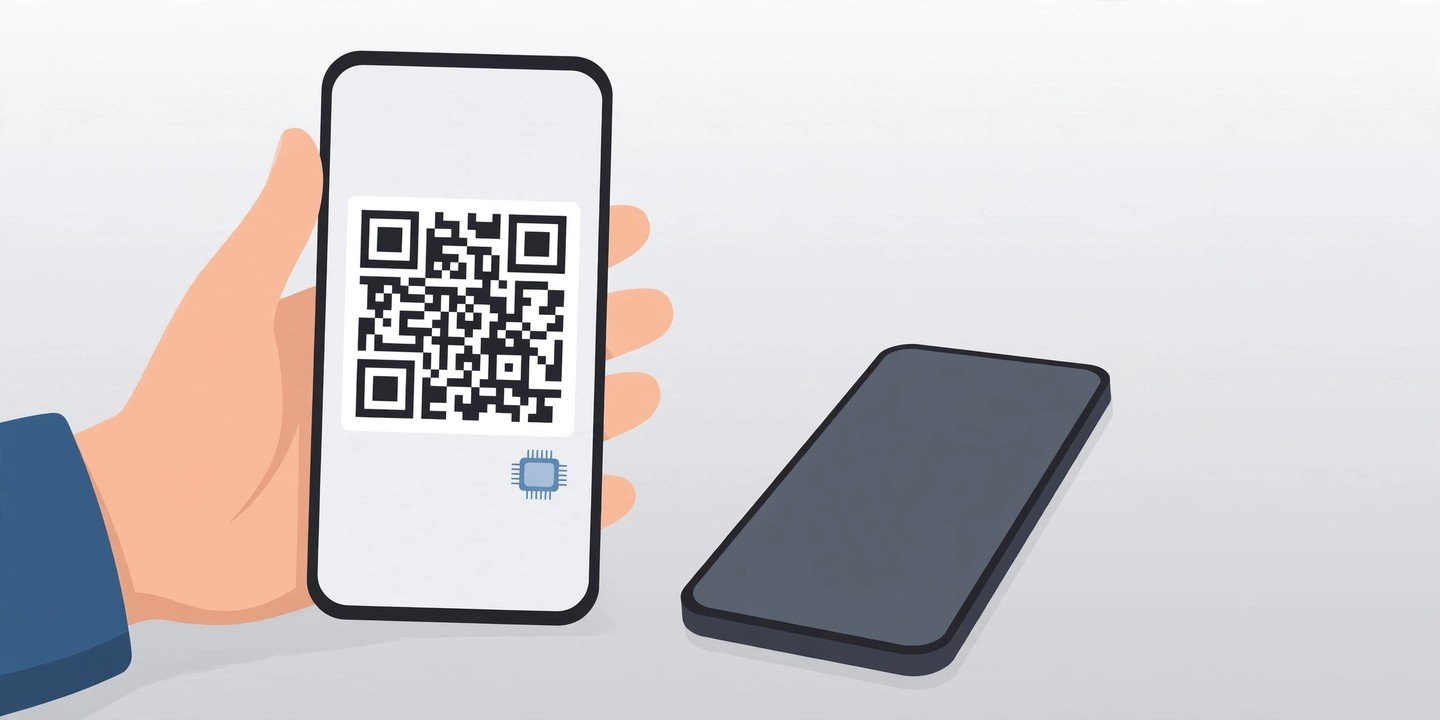
How to Connect Your Phone to Your Car: Android Auto and Apple CarPlay Setup
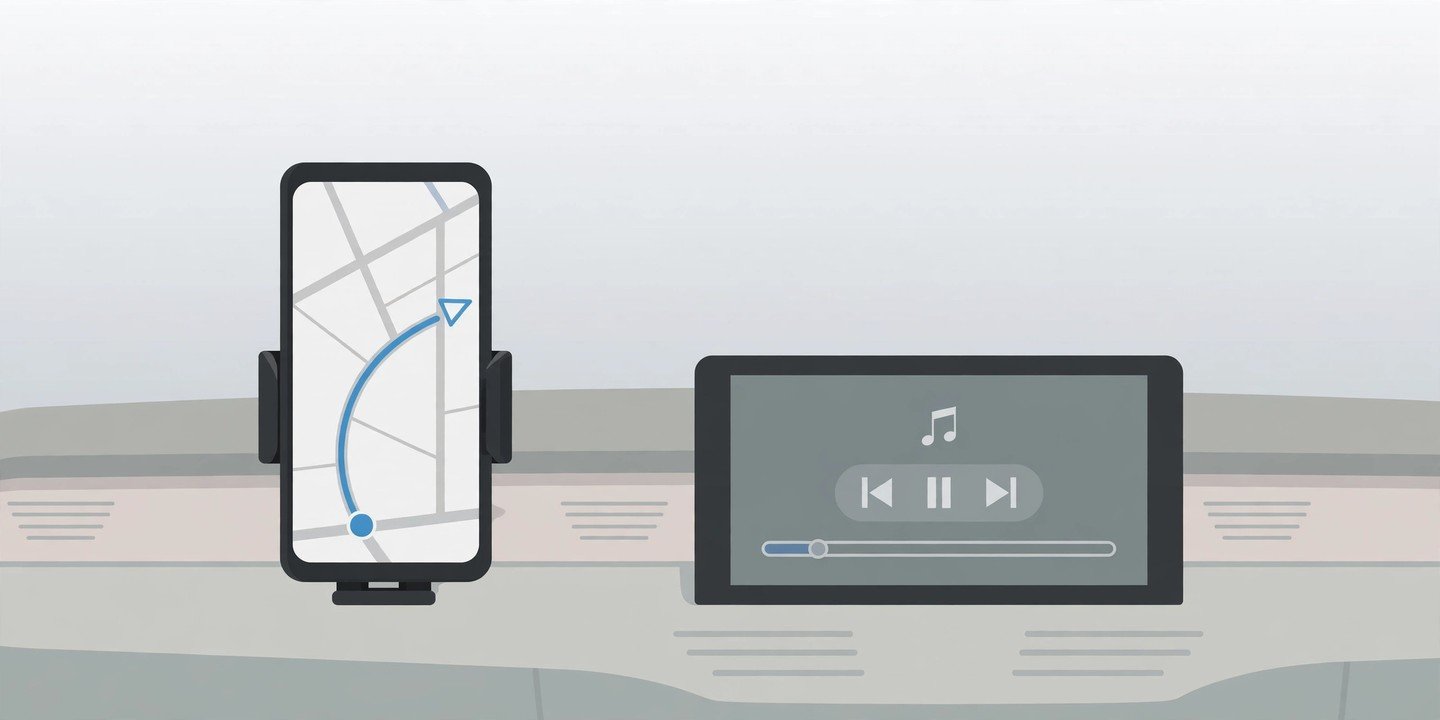
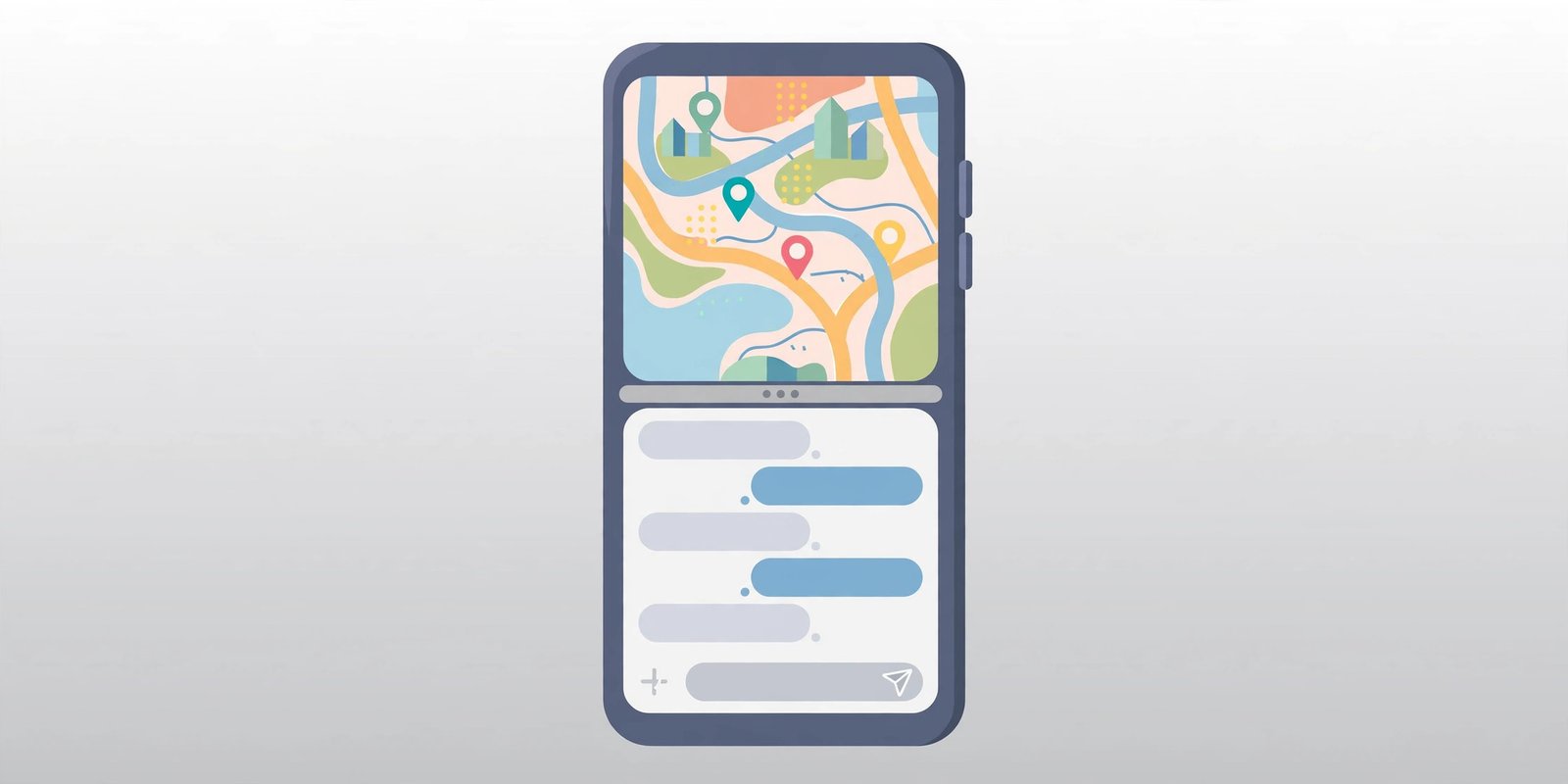
Plugging your phone into your car puts maps, music, calls and messages on the dashboard screen, where you can control them with far less distraction. Android phones use Android Auto, iPhones use Apple CarPlay, and both work over a cable or wirelessly. Here is how to set each one up, and what to do when it refuses to connect.
Before you start: check your car supports it
Not every car has Android Auto or CarPlay, and support varies by model year and trim. Check your owner’s manual, the carmaker’s website, or the compatibility lists from Google and Apple before you begin. You will also need a mobile data plan, because maps and music stream through your phone. Park the car and switch the infotainment system on before starting setup — most cars will not let you pair a phone while driving.
How to connect Android Auto with a USB cable
Wired Android Auto is the simplest and most reliable option, and it works on the widest range of cars. Your phone needs Android 9 or newer.
- Unlock your phone and keep the screen awake.
- Plug a good-quality USB cable into your phone and the other end into the car’s USB port. Use the port marked with a phone or Android Auto symbol if there is one — some cars have more than one port, and only one carries data. A charge-only cable will not work, so use a data cable, ideally the one that came with your phone.
- When prompted, allow Android Auto to access your contacts, location and notifications.
- Android Auto should appear on the car’s screen. If it does not, tap the Android Auto icon on the dashboard display.
How to connect Android Auto wirelessly
Wireless Android Auto needs Android 11 or newer, a phone with 5 GHz Wi-Fi, and a car that specifically supports wireless Android Auto — many cars with wired Android Auto do not. Keep Bluetooth, Wi-Fi and Location Services switched on during setup.
- On the car screen, open the phone or device settings and start pairing a new device.
- On your phone, pick your car’s name from the Bluetooth list and confirm the code matches on both screens.
- Approve the Android Auto prompts on your phone and on the car display.
- Some cars ask for a one-time USB connection to finish setup — plug the cable in, complete the steps, then unplug it. After that, Android Auto should connect on its own each time you start the car.
Tip: if your car only supports wired Android Auto, a small wireless adapter plugged into the same USB port can add wireless mode — but it cannot add Android Auto to a car that never had it.
How to set up Apple CarPlay with a cable
CarPlay works on iPhone 5 or newer, and wired CarPlay is the easiest way to start. Make sure Siri is switched on first: go to Settings > Siri & Search on your iPhone and confirm it is enabled.
- Start the car and make sure the infotainment system is on.
- Plug your iPhone into the car’s CarPlay USB port — it is often labelled with a CarPlay icon or a smartphone symbol, and it is not always the same port used for charging. iPhone 15 and newer use a USB-C cable; older iPhones use a Lightning to USB cable.
- Unlock your iPhone the first time you connect and accept the CarPlay prompt on your phone and on the car screen.
- CarPlay opens on the car’s display. If it does not, look for the CarPlay icon in the car’s menu.
If your car supports both wired and wireless CarPlay, your iPhone will offer to connect wirelessly on your next drives after this first wired connection.
How to set up wireless Apple CarPlay
For a car that only supports wireless CarPlay, setup takes a few extra steps. Keep Wi-Fi and Bluetooth switched on.
- Press and hold the voice command button on your steering wheel, and make sure the car stereo is in wireless or Bluetooth mode.
- On your iPhone, go to Settings > Wi-Fi and check that Wi-Fi is on. Tap the information button for your CarPlay network and make sure Auto-Join is turned on.
- Go to Settings > General > CarPlay and tap your car under Available Cars.
- Confirm the prompts on your iPhone and on the car screen. After this first pairing, CarPlay should connect automatically when you start the car.
The exact steps to put a car into pairing mode vary by brand, so check your car’s manual if the car does not appear in the list.
Make CarPlay and Android Auto your own
Once connected, you can tidy up what appears on the car screen. On iPhone, go to Settings > General > CarPlay, tap your car and choose Customize to add, remove or reorder apps. On Android, open Settings > Connected devices > Connection preferences > Android Auto to choose which apps show up and whether Android Auto starts automatically. Keep only the apps you actually use while driving on the car screen — fewer icons means less time looking away from the road.
When your phone won’t connect to the car
Most connection failures come down to the cable, a setting, or out-of-date software. Work through these fixes one at a time:
- Try another cable and another USB port. Swap in a short, high-quality data cable and plug it directly into the car’s port — no hubs, extensions or adapters. This alone fixes most wired failures. (A faulty cable can also stop your phone charging — see our guide on how to fix a phone that won’t charge.)
- Restart both ends. Restart your phone and switch the car off and on again, then try connecting once more.
- Check the wireless radios. For wireless connections, make sure Bluetooth and Wi-Fi are both on, and on iPhone check that Auto-Join is enabled for the CarPlay network in Settings > Wi-Fi.
- Update your phone and the car. Install the latest phone software update, and check whether your car has an infotainment update available.
- Forget the car and start over. On iPhone, go to Settings > General > CarPlay, tap your car and choose Forget This Car, then set it up again. On Android, go to Settings > Connected devices > Connection preferences > Android Auto > Previously connected cars and remove your car, then reconnect.
- Check for blocks. On iPhone, Screen Time restrictions can hide CarPlay — check Settings > Screen Time > Content & Privacy Restrictions > Allowed Apps. On Android, check that Android Auto is allowed to run in the background and is not restricted by battery optimisation.
If nothing works, confirm once more that your exact car model and trim actually support Android Auto or CarPlay — some trims of the same model do not.
Wired setup takes a couple of minutes and works in almost every compatible car, while wireless is worth setting up if your car supports it, because you never have to think about the cable again. Set it up once while parked, and your phone should simply appear on the dashboard every time you drive. For more on keeping your phone working well on the road, see our guide to Wi-Fi calling.
Sources
- Apple Support — Use CarPlay with your iPhone
- Android Authority — How to connect Android Auto to your car