How to Back Up Your Phone: Android and iPhone Steps That Work
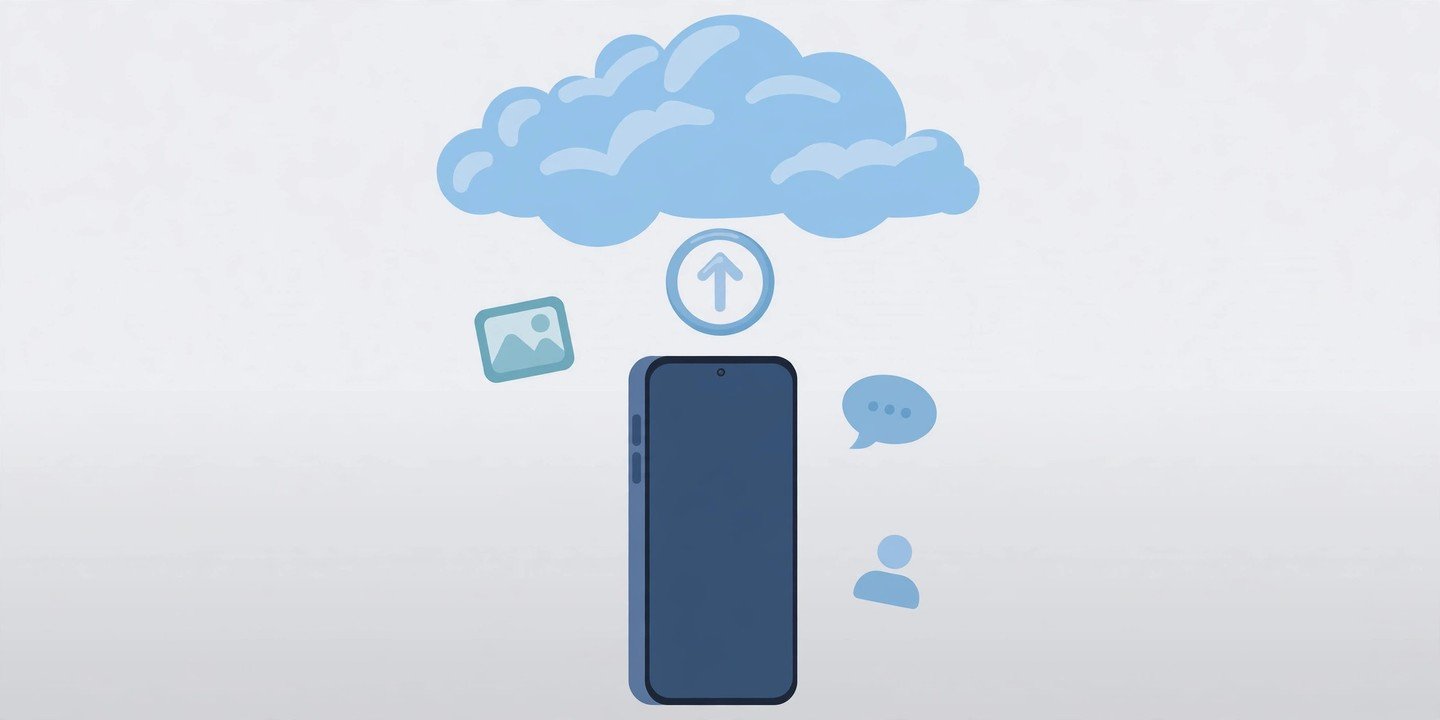
Your phone holds your photos, messages, contacts and app data — and a lost, stolen or broken phone can wipe it all in seconds. A backup is the safety net that makes a new phone feel like your old one in minutes. Here is how to set it up on Android and iPhone, plus the extras most people forget.
1. Back up an Android phone with Google One
Google’s built-in backup saves your apps, app data, contacts, call history, settings and text messages to your Google Account. It needs Android 8 or newer, a screen lock (PIN, pattern or password), and a personal device — it does not work on company-owned phones or work profiles.
- Open Settings, then tap Google (called Google services on some phones), then All services.
- Under Backup and restore, tap Backup.
- Choose what to back up — Photos & videos, Device data, or both — and turn on Backup by Google One.
- Tap Back up now to run your first backup straight away.
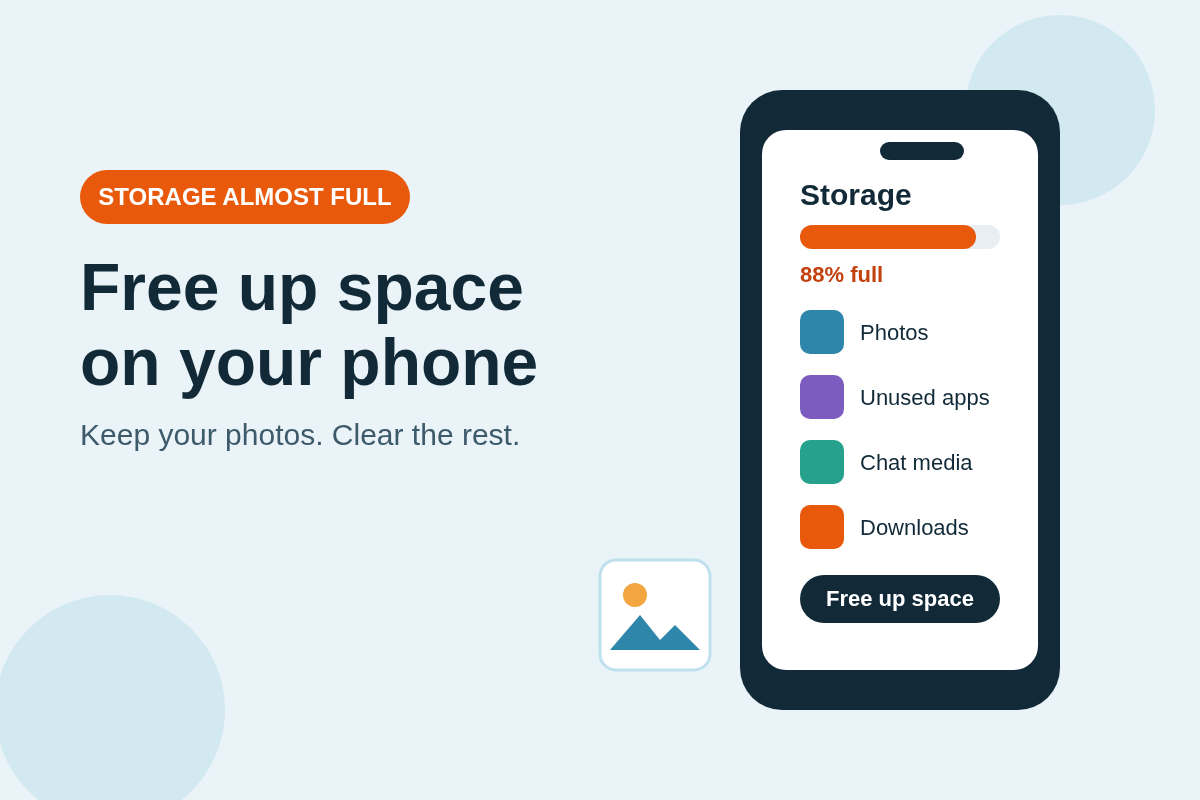
Once it is on, Google backs up automatically when your phone is on Wi-Fi, charging and idle. The first backup can take up to 24 hours to appear, so run it manually before a repair, trade-in or reset. Every Google Account includes 15 GB of free storage, shared across Google Photos, Google Drive and Gmail — if you run out, the backup simply stops, so check your storage in the Google One app if a backup will not finish.
2. Back up an iPhone with iCloud
Apple’s iCloud Backup saves your device settings, Home Screen layout, app organisation and other data that does not sync to iCloud separately. It runs automatically every day when your iPhone is connected to power, locked and on Wi-Fi.
- Open Settings and tap your name at the top.
- Tap iCloud, then iCloud Backup.
- Turn on Back Up This iPhone.
- Tap Back Up Now to run a backup immediately.
You get 5 GB of free iCloud storage, which fills fast — if you see a “not enough storage” alert, either buy more iCloud storage or trim what backs up. To trim it, go to Settings > [your name] > iCloud > iCloud Backup, tap your iPhone, and switch off the apps you do not need backed up. Turning off iCloud Backup keeps the stored backup for 180 days before Apple deletes it.
3. Back up your photos separately
Your main backup does not always cover your camera roll on its own, so back up photos directly.
- Android: Open the Google Photos app, tap your profile picture, then Photos settings > Backup and turn Backup on. Choose Storage saver or Original quality, and check which account the backup goes to.
- iPhone: Go to Settings > [your name] > iCloud > Photos and turn on Sync this iPhone. Your photos and videos then live in iCloud Photos and follow you to any device signed in to the same Apple Account.
4. Back up WhatsApp chats
WhatsApp messages are not included in your phone’s main backup by default, so set up its own backup.
- Android: In WhatsApp, go to Settings > Chats > Chat backup, pick your Google Account, choose a frequency (daily, weekly or monthly), decide whether to include videos, then tap Back up.
- iPhone: In WhatsApp, go to Settings > Chats > Chat Backup and tap Back Up Now. It uses your iCloud account, so it shares that same 5 GB of free space.
5. Keep a copy on your computer
A cloud backup is convenient, but a local copy is the fallback if your account is locked or your storage runs out.
- Android: Connect your phone to a computer with a USB cable, tap the Charging this device via USB notification, choose File transfer, then copy your photos, videos and documents to a folder on the computer. Samsung owners can also use Smart Switch on a PC or Mac.
- iPhone: Connect your iPhone to a Mac with a cable, select it in the Finder sidebar, click General, choose Back up all of the data on your iPhone to this Mac, tick Encrypt local backup to protect it with a password, then click Back Up Now. On Windows, the same steps run in iTunes.
6. Check that the backup actually worked
A backup you never checked is a guess, not a safety net. Once a month, take thirty seconds to confirm it.
- Android: Go to Settings > Google > Backup and check the date of the last backup and what is included under Backup details.
- iPhone: Go to Settings > [your name] > iCloud > iCloud Backup and check the last successful backup date shown under Back Up Now.
If the date is old, connect to Wi-Fi, plug the phone in, and run a manual backup. If it still will not finish, check your free storage first — that is the most common cause on both platforms.
The bottom line
Turn on your phone’s built-in backup today, add a photo backup, and check the date once a month. It takes about five minutes to set up, and it is the difference between a bad day and losing years of photos. If you are about to switch phones, run a manual backup first, then follow our guide on how to transfer data to a new phone.
Sources: Apple Support — Back up iPhone, Apple Support — Back up your iPhone or iPad to iCloud, Google — Back up or restore data on your Android device