How to Fix Wi-Fi Not Connecting on Your Phone: Android and iPhone Steps
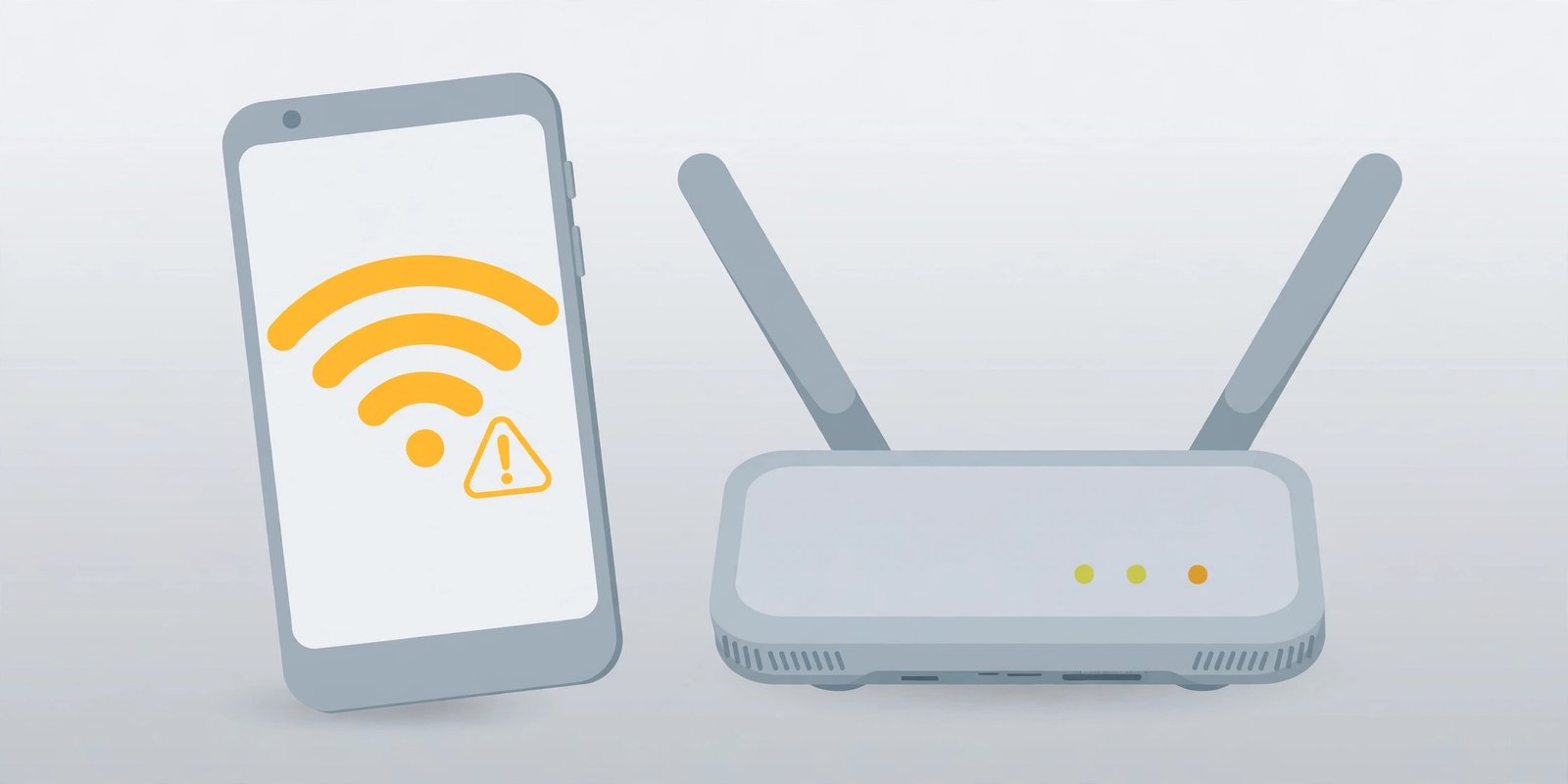
Your phone shows full signal bars, yet nothing loads — or it refuses to join your Wi-Fi at all. Before you blame the phone, work out where the fault actually is, then fix it in order, from the 30-second toggles to the network reset. This guide follows the steps Google and Apple publish for Android and iPhone, so try each fix, then open a webpage to check whether it worked before moving on to the next one.
1. Find out whether it is your phone or the network
Start here, because it decides everything else. Try connecting another device, such as a laptop, to the same Wi-Fi network. If other devices connect fine, the problem is most likely with your phone. Next, try your phone on a different Wi-Fi network, such as a friend’s house or a cafe. If your phone connects there, the problem is most likely with your home network, not the phone. And if your phone joins the network but still has no internet, the problem is most likely with the internet connection itself — the router may be online while the broadband is down.
2. Try the 30-second fixes first
Most Wi-Fi failures clear with a quick reset of the radios.
- Turn Wi-Fi off and back on again.
- Turn Airplane mode on, wait about 10 seconds, and turn it off again — this forces all the wireless radios to reconnect fresh.
- Restart your phone: press and hold the power button, then tap Restart.
On iPhone, also check that Airplane Mode is off in Settings, and tap Wi-Fi again and make sure Connectivity Assist is off. If the Wi-Fi setting looks dimmed or greyed out on iPhone, restart the device — Apple gives that as the fix for a dimmed Wi-Fi setting. After each step, open a webpage to see whether you are back online. While Wi-Fi is down, you can share mobile data with our mobile hotspot guide to stay connected in the meantime.
3. Check the password, then forget the network and rejoin
A wrong or stale password is one of the commonest causes, especially after a router password change. When you re-enter the password, tap the eye icon to show what you typed, so a typo cannot hide. If it still will not connect, forget the network and add it again — this clears the saved profile, which can become corrupted.
On Android, go to Settings, then Network and internet, then Internet, then Saved networks, tap the network and tap Forget; then tap the network name again, enter the password and tap Save. On iPhone, go to Settings, then Wi-Fi, tap the info button next to the network, tap Forget This Network, then tap the network name and enter the password. Note that with iCloud Keychain on, forgetting a network on one iPhone can remove it from your other Apple devices too.
4. Restart the router — and try the other band
If other devices struggle too, the router is the suspect. Unplug the router (and the modem, if it is separate) from the power, wait at least 30 seconds, plug it back in, and wait for all the lights to come back — this usually takes a minute or two. While you are there, check the obvious: is the router switched on, are its cables seated, and is it too far from your phone or blocked by thick walls or a metal cabinet? If your router shows two networks, such as a 2.4 GHz and a 5 GHz network, try the other one — the 5 GHz band is faster close up but reaches less far, while 2.4 GHz reaches further through walls. On public Wi-Fi, such as a hotel or cafe, open your browser and try to load any plain website: a sign-in page (a captive portal) may be waiting, and the connection stays blocked until you sign in.
5. Check for apps and software getting in the way
A VPN or security app can block Wi-Fi without any warning. On iPhone, Apple advises uninstalling VPN or security software, restarting the device, and testing the connection again. If a VPN is blocking the connection, see our VPN setup guide. On Android, test in safe mode: restart in safe mode and try the Wi-Fi network again — if it works in safe mode, a downloaded app is most likely the cause, so uninstall recently installed apps one by one and retest after each. Also check for a software update: on iPhone go to Settings, then General, then Software Update; on Android go to Settings, then System, then Software update. Updates often include fixes for connection bugs, and a phone that has not updated in a while is a common culprit.
6. Reset network settings — as a last resort only
Use this only when nothing else has worked, because it wipes your saved connections. On Android, go to Settings, then System, then Reset options, then Reset Wi-Fi, mobile and Bluetooth, and tap Reset settings. On iPhone, go to Settings, then General, then Transfer or Reset iPhone, then Reset, then Reset Network Settings. This removes all saved Wi-Fi networks and passwords, cellular settings, and VPN and APN settings — but it does not delete your photos or apps. If a school or workplace configured your network, check with their IT staff before you reset it. After the reset, rejoin your Wi-Fi network from scratch and test it before restoring anything else.
7. When to stop fixing it yourself
Some results point beyond the phone. If your phone cannot connect to any Wi-Fi network anywhere, while other devices can, contact Apple or your phone’s maker — that points to a fault in the phone. If no device can get online at home, there may be a service outage: contact your internet provider. And if Wi-Fi is still greyed out in Settings after a restart and a software update, that also points to a hardware problem, so book a repair rather than resetting the phone again — a factory reset will not fix a failed Wi-Fi chip, and it wipes your data.
Work in order, test after each step, and stop as soon as you are back online. In most cases the fix is a toggle, a forgotten network, or a router restart — the network reset is there for the stubborn few, not the starting point. If you are setting up a device from scratch, see our new-phone checklist.
Sources