How to Lock Apps on Your Phone (Android and iPhone)
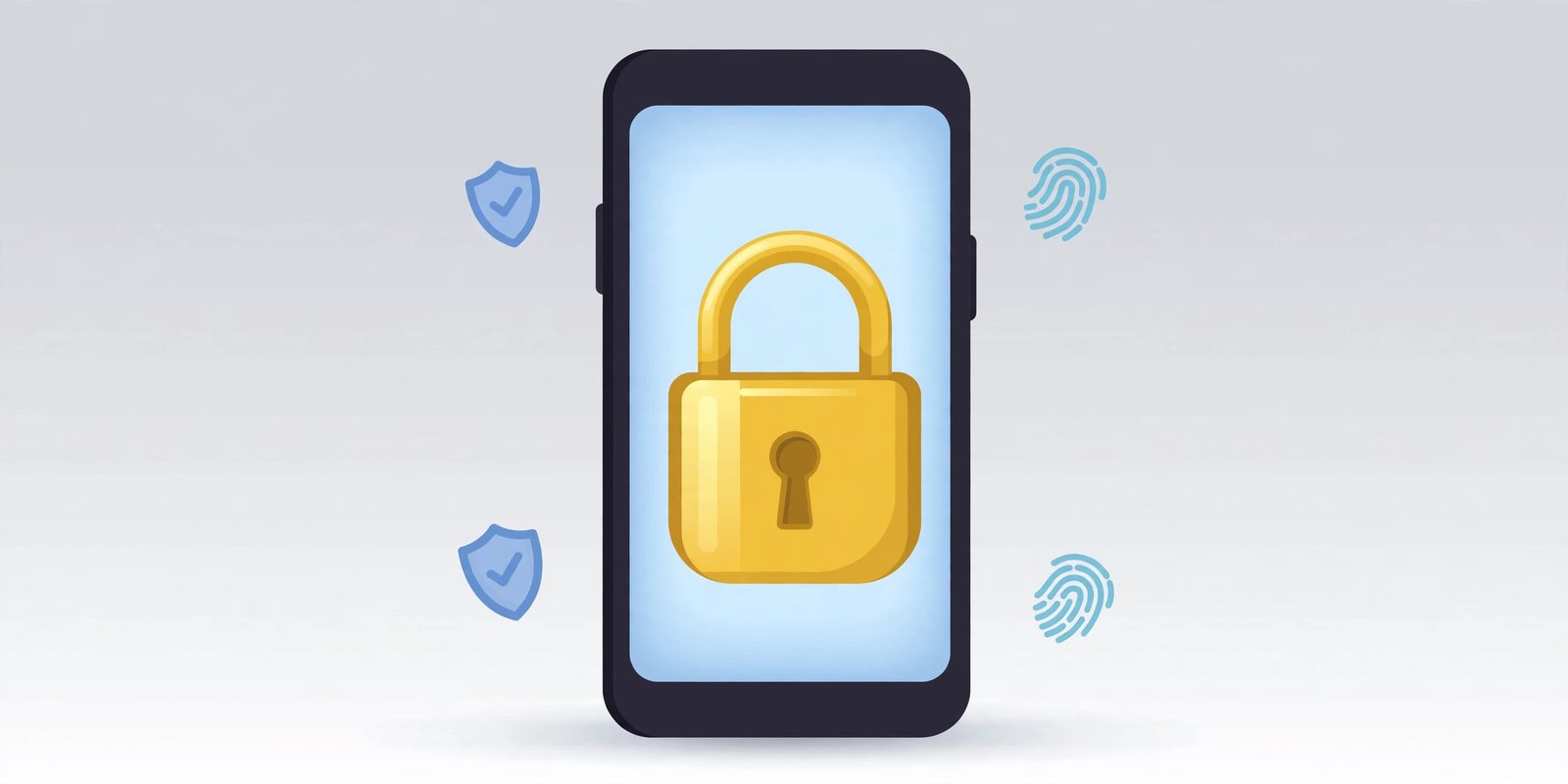
Your lock screen protects your whole phone, but once the phone is unlocked, anyone holding it can open your banking app, your photos or your chats. Locking individual apps adds a second gate, so a borrowed phone or a quick glance over your shoulder does not become a privacy problem. Here is how to do it on iPhone and Android, using the tools already built into your phone. This guide shows how to lock apps on your phone, step by step.
1. Lock apps on iPhone with Face ID (iOS 18 or later)
On iPhone, app lock arrived with iOS 18, and it takes less than a minute to switch on.
- Find the app on your Home Screen and touch and hold its icon until the quick actions menu appears.
- Tap Require Face ID (it reads Require Touch ID or Require Passcode on other iPhones).
- Tap Require Face ID again to confirm, then authenticate.
From now on, opening the app asks for Face ID, Touch ID or your passcode every time. A locked app also hides its content from notification previews, search and Siri, so nothing leaks onto the lock screen. To remove the lock later, touch and hold the icon again and choose Don’t Require Face ID.
Two limits to know: you need iOS 18 or later, and Apple does not offer the lock for a handful of built-in apps, including Calculator, Camera, Clock, Contacts, Find My, Maps, Shortcuts and Settings. If the Require Face ID option is missing, the app is on that list.
You can also hide an app completely: choose Hide and Require Face ID instead at step 3, then tap Hide App. The app disappears from the Home Screen and lives in the Hidden folder at the bottom of the App Library, which only opens after Face ID. For a broader privacy check-up, see our guide to the phone privacy and security settings to change today.
2. Lock apps on Android with Private Space (Android 15 or later)
Android has no single lock switch for individual apps, but Android 15 and later include Private Space, a locked area where apps are hidden as well as locked. It is the built-in answer to how to lock apps on your phone on Android 15 and later.
- Open Settings, then Security & privacy, and tap Private space.
- Authenticate with your screen lock, then tap Set up.
- Choose your lock: reuse your device screen lock, or set a new PIN, pattern, password or fingerprint.
- Install the apps you want to protect inside the space — touch and hold an app in All Apps and tap Install app in Private space.
While Private Space is locked, its apps are stopped and hidden from the launcher, search, Recents, share sheets and notifications. Turn on “Hide private space when it’s locked” in the space’s settings if you want the container itself to disappear too.
One warning: a forgotten Private Space lock cannot be recovered, so pick a lock you will remember. Also note that some phone makers can disable Private Space, so if the option is missing, your phone may use one of the brand tools below instead.
3. Lock apps on Samsung Galaxy with Secure Folder
Samsung phones have their own version, Secure Folder, protected by Samsung Knox.
- Open Settings, then Security and privacy, then More security settings, then Secure Folder.
- Sign in to your Samsung account and choose a lock type.
- Open Secure Folder, tap the + icon, select the apps and tap Add.
Apps added to Secure Folder are separate copies with their own data, and they only open after the folder lock. You can also hide the folder icon itself from the Apps screen in Secure Folder settings, so nobody knows it is there.
4. Use the lock inside the app itself
If your phone has no built-in app lock, check the app — many popular apps include their own. WhatsApp, for example, has an app lock under Settings, then Privacy, then App Lock, where you can require Face ID or a fingerprint and choose when it kicks in: immediately, after 1 minute, after 15 minutes or after 1 hour. Most banking apps and some photo vault apps offer a similar in-app lock. Pairing an in-app lock with a strong device passcode is a good fallback — and if you have not set one up yet, read our guide on how to set up passkeys on your phone.
5. A few things to know before you lock apps
- Your backup unlock matters. On iPhone, a failed Face ID scan falls back to your device passcode — unless Stolen Device Protection is on, in which case only Face ID works. Keep your passcode private.
- Do not lock apps you need in an emergency. Your emergency SOS shortcut still works from the lock screen, but do not hide the apps you would reach for in a hurry.
- Prefer built-in tools over third-party lockers. App-locker apps from the Play Store can work, but they ask for broad permissions and sit on top of your apps. Use Private Space, Secure Folder or your phone maker’s own app lock first.
Now you know how to lock apps on your phone. Locking your apps takes five minutes and protects the things that matter most if your phone ever leaves your hands. Start with your banking and messaging apps, then add anything else you would not want a stranger to open.
Sources checked: Tom’s Guide — how to protect apps with Face ID in iOS 18 and Units — how to lock apps on Android.