How to Use One-Handed Mode on Android and iPhone
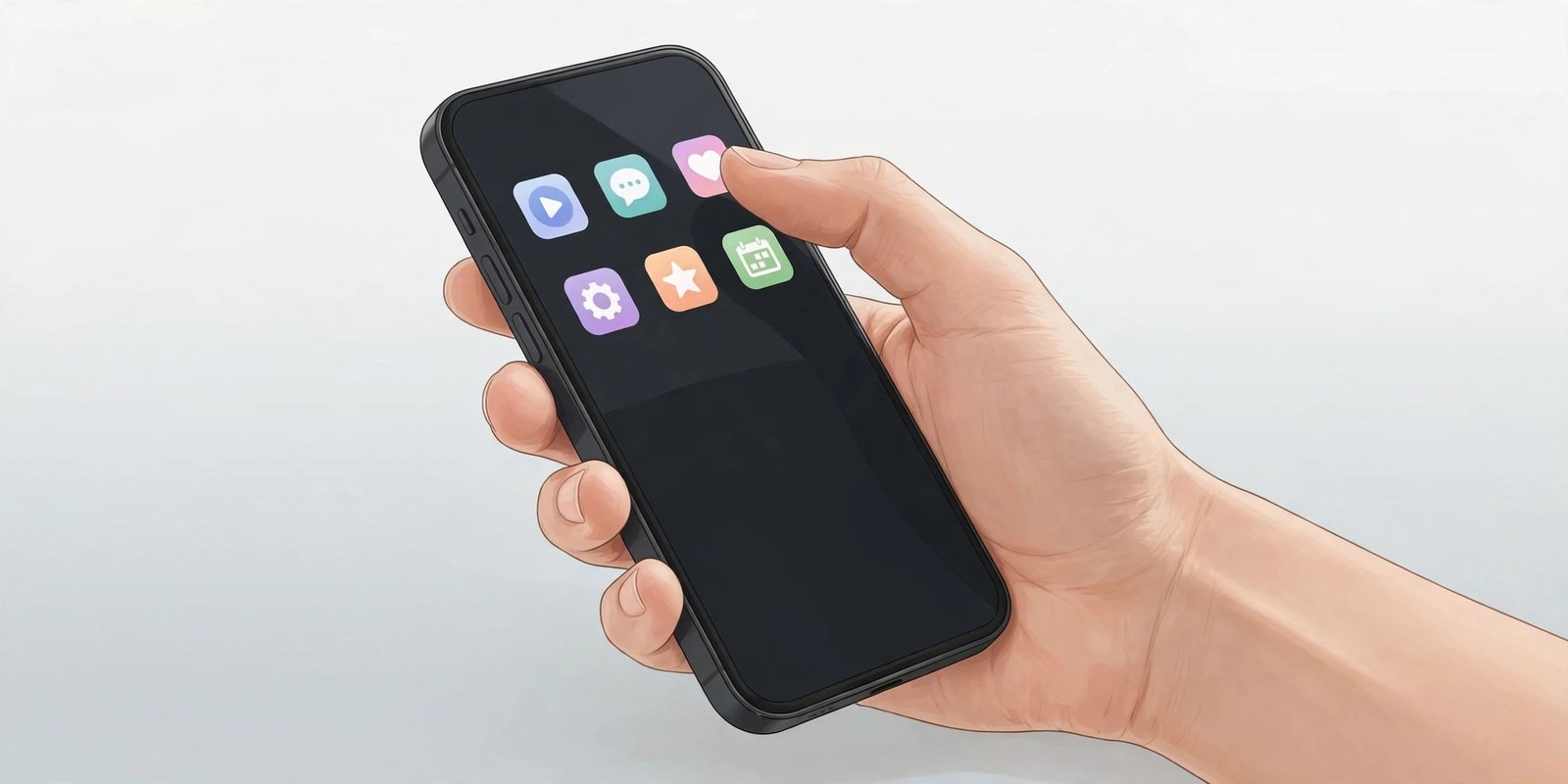
Phones keep getting taller, and your thumb has not. One-handed mode fixes that by pulling the top of the screen down — or shrinking the whole screen — so you can reach search bars, back buttons and notifications without shuffling your grip or using a second hand. Every major Android phone and every modern iPhone has a version of it, but it is switched off by default, so most people never find it. Here is how to turn it on and use it on Pixel, Samsung Galaxy and iPhone.
What one-handed mode actually does
The idea is the same everywhere, even though the result looks different. On a Pixel, the whole screen slides down so the top half sits where your thumb already is. On a Samsung phone, the screen shrinks into a smaller window in one corner, which you can move left or right. On an iPhone, the feature is called Reachability, and it lowers the top half of the screen in portrait orientation. Nothing is deleted or rearranged — tap the empty area, or repeat the gesture, and the full screen comes back.
One-handed mode on a Google Pixel
Pixel phones running Android 12 and later have one-handed mode built in. To switch it on:
- Open Settings, then tap System.
- Tap Gestures, then One-handed mode.
- Turn on Use One-handed mode.
- Choose Pull screen into reach if you want the screen to slide down, or Show notifications if you would rather the same gesture opened your notifications.
Once it is on, swipe down on the gesture bar at the bottom of the screen to pull the display into reach. To leave one-handed mode, swipe up on the same spot or tap the blank area at the top of the screen. For quicker access, you can also add one-handed mode to Quick Settings, or set it as an Accessibility shortcut. If you cannot find the setting, type ‘One-handed mode’ into the search box at the top of Settings.
One-handed mode on a Samsung Galaxy
Samsung’s version shrinks the display instead of sliding it, which suits very tall screens. To switch it on:
- Open Settings, then tap Advanced features.
- Tap One-handed mode and turn the switch on.
- Choose how to trigger it: Gesture (swipe down from the bottom edge) or, if you use three-button navigation, Button (double-tap the Home button).
When it is active, tap the arrow icon to move the shrunken screen to the left or right corner, and drag its corner to resize it. Tap any empty screen space to exit. Samsung also offers the One Hand Operation+ app in the Galaxy Store for extra edge gestures, but the built-in mode is enough for most people. Menu names can vary slightly between One UI versions — if Advanced features is not where you expect, search Settings for ‘One-handed mode’.
Reachability on iPhone
On iPhone the feature is called Reachability, and it works in portrait orientation on iPhone 6 and later. To switch it on:
- Open Settings, then tap Accessibility.
- Tap Touch, then turn on Reachability.
To use it on an iPhone with Face ID, swipe down on the bottom edge of the screen. On an iPhone with a Home button, lightly double-tap the Home button — tap it, do not press it. To return to the full screen, tap the upper half of the screen. While Reachability is active you can still pull down Control Center from the top-right corner, or Notification Center from the centre. If the screen keeps sliding down when you only meant to scroll, turn Reachability off again from the same menu.
One-handed keyboard: the other half of the trick
One-handed mode moves the screen, but a wide keyboard can still be a stretch. On Android, open Gboard, tap the four-square menu icon on the keyboard toolbar and choose the one-handed icon to pin the keyboard to one side — tap the arrow to switch sides. On iPhone, long-press the globe key on the keyboard and choose the left or right keyboard layout. Pair this with one-handed mode and typing with one thumb becomes comfortable instead of a balancing act.
Tips to make one hand work better
Move your most-used apps to the bottom rows of your home screen, so they are already under your thumb — see our guide to customising your home screen. Use gesture navigation instead of buttons where your phone offers it, so the bottom edge is free for the one-handed swipe. Add one-handed mode to Quick Settings (Android) or the Accessibility shortcut (iPhone and Android) so you can reach it without digging through Settings. Turn it off if it triggers by accident — a low swipe that keeps sliding the screen down is a sign the gesture is too easy to hit by mistake. And if you use two apps side by side a lot, one-handed mode pairs well with split screen. One-handed mode is also listed in the Accessibility settings on both platforms, alongside the other comfort features we covered here: how to use phone accessibility settings.
One-handed mode takes about a minute to set up and then stays out of your way until you need it — on a crowded train, carrying shopping, or holding a coffee. Turn it on once, learn the one gesture for your phone, and the top of your screen stops being a two-handed job. Sources: Apple’s Reachability guide and Google’s Android one-handed mode help.