How to Share Files Between Android and iPhone: 6 Ways That Actually Work
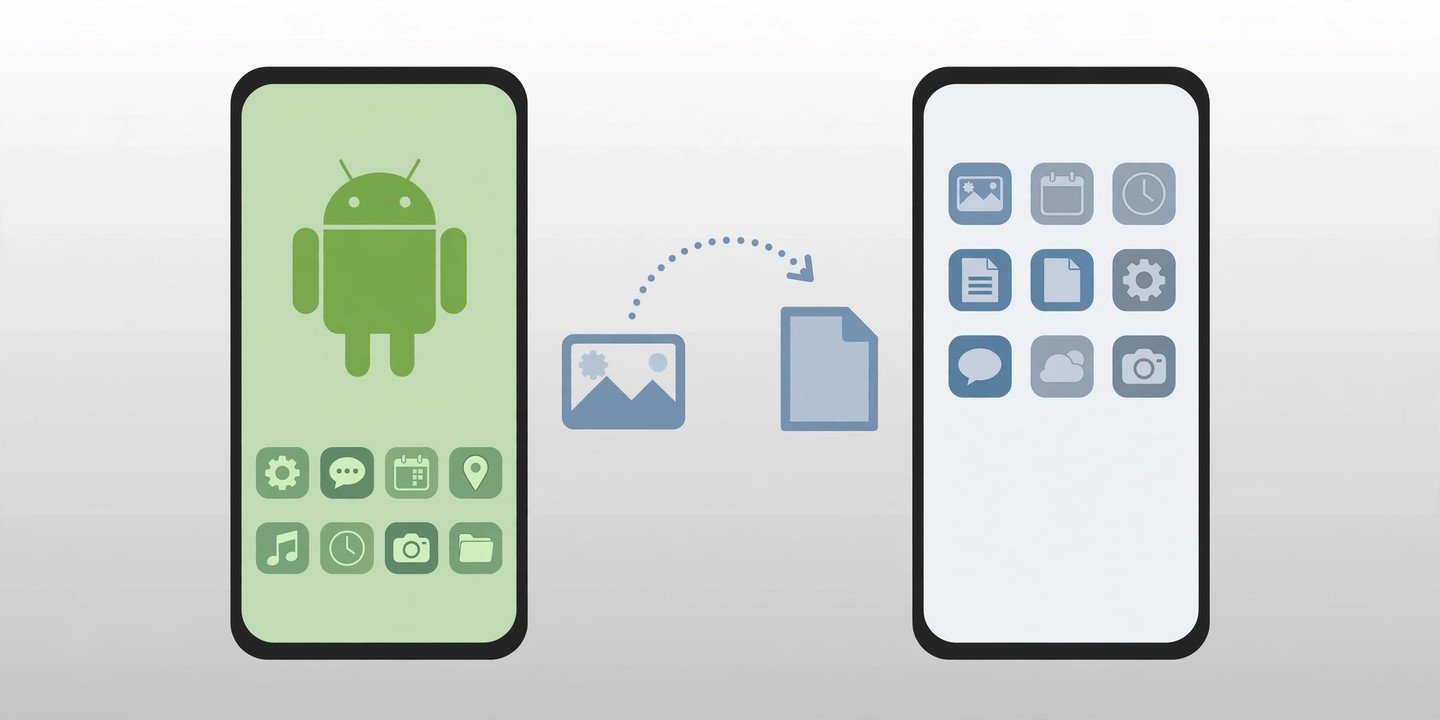
Sending a photo from an Android phone to an iPhone used to mean emailing it to yourself or installing yet another app. That has changed. Android’s Quick Share now works directly with Apple’s AirDrop on supported phones, and there are several solid fallbacks for every other phone. Here are six ways to share files between Android and iPhone, from fastest to simplest.
1. Quick Share to AirDrop (the fastest way)
Since November 2025, Quick Share on supported Android phones can send files straight to an iPhone’s AirDrop. It works on the Pixel 8a and later for sending, plus certain Samsung, OPPO, OnePlus, vivo, Xiaomi, Honor, Transsion and Motorola models. The transfer is peer-to-peer, so it needs no internet and no cloud upload.
How to do it:
- On the iPhone, open Control Center, touch and hold the connectivity controls, tap AirDrop and choose Everyone for 10 Minutes.
- On the Android phone, open the photo or file, tap Share, then Quick Share.
- Pick the iPhone from the nearby devices list.
- Tap Accept on the iPhone.
Keep both phones close together with Wi-Fi and Bluetooth switched on. Note that not every Android phone supports this yet — having a Quick Share button does not by itself mean your phone can talk to AirDrop, so check Google’s current supported-device list if the iPhone never appears. If you are setting up a whole new phone rather than sending a few files, see our guide on how to transfer data to a new phone.
2. Quick Share QR code (works on any Android phone)
If your Android phone is not on the AirDrop compatibility list, Quick Share still has a built-in fallback: a QR code that the iPhone scans to download the files.
How to do it:
- On the Android phone, select the files, tap Share, then Quick Share.
- Tap Use QR code.
- On the iPhone, point the Camera app at the code and tap the link that appears.
- The files download in the browser — save them to Photos or Files from there.
Both phones need internet for this method. Google says the files are end-to-end encrypted, available for 24 hours, and limited to 10 GB per 24 hours (up to 1,000 files per session), and they do not use your Google Drive storage. Use Wi-Fi where possible, as mobile data charges may apply.
3. Send from iPhone to Android with AirDrop
The direct connection works in the other direction too, on supported Android phones. For receiving, Google lists the Pixel 9 and later, excluding the Pixel 9a, plus certain models from Samsung and other makers.
How to do it:
- On the Android phone, open Quick Share and switch it to Receive mode.
- On the iPhone, open the file, tap Share, then AirDrop.
- Pick the Android phone when it appears, then tap Accept on Android.
Received files land in the Android phone’s Downloads > Quick Share folder. If the Android phone does not appear, fall back to the QR code or cloud method below.
4. Use Google Drive or iCloud Drive
Cloud storage is the easiest option when the phones are not in the same room, or the file is too big for a quick nearby share.
How to do it:
- On the sending phone, upload the file to Google Drive (Android or iPhone) or iCloud Drive (iPhone, via the Files app).
- Share the file with the other person’s account, or copy a share link and send it by message.
- Open the link on the receiving phone and download the file.
Google accounts include 15 GB of free storage shared across Drive, Gmail and Photos, so very large video batches can fill it up. This is also a good moment to make sure your files are backed up — see our guide on how to back up your phone. More on Google’s Quick Share options: Android’s official Quick Share with iPhone page.
5. Send it through WhatsApp
Almost everyone already has WhatsApp installed, which makes it the simplest option for a quick photo or document — with one catch.
How to do it:
- Open the chat with the other person and tap the attach button.
- For documents, choose Document and pick the file — this keeps the original quality.
- For photos, attach them as a photo, but be aware WhatsApp compresses photos sent this way, so they will not be full quality. Sending a photo as a Document avoids the compression.
WhatsApp is fine for everyday sharing, but use Quick Share or Drive for original-quality photos and large videos.
6. Use a USB-C flash drive
For very large files, or when there is no Wi-Fi at all, a small USB-C flash drive does the job with no internet and no account needed.
How to do it:
- Plug the drive into the Android phone and copy the files onto it using the Files app.
- Plug the same drive into the iPhone and open the Files app.
- Browse the drive, select the files and copy them to On My iPhone or iCloud Drive.
This works on iPhones with a USB-C port (iPhone 15 and later). Older iPhones with a Lightning port need a Lightning-compatible drive or adapter.
Which method should you use?
Both phones are together and yours supports it: use Quick Share to AirDrop — it is the fastest and keeps full quality. Your Android phone is not supported: use the Quick Share QR code. The phones are far apart: use Google Drive or iCloud Drive. It is just one quick photo: WhatsApp is fine, but send it as a Document to keep the quality. And if a transfer ever fails, check the basics first: both phones nearby, Wi-Fi and Bluetooth on, the iPhone unlocked, and AirDrop set to Everyone for 10 Minutes — it switches back to Contacts Only after ten minutes.
Sharing files between Android and iPhone is no longer the chore it once was. Pick the method that matches your phones and your situation, and the file will be on the other phone in seconds.