How to Turn On RCS Messaging on Android and iPhone
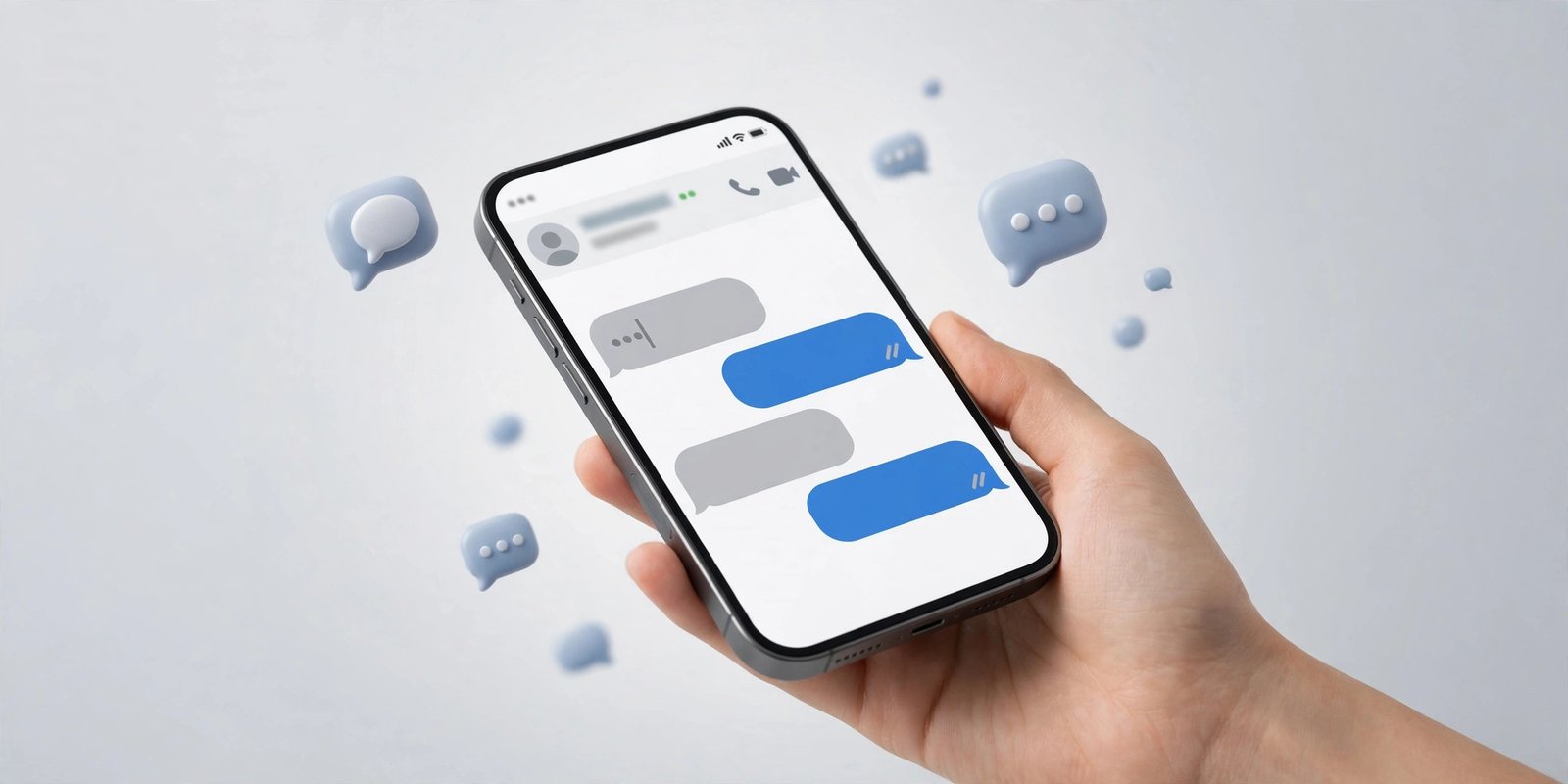
RCS is the upgrade that finally makes texting between Android and iPhone feel modern. It adds read receipts, typing indicators, sharper photos and proper group chats to the regular Messages app — no extra app needed. The catch is that it is not always switched on by default, and both people in a chat need it on for the extra features to work. Here is how to turn on RCS messaging on Android and iPhone, how to tell it is working, and what to do when it refuses to connect.
What RCS messaging actually does
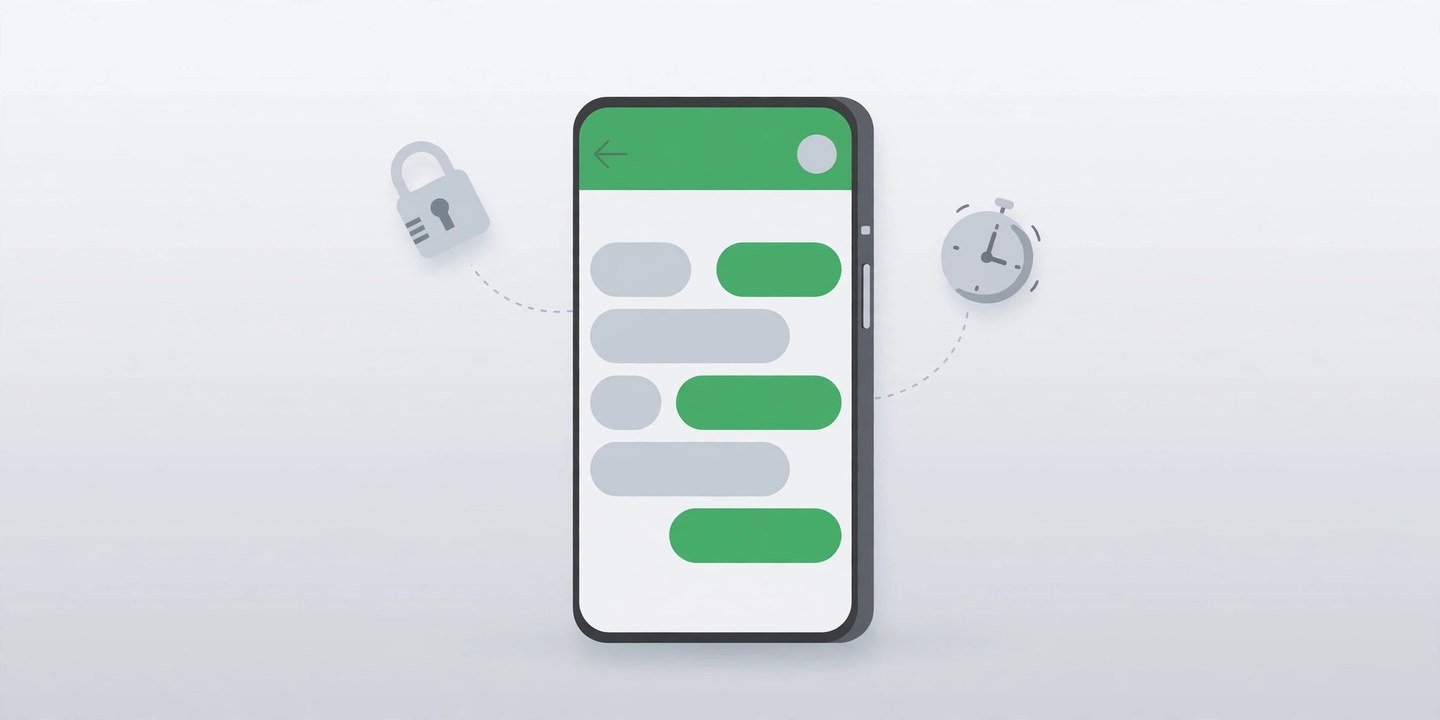
RCS (Rich Communication Services) replaces SMS and MMS with a richer standard, but it still lives inside your normal texting app. Once it is on, your messages can:
- Show read receipts, so you can see when someone has read your message
- Show typing indicators, so you know when the other person is replying
- Send photos and videos in full quality, instead of the compressed versions SMS sends
- Work over Wi-Fi and mobile data, not just your cellular signal
- Improve group chats, with proper replies and reactions
If the other person does not have RCS on, your message simply falls back to SMS, so nothing breaks — you just lose the extras. One privacy note: one-to-one RCS chats in Google Messages on Android are end-to-end encrypted, while RCS on iPhone is not end-to-end encrypted by default. On newer iPhones, Apple shows an End-to-End Encryption (Beta) switch in the same RCS menu — turn it on if you see it.
How to turn on RCS messaging on Android
On Android, RCS lives in the Google Messages app, which is the default messaging app on Pixel phones and newer Samsung Galaxy phones. If your phone still uses Samsung Messages or another app, install Google Messages from the Play Store and set it as your default messaging app first.
- Open the Google Messages app.
- Tap your profile picture or initial in the top right corner.
- Tap Messages settings.
- Tap RCS chats. On older versions of the app this menu is called Chat features instead.
- Turn on RCS chats.
- You may be asked to verify your phone number. When verification finishes, the status at the top should say Connected.
That is it — RCS is now on. Google warns against switching RCS chats on and off repeatedly: doing so can remove you from group chats, so leave it on once it is working.
While you are in the same menu, you can fine-tune the extras: turn on Send read receipts if you want people to see when you have read their messages, turn on Show typing indicators so others see when you are typing, and check the resend option so a failed RCS message is automatically resent as a text (SMS/MMS).
How to turn on RCS messaging on iPhone
Apple added RCS support in iOS 18, so iPhone users can finally get read receipts and high-quality photos when texting Android phones. You need iOS 18 or later, and a mobile plan from a carrier that supports RCS on iPhone.
- Open the Settings app.
- Tap Apps, then tap Messages.
- Tap RCS Messaging.
- Turn on RCS Messaging.
There may be a short delay after you first switch it on while your carrier activates it. If the RCS Messaging option is missing entirely, update to the latest iOS version first — and check with your carrier, because RCS only works if your carrier supports it on iPhone.
How to tell RCS is working
The easiest check is in the message box itself. Start a new message to someone and look at the text field: if it says RCS message, you are chatting over RCS. If it says Text message, that conversation is falling back to SMS — either the other person has RCS off, or their phone or carrier does not support it.
On iPhone, remember that blue bubbles are still iMessage, which only works between Apple devices. RCS is the upgrade for your chats with Android phones, where the bubbles stay green but the features improve. Send a test photo to an Android contact: if it arrives sharp instead of blurry and compressed, RCS is doing its job.
What to do when RCS won’t turn on
If the toggle is greyed out, the status stays stuck on “Setting up” or “Verifying”, or messages keep falling back to SMS, work through these fixes:
- Check carrier support. RCS needs your carrier’s backing. On Android, the settings page may say “RCS chats are disabled by your carrier” — in that case, contact your carrier.
- Update everything. Update Google Messages from the Play Store on Android, or update to the latest iOS on iPhone. RCS support improves with each release.
- Check your connection. RCS activates over mobile data or Wi-Fi, so turn off Airplane Mode and make sure you have a signal.
- Restart your phone. A restart often clears a stuck verification.
- Wait a little. First-time activation and number verification can take a few minutes.
- Don’t keep toggling it. Switching RCS off and on again can drop you from group chats, so change it once and give it time.
- Switching phones and missing texts? If you moved to a phone without RCS and messages are not arriving, turn RCS chats off on your old phone. If you no longer have the old phone, Google provides a Messages deactivation web portal to switch RCS off remotely.
Should you keep RCS on?
For most people, yes. It costs nothing extra, it uses your existing data or Wi-Fi, and it makes everyday texting noticeably better — especially between Android and iPhone, where it finally closes much of the gap with iMessage. The only reason to switch it off is if your carrier charges for data in a way that makes Wi-Fi messaging a problem, or if you are troubleshooting missing messages after changing phones. Otherwise, switch it on once and forget about it.
Final word
Turning on RCS messaging takes less than a minute on both Android and iPhone, and it is the single easiest upgrade you can make to your phone’s texting. Set it up on both platforms using the steps above, check that the message box says “RCS message”, and your chats with friends on the other platform will finally have the read receipts, typing indicators and photo quality they should have had all along.
If you are sorting out the rest of your phone’s messaging setup, see also our guides on how to set up an eSIM on Android and iPhone and how to share files between Android and iPhone. For more on keeping your chats safe, read how to set up passkeys on your phone.
Sources: Apple Support — Turn on RCS messaging on your iPhone; Google Support — Turn on RCS chats in Google Messages.