How to Set Up Voicemail and Live Voicemail on Android and iPhone
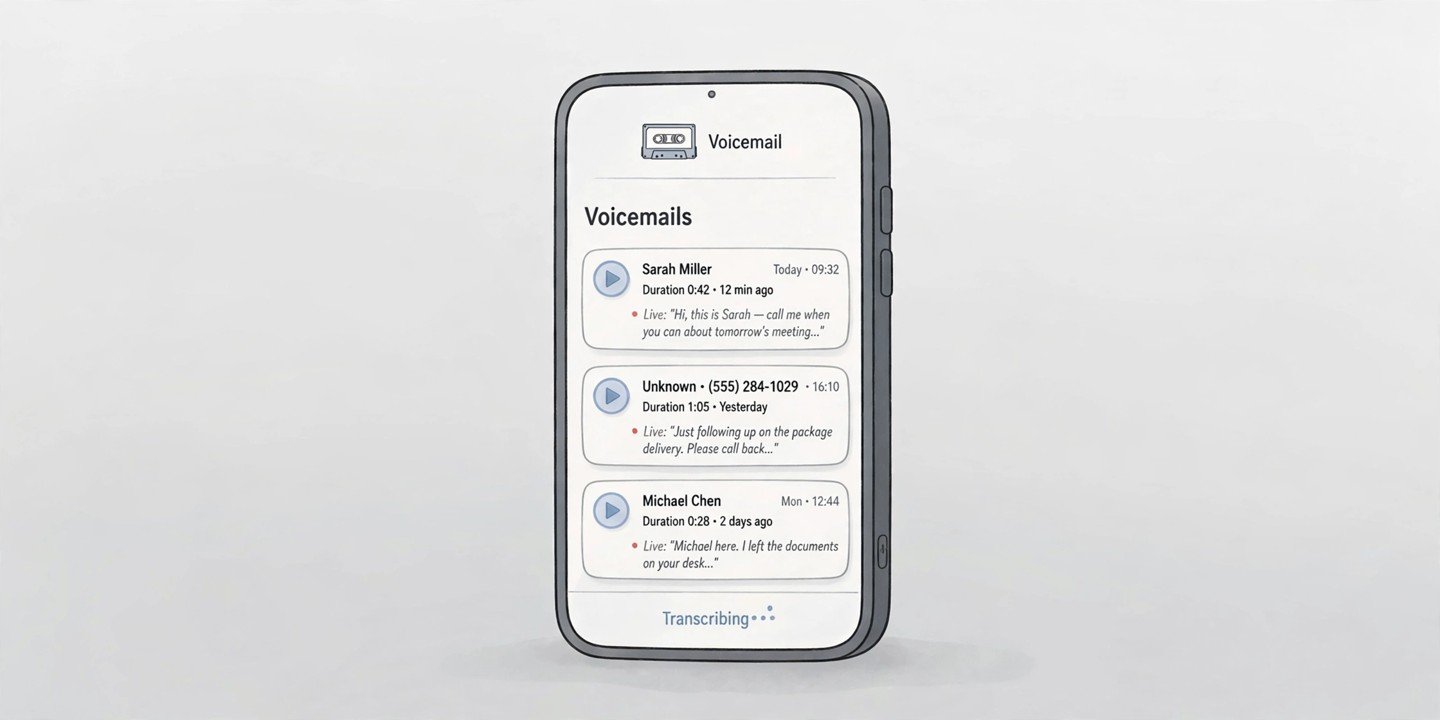
Missed calls still happen, and a good voicemail setup means you never lose the message. Most phones can do far more than the old dial-in mailbox: iPhones can show you a live transcript as the caller speaks, and many Android phones list your messages like emails so you can play them in any order. Here is how to set up voicemail on Android and iPhone.
1. Set up voicemail on iPhone
If you have never used voicemail on your number, your iPhone walks you through setup the first time you open the Voicemail tab.
- Open the Phone app and tap Voicemail at the bottom.
- Tap Set Up Now.
- Create a voicemail password and confirm it. You will need this if you ever check voicemail from another phone.
- Choose a greeting: Default uses an automated voice, while Custom lets you record your own.
- If you pick Custom, tap Record, speak your greeting, tap Stop, then Save.
That is carrier voicemail — the mailbox your network provides. It works even when Live Voicemail (below) is off, so set it up first.
2. Turn on Live Voicemail on iPhone
Live Voicemail shows you a real-time transcription of the message while the caller is still leaving it, so you can decide whether to pick up mid-message. It arrived with iOS 17 and is usually on by default after you update, but it is worth checking.
- Open Settings.
- On newer iOS versions, tap Apps, then Phone. On iOS 17, tap Phone directly in the main Settings list.
- Tap Live Voicemail and turn the switch on.
When a call goes to voicemail, tap the Voicemail button on the incoming-call screen to send it there straight away, then read the transcript as it appears. You can answer at any point before the caller hangs up.
Two things to know: Live Voicemail is available in English in the US and Canada only, according to Apple, and it needs iOS 17 or later — check yours in Settings > General > About. If the option is missing, your region or iOS version is the usual reason.
3. Set up voicemail on Android
On Android, voicemail is set up by calling your carrier’s mailbox, and the steps are the same on Pixel, Samsung, Motorola and most other phones.
- Open the Phone app and tap the keypad.
- Press and hold 1. This dials your carrier’s voicemail service.
- Follow the prompts to create a PIN — usually 4 to 7 digits, as your carrier asks.
- Record your name and choose a default greeting or record your own.
- Hang up, then press and hold 1 again and enter your PIN to confirm it works.
If you hear “no voicemail number is stored”, your carrier has not provisioned voicemail on the line yet — contact them rather than guessing at settings. And test it properly: call your own number from another phone and check that callers hear your greeting.
4. Turn on visual voicemail on Android
Visual voicemail lists your messages in the Phone app, so you can see who called, play messages in any order and delete the ones you do not need — no phone menu, no PIN every time.
- Open the Phone app.
- Tap the three-dot menu at the top right, then Settings.
- Tap Voicemail and turn on Visual voicemail.
- A Voicemail tab appears at the bottom of the Phone app. Tap any message to play it.
On the same screen you can usually turn on voicemail transcription, which adds a text version of each message. A few notes: visual voicemail and transcription depend on your carrier and plan, and some carriers charge for them — if the switch is missing, your carrier does not support it in the Google Phone app. Samsung Galaxy phones may instead use a separate Visual Voicemail app: open it, allow the permissions it asks for, and follow its setup prompts.
5. Record a greeting callers will actually like
Your greeting is the first thing a caller hears, so keep it short: your name, a brief apology for missing the call, and when you will call back. Avoid long messages and background noise — record it somewhere quiet.
- On iPhone: open the Phone app, tap Voicemail, then Greeting, and record a new Custom greeting.
- On Android: the exact path varies by phone and carrier, but it is usually in the Phone app > Settings > Voicemail, or in your carrier’s Visual Voicemail app. If you cannot find it, press and hold 1 and follow the mailbox prompts to re-record it.
Change your greeting when your situation changes — a holiday greeting that is still playing in March tells callers you are not paying attention.
6. Check, delete and fix voicemail problems
Checking messages is the easy part once setup is done:
- On iPhone: open the Phone app, tap Voicemail, and tap a message to play it. Swipe to delete, and check Deleted Messages if you need one back.
- On Android: open the Voicemail tab in the Phone app, or press and hold 1 to call in.
If something does not work, try these in order:
- Mailbox full: voicemail stops accepting messages when the mailbox is full. Delete old messages you no longer need.
- Live Voicemail missing on iPhone: check you are on iOS 17 or later and in a supported region (US or Canada, in English).
- No Visual Voicemail switch on Android: your carrier may not support it — call-in voicemail (press and hold 1) still works.
- Callers hear the wrong greeting: re-record it, then call your number from another phone to hear exactly what they hear.
The bottom line: set up voicemail on Android and iPhone
Set up carrier voicemail first, then add the modern extras: Live Voicemail on iPhone, or visual voicemail and transcription on Android. The whole setup takes about five minutes, and once you set up voicemail on Android and iPhone, missed calls stop being missed messages. If you want fewer unwanted calls reaching that mailbox in the first place, see our guide on how to stop spam calls and texts, and for emergencies, set up Emergency SOS on your phone too.
Steps were checked against Apple Support and Android Authority. Menu names can vary slightly by phone model, software version, carrier and region.