How to Hide Photos and Videos on Your Phone (Android and iPhone)
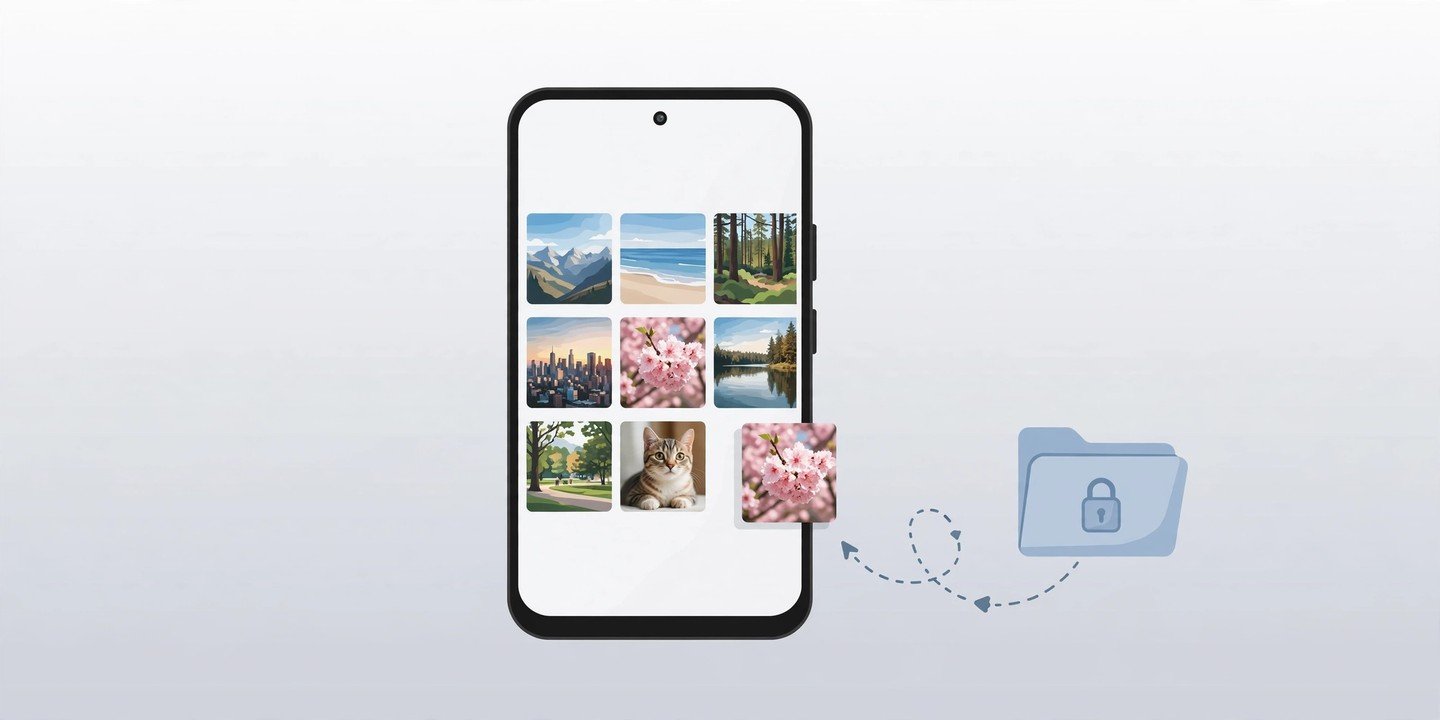
Handing your phone to someone to show them one photo is fine — until they start swiping. Birthdays, boarding passes, ID documents, surprise gifts: plenty of perfectly ordinary photos are not for every pair of eyes. The good news is that both iPhone and Android have a built-in way to hide photos and videos, no extra app required. Here is how to use each one, and the mistakes that catch people out.
Before you hide anything: what “hidden” really means
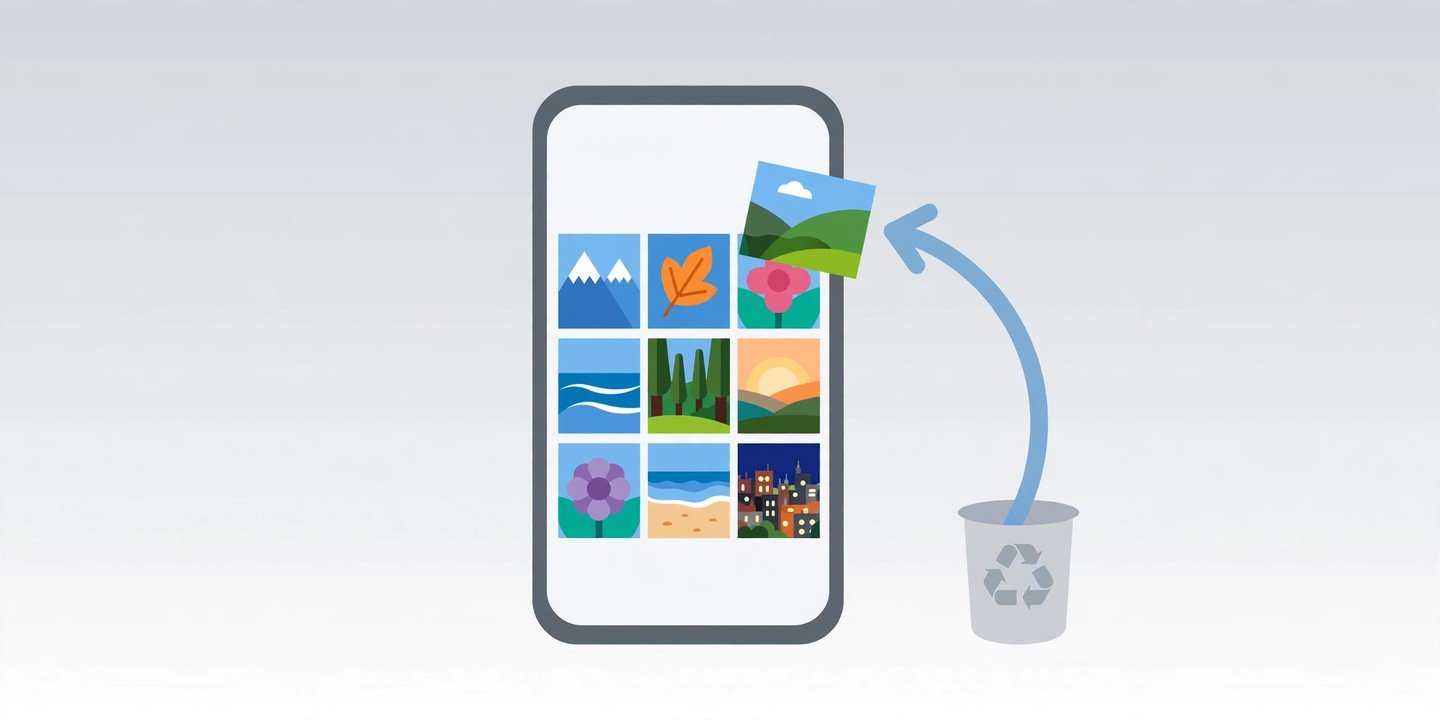
Hiding a photo moves it out of your main library so it no longer shows up in the grid, in search or in Memories. It does not delete it, and it does not make it invisible everywhere: copies you already shared in a chat or a shared album stay visible there, and whether hidden photos are backed up depends on the settings below. Think of it as putting a photo in a locked drawer, not shredding it.
1. Hide photos on iPhone with the Hidden album
On iPhone, hiding uses the built-in Hidden album. On iOS 16 and later it is locked by default, so opening it needs Face ID, Touch ID or your passcode.
- Open Photos and find the photo or video you want to hide.
- Touch and hold its thumbnail, then tap Hide and confirm. You can also open the photo, tap the More button (three dots) and tap Hide.
- To hide several at once, tap Select, choose the photos, then tap More and tap Hide.
- To see your hidden photos, go to Photos > Collections, scroll down to Utilities and tap Hidden, then tap View Album and unlock it.
- To hide the album itself so it does not even appear under Utilities, go to Settings > Apps > Photos and turn off Show Hidden Album. (On iOS 17 and earlier, Photos is listed directly in Settings.) Your photos stay hidden; only the album’s entry disappears.
- To unhide a photo, open the Hidden album, touch and hold the photo and tap Unhide — it returns to your Library in its original place.
If you use iCloud Photos, photos you hide on one device are hidden on your other devices too.
2. Hide photos on Android with Google Photos Locked Folder
On Android, the built-in option is Locked Folder in Google Photos. It works on Android 6 and later, and you need a screen lock set on your phone first — the folder uses your device screen lock, so anyone who knows your PIN can open it.
- Open Google Photos.
- Tap Collections at the bottom, then tap Locked.
- Tap Set up Locked Folder and unlock your device when prompted.
- To move photos in, select them in Google Photos, tap More (three dots) and choose Move to Locked Folder. The first time you do this, you will be prompted to set the folder up.
- Items in Locked Folder will not appear in the Photos grid, Memories, search or albums, and other apps on your phone cannot see them. To share one, you have to move it out first.
- To move a photo back out, open Locked Folder, long-press the item and choose to move it out.
One thing to decide up front: backup is off by default for Locked Folder, so hidden photos live only on that phone unless you turn it on under Photos settings > Backup > Back up Locked Folder. That is good for privacy and bad if you lose the phone — check the setting before you need it.
3. Hide photos on a Samsung phone with Secure Folder
Samsung Galaxy phones have a stronger option: Secure Folder, a separate Knox-encrypted space with its own lock. It can hide photos, files and even whole apps.
- Go to Settings > Security and privacy > More security settings > Secure Folder. (On older software, look under Biometrics and security instead.)
- Sign in with your Samsung account if asked, tap Continue, then choose a lock type — PIN, pattern, password or fingerprint.
- To move photos in, open Gallery, touch and hold the photos you want, tap More and choose Move to Secure Folder.
- To hide Secure Folder itself from your Apps screen, go back to Settings > Security and privacy > More security settings > Secure Folder and turn off Add Secure Folder to Apps screen. You can still open it from the Secure Folder tile in Quick Settings.
- To move a photo back out, open Secure Folder, open My Files, touch and hold the file, tap More and choose Move out of Secure Folder.
When adding files from inside Secure Folder, choose Move, not Copy — Copy leaves the original sitting in your Gallery, still visible to anyone.
5 mistakes to avoid when hiding photos
- Forgetting your lock. Locked Folder uses your device screen lock, so a forgotten PIN locks you out of both. With Secure Folder, turn on the Reset with Samsung account option during setup so a forgotten code can be recovered.
- Copying instead of moving. In Secure Folder, Copy keeps a visible original in your Gallery. Always use Move for photos you actually want hidden.
- Assuming hidden means backed up. With Locked Folder backup off, hidden photos exist only on that one phone. Decide whether that trade-off is what you want.
- Leaving the Hidden album in plain sight. On iPhone, turn off Show Hidden Album if you do not want anyone to even see that a hidden album exists.
- Forgetting copies elsewhere. Hiding a photo in your library does not remove it from a chat, a shared album or another app where you already sent it. Hide the original and check the copies.
The bottom line
Hiding photos takes about a minute once you know where the option lives — Hidden album on iPhone, Locked Folder on Android, Secure Folder on Samsung — and all three are already on your phone. Pick the one that matches your device, double-check the backup setting, and remember that a locked folder is only as strong as the screen lock protecting it.
For more on keeping your phone private, see our guide to the 10 privacy and security settings to change today (https://mobileinner.com/phone-privacy-security-settings-change-today/) and how to lock apps on your phone (https://mobileinner.com/how-to-lock-apps-on-your-phone/). And if you ever hide a photo and then delete it by mistake, our guide to recovering deleted photos on Android and iPhone (https://mobileinner.com/how-to-recover-deleted-photos-on-android-and-iphone/) covers that too — plus how to back up your phone (https://mobileinner.com/how-to-back-up-your-phone/) so nothing important lives on one device alone.
Sources: Apple Support — Hide photos with the Hidden album (https://support.apple.com/en-us/104987); Google Photos Help — Hide sensitive photos in Locked Folders (https://support.google.com/photos/answer/10694388?hl=en); Samsung Support — Use Secure Folder on your Galaxy phone (https://www.samsung.com/us/support/answer/ANS10001401/)