How to Automate Everyday Tasks on Your Phone: iPhone Shortcuts, Samsung Routines and Google Routines
Your phone already knows the time, where you are, and which apps you open. Put those three facts together and it can do small jobs for you — silence itself at bedtime, turn on Bluetooth when you open your music app, or read out your day when your alarm goes off. That is phone automation — in other words, a way to automate tasks on your phone — and every modern phone has it built in. You do not need a paid app, and you do not need to know any code.
This guide shows you how to set it up on iPhone, on Samsung Galaxy phones, and on Pixel and other Android phones, plus seven routines you can copy today.
How to automate tasks on your phone
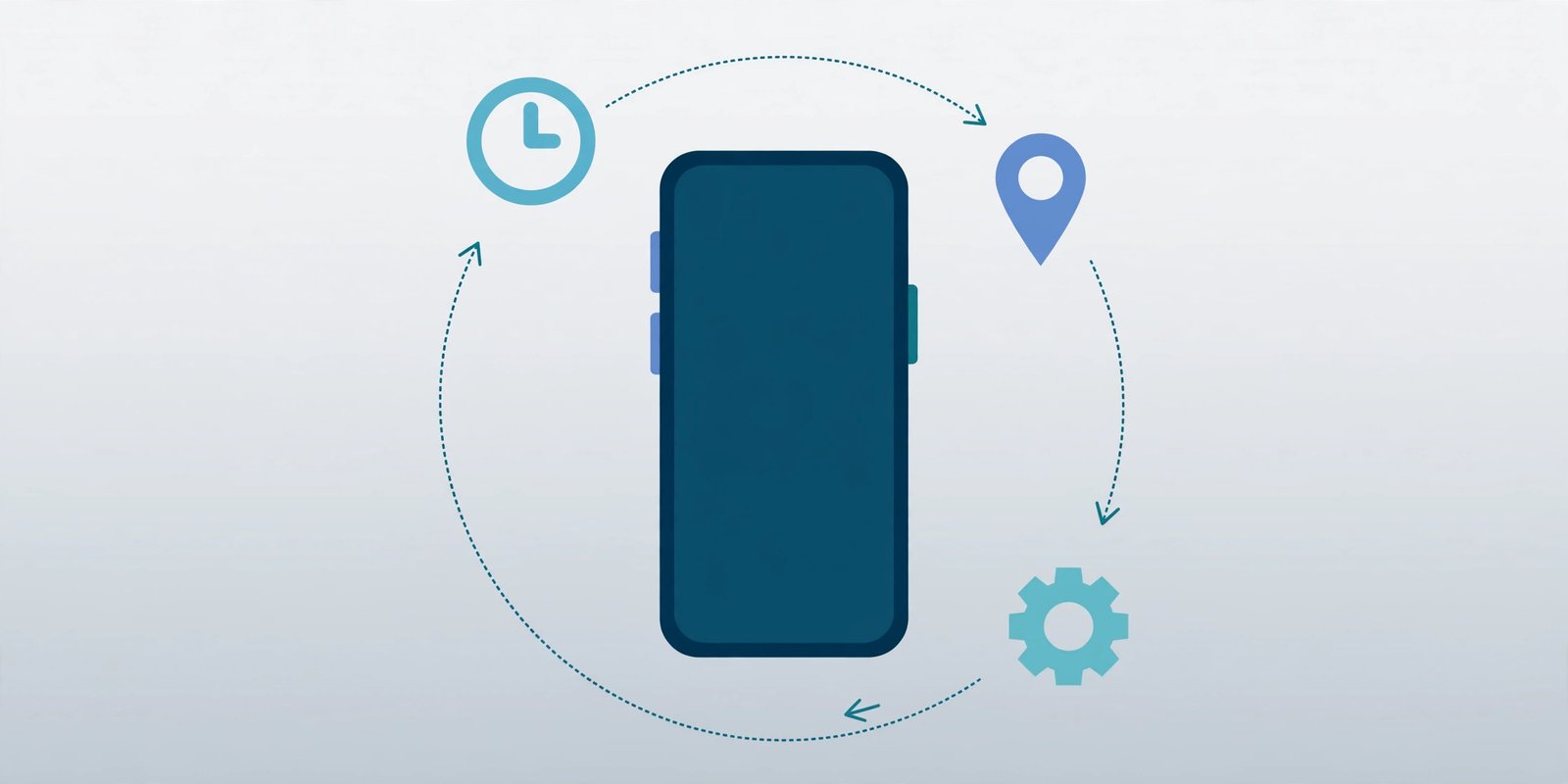
Every automation has two parts: a trigger and an action.
The trigger is the “when”. It can be a time of day, arriving at a place, opening an app, connecting to Bluetooth, plugging in a charger, or the battery dropping to a level you choose.
The action is the “what”. It can be turning on Do Not Disturb, lowering the brightness, opening an app, playing music, sending a message, or switching Wi-Fi on or off.
That is all there is to it. A shortcut is different: it only runs when you tap it or ask for it. An automation runs by itself when its trigger happens. Start with one trigger and one action, and add more steps only after the first version works. That is the simplest way to automate tasks on your phone.
Before you start: pick one small job
Do not try to automate tasks on your phone all at once. Pick one thing you do by hand every day — for example, silencing your phone at 11 PM — and build that first.
Test it before you trust it. Set the trigger a few minutes ahead, watch it run, then set the real time. Location triggers need location turned on, and time triggers need the right repeat (daily, weekdays only, or a single day). If an automation does nothing, check those two things first.
iPhone: set up an automation in Shortcuts
iPhone automations live in the Shortcuts app, which comes preinstalled. Here is the basic flow to automate tasks on your phone:
- Open the Shortcuts app and tap Automation at the bottom.
- Tap New Automation. If you already have one, tap the + in the top-right corner instead.
- Pick a trigger. Good first choices are Time of Day, App (when you open a chosen app), Battery Level, or Charger (when you plug the phone in).
- Set the trigger’s details — the time and which days it repeats, or the app and whether it runs when the app opens — then tap Next.
- Tap Add Action and choose what the phone should do, for example Set Do Not Disturb or Open App. Add a second action if you want, in the order they should happen.
- Tap Done. The automation now appears on your Automation screen.
If the automation asks for confirmation before it runs, open it again and switch that confirmation off so it runs on its own. You can turn any automation off the same way, without deleting it — handy when a routine is only for weekdays.
Samsung: set up a Routine in Modes and Routines
Samsung Galaxy phones running One UI 5 or later have Modes and Routines built in. A Routine is Samsung’s version of an “if this, then that” rule.
- Open Settings and tap Modes and Routines.
- Tap the Routines tab at the bottom, then tap the + to add a routine.
- Under If, tap the sentence and choose your trigger — for example a time, a place, a Wi-Fi network, or opening an app.
- Under Then, tap the sentence and choose the action — for example turn on Do Not Disturb, turn on Power saving, or connect to a specific Wi-Fi network.
- Tap Save, give the routine a name, pick an icon and a colour, then tap Done.
Samsung also suggests ready-made routines: on the Routines tab, tap the Discover icon in the top-right corner and browse categories such as “Useful on the go”. Tap one, change anything you like, and save it.
The Modes tab next to it works differently. Modes such as Sleep, Work and Exercise bundle several settings together — for example Sleep can turn on Do Not Disturb, Power saving and Grayscale from 11 PM to 7 AM. Only one Mode can run at a time, while several Routines can run together.
Pixel and other Android phones: set up a Google Routine
On Pixel and most other Android phones, automations live in the Google Home app as Routines. There are two kinds: a Personal Routine runs just for you, while a Household Routine runs for everyone in your home.
- Open the Google Home app and tap Automations.
- Tap Add, then choose Personal.
- Tap Untitled and give the routine a name.
- Add a starter — the trigger. It can be a voice command such as “Hey Google, good morning”, a time of day, sunrise or sunset, or dismissing your morning alarm.
- Add actions — what should happen. Examples: tell you the weather and your calendar events, set an alarm, play sleep sounds, or turn a smart light on or off.
- Tap Save.
Google notes that Routines are only available in some regions and languages, and that automations are for convenience only — do not build one that anything important depends on, such as a lock or an alarm you cannot afford to miss.
7 routines worth copying today
1. Morning briefing (iPhone or Google). Trigger: your alarm is dismissed. Action: read out the weather, your first calendar events, and your commute. On iPhone, build it in Shortcuts with the Alarm trigger; on Android, use a Google Routine with the “dismiss alarm” starter.
2. Bedtime wind-down (Samsung Mode or iPhone). Trigger: 11 PM every day. Action: Do Not Disturb on, brightness down, Power saving on. Samsung users can simply turn on the preset Sleep mode and set its hours.
3. Driving mode (Samsung or iPhone). Trigger: connecting to your car’s Bluetooth, or CarPlay starting. Action: Do Not Disturb on, open your maps or music app, and read incoming messages aloud.
4. Low-battery saver (any phone). Trigger: battery falls to 20%. Action: Power saving on, brightness down, and mobile data off unless you are using it. This is the one routine that pays for itself on a long day out.
5. Arriving home (Samsung or iPhone). Trigger: arriving at your home address, or joining your home Wi-Fi. Action: Wi-Fi on, mobile data off, and Do Not Disturb off.
6. Work focus (any phone). Trigger: 9 AM on weekdays. Action: turn on your Work or Focus mode, silence notifications from social apps, and set the wallpaper to something plain. Pair this with the steps in our guide to Focus mode if you have not set one up yet.
7. Gym or workout (Samsung or iPhone). Trigger: opening your workout app, or arriving at the gym. Action: Bluetooth on so your earbuds connect, volume up, and Do Not Disturb on.
Mistakes to avoid when you automate tasks on your phone
Do not automate anything safety-critical. A routine that fails silently is only an annoyance when it skips your music — it is a real problem if it was supposed to lock a door or sound an alarm. Google says the same about its Routines: they are for convenience only.
Do not stack ten actions into your first routine. If it misbehaves, you will not know which step broke. Add one action at a time and test after each one.
Watch out for routines fighting each other. A bedtime routine that turns Wi-Fi off and a morning routine that expects Wi-Fi on can undo each other. Give each routine a clear time window or place, and check the list of your routines once a month.
Mind the permissions. Location triggers need location access, and routines that read messages or calendar events need those permissions granted. If a routine stops working after an update, permissions are the first thing to check — see our guide to managing notifications and permissions for the settings involved.
The bottom line on how to automate tasks on your phone
Learning to automate tasks on your phone is not about building something clever. It is about deleting one repeated tap at a time. Set up a single bedtime routine tonight, test it, and let it run for a week. Once you trust it, add a second one. Within a month your phone will be doing a dozen small jobs before you even think of them — and the only thing you had to do was tell it once.
Sources: Apple Support — Shortcuts User Guide; Samsung Support — Use Modes and Routines; Google Home Help — Create & manage Routines