How to Use AI on Your Phone: Gemini, Apple Intelligence and Galaxy AI
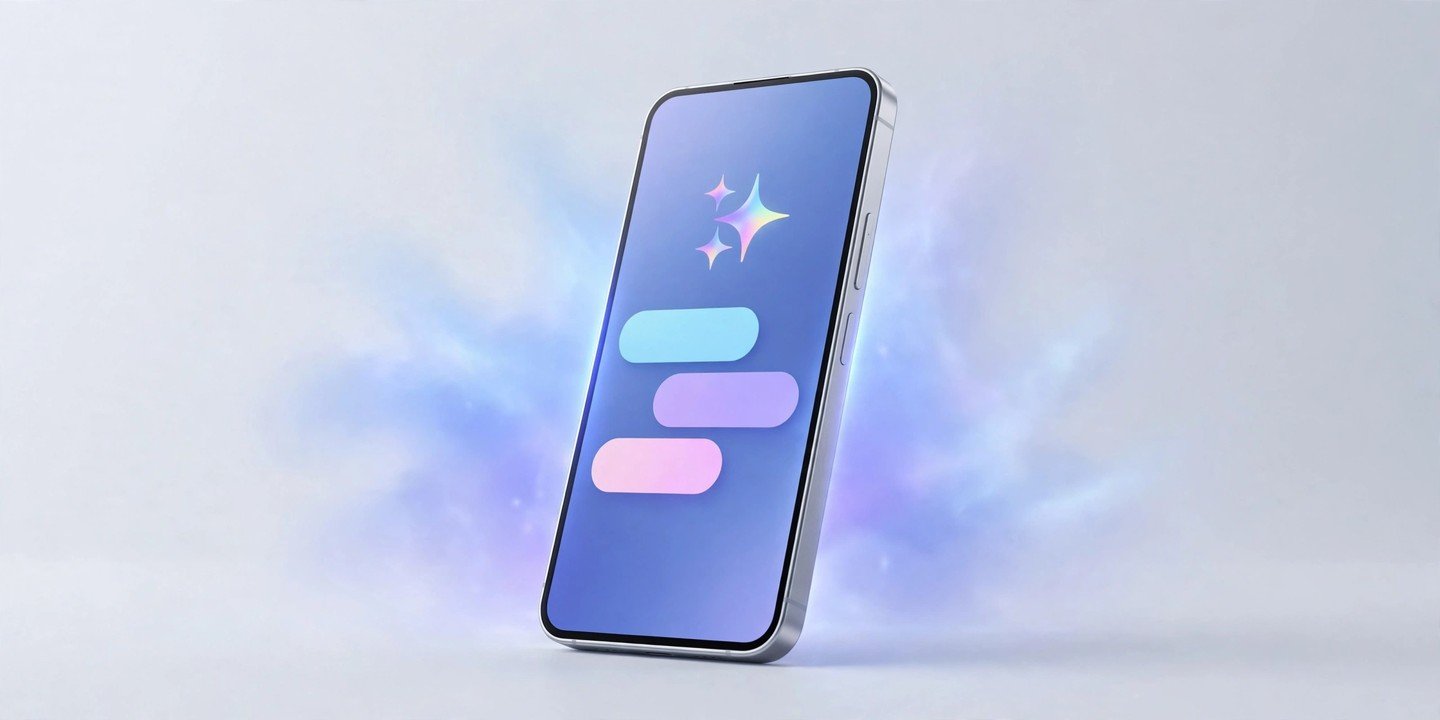
AI is no longer a separate app you have to hunt for. It is built into the phone you already own — in the assistant you talk to, the keyboard you type on, the camera you shoot with and the notes app you scribble in. The catch is that it goes by three different names depending on your phone: Gemini on Android, Apple Intelligence on iPhone and Galaxy AI on Samsung. Here is how to use AI on your phone, whatever you carry, with the setup steps and the everyday tricks that are actually worth trying.
1. First, check your phone actually supports it
Not every phone gets every AI feature, so start here before you go hunting through settings.
- Android: Gemini works on most recent Android phones. You need a Google account, and the app must be available in your language and country. Many new phones ship with Gemini as the default assistant; on older ones, download the Gemini app from the Google Play Store.
- iPhone: Apple Intelligence needs an iPhone 15 Pro, iPhone 15 Pro Max or any iPhone 16 model or later, running iOS 18.1 or later. Check your model in Settings > General > About. The standard iPhone 15 and 15 Plus are not supported.
- Samsung: Galaxy AI needs One UI 6.1 or later (Android 14 or later). The fullest set of features is on the Galaxy S24, S25 and S26 series and recent Z Fold and Z Flip phones; some tools also reached older models through updates. Check for updates in Settings > Software update.
If a feature below is missing on your phone, update your software first — and note that availability still varies by model, region and language.
2. Use Gemini on Android
Gemini is Google’s AI assistant, and on Android it can replace Google Assistant entirely.
- Open the Gemini app — or download it from the Google Play Store if it is not on your phone.
- Make it your default assistant. Follow the setup prompts in the app, or go to Settings > Apps > Default apps > Digital assistant app and choose Google, then pick Gemini. From then on, Gemini answers when you call for the assistant.
- Wake it three ways: say “Hey Google”, long-press the power button, or swipe up from the bottom corner of the screen. You can also just open the app and type.
- Ask about what is on your screen. With a web page, photo or document open, call up Gemini and ask it to explain, summarise or translate what you are looking at.
- Talk hands-free. Tap the Live button in the Gemini app to hold a back-and-forth voice conversation instead of typing.
Good first tries: “Summarise this article,” “Draft a polite reply to this email,” or “What is in this photo?” Gemini can also help you plan, brainstorm and write — but double-check any facts it gives you before you rely on them.
3. Use Apple Intelligence on iPhone
Apple Intelligence is not one app. It lives inside the apps you already use, so it is easy to miss.
- Update first. Go to Settings > General > Software Update and install iOS 18.1 or later.
- Turn it on. Open Settings > Apple Intelligence & Siri and tap Get Apple Intelligence (or Turn On Apple Intelligence). Your iPhone downloads the AI models in the background — give it a few minutes and some free storage before you try the features.
- Try Writing Tools. In Mail, Notes or Messages, type a few sentences, select the text and tap Writing Tools. You can proofread, rewrite, change the tone or summarise what you wrote.
- Clean up a photo. In the Photos app, open a picture and tap Clean Up to remove a stranger, a bin or another distraction from the background.
- Make an image or emoji. Open the Image Playground app to generate a picture from a description, or create a custom Genmoji in Messages by describing the emoji you want.
- Optional: add ChatGPT. On iOS 18.2 or later, go to Settings > Apple Intelligence & Siri > ChatGPT and turn it on, so Siri can hand harder questions to ChatGPT when you allow it.
Apple Intelligence also summarises notifications, mail and long articles in Safari, so the most useful bits surface first. Availability varies by country and language, so a feature that is missing today may arrive with a later update.
4. Use Galaxy AI on Samsung
Galaxy AI is Samsung’s name for a whole set of AI tools spread across the Phone, Notes, Gallery and Keyboard apps. You will find the master switch in Settings > Galaxy AI on One UI 6.1 or later.
- Translate a phone call live. In the Samsung Phone app, Live Translate translates the other person in real time, reading the translation aloud and showing it as text. It also works in some third-party apps, including WhatsApp and Google Meet.
- Translate a face-to-face chat. Open Interpreter and each person sees the translation in their own language — handy abroad, in shops and at restaurants.
- Fix your notes. In Samsung Notes, tap the AI icon for Note Assist: it can summarise, translate and tidy up your notes, and transcribe voice recordings into text.
- Edit photos like a pro. In the Gallery app, open a photo, tap Edit, then use Generative Edit (Photo Assist) to move, resize or remove an object and let AI fill in the gap.
- Rewrite as you type. On the Samsung Keyboard, tap the AI icon for Chat Assist to proofread a message, fix the grammar or change its tone before you send it.
- Search anything on screen. Long-press the Home button or navigation handle and circle, highlight or tap anything to search it — this is Circle to Search, which we covered in our Google Lens and Circle to Search guide.
Some Galaxy AI tools need a Samsung account and an internet connection, and the exact list depends on your model and region.
5. Five everyday AI tricks worth trying
Once the basics are on, these are the uses people actually come back to.
- Summarise long reads. Ask Gemini to summarise a long article, use Apple Intelligence summaries in Safari, or let Note Assist condense a meeting note. You get the point in seconds instead of scrolling for minutes.
- Translate a conversation live. Interpreter on Samsung, Live Translate on a call, or the live translation in our real-time translation guide — all of them beat fumbling with a phrasebook.
- Clean up a photo before you share it. Generative Edit on Samsung or Clean Up on iPhone removes photobombers and clutter. See also our guide to editing photos on your phone.
- Draft and rewrite messages. Writing Tools on iPhone and Chat Assist on Samsung turn a blunt draft into a polite one, or shrink a long message into something short.
- Ask about your screen. Gemini’s “ask about this screen” and Circle to Search both answer questions about whatever you are looking at — a product, a sign, a recipe — without switching apps.
6. What AI on your phone cannot do (yet)
- It can get things wrong. AI assistants sometimes state incorrect facts with total confidence. Double-check anything important — dates, prices, directions and health advice — against a trusted source.
- It is not private by default everywhere. Some features run on your phone, but others send your request to the cloud. Check the privacy settings in the Gemini app, Apple Intelligence settings or Galaxy AI settings if that matters to you.
- Not every feature is on every phone. If something in this guide is missing, it is usually a model, software version or region limit — update your phone first, then check the feature list for your exact model.
The bottom line: you do not need a new phone or a new app to start using AI. Turn on Gemini, Apple Intelligence or Galaxy AI, try one trick a day, and keep the habit of checking anything that matters. The assistant is already in your pocket — now you know where to find it.
Sources: Google Gemini help — Get started with the Gemini mobile app; Samsung support — Use features with Galaxy AI; Macworld — How to enable Apple Intelligence on an iPhone.