How to Take Control of Phone Notifications on Android and iPhone
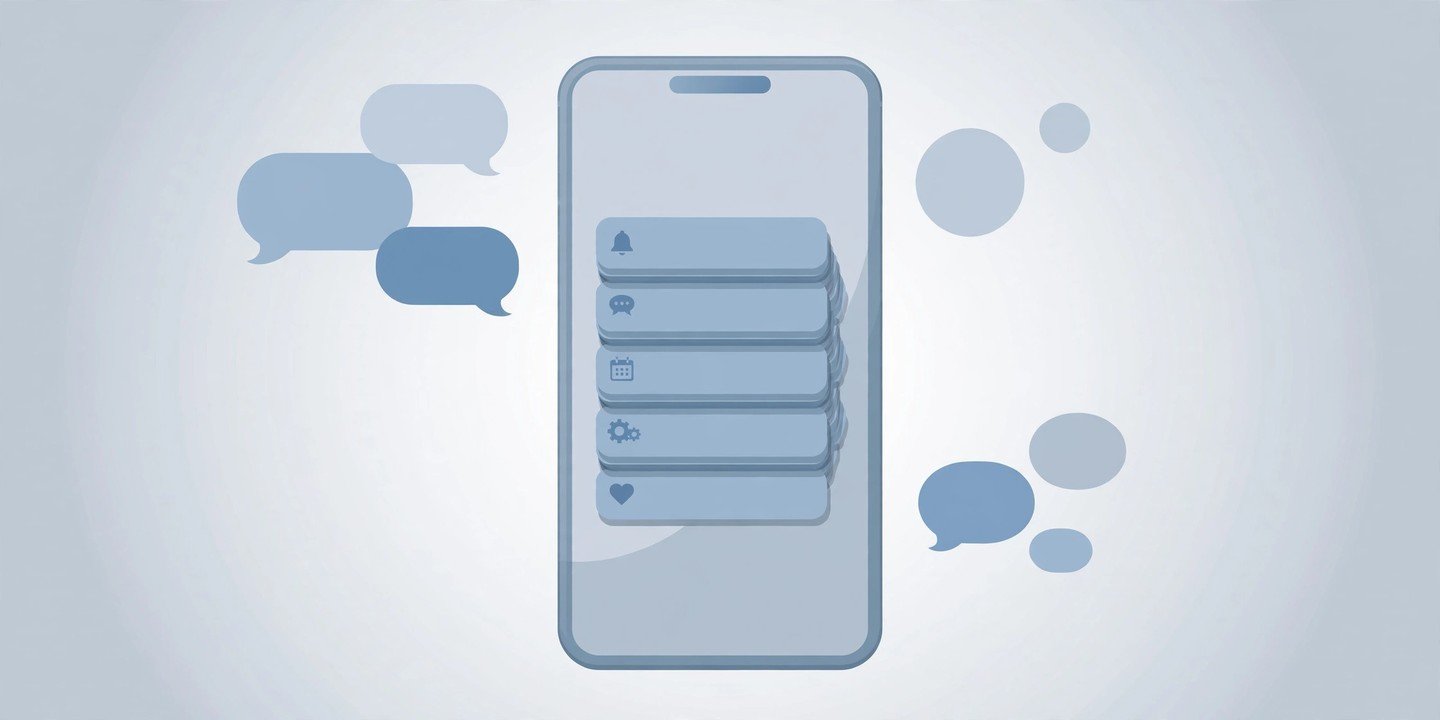
Notifications are useful until they are not. A message from a friend matters; a sale alert from an app you opened once does not — yet both buzz with the same urgency. To manage phone notifications, the fix is not to turn everything off. It is to decide, app by app, what is allowed to interrupt you and what can wait. These eight steps work on Android and iPhone, and most of them take under a minute each. Menu names vary slightly by phone brand and software version. If a setting is not exactly where described, use the search box at the top of Settings.
1. Audit which apps can interrupt you
Start with a quick audit to manage phone notifications. Open Settings, then Notifications, and look at the list of apps. On Android, tap App notifications to see every app and its switch; on iPhone, tap an app under Notification Style to see its controls. Ask one question per app: does this need to reach me the moment it happens? Messaging, calls and banking usually do. Games, shopping apps and social feeds usually do not. Turn notifications off completely for the apps that never need your attention right away. You can always open those apps when you choose to — nothing is deleted, and the app still works normally.
2. Manage phone notifications by silencing categories, not whole apps
Some apps send a mix of useful and useless alerts, and switching the whole app off would cost you the useful ones. On Android, silence just one type of alert. Open Settings, then Notifications, then App notifications, tap the app, and look for Notification categories (also called channels). A shopping app, for example, often separates order updates from promotions — keep the first, silence the second. On iPhone, use the per-app switches instead. Tap the app in Settings, then Notifications, and turn off Sounds or Badges for apps that can wait, while leaving the banner on so you still see them when you look at the phone.
3. Bundle the rest into a scheduled summary
Not every alert needs to arrive the second it is sent. On iPhone, manage phone notifications by bundling low-priority apps into a Scheduled Summary. Go to Settings, then Notifications, then Scheduled Summary, turn it on, pick the apps to include and choose one or two delivery times a day — morning and evening work well for most people. Direct messages and time-sensitive alerts still come through immediately; everything else waits quietly for the summary. Android has no built-in equivalent of Scheduled Summary, so use the next two steps instead: silence the noisy categories in step 2 and set quiet hours in step 7.
4. Find a notification you swiped away
Dismissed the wrong alert? It may not be gone. On Android, turn on Notification history before you need it. Go to Settings, then Notifications, then Notification history and switch on Use notification history. From then on, the phone keeps a list of the notifications you dismissed in the last 24 hours, and tapping one opens the app it came from. Note that it only records alerts received after you switch it on, and some Android phones do not offer this feature at all. On iPhone, check Notification Centre. Swipe down from the top of the screen (or swipe up on the Lock Screen) to see recent notifications you have not cleared. Anything already cleared from there is gone, so check promptly.
5. Snooze an alert instead of dismissing it
Some notifications are real, just not right now. On Android, snooze them. In the notification shade, swipe the notification slightly to the side and tap the clock or snooze icon, then pick a delay — usually 15 minutes, 30 minutes, 1 hour or 2 hours. The alert comes back at the time you chose. On iPhone there is no system-wide notification snooze, so do not go looking for one: instead, add the app to your Scheduled Summary (step 3) or set a reminder for the task the notification was about.
6. Hide sensitive previews on the lock screen
Your lock screen can show message text, two-factor codes and bank alerts to anyone who picks up your phone. On iPhone, go to Settings, then Notifications, then Show Previews and choose When Unlocked. On Android, go to Settings, then Notifications, then Lock screen notifications and choose to hide sensitive content — the exact name varies by brand. Messages and calls still alert you; only their contents stay hidden until you unlock. For more on this, see our guide to the privacy and security settings to change today.
7. Manage phone notifications with quiet hours that switch themselves on
Manually silencing your phone every evening is a habit that fails. Schedule it instead. On iPhone, open Settings, then Focus, then Do Not Disturb, and add a schedule — for example 10pm to 7am — and choose which people and apps, if any, can still break through. On Android, open Settings, then Sound (or Modes on some phones), then Do Not Disturb, and set a schedule the same way, choosing which calls, messages and alarms are allowed. Set it once and let the phone remember. Our guide to Focus mode and cutting down screen time explains the wider setup.
8. Manage phone notifications: turn off sounds and badges for low-priority apps
The red badge count and the ping are what pull you back to the phone. On iPhone, open an app in Settings, then Notifications, and switch off Sounds and Badges for anything that does not need to demand attention — the notification still appears in Notification Centre when you look. On Android, set an app’s notifications to Silent from its notification settings, so alerts arrive quietly without sound or vibration. After a week, check which apps you actually missed hearing from and turn their sound back on; leave the rest silent.
That is the whole system to manage phone notifications: audit the list, silence by category, bundle what can wait, recover what you dismissed, snooze what is real but not now, hide what is private, and let quiet hours run themselves. Do one step today and the phone gets noticeably calmer by tomorrow.
For the official steps, see Apple’s guide to changing notification settings on iPhone and Google’s guide to controlling notifications on Android.