How to Sell or Trade In Your Old Phone Safely: 8 Steps Before You Hand It Over
Your old phone is worth money — but only if you hand it over properly. A quick factory reset is not enough. Your accounts or anti-theft locks may still be tied to the phone. Then the next owner may not be able to use it at all. Your photos, messages and logins could still be recoverable. Worse, erasing too early can lock you out of your own accounts.
Work through these eight steps in order, and your phone will be clean, safe to sell, and worth more.
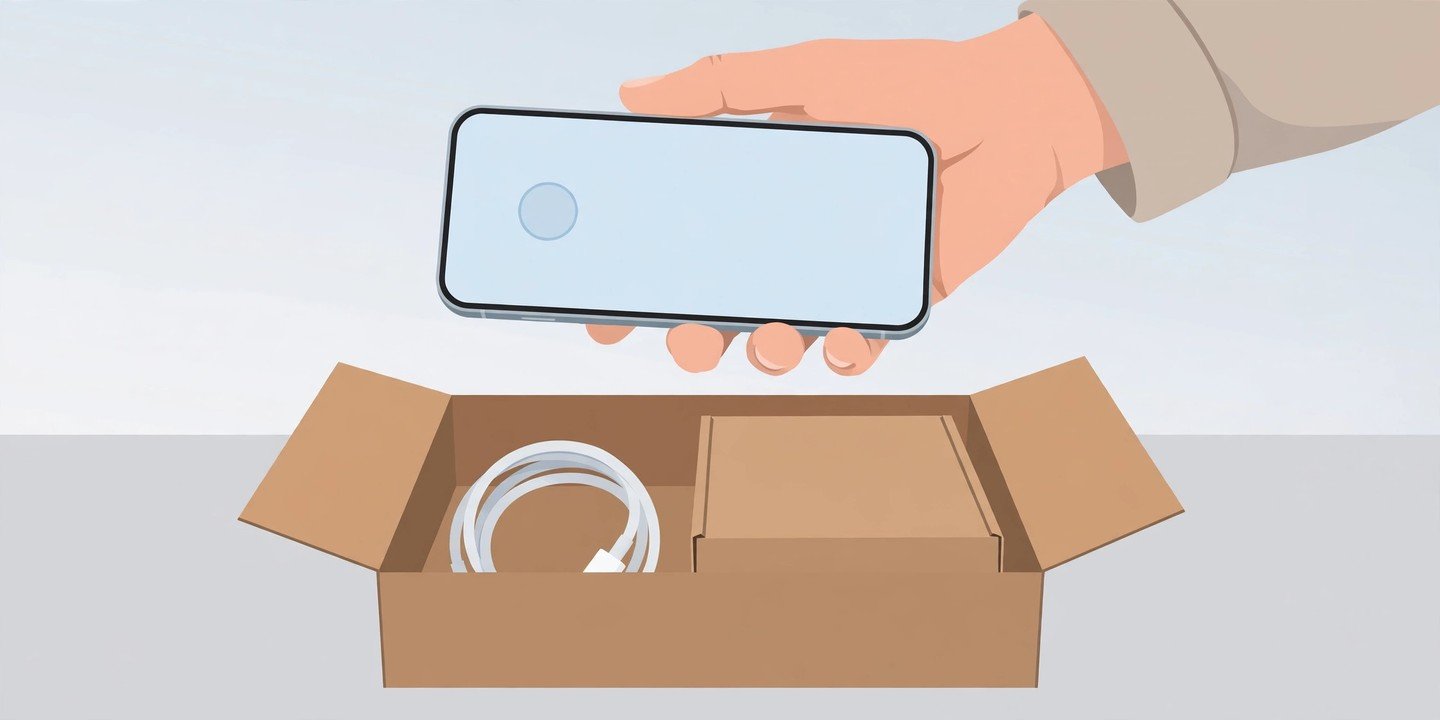
Featured image: original illustration of a hand holding a smartphone above an open box with a charging cable and the phone’s original box.
1. Back Up Everything First — and Check the New Phone Works
A factory reset erases everything on the phone, so back up before you touch anything else. On iPhone, use iCloud backup (Settings > [your name] > iCloud > iCloud Backup > Back Up Now). On Android, check Settings > Google > Backup and tap Back Up Now, or use your manufacturer’s backup tool.
Do not erase the old phone until you have set up your new phone and checked that it works. Open a few photos, check your contacts and messages, and make sure your banking apps sign in. If something did not transfer, you still have the original to fix it. Apple and Google both advise you to check that you have backed up your data before erasing.
2. Move Your Authenticator Apps and Passkeys First
This is the step people forget — and it can lock you out of your own accounts. If you use an authenticator app such as Google Authenticator or Microsoft Authenticator, transfer those accounts to your new phone. Do it before you erase the old one. The codes live on the device, not in the cloud unless you turned on cloud backup, so wiping the phone can delete them.
Do the same for passkeys on the old phone. Do it for any banking app that approves sign-ins from that device too. Move them, test a login on the new phone, and only then carry on.
3. Unpair Your Watch and Accessories
If you use an Apple Watch with your iPhone, unpair it before you erase the phone. Unpairing backs up the watch and removes its Activation Lock. Open the Watch app, tap My Watch, choose your watch, and tap Unpair Apple Watch.
On Android, unpair any smartwatch from its companion app. Remove the phone from any Bluetooth accessories you are keeping. Then nothing will try to reconnect to a phone that no longer exists.
4. Get a Few Trade-In Quotes Before You Erase Anything
Prices for the same phone can vary a lot, so compare before you commit. Check your phone maker’s trade-in programme. Apple Trade In and Samsung trade-in are two examples. Also check your carrier’s offer and one or two buyback sites. A private sale on a marketplace usually pays the most, but it takes more effort and carries more risk.
Be honest about the condition. A cracked screen or weak battery drops the grade. An inflated claim can mean a revised offer or a rejected trade-in. Keep the original box, charger and cable if you still have them. A complete set usually sells faster and for more. And never send the phone off before you have the quote in writing.
5. Sign Out and Switch Off the Locks That Follow You
This is the step a factory reset alone cannot do for you. Remove your Google account before you reset an Android phone. If you do not, Factory Reset Protection can ask the next owner for your Google password. The phone then becomes unusable to them. Samsung’s own trade-in rules say you must disable anti-theft locks before you send a phone in.
On iPhone: go to Settings, tap your name, scroll down and tap Sign Out, then enter your Apple Account password. Signing out turns off Find My and Activation Lock. On iOS 26 and later, signing out also offers to erase the phone in the same flow — skip that for now and erase at step 7 instead, after you have removed the SIM and cards. If you are switching to a non-Apple phone, deregister iMessage first. Otherwise your texts may keep going to the old phone.
On Android: remove your Google account first. Pixel owners should use Settings > Passwords & accounts. Samsung owners should use Settings > Accounts and backup > Manage accounts. Then remove your Samsung account the same way if you have one. Also turn off Find My Device, which Pixel now calls Find Hub, and Samsung’s Find My Mobile.
6. Remove the SIM, eSIM and Memory Card
Take out your physical SIM card — the next owner does not need your number, and you may need the SIM for your new phone. If your phone uses an eSIM, delete the eSIM profile during the erase flow when asked, or remove it beforehand from your mobile settings.
A factory reset does not erase a microSD card, so take it out too — or, if you are including it in the sale, format it separately first. Check the SIM tray for a second SIM if you used dual SIM.
7. Erase the Phone Properly — Then Check the Welcome Screen
Only now should you reset the phone. Do not delete your photos, contacts and messages one by one first — the built-in erase is designed to remove everything securely, and manual deletion is no substitute.
On iPhone: go to Settings > General > Transfer or Reset iPhone > Erase All Content and Settings. Then enter your passcode and tap Erase iPhone.
If you have a Pixel: go to Settings > System > Reset options > Erase all data (factory reset). Then tap Erase everything.
On a Samsung Galaxy: go to Settings > General management > Reset > Factory data reset. Then tap Reset and Delete all.
Wait until the phone restarts to the Hello or welcome setup screen. That screen is your proof the phone is clean: if it still asks for your Google account or shows your data, something was missed — go back to step 5. Remove the phone from your list of trusted devices in your Apple Account or Google Account afterwards.
8. Clean It Up, Pack It Well and Sell It Safely
A clean phone sells for more. Wipe the screen and body with a soft, slightly damp microfibre cloth (never spray cleaner directly on it), remove the case and clean underneath it, and clear dust from the charging port gently with a wooden toothpick — never a metal pin.
If you are selling privately, take clear photos in good light, including any scratches, and describe the battery health and condition honestly. Meet in a public place, preferably in daylight, and take a friend if you can. Accept payment by bank transfer or cash in person, and check a bank transfer has cleared before handing the phone over. Never accept gift cards, wire transfers or overpayments — those are the classic signs of a payment scam. If a buyer pressures you to ship first or pay a “verification fee”, walk away.
The Bottom Line
Back up, move your logins, sign out of everything, remove your cards, and only then erase the phone — checking for the welcome screen at the end. Do the steps in that order and your old phone is safe to sell, worth more, and ready for its next owner.
If you are still setting up the replacement, see our guides on how to transfer data to a new phone and how to back up your phone. Our separate factory reset guide covers the reset step in more detail.
Sources: Apple Support — what to do before you sell, give away, or trade in your iPhone or iPad; The Droid Guy — how to factory reset an Android phone before selling it. Menu names vary by phone model and software version — on iOS 26, sign-out and erase are combined into one flow, and Android menu names differ between Pixel, Samsung and other brands. If a setting is not exactly where described, use the search box at the top of Settings.