How to Fix Bluetooth Problems on Your Phone: Android and iPhone Steps That Work
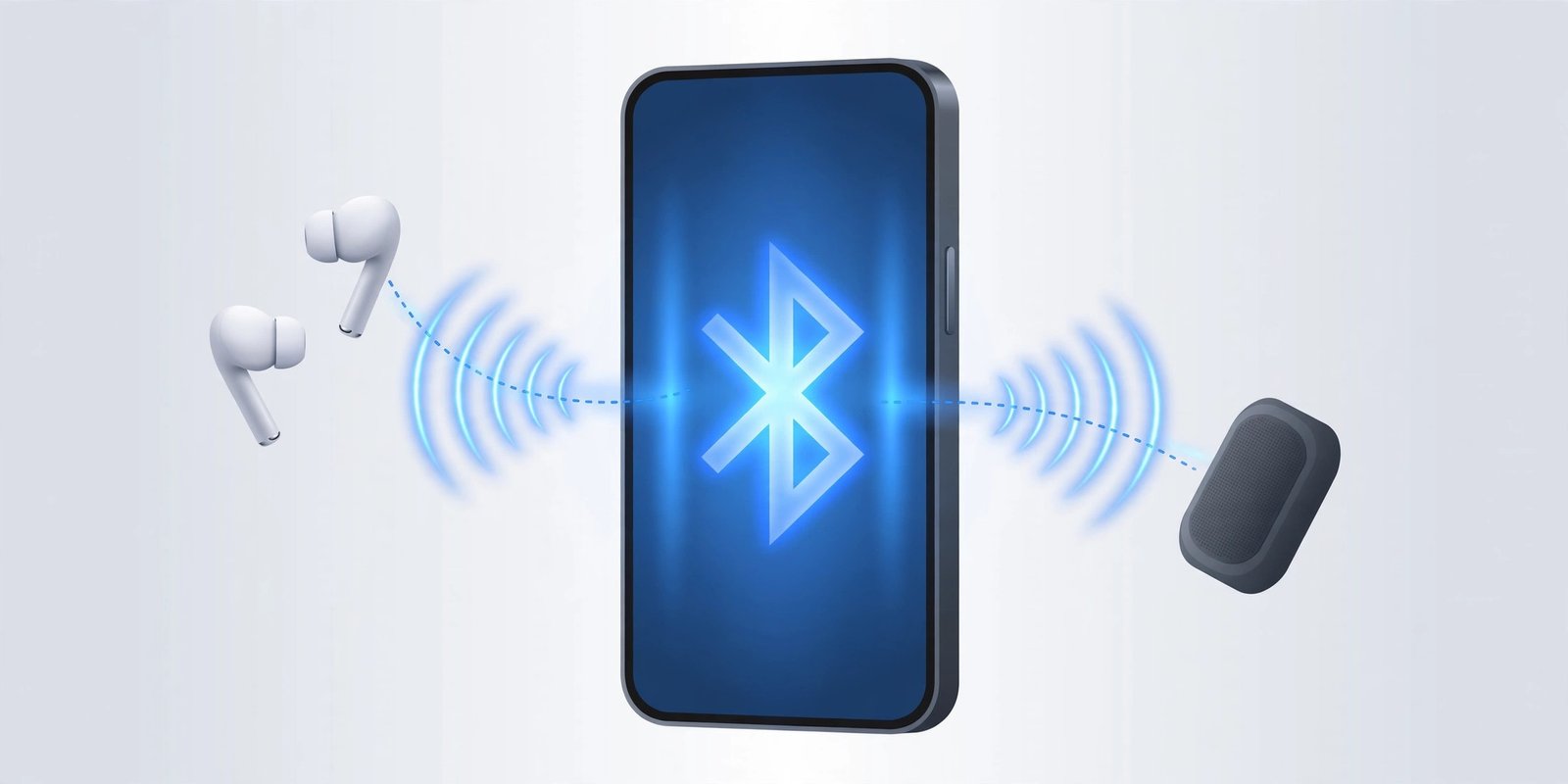
If you need to fix Bluetooth problems on your phone, start here: most are software glitches, not broken hardware. Work through these fixes in order, starting with the quickest, and stop as soon as your connection comes back. The steps below work on current Android and iPhone software, and each section says which platform it applies to when the two differ.
1. Start with the 60-second checks
- Check the accessory is switched on, charged, and in pairing mode. Check its own manual for how to enter pairing mode — a flashing light usually means it is ready to pair.
- Turn Bluetooth off, wait about 10 seconds, then turn it back on. On Android, swipe down to Quick Settings and tap the Bluetooth tile; on iPhone, use Settings > Bluetooth.
- Make sure Airplane Mode is off. It switches Bluetooth off too, and it is easy to leave on by accident.
- Move the phone and the accessory close together — within about 10 metres, with no large obstacles between them — and move away from microwaves and other wireless devices that can interfere.
- Restart both the phone and the accessory. This clears the temporary glitch behind a surprising number of failed pairings.
2. Forget the device and pair it again
If a device paired fine before but will not connect now, the saved pairing record may be stale. Removing it and pairing fresh fixes most stubborn cases.
- On iPhone: go to Settings > Bluetooth, tap the (i) next to the device, tap Forget This Device, and confirm. Then put the accessory in pairing mode and tap its name under Other Devices.
- On Android (Pixel and stock Android): go to Settings > Connected devices > Saved devices, tap the gear icon next to the device, then Forget. On a Samsung Galaxy phone: Settings > Connections > Bluetooth, tap the gear next to the device, then Unpair or Forget.
- If the accessory asks for a PIN and you do not know it, try 0000 or 1234 — the defaults many accessories use.
3. Check what the connection is actually doing
- Connected but no music: on Android, tap the gear next to the device in Bluetooth settings and make sure Media audio is switched on. On iPhone, check the audio is not being sent somewhere else — look at the AirPlay icon in Control Center.
- Connected but calls do not work: make sure Phone audio (Android) or call audio is enabled for that device.
- If your phone connects fine to one accessory but not another, the problem is almost certainly the accessory, not your phone. Check for a firmware update for it in the manufacturer’s companion app.
4. Clear the Bluetooth cache (Android only)
A corrupt cache for the Bluetooth system service can make the same device fail over and over. Clearing it is harmless and often solves the problem.
- Go to Settings > Apps, open the menu and choose Show system apps.
- Find and tap Bluetooth, open Storage, then tap Clear cache.
- If that does not help, tap Clear data or Clear storage on the same screen instead. This removes every saved pairing, so you will need to re-pair your accessories afterwards.
- On Samsung phones, also check Settings > Battery > Background usage limits and make sure Bluetooth is not in the sleeping-apps list — battery saving can cut Bluetooth off when the screen locks.
5. Update your phone and the accessory
Software updates often include Bluetooth fixes, so do not skip this step.
- On iPhone: Settings > General > Software Update.
- On Android: Settings > System > Software update (on Samsung Galaxy phones: Settings > Software update).
- Also check the accessory itself for a firmware update in its companion app.
6. Reset your network settings (the last software fix)
If nothing above has worked, resetting the network settings clears every Bluetooth pairing along with your Wi-Fi and mobile settings, which usually resolves problems the earlier steps could not.
- On iPhone: Settings > General > Transfer or Reset iPhone > Reset > Reset Network Settings. Enter your passcode to confirm.
- On Android: Settings > System > Reset options > Reset Wi-Fi, mobile & Bluetooth. On Samsung Galaxy phones: Settings > General management > Reset > Reset Wi-Fi and Bluetooth settings.
- Warning: this erases your saved Wi-Fi networks and passwords, so have those handy before you start. It does not delete your photos, messages or apps.
7. When it is time to get help
If Bluetooth stays greyed out, will not turn on at all, or fails with every accessory after all the steps above, it may be a hardware fault. Contact Apple Support or your phone maker’s support, or visit an authorised repairer — and mention that you have already tried forgetting the device, updating the software and resetting the network settings.
Most Bluetooth trouble is fixed by the first two or three steps, so do not jump straight to the network reset. And once your earbuds or speaker are paired again, keep your phone’s software up to date — the next Bluetooth bug fix usually arrives that way.