How to Translate Conversations on Your Phone in Real Time
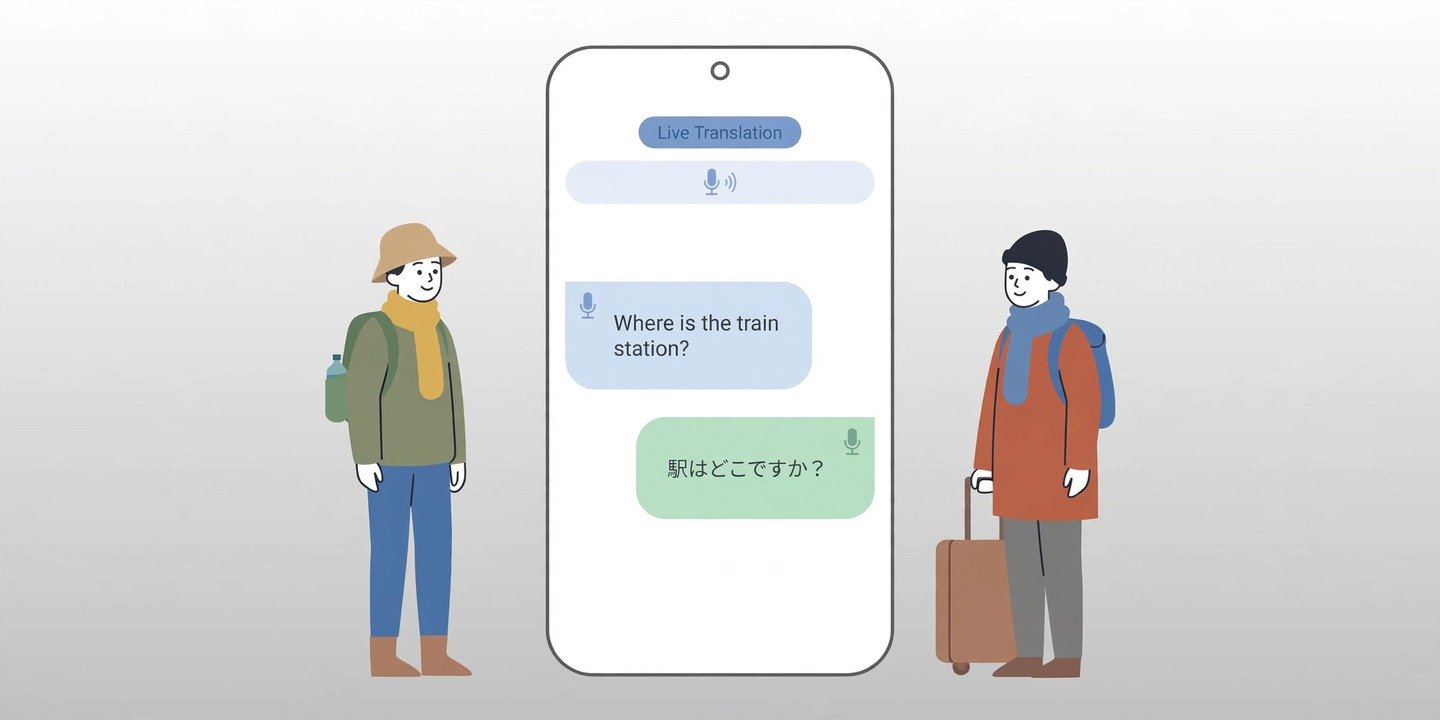
Your phone can already work as a personal interpreter. Point it at a conversation and it will listen, translate and speak the other language back — no phrasebook, no hand gestures, no guessing. Here is how to do it on Android and iPhone, whichever translation app your phone already has.
1. Google Translate Live translate (Android and iPhone)
Google Translate is free on both platforms, and its Live translate mode is built for exactly this — two people talking back and forth in different languages. Google rolled the live conversation mode out in 2025, starting in the US, India and Mexico, with support for more than 70 languages.
- Update Google Translate from the Play Store or App Store, then open it.
- Tap Live translate at the bottom of the screen. (On older versions of the app, the same mode is labelled Conversation.)
- Pick your two languages — yours and the other person’s.
- Choose Conversation for a face-to-face exchange, then take turns speaking. Speak in short, complete sentences and let the app finish before the other person starts.
- Tap any translated text to hear it again, tap Speak to pause or resume the spoken output, and tap Back to end the session.
- If you are sitting opposite each other, switch to the Face to Face layout so each of you can read your own half of the screen.
2. Apple Translate Conversation mode (iPhone)
If you have an iPhone, Apple’s own Translate app is already installed and works the same way — and it is the only one of the three apps here that can run a full conversation offline once the languages are downloaded.
- Open the Translate app and tap Conversation at the bottom.
- Pick your two languages at the top of the screen.
- Tap the microphone and speak, or tap Enter text and type instead. The translation appears as a chat bubble, and you can tap the play button to hear it read aloud.
- To stop tapping the microphone before every turn, tap the three dots (…) in the top right, turn on Auto Translate, then tap the microphone to start — the iPhone detects when each person starts and stops speaking.
- Chatting face to face? Tap View in the top left, then Face to Face, and each side of the screen faces the right person.
3. Samsung Interpreter (Galaxy phones)
On supported Galaxy phones — the Galaxy S24 series and newer models — Samsung’s Interpreter app is a Galaxy AI feature built for in-person conversations.
- Swipe down twice from the top of the screen to open the full Quick Settings panel, then tap Interpreter. (You can also find it in the Edge Panel if you have that turned on.)
- Choose a language for each half of the screen — the bottom half is yours, the top half is the other person’s.
- Tap the microphone on your side and speak. Interpreter shows the transcript and the translation, and reads the translation aloud.
- Tap the Change view mode icon to flip the top half of the screen so it faces the person opposite you.
- For a talk or a tour guide, open the menu and switch to Listening mode instead — it translates one speaker continuously.
4. Translate signs, menus and labels with your camera
Conversation mode handles speech, but a menu or a street sign needs the camera instead. In Google Translate, tap the Camera button, point your phone at the text and tap the shutter to freeze the frame with the translation overlaid. In Apple Translate, tap the Camera tab at the bottom and do the same. It is the fastest way to read a menu, a timetable or a warning sign when nobody is around to ask.
5. Set it up before you travel
Live translation is at its best when it is ready before you need it, so do this on Wi-Fi at home:
- Download the languages you will need. In Google Translate, download each language for offline use. In Apple Translate, go to Settings > Apps > Translate > Downloaded Languages and turn on On-Device Mode. In Samsung Interpreter, download language packs from Settings inside the app.
- Know the offline limits. Apple Translate conversations work offline with downloaded languages. Google’s conversation mode generally needs an internet connection — Google documents offline Live translate only for recent Pixel phones with downloaded language pairs — so do not count on it working offline on every phone.
- Test it once. Run a short practice conversation with a friend before the trip so you know where the buttons are.
- Stay connected while you travel: get a local data plan with an eSIM and download maps for offline use — and if you lose signal entirely, you can still message without signal.
Tips for a smoother conversation
- Speak in short turns. One or two sentences at a time translates far more accurately than a long monologue.
- Find somewhere quiet. Background noise is the biggest cause of mistranslations, especially in a busy station or market.
- Check the transcript. If the app heard you wrong, the text on screen shows it — correct yourself and try again rather than trusting a wrong translation.
- Double-check anything important. For addresses, prices, directions or medical details, confirm the translation a second way before you act on it.
The bottom line
You do not need a separate gadget or a paid app to talk to someone in another language. The translator is already on your phone — Google Translate on any phone, Apple Translate on iPhone, or Interpreter on a Galaxy. Set it up before you travel, download your languages, and the next conversation in a language you do not speak is one tap away.
Sources
- Apple Support — Translate text, voice, and conversations on iPhone: https://support.apple.com/guide/iphone/translate-text-voice-and-conversations-iphd74cb450f/18.0/ios/18.0
- Samsung Support — How to set up and use the Interpreter app on Galaxy devices: https://www.samsung.com/latin_en/support/mobile-devices/how-to-set-up-and-use-the-interpreter-app-on-the-galaxy-s24/
- Popular Science — How to get real-time translations on your phone: https://www.popsci.com/diy/how-to-get-real-time-translations-on-your-phone/