How to Print From Your Phone: Android and iPhone Steps That Work
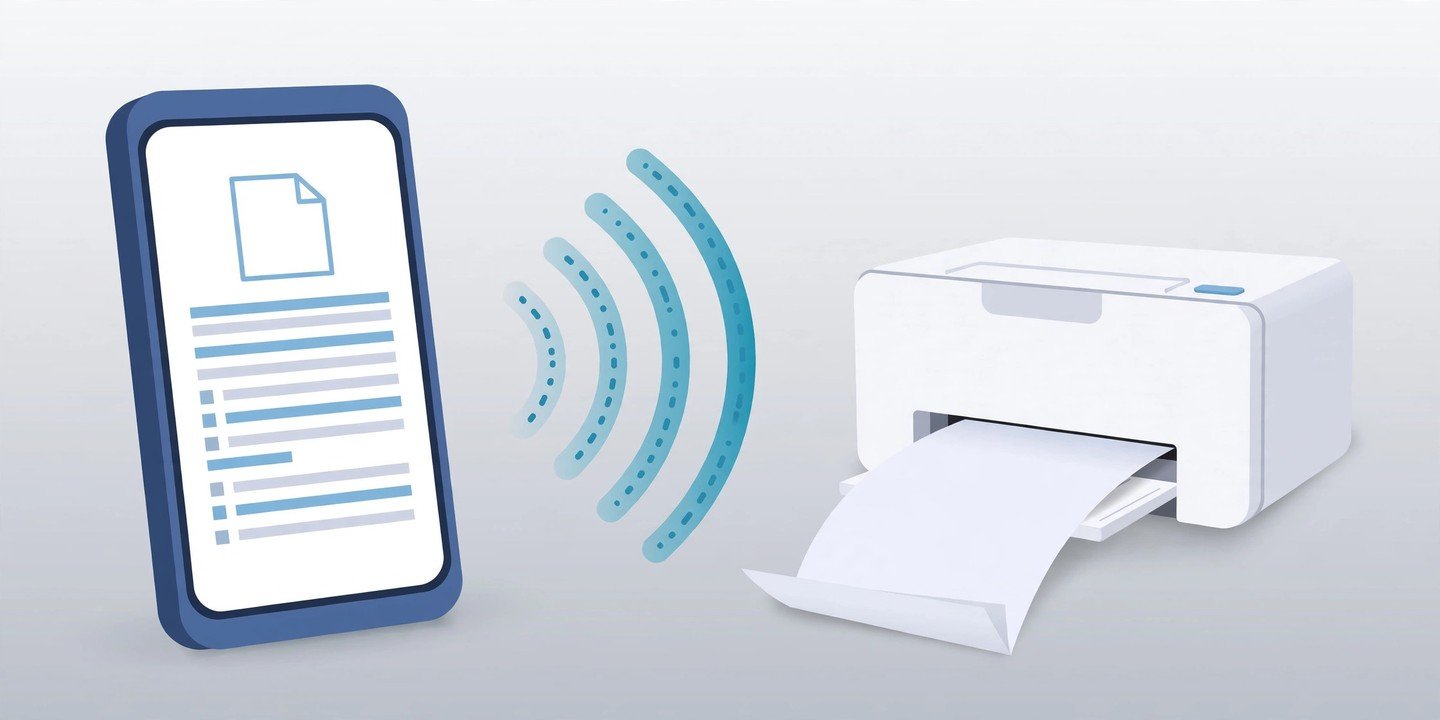
You do not need a computer to print a document, a photo, a boarding pass or a web page. Both Android and iPhone have wireless printing built in, so most of the time it takes less than a minute — as long as your phone and your printer are on the same Wi-Fi network.
Here is how it works on each platform, what to do when your printer does not show up, and how to print even without a Wi-Fi router.
Before you start: one thing both platforms need
Connect your phone and your printer to the same Wi-Fi network. This is the step most printing problems come down to. If your printer is on a different network — or on a guest network while your phone is on the main one — it simply will not appear in the list.
Also check that the printer is switched on and has paper and ink. It sounds obvious, but a printer in deep sleep mode can take 30 seconds or so to wake up and appear on the network, so give it a moment before trying again.
How to print from an iPhone with AirPrint
iPhones print using AirPrint, Apple’s built-in wireless printing system. You do not need to install any drivers or extra software, and most printers sold in the last decade support it.
- Make sure your iPhone and printer share the same Wi-Fi network.
- Open the photo, document, email or web page you want to print.
- Tap the Share button — the square with an arrow pointing up. In some apps, such as Reminders or Google Sheets, the print option sits under the … (more) menu instead.
- Scroll down and tap Print. If you do not see a Print option, the app may not support printing — try opening the file in another app, such as Files, Safari or Photos.
- Tap Select Printer (or No Printer Selected) and choose your printer from the list.
- Set your options — the number of copies, the page range, and black and white or colour.
- Tap Print in the top-right corner.
That is all there is to it. Your iPhone will remember the printer, so next time it should already be selected.
How to print from an Android phone
Android phones print through the built-in Default Print Service, which is based on the Mopria standard and works with printers from HP, Canon, Epson, Brother, Samsung and many other brands. Most phones ship with it switched on.
- Connect your phone and printer to the same Wi-Fi network.
- Open the file, photo, web page or email you want to print.
- Tap the three-dot menu or the Share icon, then tap Print. In apps such as Google Docs, Print is available directly from the menu.
- Tap the printer name at the top of the preview and choose your printer.
- Adjust the options — copies, paper size, colour or black and white, and orientation.
- Tap the print icon to send the job.
If no printer appears, check that the print service is on. On a Pixel, go to Settings > Connected devices > Connection preferences > Printing and make sure Default Print Service is switched on. On Samsung phones the path is Settings > Connections > More connection settings > Printing. Menu names vary slightly between brands, so if in doubt, search for “Printing” in the Settings search bar.
What to do if your printer does not show up
If your printer is missing from the list, work through these fixes in order:
- Restart the printer and your phone. This clears most temporary network glitches.
- Check the print service is enabled, using the Settings path above on Android. On iPhone, make sure the Local Network permission is on for the app you are printing from, under Settings > [app name].
- Use your printer maker’s app. If your printer is Wi-Fi enabled but does not support AirPrint or Mopria, the manufacturer’s own app usually fills the gap — HP Smart, Canon PRINT, Epson Smart Panel or Brother Mobile Connect, all free from the App Store or Google Play.
- Move closer to the router. A weak Wi-Fi signal on either device can hide the printer.
- Check for a firmware update for the printer. Old firmware is a common cause of AirPrint problems.
One thing that will not help: Google Cloud Print. Google shut it down at the end of 2020, so any guide that still recommends it is out of date — Android now prints directly to printers on your network instead.
How to print without a Wi-Fi network
If there is no shared Wi-Fi — at a relative’s house, for example — many printers offer Wi-Fi Direct, where the printer broadcasts its own temporary network.
- Turn on Wi-Fi Direct on the printer (usually from its control panel or settings menu).
- On your phone, open Settings > Wi-Fi and connect to the network named after your printer.
- Open your file and print as normal — Share > Print on iPhone, or the menu > Print on Android.
- Reconnect to your usual Wi-Fi afterwards, or your phone will stay on the printer’s network.
Save as PDF instead of printing
Sometimes you do not need paper at all — you just need a file you can send on. On Android, the print screen lets you choose Save as PDF instead of a printer, and the file is saved to your phone. On iPhone, open the print preview and pinch outwards on the page thumbnail to open it as a PDF, then use the Share button to save or send it.
Quick troubleshooting checklist
- Phone and printer on the same Wi-Fi network? Check first.
- Printer switched on, with paper and ink? Check second.
- Print service enabled (Android) or Local Network permission on (iPhone)? Check third.
- Still nothing? Restart both devices, then try the manufacturer’s app.
The bottom line
Printing from your phone is one of those things that feels complicated until you do it once. On iPhone it is Share > Print with AirPrint; on Android it is the menu > Print with the Default Print Service. Once your printer is on the same Wi-Fi network, the whole job takes a few taps — and if it does not appear, the manufacturer’s app or Wi-Fi Direct will usually get you there.
Related reading: if the document you want to print only exists on paper, see our guide on how to scan documents with your phone. And if you took a screenshot of something to print later, here is how to take a screenshot on Android and iPhone.
Sources: Steps checked against Apple Support: Use AirPrint to print from your iPhone or iPad and How-To Geek: How to Print From an Android Phone, with cross-checks on Android Authority and How-To Geek’s iPhone printing guide.