How to Clean Your Phone Safely (and What Never to Use)
Your phone goes everywhere with you — the kitchen counter, the gym, the bathroom, the bottom of your bag. It picks up fingerprints, pocket lint, makeup and germs along the way, and a dirty screen is not just ugly: a grimy camera lens takes hazy photos and a clogged charging port can stop your cable seating properly. The good news is that cleaning it takes about five minutes, and the right way is also the gentle way. Here is how to clean your phone safely on Android and iPhone, and what never to use.
1. What you need before you start
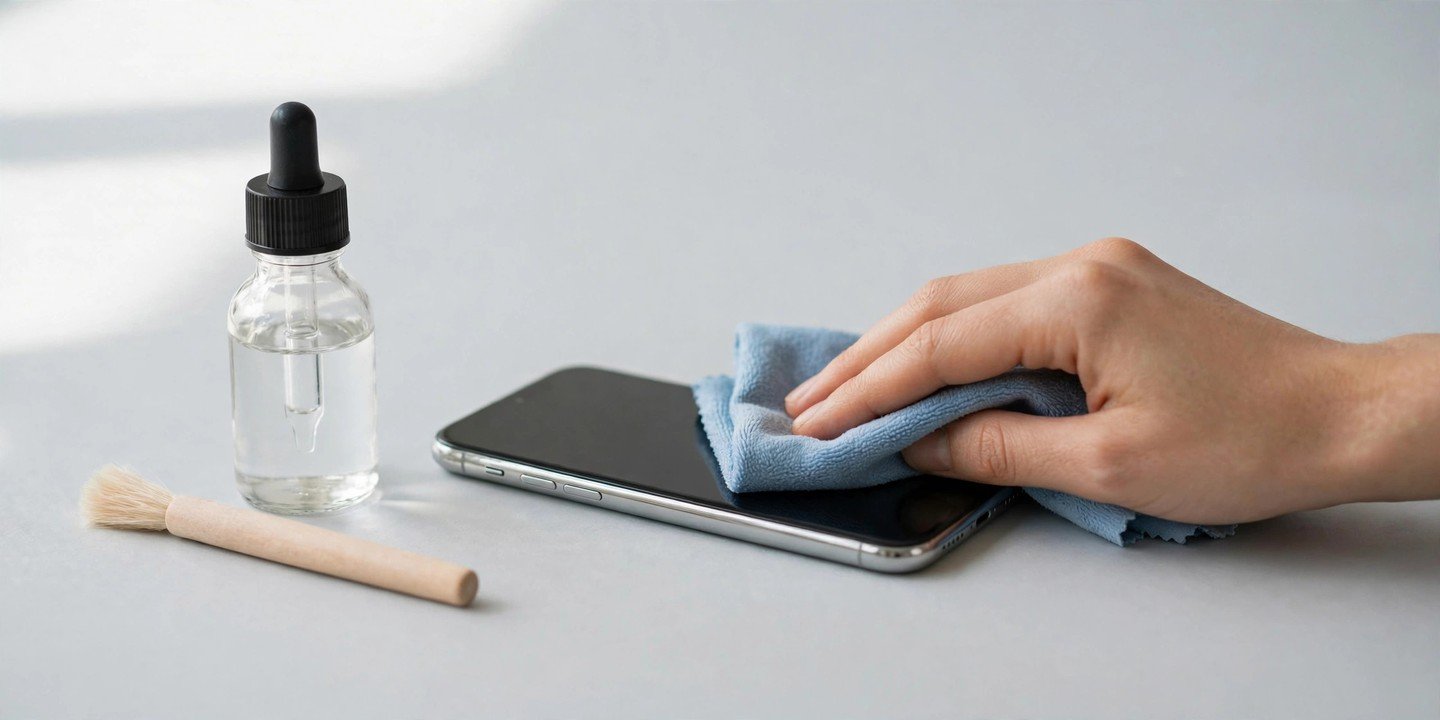
You do not need a special cleaning kit. Gather a clean, soft, lint-free microfiber cloth — the kind sold for glasses or camera lenses — a small amount of distilled water or a 70% isopropyl alcohol wipe, and a soft, dry brush (a clean makeup brush works well) for the ports. That is the whole kit. Apple and Samsung both recommend a soft, lint-free cloth as the starting point, and both say a cloth dampened with 70% isopropyl alcohol is safe for the phone’s hard exterior surfaces.
2. Power off, unplug and take the case off
Turn your phone off and unplug every cable before you clean it. This is the first step in both Apple’s and Samsung’s official cleaning guides, and it protects the phone if any moisture gets near an opening. Remove the case and any stickers, too — dirt collects under the edges of a case, and you cannot clean the back of the phone properly with it on. Clean the case separately while the phone is off: most plastic and silicone cases can be wiped the same way, but check the case maker’s guidance first for leather or fabric cases.
3. Wipe the screen and the back
Start dry. Wipe the screen and the back with the dry microfiber cloth, using light, circular movements. That alone removes most fingerprints and dust. If smudges remain, lightly dampen the cloth with distilled water or 70% isopropyl alcohol — damp, not dripping — and wipe again. Never spray liquid directly onto the phone. Spray or dampen the cloth instead, and keep moisture away from the speaker grilles, microphone holes and charging port. Let the phone air-dry for a minute before you put the case back on.
4. Disinfect it the safe way
If you want to disinfect the phone rather than just clean it, Apple says you may gently wipe its hard, non-porous surfaces with a 70% isopropyl alcohol wipe, a 75% ethyl alcohol wipe, or a Clorox Disinfecting Wipe. Samsung gives the same advice for Galaxy phones. A few rules apply: use the wipe gently and do not scrub — both makers warn that excessive wiping can wear down the screen’s oleophobic (fingerprint-resistant) coating, which is what makes the glass feel smooth and shed fingerprints. Do not use bleach, hydrogen peroxide, window cleaner, household cleaners, ammonia or solvents, and do not use a wipe that has expired. After disinfecting, Apple suggests a final wipe with a soft cloth slightly dampened with water.
5. Clean the camera lens properly
A smudged camera lens is the most common reason phone photos look hazy, and it is also the easiest fix. Wipe the lens with a clean, dry part of the microfiber cloth, using very light pressure — the lens coating scratches more easily than the screen. Do not use your shirt, a paper towel or a tissue: paper products are abrasive enough to leave fine scratches over time. If the lens has a stubborn mark, breathe lightly on it first to fog it, then wipe — never put liquid directly on the lens.
6. Clear the charging port without damaging it
Pocket lint gets pressed into the charging port every time you plug in, and eventually the cable stops clicking in fully. If your cable feels loose, the port may just need cleaning — how to fix a phone that won’t charge. Turn the phone off first, shine a light into the port, and gently sweep out visible lint with a soft, dry brush or a wooden toothpick. Never use a pin, paper clip, SIM ejector tool or any other metal object — metal can short the pins or scrape them. Do not put liquid or alcohol into the port, and do not blow into it with your mouth, which adds moisture. If the port is wet, leave the phone to air-dry rather than charging it — how to stop your phone from overheating for more on when heat and moisture are warning signs.
7. What never to use on your phone
Some common cleaners will damage your phone even though they look harmless. Never use any of these on your phone:
- Bleach or hydrogen peroxide — both makers explicitly rule these out.
- Window cleaner, household cleaners, ammonia or solvents — they strip the screen’s oleophobic coating.
- Abrasive cloths, paper towels or scouring pads — they scratch glass and coatings.
- Compressed air — Apple and Samsung’s cleaning guides both advise against it on the phone’s surfaces, as it can force dust and moisture into openings.
- A UV sanitiser or a dishwasher — heat and water pressure are not cleaning methods for a phone, and submerging your phone in any cleaning agent voids the point of its water resistance, which is rated for accidental splashes, not cleaning.
8. How often should you clean your phone?
A quick dry wipe once a week keeps the screen clear and the camera sharp. Disinfect it once a week or so — and always after it has been handled by someone else, used in a hospital or gym, or dropped on a public surface. Clean the charging port only when you can see lint in it or the cable starts feeling loose; over-cleaning the port wears it out. And if your phone ever comes into contact with sand, sunscreen, lotion, ink or acidic food, wipe it off straight away with a damp microfiber cloth — Apple warns that these can stain or damage finishes if left sitting.
The bottom line
Cleaning your phone is simple once you know the rules: power off, use a soft lint-free cloth, dampen the cloth — never the phone — and stick to 70% isopropyl alcohol if you want to disinfect. Everything else on the cleaning shelf is either unnecessary or actively harmful. Five minutes, once a week, keeps your screen clear, your photos sharp and your charging port working.
Sources: Apple Support — How to clean your iPhone and Samsung Support — How to clean your Samsung Galaxy device