How to Recover Deleted Photos on Android and iPhone
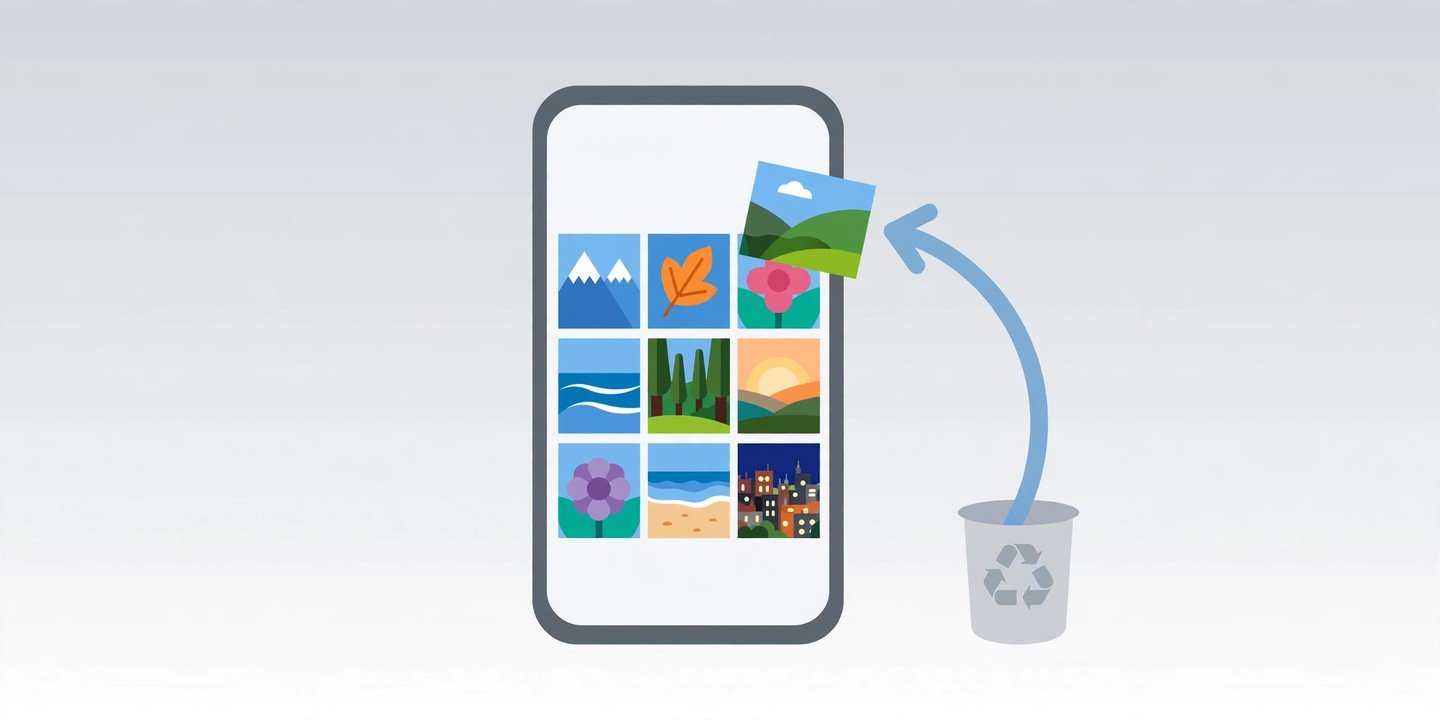
Deleted a photo by mistake? Don’t panic. On both Android and iPhone, a deleted photo is not wiped straight away — it sits in a trash folder for days or weeks, and you can usually bring it back in under a minute. Here is where to look, in the order that works best, and what to do if the photo is already gone from the trash. This guide shows you how to recover deleted photos on Android and iPhone, step by step.
Act fast — your photos have a deadline
When you delete a photo, your phone moves it to a trash folder instead of erasing it. But every trash folder has a countdown, and once it runs out the photo is gone for good. So check the trash first, before trying anything else — and don’t empty it until you have looked through it.
How long you have depends on where the photo was deleted:
- iPhone Photos (Recently Deleted): 30 days
- Google Photos Trash: up to 60 days if the photo was backed up, 30 days if it was not backed up
- Samsung Gallery Recycle bin: 30 days
How to recover deleted photos on iPhone
- Open the Photos app and scroll down to Utilities.
- Tap Recently Deleted and unlock it with Face ID, Touch ID or your passcode.
- Tap Select, choose the photos you want back, then tap Recover.
- Confirm by tapping Recover Photo. The photos return to your library.
On older iOS versions, tap the Albums tab first, then scroll down to Recently Deleted. One warning worth knowing: if you use iCloud Photos, deleting a photo on one device deletes it on every device signed into the same Apple account — so check Recently Deleted on any of your devices, and also on iCloud.com, where the same album is available.
How to recover deleted photos on Android with Google Photos
- Open Google Photos and tap Collections at the bottom. On older versions, Trash sits under Library instead.
- Tap Trash, then touch and hold a photo to select it — tap more photos to add them.
- Tap Restore. The photos go back to your library, to any albums they were in, and to your phone’s gallery app.
Once Google Photos permanently deletes an item, it cannot be restored through the service, so don’t wait until the deadline is nearly up. Google’s own help page confirms the 60-day window for backed-up photos and 30 days for photos that were never backed up.
Samsung Galaxy owners: check the Gallery Recycle Bin too
Galaxy phones have a second safety net that is separate from Google Photos, and it is the fastest fix for something you just deleted in Gallery.
- Open Gallery and tap Menu.
- Tap Recycle bin, then Edit.
- Select the photos you want back and tap Restore.
There is one catch: the Recycle bin only keeps photos if it was switched on before you deleted them. Check now under Gallery, Menu, Settings, Recycle bin, so it is on next time. It also only catches deletions made in Gallery itself, not files removed by a file manager or a cleaning app.
Still missing? Check your cloud copies and other apps
If the photo is not in your phone’s trash, it may still exist somewhere else:
- Google Photos on the web: photos.google.com has the same Trash folder.
- iCloud.com: open Photos and look for Recently Deleted.
- OneDrive: if your photos sync to OneDrive, check its Recycle bin — deleted items stay there for 30 days.
- Files by Google: deleted files sit in its Trash for 30 days.
- Hidden albums: on iPhone, check the Hidden album under Utilities; on Samsung, check Gallery, Albums, menu, Hide albums.
- Other devices and memory cards: if the photo was backed up, it may still be on a tablet, an old phone or an SD card.
What if the photo is not in any trash folder?
If every trash folder is empty, the photo may be permanently deleted — but check the places above first, because people often find the photo in a second trash folder they forgot about. Until you have finished looking, avoid taking lots of new photos and videos, because new files can overwrite the space where a deleted file sat. Third-party recovery apps exist, but success is never guaranteed, and no app can bring back a photo that was permanently deleted from the cloud — treat any app that promises a guaranteed recovery with suspicion.
How to stop losing photos in future
- Turn on photo backup — Google Photos backup on Android, iCloud Photos on iPhone — so every photo has a cloud copy. See our guide: How to Back Up Your Phone
- Turn on Samsung’s Recycle bin if you have a Galaxy phone.
- Before deleting photos in bulk, free up space another way — see How to Free Up Storage on Your Phone Without Deleting Your Photos
- Check your trash folders regularly instead of emptying them blindly.
Recover deleted photos on Android and iPhone — a quick recap
Check the trash first, then your cloud copies, and turn backup on so you can recover deleted photos on Android and iPhone quickly next time.
Most deleted photos are recoverable — as long as you act before the countdown ends. Start with the trash folder on your phone, then work through your cloud copies, and turn backup on today so the next accidental tap is a one-minute fix instead of a lost memory.