How to Remove Malware From Your Phone: Android and iPhone Steps
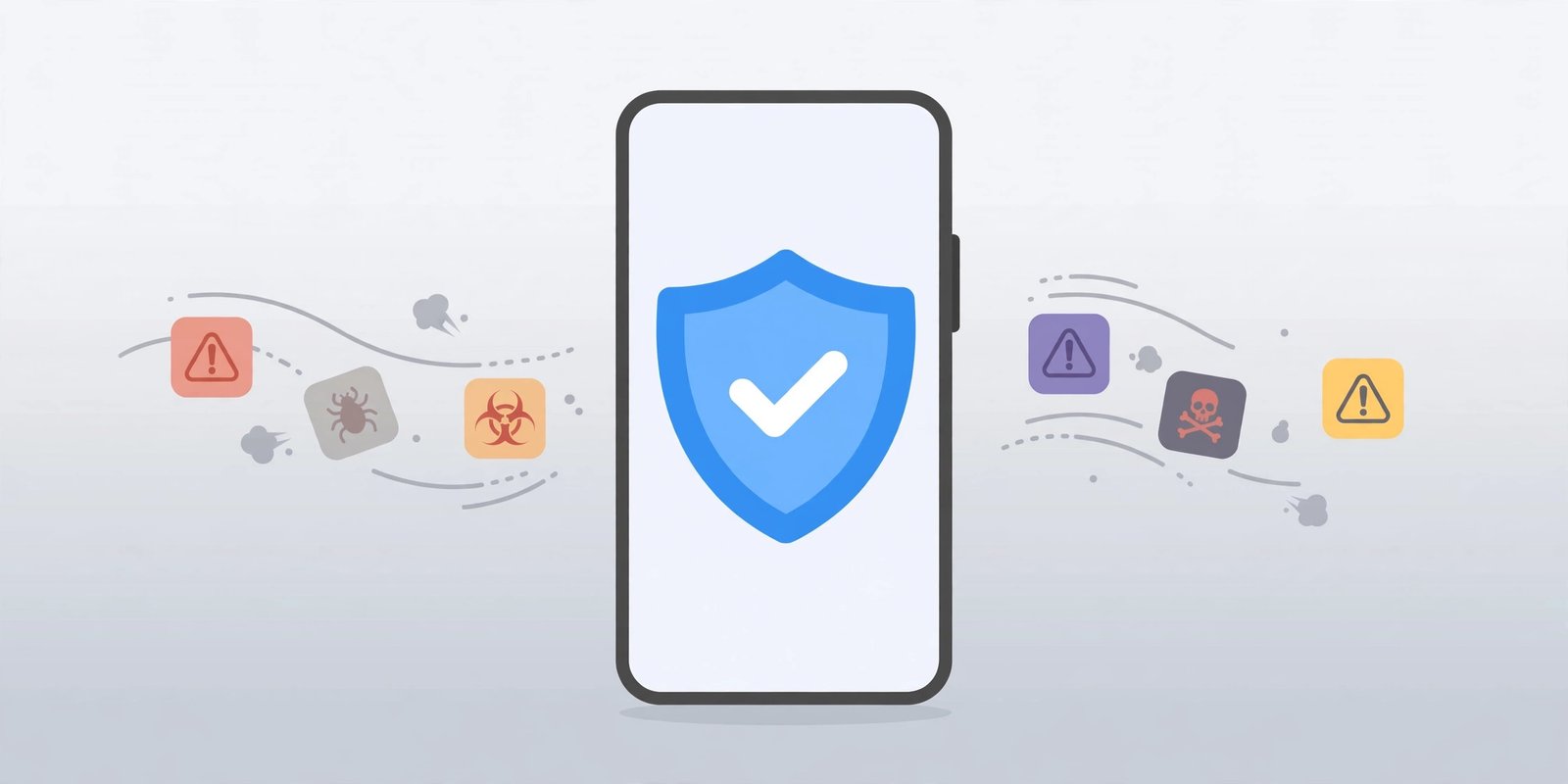
A phone that suddenly floods you with pop-up ads, drains its battery in hours or installs apps you never asked for may have malware on it. The good news is that most phone malware can be removed at home, without a repair shop and usually without losing your photos and files. The steps are different on Android and iPhone, so follow the section for your phone.
How to tell if your phone has malware
One odd glitch does not mean your phone is infected, but several of these signs together are a red flag:
- Pop-up ads appear on your home screen or outside any app.
- Your battery drains much faster than usual, or the phone runs hot while idle.
- Mobile data usage jumps for no clear reason.
- Apps appear that you never installed, or your browser homepage and search engine change by themselves.
- Your browser keeps redirecting you to strange sites, or settings change without you touching them.
Before you start: stop signing in to banking, email and shopping accounts on the suspect phone until it is clean, and back up anything important first. Our guide to backing up your phone walks through it.
Remove malware from an Android phone
Android malware usually arrives as a bad app, so the job is to find that app and get rid of it.
1. Run a Google Play Protect scan. Play Protect is built into Android and checks your apps against known threats. Open the Play Store, tap your profile icon, tap Play Protect, then tap Scan. If it flags an app, tap Remove. Also check that Scan apps with Play Protect is switched on in the Play Protect settings.
2. Restart in Safe Mode. Safe Mode starts Android with only its built-in apps running, so third-party malware cannot run. On most phones, press and hold the power button, then press and hold Power off on the screen until the Safe Mode prompt appears, and tap OK. If the strange behaviour stops in Safe Mode, a third-party app is almost certainly the cause. Restart the phone normally to leave Safe Mode.
3. Uninstall suspicious apps. Go to Settings > Apps and look through the list for anything you do not recognise, anything installed around the time the problems began, or generic-sounding apps with names like “Cleaner”, “Booster” or “Optimizer”. Tap the app, then tap Uninstall.
4. If Uninstall is greyed out, revoke its admin access first. Some malware grants itself device administrator status, which locks the uninstall button. Go to Settings > Security > Device admin apps (on some phones it sits under Security & privacy > More security settings), switch off access for the suspicious app, then go back and uninstall it.
5. Clear your browser. If pop-ups and redirects keep coming back, open Chrome, tap the three-dot menu, go to Settings > Privacy and security > Delete browsing data, and clear cached images, cookies and site data. Also check Chrome’s site settings for any unfamiliar site allowed to send notifications.
6. Factory reset as a last resort. If the phone still misbehaves after all of the above, a reset wipes everything, including the malware. Back up first, then go to Settings > System > Reset options > Erase all data (on Samsung phones, Settings > General management > Reset > Factory data reset).
Remove malware from an iPhone
True viruses are rare on iPhones because iOS keeps apps sandboxed, but scam profiles, rogue apps and browser pop-ups can still cause the same symptoms. There is no system-wide antivirus scan on iPhone, so the cleanup is manual.
1. Update iOS. Apple closes security holes in software updates, so install anything waiting. Go to Settings > General > Software Update, tap Download and Install, and switch on Automatic Updates while you are there.
2. Delete apps you do not recognise. Swipe to the App Library to see every app in a list. For any app you did not install, or that appeared around the time the problems started, press and hold its icon and tap Remove App > Delete App. If iOS shows an alert saying an app contains malware, tap Delete App in the alert itself.
3. Remove unknown configuration profiles. A malicious profile can route your traffic through a stranger’s VPN or change your settings. Go to Settings > General > VPN & Device Management. If you see a profile you did not knowingly install, tap it and choose Remove Profile, then restart the phone. If your phone belongs to an employer or school, check with its IT team first — legitimate work and school profiles live here too.
4. Clean up Safari. Go to Settings > Apps > Safari > Clear History and Website Data (on older iOS versions the path is Settings > Safari). This clears the tracking data and fake “virus detected” pages that keep reappearing.
5. Erase the iPhone as a last resort. If problems continue, go to Settings > General > Transfer or Reset iPhone > Erase All Content and Settings, then set the phone up again and restore from a backup made before the problems started.
After the cleanup: lock your accounts down
Cleaning the phone is only half the job. If malware had access to your accounts, change your important passwords from a different, clean device, starting with your Google or Apple account, email and banking. Turn on two-factor authentication where it is offered, and review which devices are signed in to your accounts, removing any you do not recognise. Our guide to setting up passkeys on your phone is a stronger option than passwords alone. If you changed passwords on the infected phone before cleaning it, change them again.
How to stop malware coming back
- Install apps only from the Play Store or App Store, and be wary of apps that ask for permissions unrelated to what they do — a torch app has no need for your contacts.
- Keep automatic updates on for both the operating system and your apps, so security fixes arrive without you having to remember.
- Do not sideload APKs from random websites, and never tap “Allow” on a pop-up that claims your phone has a virus — that warning is itself the scam.
- Review app permissions regularly in Settings > Privacy & Security (iPhone) or Settings > Security & privacy > Privacy (Android). Our privacy and security settings guide covers the settings worth changing today.
- Keep Google Play Protect switched on if you use Android, and think twice before installing a “phone cleaner” or “battery booster” app — these are among the most common sources of Android malware.
Frequently asked questions
Can an iPhone get a virus? Real iPhone malware exists but is rare, and it almost always targets out-of-date iOS versions. Most iPhone “virus” warnings are scam web pages or rogue profiles, which the steps above remove.
Do I need an antivirus app on Android? Not necessarily. Google Play Protect is built in and scans your apps continuously. A reputable security app from the Play Store can add a second opinion, but only install one from a well-known security company.
Will a factory reset remove malware? Yes, in almost every case — a reset wipes all apps and data, including anything malicious. It is the last resort because it erases your data too, so back up anything you want to keep first.
Malware on a phone feels alarming, but the fix is usually straightforward: scan, find the bad app or profile, remove it, update your software and change your passwords. Work through the steps in order, and only reset the phone if nothing else works.
Sources checked: Malwarebytes — How to remove a virus from Android; Norton — How to remove malware from your Android phone; NordVPN — How to get rid of a virus on your iPhone.