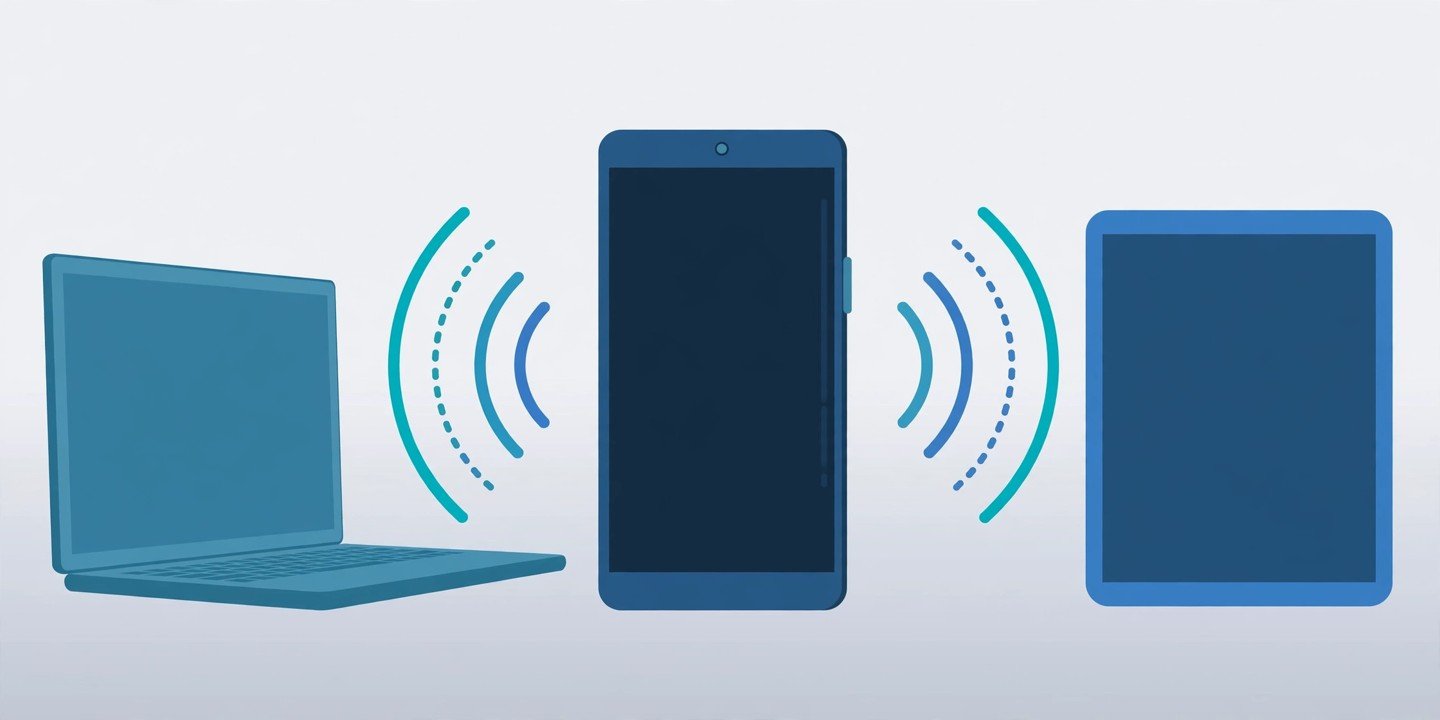
How to Cast Your Phone Screen to Your TV: Android and iPhone Steps That Work
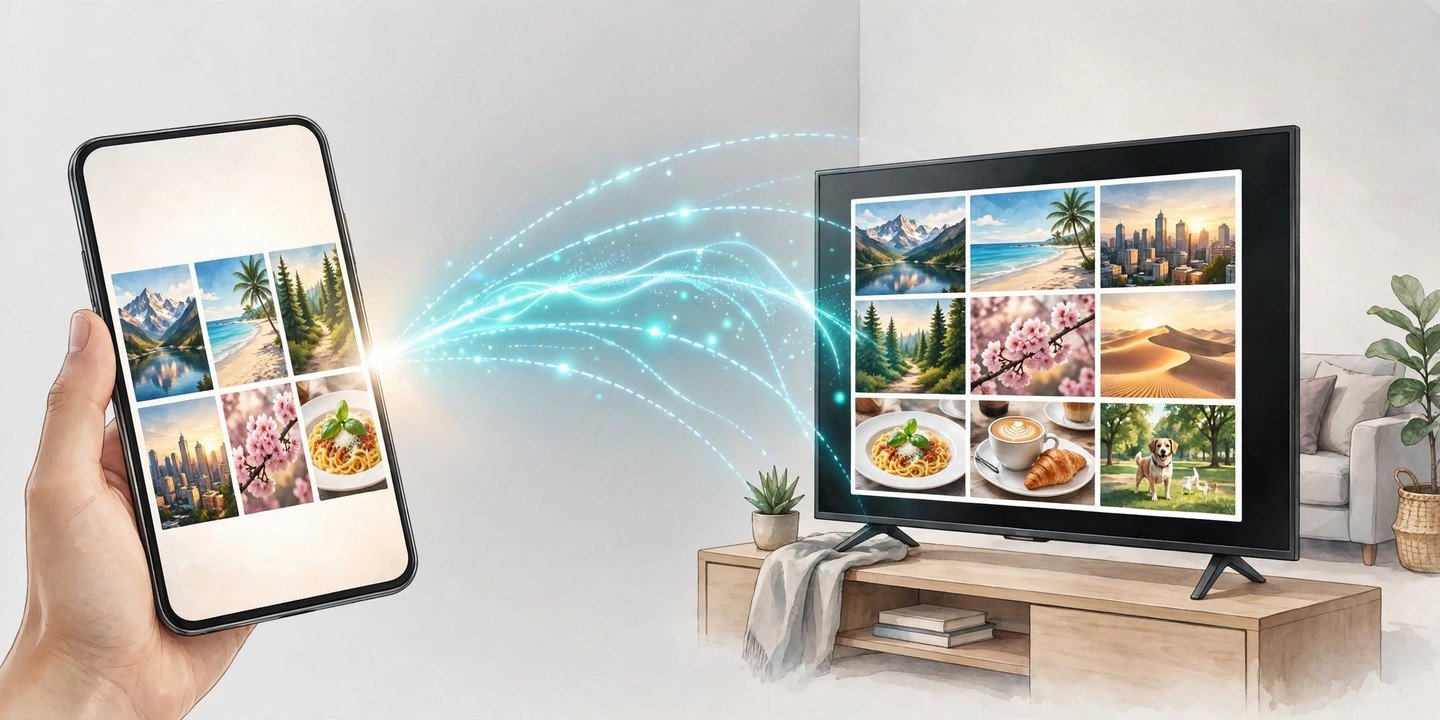
Watching photos, videos or a game on your phone is fine — until everyone in the room wants to see it too. Casting puts your phone’s screen on the big TV wirelessly, and on most modern phones it takes less than a minute to set up. Here is how to cast phone screen to TV on Android and iPhone, plus what to try when your TV refuses to show up.
Before you start: what you need
Casting only works if your phone and TV can talk to each other, so check these three things first before you cast phone screen to TV:
- Your phone and TV must be on the same Wi-Fi network. This is the number one reason casting fails, so check it before anything else.
- A TV that can receive the cast. Most modern TVs have Chromecast built in, or run Google TV or Android TV. For iPhone you need an Apple TV or an AirPlay-compatible smart TV.
- A charged phone. Mirroring uses Wi-Fi and keeps the screen on, so plug in if you plan to watch for a while.
Cast vs mirror: what is the difference?
Casting sends one app’s video or audio to the TV — YouTube, Netflix or Spotify, for example — while your phone stays free for other things. Mirroring copies your whole phone screen to the TV, so everything you do shows up, including notifications. Use casting for watching a film, and mirroring when you want to show photos, a presentation or a game.
How to cast phone screen to TV on Android
Android gives you three good ways to get your screen on the TV. Try them in this order.
1. Use the Quick Settings tile
This is the fastest method and needs no extra app.
- Swipe down from the top of your screen to open Quick Settings.
- Tap Cast — on Samsung phones it is called Smart View, and some brands call it Screen Cast or Wireless Display.
- Pick your TV from the list. Your screen appears on the TV straight away.
- To stop, open Quick Settings again and tap the Cast tile, then Disconnect.
If you cannot see the tile, add it by editing your Quick Settings panel, or go to Settings > Connected devices > Cast.
2. Mirror with the Google Home app
If the tile does not find your TV, the Google Home app usually will.
- Make sure your phone and TV are on the same Wi-Fi network.
- Open the Google Home app and sign in with the same Google account your TV is set up under.
- Tap your TV or Chromecast device in the list.
- Tap Cast my screen, then Cast screen and Start now on the warning. Remember that everything on your screen, including notifications, will be visible on the TV.
- To stop, go back to the Google Home app, tap the device and choose Stop mirroring.
3. Cast from a single app
For streaming apps, this gives the smoothest result and the best quality.
- Open the app — YouTube, Netflix, Disney+ and Spotify all support it — and start playing something.
- Tap the Cast icon, a small rectangle with a Wi-Fi symbol in the corner, usually near the top of the screen.
- Choose your TV. The video jumps to the big screen and your phone becomes the remote.
- To stop, tap the Cast icon again and choose Disconnect.
How to mirror from iPhone with AirPlay
iPhone uses Apple’s AirPlay, and it works with an Apple TV or any AirPlay-compatible smart TV.
- Connect your iPhone and your TV to the same Wi-Fi network.
- Make sure AirPlay is switched on on the TV — check its settings menu if your TV does not appear later.
- On iPhone X or later, swipe down from the top-right corner to open Control Center. On iPhone 8 or earlier, swipe up from the bottom.
- Tap Screen Mirroring and select your TV from the list.
- If a passcode appears on the TV, enter it on your iPhone.
- To stop, open Control Center, tap Screen Mirroring again and choose Stop Mirroring.
To stream just one video instead of your whole screen, play the video, tap the AirPlay button (in the Photos app, tap Share first, then the AirPlay button) and pick your TV.
No smart TV? Use a cable
A wired connection is the most reliable option for an older TV, and it needs no Wi-Fi at all.
- Android: connect a USB-C to HDMI adapter or cable to your phone and the TV, then switch the TV to that HDMI input. Check first that your phone model supports video output over USB-C.
- iPhone: use a Lightning Digital AV Adapter or a USB-C to HDMI adapter, depending on your model, and again check that your iPhone supports wired video output before buying one.
If your TV does not show up, try these fixes
- Check the Wi-Fi again. Phone and TV must be on the same network — a 5 GHz and a 2.4 GHz network with the same name can still cause trouble, so try the other band.
- Restart both devices. Power the TV fully off and on again, and restart your phone.
- Turn the receiver on. Make sure Chromecast is enabled on an Android TV, or AirPlay is switched on in an AirPlay TV’s settings.
- Switch off your VPN. A VPN on your phone can hide it from the TV.
- Update everything. Install the latest software updates on your phone and TV, and update the Google Home app if you use it.
Tips for a smoother cast
- Turn on Do Not Disturb before mirroring, so private messages do not pop up on the big screen.
- Keep the phone nearby and awake. Moving too far from the router, or letting the phone lock, can drop the connection.
- Close apps you do not need. Heavy apps running in the background can make the cast stutter.
- Use casting, not mirroring, for films. It gives better quality and lets you use your phone while the film plays.
Once you have done it once, casting becomes a two-tap habit — and your phone’s photos, videos and games finally get the big screen they deserve.
If you want to keep a copy of what you cast, learn how to record your phone screen.