How to Use Voice Typing on Your Phone: Dictate Messages, Notes and Emails
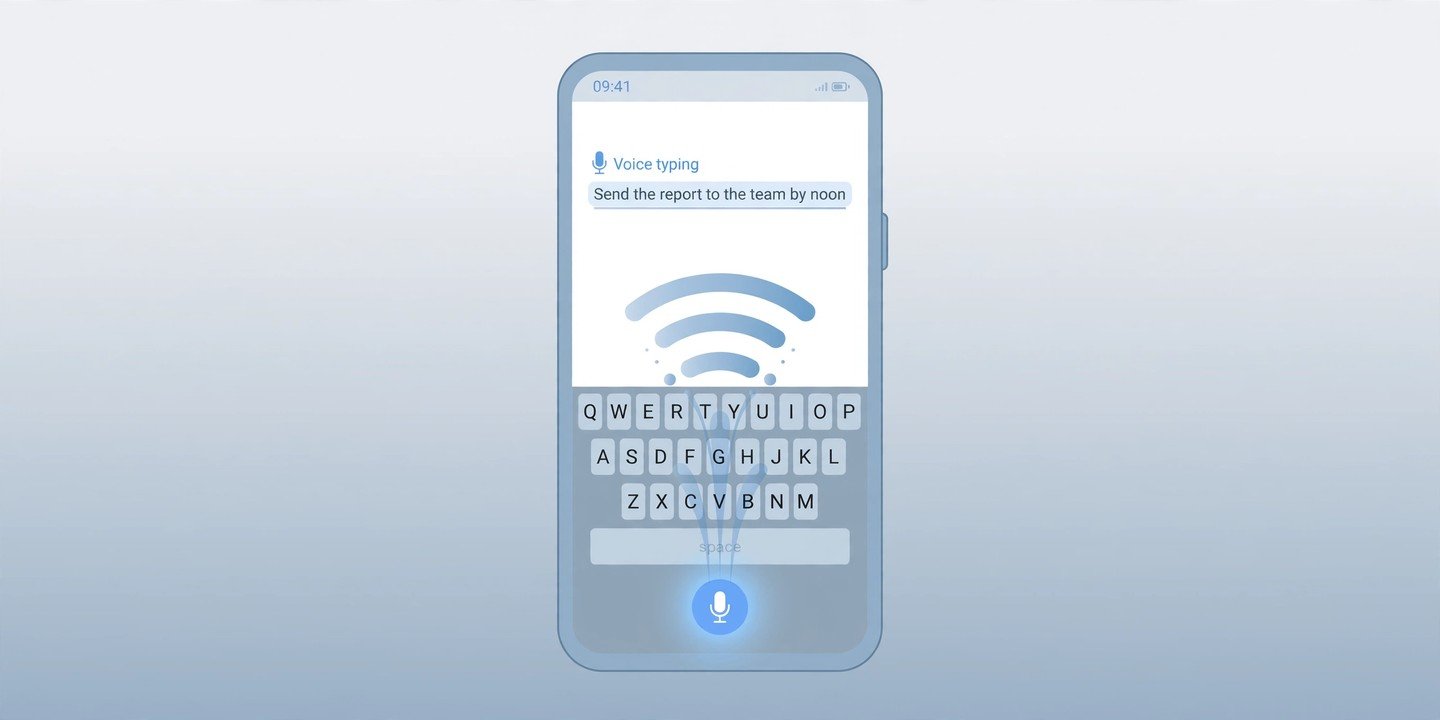
Your phone can type for you. Voice typing turns your speech into text in any app where you can type. That includes messages, emails, notes, searches and documents. On iPhone it is called Dictation. In Gboard on Android it is called Voice Typing. It is faster than thumb-typing for long messages, handy when your hands are full, and a real help if typing on a small screen is a struggle. Here is how to use voice typing on your phone on Android and iPhone.
Turn on voice typing on iPhone
- Open Settings, then tap General and Keyboard.
- Turn on Enable Dictation and confirm if asked.
- Open any app, tap a text field, then tap the microphone button on the keyboard and start speaking.
- Tap the keyboard icon again, or tap the microphone, to stop dictating.
In supported languages your iPhone adds commas and full stops automatically. If you would rather say every mark yourself, turn off Auto-Punctuation under Settings > General > Keyboard. To dictate in another language, add that keyboard first under Settings > General > Keyboard > Keyboards. Then press and hold the microphone button to switch languages while dictating. See Apple’s Dictation guide for the latest steps.
Turn on voice typing on Android
- Make sure Gboard is your keyboard. On most Android phones it already is; if not, install it from the Play Store and switch to it from any text field.
- Tap a text field so the keyboard appears, tap the settings gear at the top of the keyboard, then tap Voice typing and switch Voice typing on.
- If the microphone does nothing, give Gboard microphone permission: go to Settings > Apps > Gboard > Permissions > Microphone and choose Allow only while using the app.
- To dictate, tap the microphone icon at the top of the keyboard and start speaking.
On Pixel 6 and later, Gboard’s advanced voice typing adds extras. It can add punctuation automatically. It can also understand commands such as “send”, “delete” and “clear”, and switch languages automatically. On Samsung phones the steps are similar, but the microphone sits on the Samsung Keyboard. You can also choose Google Voice Typing under Settings > General management > Keyboard list and default. See Google’s Gboard voice typing guide for more detail.
Speak punctuation and commands
Dictation works best when you say the punctuation out loud. Try saying “comma”, “full stop”, “question mark” or “new paragraph” as you speak. Say the name of an emoji — for example “heart emoji” — to drop one into a message. On iPhone and Pixel you can also mix typing and dictating in the same message. Start speaking, tap the keyboard to fix a word, then tap the microphone to carry on. Saying “delete that” or “clear” usually removes the last dictated bit, though the exact commands vary between keyboards.
Five tips for accurate dictation
- Speak at a normal pace. Slow, robotic speech actually makes recognition worse — talk the way you would to a person.
- Hold the phone close and cut background noise. Dictation struggles in a noisy street or a moving car, so step somewhere quieter for long messages.
- Check before you send. Names, addresses and numbers are the most common mistakes, so give them a quick glance before hitting send.
- Dictate in short chunks. One or two sentences at a time is easier to check — and to fix — than a whole paragraph.
- Teach it your words. If it keeps getting a name wrong, type the word once and it usually learns it, and adding the language you speak to your keyboards improves accuracy.
These tips help you learn how to use voice typing on your phone. If you dictate long notes, make sure they are saved — see our guide, How to Back Up Your Phone.
If voice typing is not working
First, check the microphone is not blocked by a case and that the app has microphone permission. On iPhone, make sure Enable Dictation is still on and that Voice Control is off. Dictation is not available while Voice Control is running. For Android, update Gboard from the Play Store and check the microphone permission. Restart the phone if the microphone button has vanished. On most modern iPhones and Pixel phones dictation is processed on the phone itself, so it works even with a weak connection. Some languages and extra features still need the internet.
Voice typing will not replace the keyboard entirely. Once you know how to use voice typing on your phone, it is often the fastest way to type. That is true for messages, quick notes and emails. Switch it on once, and it is always one tap away. You can also record your phone screen to show someone else how it works.