How to Use Focus Mode and Cut Down Screen Time on Android and iPhone
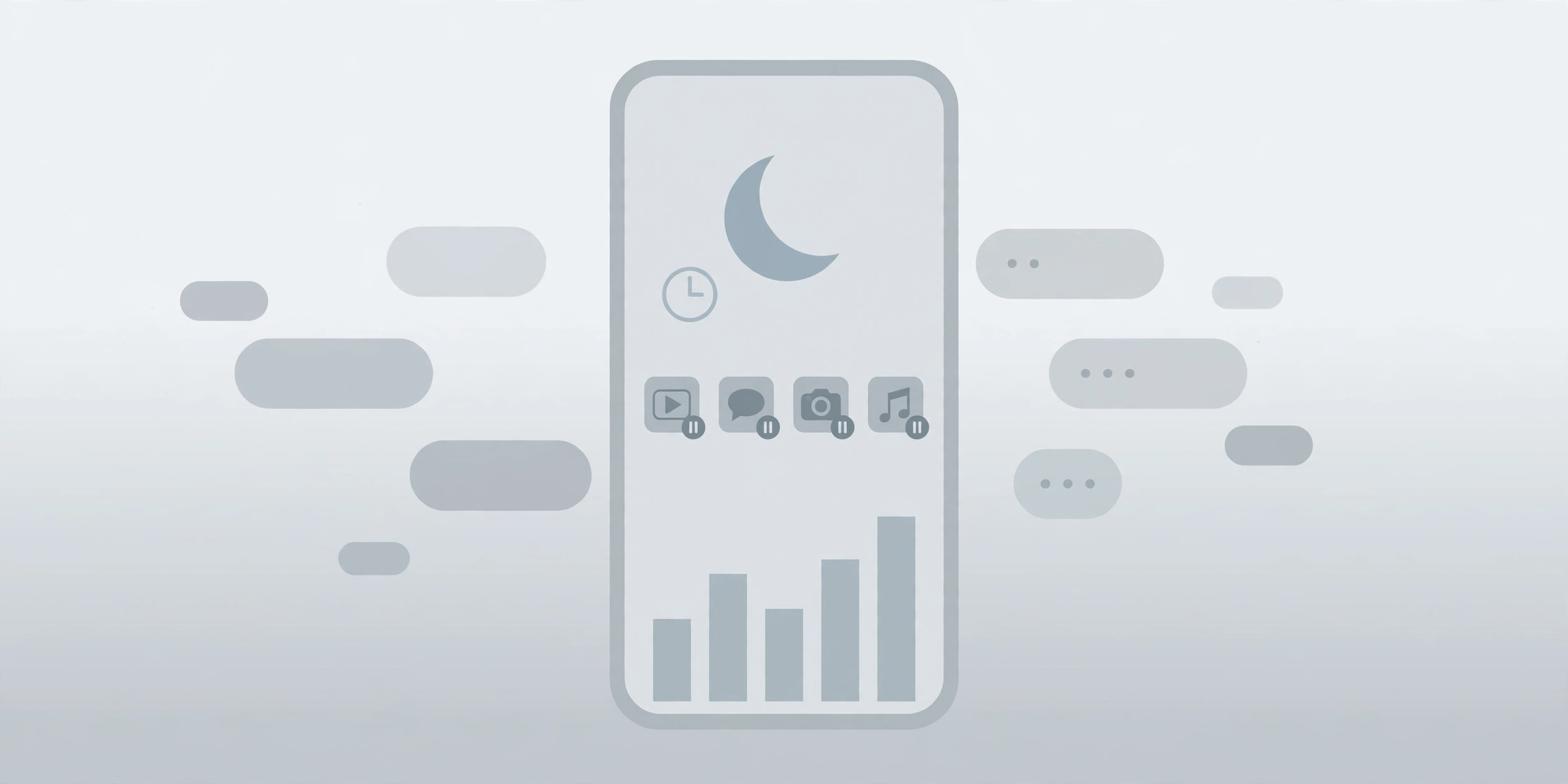
Your phone is designed to grab your attention — every buzz, badge and banner is a small interruption. The good news is that both Android and iPhone already have the tools to fight back: Focus mode, app timers and scheduled downtime. Set them up once, and your phone starts working around your day instead of against it.
Menu names vary slightly by phone brand and software version. If a setting is not exactly where described, use the search box at the top of Settings. Note that in the newest iPhone software (iOS 27), Apple renamed Downtime to Screen Time Schedule and App Limits to Time Allowances — the steps are the same, only the names changed.
1. See Where Your Time Actually Goes
Before changing anything, look at the numbers. You might be surprised which apps eat your day.
On Android: open Settings > Digital Wellbeing. The chart shows your screen time today, how often you unlocked your phone, and how many notifications you received. Tap the chart for a breakdown by app.
On iPhone: open Settings > Screen Time, then tap App & Website Activity (turn it on if asked). You will see your most-used apps and websites, pickups and notifications.
Pick your worst one or two apps — usually a social app or a game — and remember them for step 4. A limit works best when it targets the apps you actually overuse, not every app at once.
2. Set Up a Focus on iPhone
Focus is Apple’s way of filtering notifications based on what you are doing. When a Focus is on, only the people and apps you allow can reach you — everything else stays silent.
- Go to Settings > Focus.
- Tap a ready-made Focus — Do Not Disturb, Personal, Sleep or Work — or tap + to create your own.
- Choose the people who can contact you and the apps that can notify you. Turn on Time Sensitive notifications if you want urgent alerts to get through.
- Set a schedule or automation so the Focus turns on by itself — at a set time, at a location, or while you use a certain app.
- Optionally turn on Share Across Devices, so the same Focus applies on your other Apple devices.
To turn a Focus on quickly: open Control Center, tap Focus, then tap the Focus you want. You can also ask Siri, or set one up from the Lock Screen.
Make it useful: a Work Focus that allows only colleagues and work apps, plus a Sleep Focus that silences everything except family, covers most people’s days. You can also set Focus filters — for example, showing only work calendars and mail accounts while Work is on.
3. Pause Distracting Apps With Android Focus Mode
Android’s Focus mode works the same way, but from the other direction: instead of filtering notifications, it pauses the distracting apps themselves.
- Open Settings > Digital Wellbeing > Focus mode.
- Choose the apps you want to pause — your social apps, games, or anything else that pulls you in.
- Tap Turn on now when you want to concentrate. While Focus mode is on, those apps cannot be used and their notifications are held back.
- Tap Set a schedule to have Focus mode turn on automatically, for example during work hours every weekday.
- Need a quick peek? Tap Take a break and pick a time limit — the apps unpause only until the timer runs out.
Tip: add Focus mode to your Quick Settings panel if your phone offers it, so you can switch it on with one swipe and tap instead of digging through Settings.
4. Put a Daily Limit on Your Worst Apps
A Focus hides distractions; an app timer caps how long you can use an app each day. Use both together and the habit starts to change.
On Android: go to Settings > Digital Wellbeing > App timers, tap Set timer next to the app, and choose your daily limit. When time runs out, the app closes and its icon dims. Timers reset at midnight.
On iPhone: go to Settings > Screen Time > App Limits, tap Add Limit, pick a category such as Social Networking or Games — or tap a category name to pick individual apps — then tap Next, set the time allowed, and tap Done. You can set different limits for different days with Customize Days.
Start generous, then tighten. A 30-minute limit on an app you use for two hours a day will feel impossible and you will just ignore it. Start with an hour, live with it for a week, then cut it by 15 minutes.
5. Schedule Downtime and Bedtime Mode
The strongest tool is also the simplest: decide when your phone goes quiet every day, and let it happen automatically.
On iPhone — Downtime: go to Settings > Screen Time > Downtime, then tap Scheduled and set your start and end times for every day, or different times per day. During downtime, apps and notifications are blocked — only calls, messages and the apps you allow in Always Allowed keep working. You get a five-minute reminder before downtime starts. (In iOS 27 this is called Screen Time Schedule.)
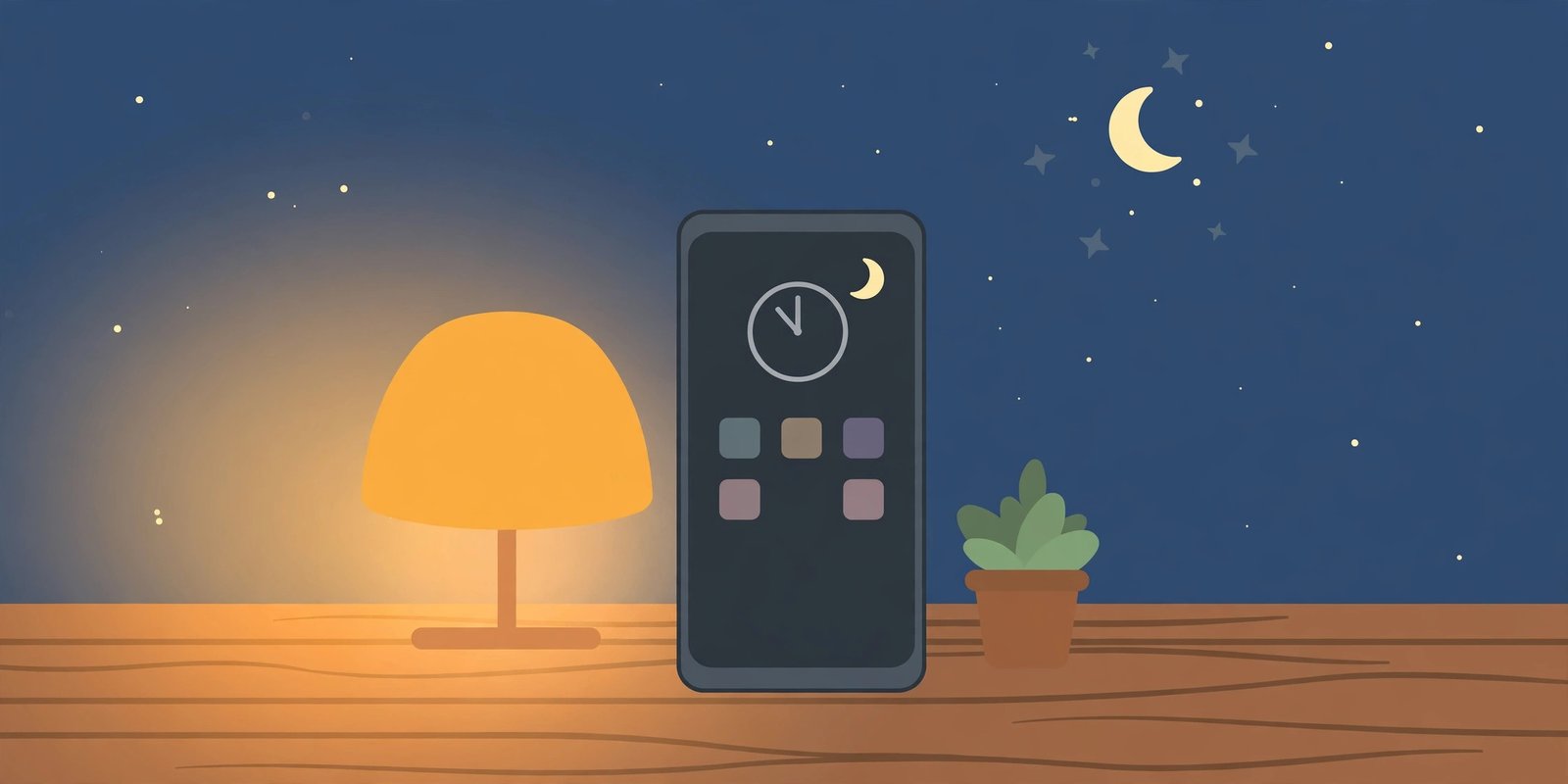
On Android — Bedtime mode: in Digital Wellbeing, set up a bedtime routine. You can turn on Do Not Disturb, switch the screen to grayscale so it looks dull and uninviting, keep the screen dark by turning off the always-on display, and dim the wallpaper. It is the single best setting for stopping late-night scrolling.
Pick a bedtime, not a suggestion. A downtime that starts at 10pm every night works; one you switch on manually when you remember does not.
6. Make the Limits Stick
By default, most screen-time limits can be ignored with one tap — which is fine if you only need a nudge, and useless if you need a wall.
On Android: set an App limits PIN in Settings > Digital Wellbeing > App limits > App limits PIN. Once set, changing or removing a limit needs the PIN. Set a limit to zero and the app is blocked entirely.
On iPhone: set a Screen Time passcode in Settings > Screen Time. With a passcode, you can also turn on Block at Downtime (Settings > Screen Time > Downtime), which stops restricted apps from opening at all during downtime — they appear dimmed on the Home Screen.
On iPhone, check Always Allowed: go to Settings > Screen Time > Always Allowed and make sure only the apps you truly need — phone, messages, maps — are on the list. Everything else should respect your limits.
The Bottom Line
You do not need a new app or a digital detox to spend less time on your phone. Check where your time goes, set up a Focus for work and sleep, pause your distracting apps on Android or filter them on iPhone, cap your worst app with a daily limit, and schedule downtime every night. Do it in that order, one step at a time — and if a limit feels too strict, loosen it instead of switching it off. The goal is a phone that interrupts you less, not a phone you fight with.
For more everyday phone know-how, see our guide to the privacy and security settings to change today, the accessibility features worth turning on, and how to free up storage without deleting your photos.
Sources checked: Google’s Digital Wellbeing support page and Apple’s iPhone User Guide — “Set up a Focus on iPhone” and “Set schedules with Screen Time on iPhone”. Menu names and feature availability vary by phone model and software version; in iOS 27, Downtime is renamed Screen Time Schedule and App Limits is renamed Time Allowances.