How to Use Your Phone as a Portable Charger
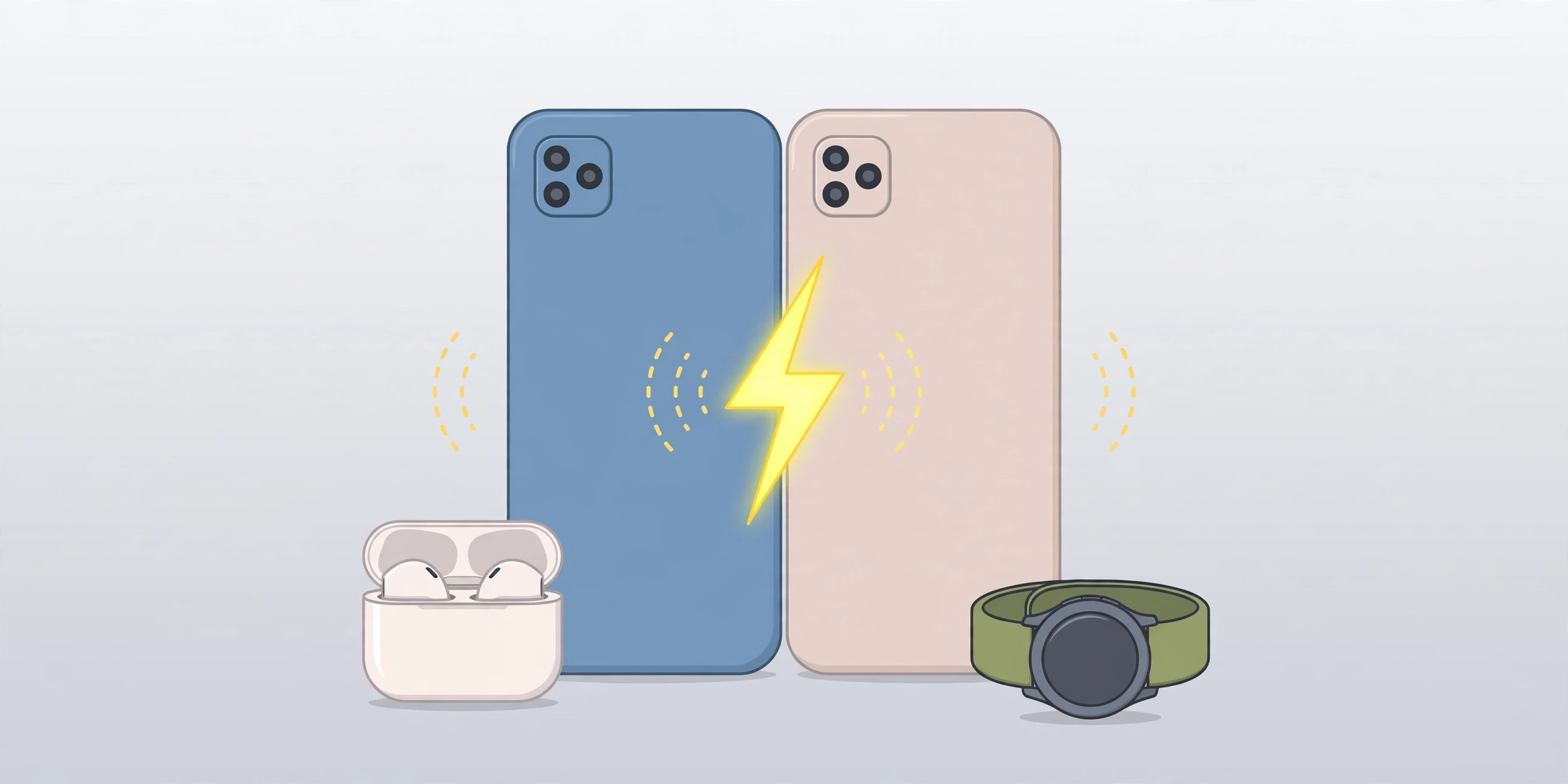
Forgot your power bank? Your phone itself can be the charger. Many Samsung Galaxy and Google Pixel phones can wirelessly share their battery with another phone, a pair of earbuds or a smartwatch, and an iPhone 15 or later can do the same job with a cable. Here is how reverse charging works on each one, what it can and cannot do, and how to make it work first time.
1. What reverse charging is — and what it is not
Reverse wireless charging turns your phone into a small wireless charging pad. Place another Qi-compatible phone, earbuds or watch on its back and power flows out of your phone’s battery into the other device. It is slow — Samsung and iPhone both cap it at around 4.5W — so think top-up, not full charge. It is best for earbuds, watches and a few percent on a friend’s phone, not for filling a dead phone from zero. Your phone also loses battery faster than the other device gains it, because wireless charging wastes energy as heat. Only share power when you can spare it — and check your battery health before relying on an ageing battery to help someone else.
2. On a Samsung Galaxy phone (Wireless PowerShare)
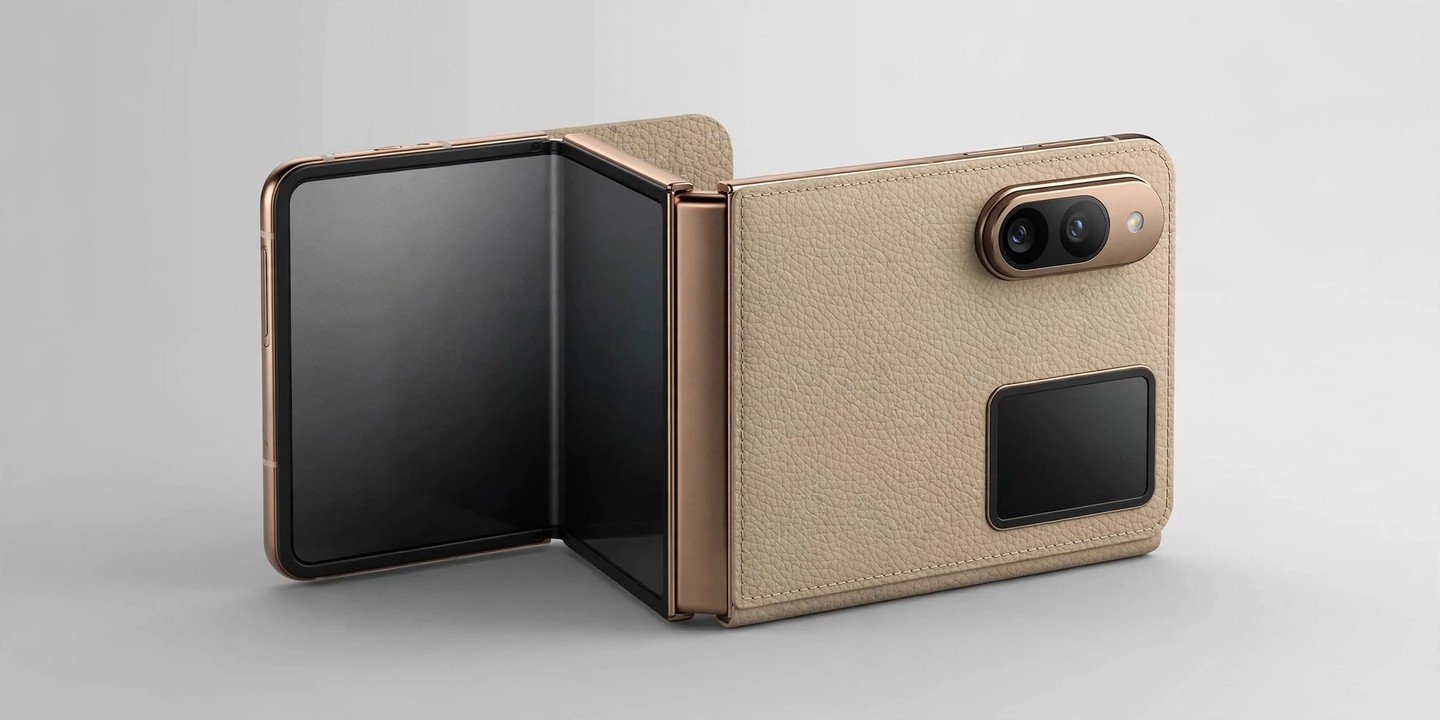
Wireless PowerShare is available on Galaxy flagships from the Galaxy S10 onwards, including the S series, Note 10 and Note 20, and the Z Fold and Z Flip phones.
- Make sure your Galaxy phone has more than 30% battery. PowerShare will not start below that, and it stops automatically when your battery falls to 30%. You can change that cut-off under Battery limit in the same menu.
- Swipe down to open Quick Settings and tap Wireless PowerShare. The first time, go to Settings, then Battery, then Wireless power sharing, and switch it on there.
- Lay your Galaxy phone face down and place the device you want to charge on the centre of its back, back to back. You will feel a vibration when charging starts.
- To stop, just separate the two devices. PowerShare switches itself off after 60 seconds if it cannot detect a device.
Tips: remove thick cases from both devices and line up the charging coils — if nothing happens, slide the device around a little. You can plug your own Galaxy phone into a cable while it shares power, and do not use wired earphones while sharing power.
3. On a Google Pixel (Battery Share)
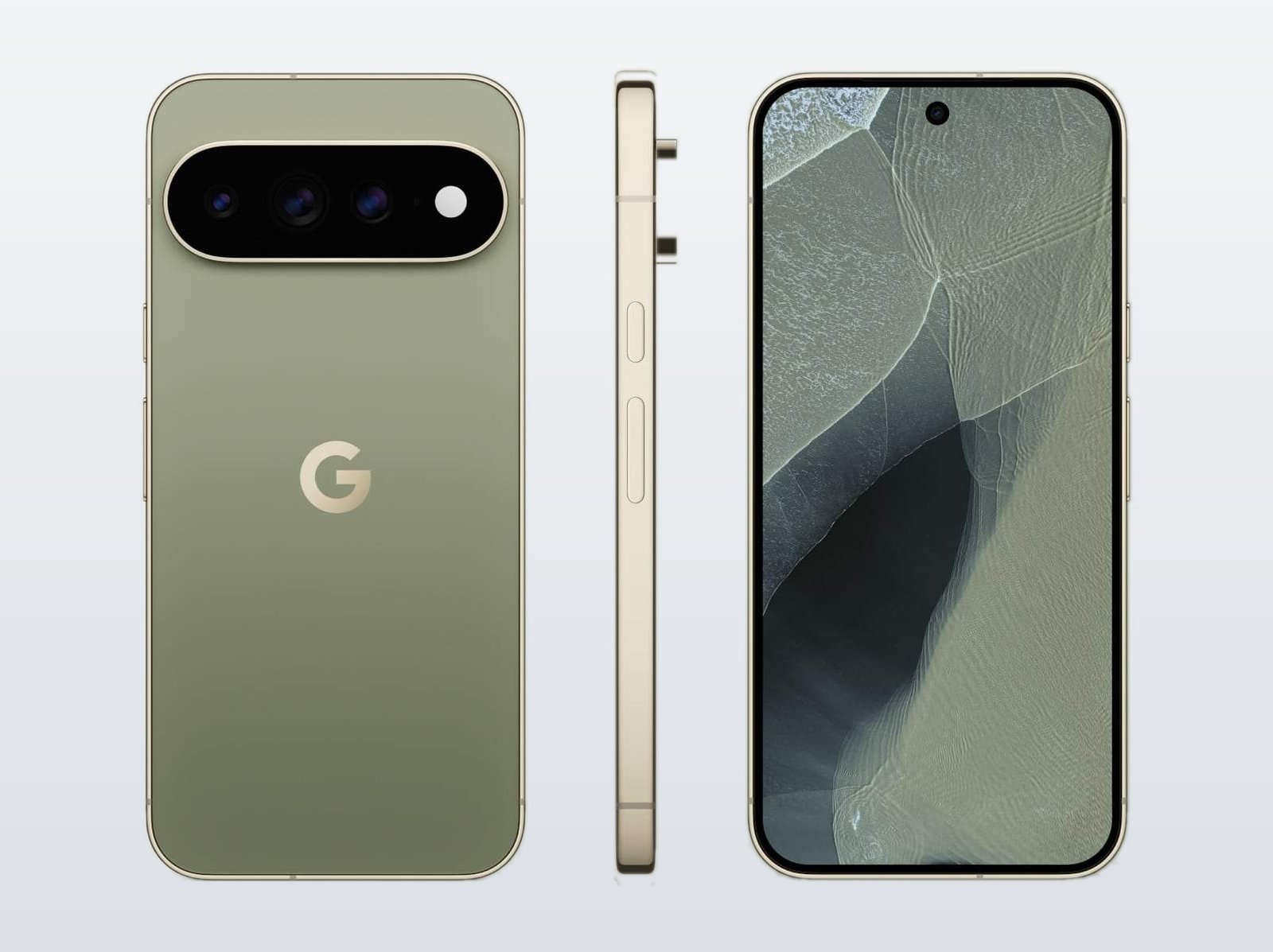
Battery Share is available on the Pixel 5, 6, 7, 8 and 9 series, including the Pro models.
- Open Settings, tap Battery, then Battery Share, and switch it on. You can also add Battery Share to Quick Settings.
- Set the cut-off level — you can choose between 10% and 50%. Battery Share stops when your Pixel falls to that level, and you cannot start it below it.
- Place the Qi-compatible phone or accessory on the back of your Pixel, on the right spot.
- Battery Share switches itself off if it cannot detect a device after 30 seconds, if the other device is fully charged, if the phone gets too hot, or if Battery Saver is on. On Pixel 9 models it also stops when you plug in a wired charger.
Tips: remove metal or magnetic attachments such as MagSafe accessories, PopSockets or ring holders from the back of the phone first, and take off thick cases if charging will not start.
4. On an iPhone (wired only)
iPhones cannot wirelessly charge another device — not even with MagSafe. Reverse charging on iPhone is wired only, and only on iPhone 15 and later, which have a USB-C port. Connect a USB-C to USB-C cable between your iPhone and the device you want to charge. There is no switch to turn on — charging starts automatically. It works with AirPods with a USB-C case, another phone, and an Apple Watch, using the Watch’s magnetic USB-C charging cable plugged into your iPhone. Older AirPods cases need a USB-C to Lightning cable. Output is capped at 4.5W, so this is for small devices and emergency top-ups, not fast charging.
5. What you can (and cannot) charge
Works well: wireless earbuds and their case, smartwatches, and a friend’s phone that supports Qi wireless charging — including iPhones charged from a Galaxy or Pixel. Do not expect a full charge for another phone, fast charging, or charging a tablet or laptop — the 4.5W output is too low, and most tablets and laptops need far more power. The receiving device must support Qi wireless charging for the wireless method, so check the device’s specs if you are unsure. If your own phone will not charge at all, see our guide to fixing a phone that will not charge.
6. Tips to make it work first time
Start with plenty of charge in the sharing phone — you are giving power away, so do not begin on a low battery. Line up the coils: the charging coil sits near the centre of the back on most phones, so slide the devices until charging starts. Take cases off both devices, especially thick or metal ones. Keep both devices still while they charge — moving them breaks the connection. If it will not start, check that the receiving device supports wireless charging, turn sharing off and on again, and try once more. And for day-to-day use, our smartphone battery tips will help your own battery last longer between charges.
Reverse charging will not replace a power bank — it is slow and it drains your own battery. But for topping up a friend’s nearly dead phone, topping up earbuds on a trip, or getting a watch through the evening, it is already in your pocket. Turn it on, line the devices up, and share a little power.
The image at the top of this post is an original illustration.
Sources
- Samsung Support – Wireless PowerShare
- Samsung Community – Wireless PowerShare on Galaxy devices
- Google Support – Charge other devices with Pixel
- MacObserver – Can iPhones Charge Each Other?
- AppleMagazine – iPhone Reverse Charging