How to Scan Documents with Your Phone: Android and iPhone Steps That Work
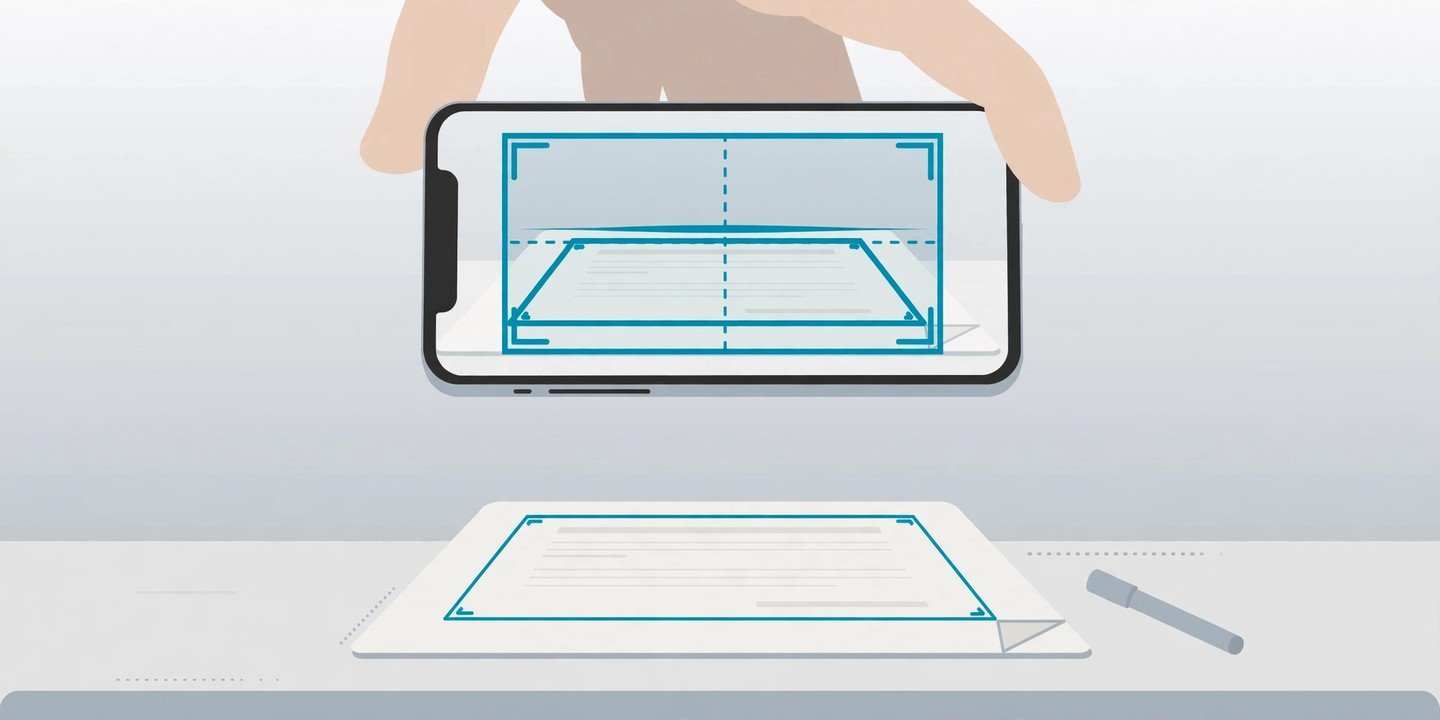
Your phone already has a document scanner built in — no extra app, no hardware, no trip to a print shop. Whether it is a receipt, a signed form, a letter or a page from a notebook, you can turn it into a clean PDF in under a minute and email it, sign it or store it safely. Here is how it works on iPhone and Android, plus a few tips for a scan that is actually readable.
Scan a document on iPhone with the Notes app
The iPhone scanner lives in the Notes app, and the steps below follow Apple’s own support guidance.
- Open Notes and open a note, or start a new one.
- Tap the Attachment button (the paperclip), then tap Scan Documents.
- Hold the page in view of the camera. In Auto mode, the iPhone captures the page by itself once it finds the edges. To take the shot yourself, tap the shutter button or press a volume button.
- Fix the edges if needed. Drag the corners so they sit on the edges of the page, then tap Keep Scan. Scan the next page the same way, or tap Done when you are finished. The scan is saved in the note as a single PDF.
The same scanner also lives in the Files app — tap the More button, then Scan Documents, and choose a folder to save it in. On iOS 26 and later, the Preview app has it too. On iOS 17 and earlier, some buttons look different, so follow Apple’s guide for your version if a button is not where you expect it. Source: https://support.apple.com/en-ph/108963
Need to sign a form? Tap the scanned document in the note, tap Markup, then the Add button and Signature — you can sign with your finger or, on iPad, an Apple Pencil.
Scan a document on Android with Google Drive
On Android, the scanner lives in the Google Drive app, and the steps below follow Google’s own help pages.
- Open the Google Drive app.
- At the bottom right, tap Camera. On some versions of the app, tap the + button and choose Scan instead.
- Point the camera at the page. A blue outline shows where the scan will be cropped.
- Choose Auto or Manual capture. Auto takes the shot once the page is detected; Manual lets you press the shutter yourself. Adjust the crop if needed, then tap Done.
- Name the file, choose PDF or JPG, pick a folder, and tap Save. The scan is saved in Drive as a searchable PDF. Choose PDF for anything with more than one page. Source: https://support.google.com/drive/answer/3145835?hl=en&co=GENIE.Platform%3DAndroid&oco=1
If you scan often, add a Drive scanning shortcut to your home screen so you can start a scan with one tap.
5 tips for a clean, readable scan
- Put the page on a flat surface in good light. A dark surface under white paper helps the phone find the edges.
- Keep the whole page in the frame and hold the phone steady until it captures.
- Check the edges before you tap Done. A cropped-off corner means scanning the page again later.
- Save multi-page documents as one PDF, not as separate photos.
- Name the file clearly, for example “Electricity-bill-Nov-2026”, so you can find it with a search later.
What to do with your scan
Share the PDF straight from Notes or Drive by email or messaging, or open it in your usual PDF app to sign or mark it up. Because the scan lives in your cloud account, it is backed up along with the rest of your files — see our guide on how to back up your phone so you never lose your photos and data: https://mobileinner.com/how-to-back-up-your-phone/ — and if a scan holds sensitive information, it is worth checking the privacy and security settings on your phone: https://mobileinner.com/phone-privacy-security-settings-change-today/
That is all there is to it. Your phone is the scanner you already carry, and once you have scanned a document this way, you will wonder why you ever queued at a photocopier.