How to Use Split Screen on Your Phone: Android and iPhone Multitasking
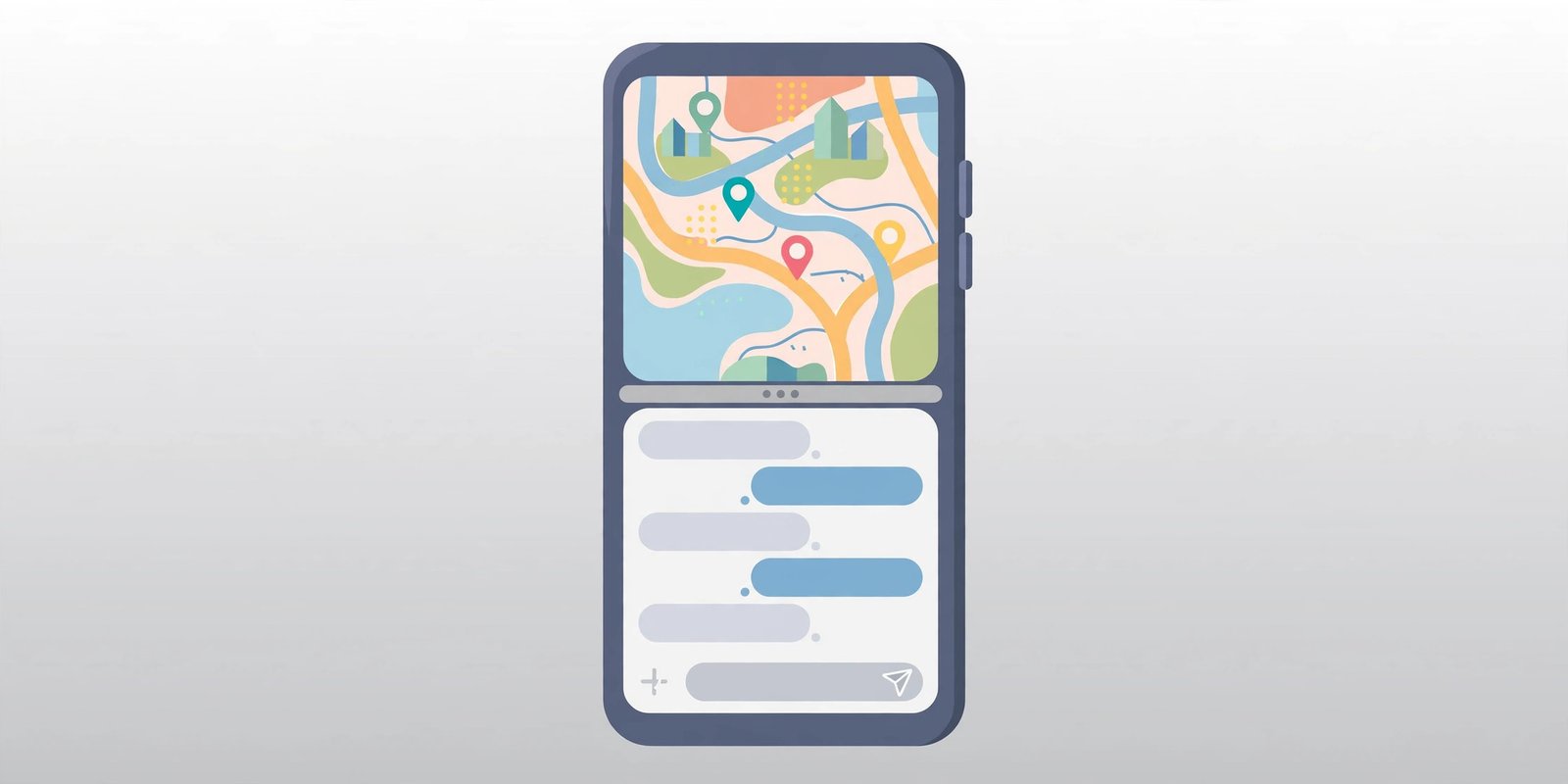
Split screen lets you run two apps at once on one phone — follow a map while replying to a message, or compare prices without switching back and forth. It works differently on Android and iPhone, so here is how to set it up on each, step by step.
What split screen can — and cannot — do
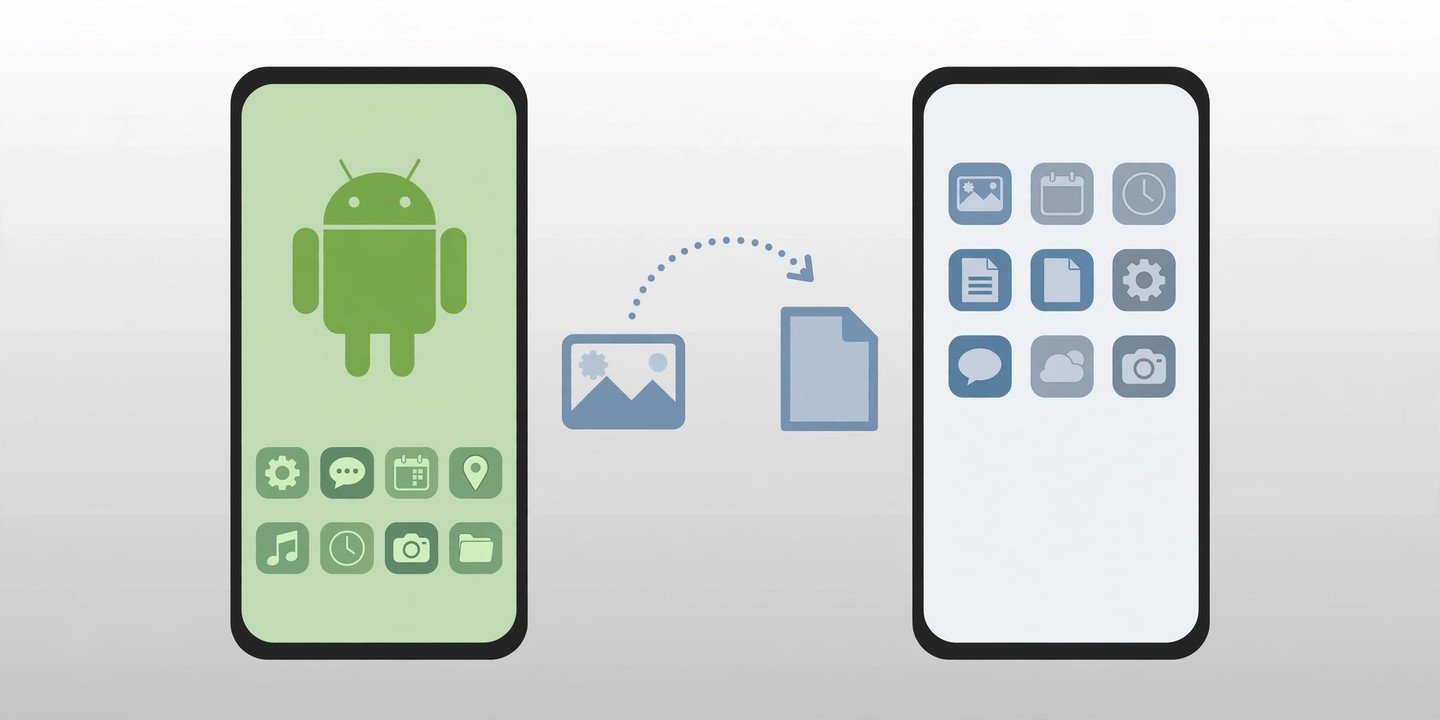
On most Android phones, split screen is built in: two supported apps share the display, one above the other (or side by side in landscape). On iPhone, there is no built-in way to run two apps side by side — Apple keeps true split-screen multitasking for the iPad. iPhone owners are not stuck, though: Picture in Picture and fast app switching cover most of the same jobs, as explained below.
How to use split screen on Android (Pixel and most other phones)
This is the standard method on Google Pixel phones and most stock Android phones. Google notes that some of these steps apply to Android 14 and later, so update your phone first if the option is missing.
- Open the first app you want to use.
- Swipe up from the bottom of the screen, hold, then let go to open your recent apps.
- Tap the app’s icon above its preview.
- Tap Split screen. The app moves to the top half of the screen.
- Tap the second app in the lower half. Both apps now run at the same time.
How to use split screen on a Samsung Galaxy phone
Samsung calls this Multi window, and the option is labelled differently:
- Open the first app, then open Recents.
- Tap the app’s icon above its preview.
- Tap Open in split screen view.
- Pick the second app for the other half.
The faster way: on One UI 6 and later, go to Settings > Advanced features > Multi window and turn on Swipe for split screen. Then a two-finger swipe up from the bottom of the screen puts the app you are in straight into split screen.
Save a pair you use often: while two apps are split, tap the divider between them and save them as an app pair, so both open together with one tap next time. (On Pixel phones, saved app pairs are limited to the Pixel Fold and Pixel Tablet.)
How to resize, swap and exit split screen
- Resize: drag the divider bar between the two apps to give one app more room.
- Exit: drag the divider all the way to the top or bottom edge of the screen, and the remaining app takes over the full screen.
- Swap apps: tap the divider and use the swap option where your phone offers it, or simply open a different app in one half.
- If the option is missing: not every app supports split screen. Most big apps such as YouTube, Chrome, Gmail, WhatsApp and Maps do, but many games and some banking or camera apps block it.
What iPhone owners can do instead
1. Picture in Picture for video and FaceTime. This is the closest built-in option on iPhone. Start playing a video or a FaceTime call in a supported app, then swipe up to go to the Home Screen — the video shrinks into a small floating window you can drag around while you use another app. It works on iPhones running iOS 14 or later. To make it start automatically, go to Settings > General > Picture in Picture and turn on Start PiP Automatically.
2. Fast app switching. Swipe up from the bottom and hold (or double-click the Home button on older iPhones) to open the App Switcher, then tap the other app. It is not two apps on screen at once, but switching is fast enough for most quick checks.
3. Two-pane view in some apps. On larger iPhones (Plus, Max and Pro Max models), rotating the phone to landscape gives some built-in apps, such as Mail and Messages, a two-pane layout. This is a split view inside one app, not two different apps.
4. Third-party split-screen browsers. If you genuinely need two web pages side by side, split-screen browser apps from the App Store can show two web windows at once. These only work inside that one app — they cannot split two separate apps.
5 tips for using split screen well
- Open both apps first before starting split screen, so both are in your recent apps and easy to pick.
- Use landscape on a bigger phone for more room — side-by-side apps are easier to read than stacked ones.
- Pair a reference app with a typing app — for example, a map on top and messages below, or a recipe above and a notes app below.
- Watch your battery: two active apps use more power, so plug in for long split-screen sessions. For more on keeping your battery healthy, see our guide on how to check your phone’s battery health.
- Close split screen when you are done instead of leaving two apps running — it keeps your phone tidier and saves battery. If you record tutorials, our guide on how to record your phone screen also works while multitasking.
Split screen is one of the most useful features Android owners never try, and on iPhone, Picture in Picture covers the most common case — watching something while doing something else. Try it with a map and a message thread first, and it will quickly become a habit. Steps were checked against Google’s and Samsung’s own help pages and independent guides, including this Android split-screen guide. Menu names can vary slightly by phone brand and software version.