How to Check Your Phone’s Battery Health on Android and iPhone
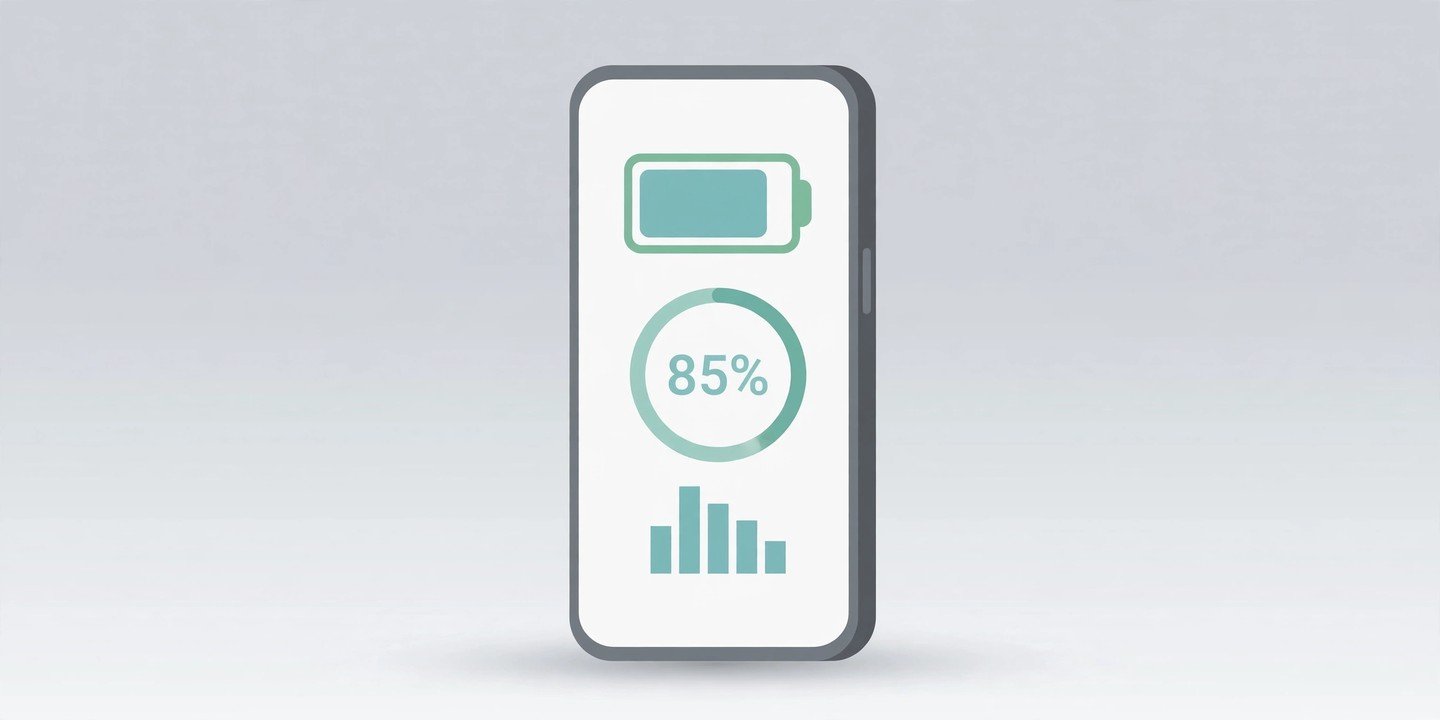
If your phone dies at 30% or barely lasts until lunch, the battery itself may be worn out — not just drained. Battery health tells you how much charge your battery can still hold compared with when it was new, and every modern phone shows it somewhere. Here is how to check phone battery health on iPhone, Pixel and Samsung Galaxy, what the number means, and when a new battery is the smarter buy than a new phone.
What battery health actually means
Battery health is usually shown as maximum capacity — the amount of charge your battery can hold today, expressed as a percentage of what it held when new. A phone at 90% health holds roughly 90% of its original capacity, so it runs down faster even if nothing else has changed. The figure is an estimate from the phone’s own battery software, not a lab measurement, and it can move a point or two after a full charge cycle — but it is reliable enough to spot a worn battery.
How to check battery health on iPhone
Apple puts the number in one place, and the steps are the same on every recent iPhone:
- Open Settings.
- Tap Battery.
- Tap Battery Health (on some iOS versions it is called Battery Health & Charging).
- Read Maximum Capacity — that is your battery health.
Below it, Peak Performance Capability tells you whether the battery can still support normal peak performance. If iOS has slowed the phone to prevent unexpected shutdowns, it will say so here.
On iPhone 15 and later, you can also see the cycle count — how many full charge cycles the battery has been through — in Settings > General > About, along with the manufacture date and first use date. Apple designs iPhone 14 and earlier batteries to keep 80% of their original capacity after 500 complete cycles, and iPhone 15 and later batteries to keep 80% after 1,000 cycles.
How to check battery health on a Google Pixel
On a Pixel 8a or newer, go to Settings > Battery > Battery health. You will see a status — Normal or Reduced — and an estimated maximum capacity as a percentage. Reduced means capacity has dropped below 80%, and Google suggests considering a replacement.
For the cycle count, go to Settings > About phone > Battery information, which also shows the manufacture date. Pixel 8a and later batteries are rated to keep about 80% capacity for around 1,000 charge cycles; older Pixels are rated for about 800.
If you have an older Pixel (Pixel 8, 8 Pro or earlier), Settings does not show a health figure — use the app method below instead.
How to check battery health on a Samsung Galaxy
Samsung gives you two built-in routes, and which one shows a percentage depends on your software version:
- On newer Galaxy phones running One UI 7 or later, go to Settings > Battery > Battery information. You should see battery health as a percentage, plus the cycle count on some models.
- On any Galaxy phone, open the Samsung Members app, tap Support, then Phone diagnostics, and run Battery status. It reports the battery as Good, Normal or Weak (some versions say Bad) rather than an exact percentage. Normal means the battery still holds more than about 80% of its original capacity; Weak or Bad means a service centre visit is worth considering.
Menu names can differ slightly by model and software version, so if a menu is missing, try the other route.
What if your Android phone shows no battery health figure?
Many Android phones — Xiaomi, OnePlus, Oppo, Motorola and others — do not show a health percentage in Settings, or hide it behind a different menu. Try these in order:
- Search Settings for “battery health” or “battery information” — the built-in screen may be there under a different name.
- Dial *#*#4636#*#* in the Phone app. On phones that support it, a hidden Testing menu opens; tap Battery information. This code does not work on every phone, and Samsung phones usually ignore it.
- Install AccuBattery from the Google Play Store. It is free, and it estimates your battery’s real capacity by measuring charge over several full cycles — so give it a week or two of normal use before trusting the number. A reading taken on day one is not reliable.
How to read the number — and the 80% rule
Whatever your phone shows when you check phone battery health, the same line matters:
- 90–100%: A healthy battery. If the phone still drains fast, an app or a setting is the likely culprit — our battery tips guide has the fixes worth trying first.
- 80–89%: Noticeably worn, but still usable. Expect shorter days, and consider the habits below to slow further wear.
- Below 80%: Apple and Google both treat this as the point to consider a replacement. The phone may also throttle performance, shut down unexpectedly in the cold, or drop from 20% to empty in minutes.
A low number on a phone that is only a year old is unusual — check whether the battery is covered under warranty before paying for a replacement.
When is a battery replacement worth it?
A battery replacement is almost always cheaper than a new phone, and it makes sense when the rest of the phone still works well: the screen is fine, the camera is fine, and the phone still gets software updates. It is not worth it if the phone is already out of updates, the screen is cracked, or several things are failing at once. If your phone is still under warranty or AppleCare / Samsung Care+, check the coverage first: a battery below 80% may be replaced free.
Three habits that slow battery wear
- Keep the charge between 20% and 80% when you can. Turn on the 80% charging limit: on iPhone it is in Settings > Battery > Battery Health & Charging under Charging Optimization; on Pixel it is in Settings > Battery > Battery health > Charging optimization; on Samsung it is Settings > Battery > Battery protection.
- Avoid heat. Charging in a hot car or in direct sunlight ages a battery faster than almost anything else.
- Do not leave the phone at 0% or 100% for days. A phone stored for a long time is best left at around 50%.
Closing
It takes two minutes to check phone battery health, and it answers the question every phone owner eventually asks: is it time for a new battery, or a new phone? If the number is above 80%, your battery is fine — look at your apps and settings first. Below it, a replacement battery is usually the cheapest way to make the phone feel new again.
Sources: Apple’s battery and performance guidance and Google’s Pixel battery help pages, as summarised in this battery-health guide.