How to Use Your Phone as a TV Remote (Android and iPhone)
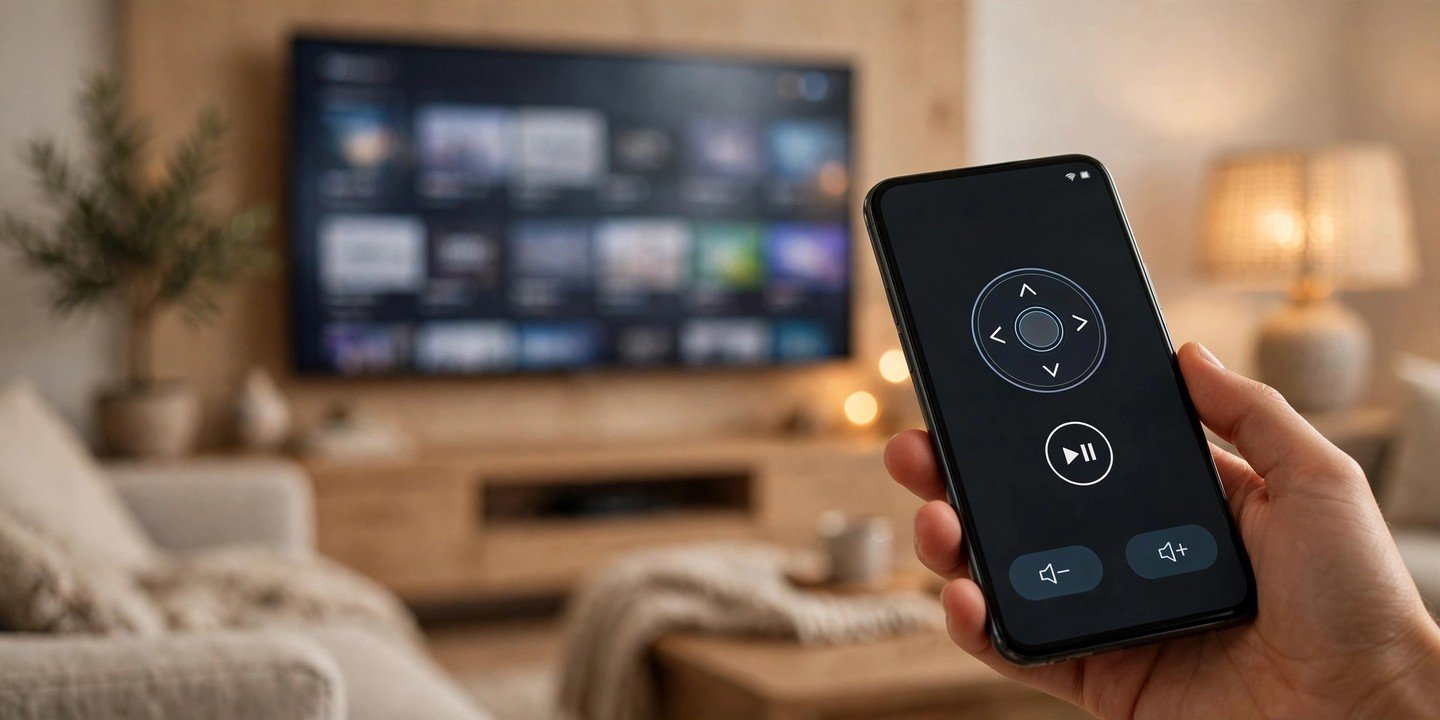
Lost the remote down the side of the sofa again? Your phone can replace it. Almost every modern smart TV and streaming device has a free official app — or a remote already built into your phone — that turns your handset into a full remote control. You can change channels, adjust the volume, search with a real keyboard and even use voice commands, all without buying anything. Here is how to set it up for your TV, whichever brand you own.
Before you start: one rule for every TV
Put your phone and your TV on the same Wi-Fi network. Nearly every phone remote works over Wi-Fi, not infrared, so if your phone is on mobile data or a guest network, the TV simply will not show up. Check the network name on both devices first — it saves most failed setups. You will also need the TV switched on and connected to the internet for the first pairing.
Google TV and Android TV (Android and iPhone)
This covers Chromecast with Google TV, the Google TV Streamer, and TVs from Sony, TCL, Hisense and others that run Google TV or Android TV.
- Install the Google TV app from the Play Store or the App Store. It is free.
- Open the app and tap Remote (on Android) or Connect TV (on iPhone) near the bottom right.
- Pick your TV from the list of devices found on your network.
- Type the six-digit code shown on your TV screen into the app and tap Pair.
- Swipe on the touch area to move around, and tap to select. Tap the three-dot menu to switch between swipe controls and a D-pad.
Tip: On Android, you can add a TV Remote tile to Quick Settings so the remote is one swipe away. Pull down the notification shade twice, tap the pencil icon to edit, and drag the TV Remote tile into your active tiles.
You can also use the Google Home app instead: open it, tap your TV in the device list, then tap Open remote.
Apple TV and AirPlay TVs (iPhone and iPad)
Apple builds the remote straight into iOS, so there is nothing to install. It works with Apple TV 4K, Apple TV HD and AirPlay-compatible smart TVs.
- Make sure your iPhone and your Apple TV (or AirPlay TV) are on the same Wi-Fi network.
- Open Control Center by swiping down from the top-right corner of the screen (or up from the bottom on an iPhone with a Home button).
- Tap the Remote button, which looks like a small remote control. If you do not see it, add it first: on newer iOS versions, long-press in Control Center and tap Add a Control, then choose Remote; on older versions, go to Settings > Control Center and tap the plus sign next to Apple TV Remote.
- Choose your Apple TV or smart TV from the list. If a four-digit code appears on the TV, enter it on your phone.
- Swipe on the touch area to navigate, tap to select, and use the on-screen buttons for play/pause, back and search.
The best part is typing: whenever the Apple TV asks for text, your iPhone keyboard pops up, which is far faster than pecking letters out with arrow keys. If the volume buttons do nothing, your TV’s speakers may not be routed through the Apple TV — use the TV’s own volume controls instead.
Samsung TVs: use SmartThings
Samsung’s official remote is the SmartThings app, which works on Android and iPhone.
- Connect your Samsung TV and your phone to the same Wi-Fi network, and make sure the TV is switched on.
- Install the SmartThings app and sign in with your Samsung account.
- Tap Devices, then the plus button to add a device if your TV is not already listed. Choose TV, then Samsung, and follow the pairing steps — you may need to enter a PIN shown on the TV.
- Tap your TV in SmartThings to open the remote, with buttons for volume, channels, Home, Back and changing inputs.
LG TVs: use LG ThinQ
LG smart TVs use the LG ThinQ app on Android and iPhone.
- Connect the TV and your phone to the same Wi-Fi network.
- Install LG ThinQ, sign in, and add your TV from the app’s device list, following the on-screen pairing steps.
- Open the TV in the app to use the remote for volume, channels, inputs and navigation.
Note: the exact buttons available vary by TV model and year, so older LG sets may offer fewer controls than newer ones.
Roku TVs and players: use the Roku app
The official Roku app works with Roku streaming players and TVs running the Roku system, including Roku-branded TVs and many models from TCL, Hisense, onn., Philips and Sharp.
- Connect your phone to the same Wi-Fi network as your Roku.
- Install The Roku App (Official) and sign in to your Roku account.
- Tap Devices, select your Roku TV or player, then tap Remote.
- Use the on-screen buttons to navigate. The app also gives you voice search, a phone keyboard for typing, and private listening through headphones connected to your phone.
Amazon Fire TV: use the Fire TV app
The Fire TV app works with Fire TV Sticks, Fire TV Cube and TVs running the Fire TV system.
- Connect your phone to the same Wi-Fi network as your Fire TV.
- Install the Fire TV app and sign in with the same Amazon account used on the Fire TV.
- Tap the remote icon, choose your Fire TV, and follow the prompts to pair — you may need to enter a code shown on the TV.
- The app gives you touch navigation, a keyboard for searches and passwords, and Alexa voice control where supported.
What a phone remote cannot do
A phone remote is not magic. It will not work with a TV that is not connected to your home network, so if your Wi-Fi is down, the app cannot find the TV. It also will not turn a TV on from a full power-off state on some models — many TVs only listen for network commands while in standby, so if yours does not wake up, use the physical remote or the TV’s power button once. And no single app controls everything: a phone remote cannot replace a cable box, a soundbar or an older DVD player unless those devices are part of the same smart system. Keep the physical remote somewhere safe as a backup.
If the remote will not connect
- Double-check both devices are on the same Wi-Fi network — not a guest network, and not one on 2.4 GHz and the other on 5 GHz if your router splits them.
- Restart the TV and the phone, then try pairing again.
- Make sure the remote app is updated to the latest version from the Play Store or App Store.
- Check your TV’s software is up to date in its Settings menu.
- If the TV still does not appear, try the other app for your platform: Google Home instead of Google TV, for example.
- As a last resort, remove the TV from the app and add it again from scratch.
That is all it takes — in most cases the whole setup is done in under two minutes, and the next time the remote goes missing you will already have a spare in your pocket. Set it up now, while the physical remote is still in your hand, so you are not figuring it out in the dark later. If you want your phone to do more around the house, see our guide to using your phone as a webcam, or how to cast your phone screen to your TV.