How to Free Up Storage on Your Phone Without Deleting Your Photos
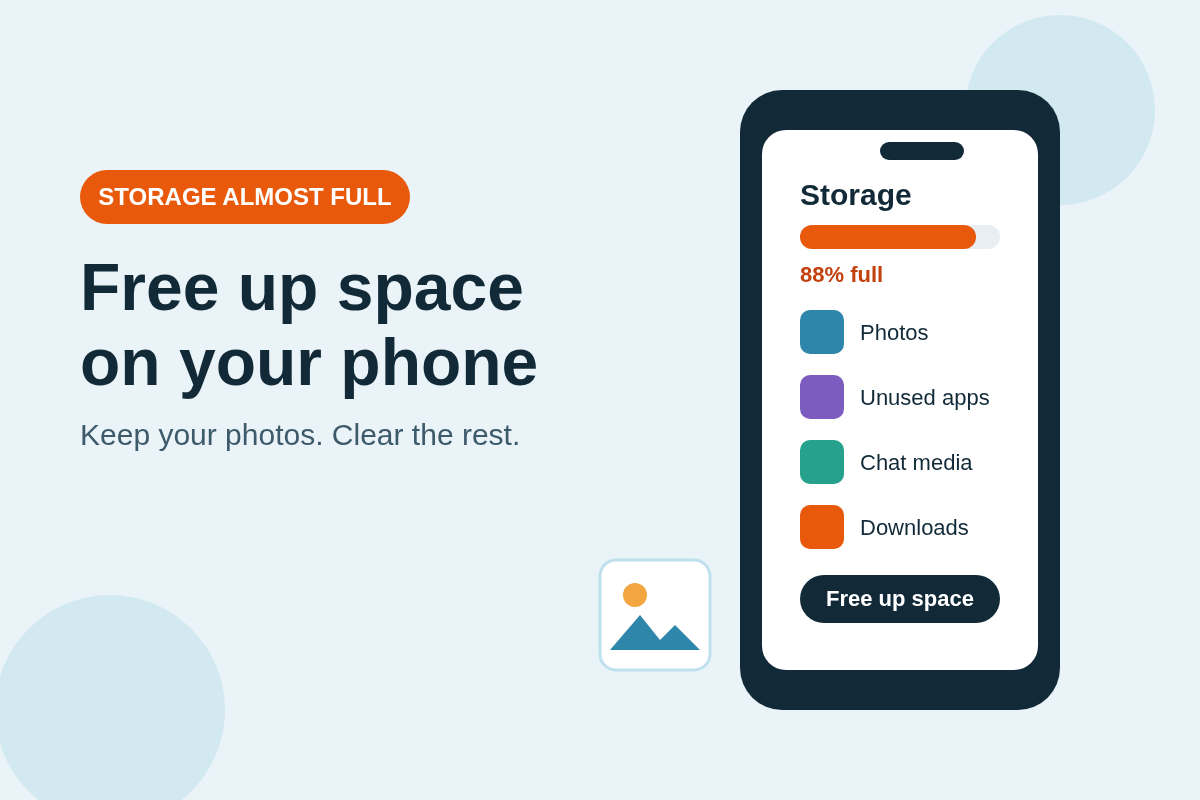
That “storage almost full” warning always arrives at the worst moment — just as you try to take a photo or update an app. The good news is that you can usually free up phone storage without deleting a single photo. Most of the space on a phone is taken by things you can safely clear, move, or back up first. Work through the steps below in order, and check your storage again after each one.
1. Start by seeing what is using the space
Before you delete anything, find out where your storage has actually gone. On Android, go to Settings > Storage to see a breakdown by apps, photos, videos, audio, and system files. On iPhone, go to Settings > General > iPhone Storage, where you will see the same kind of list, plus suggestions from Apple. This takes a minute, and it stops you from guessing. If photos take up most of the space, skip ahead to the cloud backup section. If one or two apps dominate the list, start with those instead. Menu names and the exact layout vary by phone brand and software version, so use the search box inside Settings if a menu looks different on your phone.
2. Offload apps you rarely use — and keep their data
Apps are often the biggest hidden drain on storage, especially games and social apps that keep growing with every update. On iPhone, turn on Offload Unused Apps in Settings > General > iPhone Storage, or offload a single app from its own page in the same menu. The app itself is removed, but its documents and data stay on the phone, so reinstalling it later brings everything back. On Android, look for Archive in the Play Store or in Settings > Apps — archived apps are removed but can be restored with your data. Availability and the exact name of this feature vary by Android version and brand, and Google notes that some storage steps only work on Android 14 and up.
3. Clear cache, downloads, and old files
Temporary files pile up quietly. On Android, open Settings > Storage and use Free up space to review photos, videos, and apps you have not used recently, then choose what to remove — Google’s Android storage guide walks through the same steps. You can also clear an individual app’s cache from Settings > Apps, which removes temporary files without deleting your account or saved content in most apps, though the exact wording varies by brand. Next, open your Downloads folder and delete installers, old PDFs, and files you have already read or shared.
4. Back up photos to the cloud to free up phone storage
This is the step that protects your photos. Back up your photos and videos to Google Photos or iCloud before you remove any copies from the phone, and wait until the backup is complete. In Google Photos, confirm that backup is finished, then use its free-up-space option to remove device copies. On iPhone, turn on iCloud Photos with Optimize iPhone Storage in Settings > Photos, so full-resolution originals live in iCloud and smaller versions stay on the phone. Apple gives every account 5 GB of iCloud storage for free, and paid plans add more — see Apple’s iCloud+ plans and pricing, as prices vary by country and region.
5. Move large files off the phone
Large videos are the fastest way to fill a phone, so moving them is a quick way to free up phone storage. Move finished videos, old recordings, and big documents to a computer, an external drive, or cloud storage, and keep only what you need on the phone. A quick pass through your camera roll for long screen recordings and accidental videos is often worth more than deleting a hundred small photos.
6. Tame WhatsApp media
Chat apps can quietly store gigabytes of photos, videos, and voice notes sent by other people. In WhatsApp, open Settings > Storage and Data > Manage Storage to see your biggest chats and review large files — the exact menu wording can vary by app version. Delete the forwards, memes, and duplicate videos you do not need, starting with the largest files. Then turn off automatic media downloads for large files, or limit them to Wi-Fi only, so the pile does not grow back.
7. Free up phone storage with the built-in tools on Android and iPhone
Both systems now include tools that do some of this work for you. On Android, Files by Google and Settings > Storage > Free up space suggest junk files, duplicate files, and apps you have not used, and Google says Smart Storage can automatically clear backed-up photos when space runs low on supported versions. On iPhone, Settings > General > iPhone Storage lists recommendations such as offloading unused apps and reviewing large attachments. Pixel owners also get new system features through software updates — see our post on the November Pixel Drop for Pixel 10 for what arrived in the latest update.
Freeing up storage is not about deleting memories — it is about moving the things you want to keep somewhere safe, and clearing the temporary files, forgotten apps, and duplicate media that build up around them. Start with the storage breakdown, back up your photos, and work through the list one step at a time. Do it once to free up phone storage, then repeat it every month or so, and the “storage almost full” warning should stay away for good.